
If you’ve ever tried to use your Bose headphones and found they won’t connect, you know how frustrating it can be. Whether you’re trying to join a Zoom meeting, listen to music, or just block out noise, connection issues can quickly ruin your plans. Luckily, most problems with Bose headphones not connecting can be solved with a few simple steps. In this guide, you’ll learn the real reasons why this happens, practical troubleshooting tips, and how to keep your headphones working smoothly in the future. Even if you’re not a tech expert, you’ll find clear explanations and easy solutions here.
Why Bose Headphones Won’t Connect
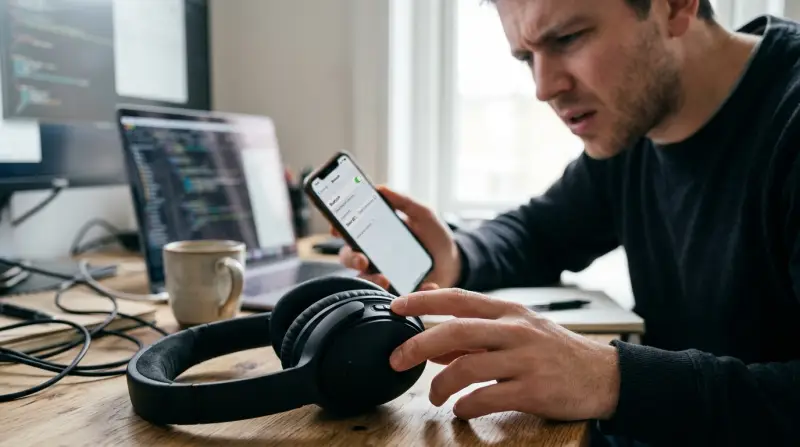
Before you can fix the issue, it helps to understand what’s really going on. Bose headphones, like many wireless devices, use Bluetooth technology to connect. Bluetooth is reliable, but not perfect. Here are the most common reasons why your Bose headphones won’t connect:
- Device is not in pairing mode – Sometimes, headphones need to be put into pairing mode before your phone or computer can find them.
- Old or corrupt Bluetooth data – Past connections can interfere with new ones.
- Low battery – If the battery is too low, some headphones won’t allow Bluetooth connections.
- Interference from other devices – Other electronics, especially Wi-Fi routers or other Bluetooth devices, can block the signal.
- Software or firmware issues – Outdated software on your headphones or device can cause problems.
- Distance or obstacles – Bluetooth has a limited range and can struggle through walls or even your pocket.
It’s easy to assume there’s a hardware failure, but in most cases, the problem is fixable without professional help.
Basic Checks Before Troubleshooting
Let’s start with simple things. You’d be surprised how many people miss these steps:
- Check if headphones are charged. Plug them in for at least 15 minutes before trying again.
- Make sure Bluetooth is enabled on your phone, computer, or tablet.
- Turn off airplane mode. This can disable Bluetooth on many devices.
- Restart your device and headphones. Sometimes, a simple reset clears up temporary issues.
If these steps don’t solve the problem, move on to more detailed troubleshooting.
Step-by-step Troubleshooting For Bose Headphones
Solving connection issues requires a methodical approach. Here’s how to do it:
1. Forget And Reconnect
Most Bluetooth problems are solved by clearing the old connection and starting fresh.
- On your phone or computer, go to the Bluetooth settings.
- Find your Bose headphones in the list of paired devices.
- Tap “Forget” or “Remove.”
- Turn your headphones off, then back on.
- Press and hold the power button until you hear “Ready to pair” or see the pairing light.
- Try reconnecting.
Don’t just turn Bluetooth off and on. You must “forget” the device to really clear the memory.
2. Update Firmware
Bose regularly releases updates to fix bugs and improve performance.
- Download the Bose Connect app (for mobile devices) or use the Bose Updater on your computer.
- Connect your headphones with a USB cable if wireless isn’t working.
- Follow the instructions to install updates.
Outdated firmware is a hidden cause of many connection failures. Some updates even improve battery life or sound quality.
3. Reset Your Bose Headphones
Resetting can clear glitches. Here’s a common method (check your model for details):
- Turn off headphones.
- Wait 30 seconds.
- Plug them into a USB power source for 5 seconds.
- Unplug the cable and wait 1 minute.
- Turn them on.
This resets most Bose wireless models, including QuietComfort and SoundLink.
4. Remove Interference
Other devices can block Bluetooth signals.
- Move your headphones and device away from microwaves, Wi-Fi routers, and other Bluetooth gadgets.
- Try connecting in a different room or outside.
Non-obvious insight: Even a crowded Bluetooth “neighborhood” (like a busy office) can cause problems. Try disconnecting other Bluetooth accessories.
5. Check Bluetooth Profiles
Not all devices support all Bluetooth profiles. For example, some smart TVs only support certain headphones.
- Check your device’s manual to confirm compatibility.
- Some older laptops and phones need drivers or updates for Bose headphones.
6. Test With Another Device
This helps you know if the problem is with your headphones or your phone/computer.
- Try pairing your Bose headphones with a different phone, tablet, or computer.
- If they connect, your original device is likely the problem.
- If not, the issue may be with the headphones.
7. Clear Paired Device List
Bose headphones often remember several devices, but a full memory can cause problems.
- Press and hold the Bluetooth button (usually for 10 seconds) until you hear “Bluetooth device list cleared.”
- Re-pair your device.
Non-obvious insight: Many people forget that headphones have their own memory. Clearing it can solve problems even if your phone’s list is empty.
8. Check For Physical Damage
- Inspect the charging port and buttons for dirt or damage.
- Broken buttons can stop pairing mode from working.
- If you see damage, contact Bose support before trying advanced repairs.
Special Troubleshooting For Different Bose Models
Different Bose headphones have their own quirks. Here’s what to know about the most popular models:
Bose Quietcomfort Series
The QuietComfort line is known for noise cancellation, but sometimes the ANC feature can glitch after a firmware update. If your QuietComfort headphones are not connecting:
- Make sure they are fully charged.
- Use the Bose Connect app for updates.
- Try toggling the noise canceling switch before pairing.
Bose Soundlink Series
SoundLink headphones sometimes struggle with older Bluetooth chips.
- Try connecting to newer devices first.
- Use the wired connection if wireless doesn’t work (helpful for travel).
Bose 700
The Bose 700 is advanced but can be sensitive to interference.
- Make sure no more than two devices are connected at the same time.
- Use the Bose Music app to manage connections.
Bose Sport And Earbuds
Earbuds like the Bose Sport Earbuds need to be placed in the charging case to reset.
- Place both earbuds in the case.
- Close the lid, wait 5 seconds, then open it and try pairing again.
Common Connection Scenarios (and Fixes)
Everyday situations can cause unique problems. Here’s how to handle them:
Connecting To A Laptop
Many users struggle with Windows laptops. Here’s what works:
- Go to Bluetooth settings and “Add Bluetooth or other device.”
- Select Bose headphones from the list.
- If Windows asks for a PIN, try “0000” or “1234.”
- For Mac, open Bluetooth Preferences and connect there.
Some laptops need updated Bluetooth drivers. Check your manufacturer’s website.
Connecting To A Phone
- Make sure your phone’s Bluetooth is visible (not hidden).
- Turn off any “Do Not Disturb” modes, which sometimes block pairing notifications.
- Try toggling Bluetooth off and on from the phone’s quick settings, not just the main settings menu.
Using Multiple Devices
Bose headphones can remember and connect to two devices at once, but this can confuse the system.
- Disconnect from other devices before pairing a new one.
- Use the Bose app to manage connections and prioritize devices.
Connecting After A Factory Reset
If you’ve done a full reset on your device, you’ll need to pair your headphones like new.
- Follow the initial pairing instructions.
- Some Bose models will show up as “LE-Bose” on the first connection. This is normal—connect to it.
Bluetooth Range And Limitations
Bluetooth technology has its strengths and weaknesses. Here’s what to expect:
- Standard Bluetooth range is about 30 feet (10 meters) in open space.
- Walls, doors, and even your body can block the signal.
- Older Bluetooth versions (like 4.0) have shorter range and lower speed.
If you move too far away, the connection drops, and sometimes you need to re-pair.
If you’re using your headphones for calls, keep your phone in the same room for the best quality.
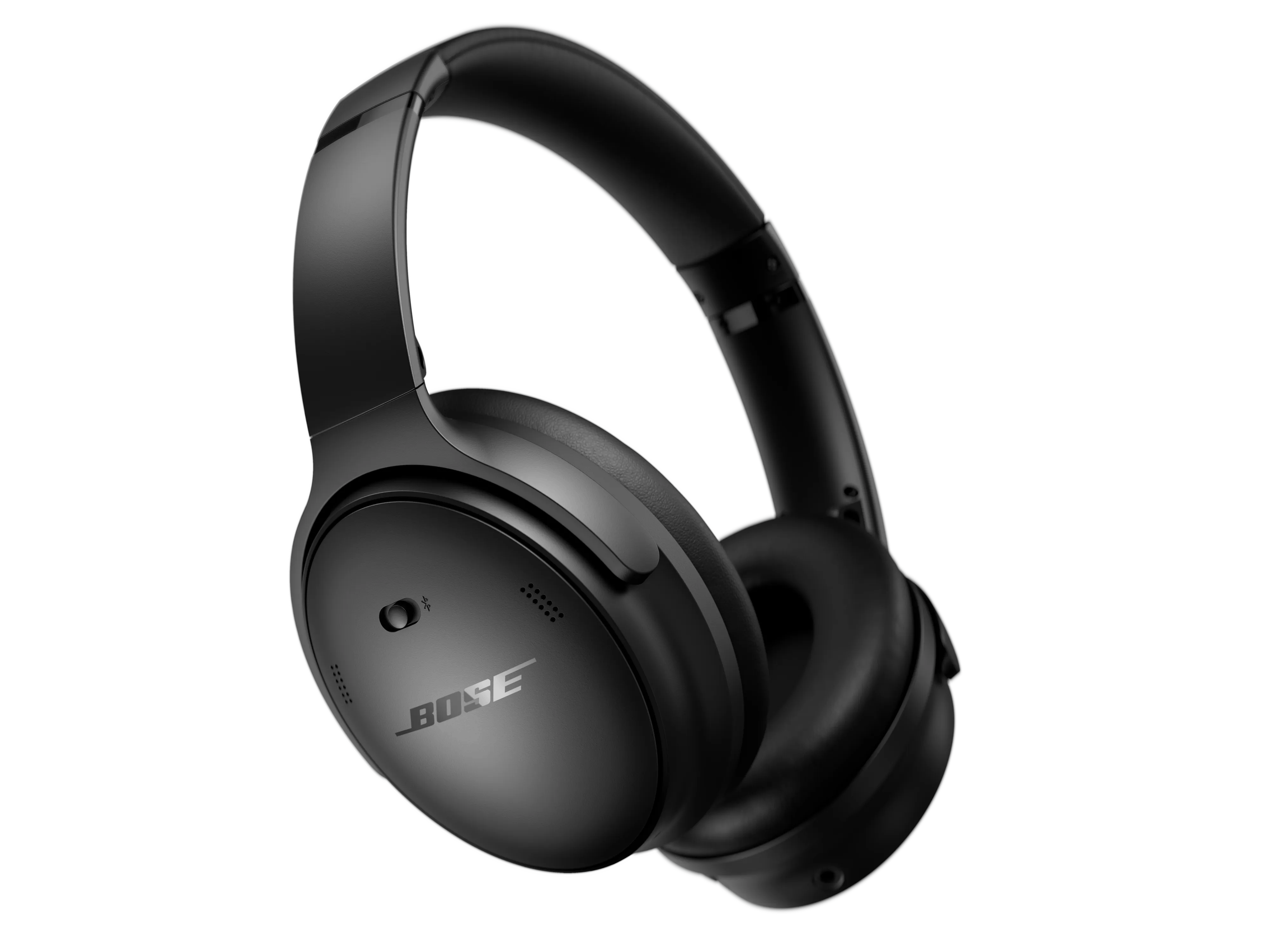
Credit: support.bose.com
Software, Apps, And Compatibility
The software on your device can affect Bluetooth connections.
- IOS devices (iPhone, iPad) work well with Bose, but need iOS 11 or newer for the latest features.
- Android phones should have Bluetooth 4.1 or newer for best results.
- Some Windows PCs need extra drivers for Bose headphones.
Using the Bose Connect or Bose Music app isn’t required, but these apps make pairing easier and let you manage updates and settings.
Troubleshooting With Data: Where Problems Happen Most
Many users wonder if connection problems are common. According to a 2022 survey by Statista, about 27% of wireless headphone users report Bluetooth pairing issues at least once a month. Bose headphones are above average for reliability, but even premium models aren’t perfect.
Here’s a summary of where problems most often occur:
| Device Type | Reported Connection Issues (%) |
|---|---|
| Windows Laptops | 35% |
| Android Phones | 21% |
| iPhones/iPads | 14% |
| Mac Computers | 11% |
| Other Devices (TV, Game Console) | 19% |
As you can see, Windows laptops are the most common problem area.
Comparing Bose To Other Brands
Bose headphones are popular, but how do they compare to other brands for connection reliability?
| Brand | Connection Reliability (%) | Average Pairing Time (Seconds) |
|---|---|---|
| Bose | 93% | 18 |
| Sony | 92% | 20 |
| Apple (AirPods) | 96% | 12 |
| Jabra | 89% | 23 |
| Beats | 88% | 21 |
While Bose is near the top, Apple’s AirPods have a slight edge, especially with iPhones. But Bose offers more advanced noise cancellation and comfort.
Advanced Fixes For Persistent Problems
If you’ve tried all the basics and your Bose headphones still won’t connect, consider these advanced options.
1. Reset Bluetooth Module (on Computer)
Sometimes the problem is with your computer’s Bluetooth, not the headphones.
- On Windows, search for “Device Manager.”
- Find “Bluetooth,” right-click your adapter, and select “Disable.”
- Wait 10 seconds, then right-click and “Enable.”
- Reboot your computer and try pairing again.
On Mac, you can reset the Bluetooth module from the Bluetooth menu using special keyboard shortcuts (Shift + Option + Click).
2. Delete Conflicting Software
Some apps, like wireless printers or game controllers, can block Bluetooth connections. Temporarily uninstall or disable them to see if it helps.
3. Factory Reset Headphones
If nothing else works, perform a full factory reset. Instructions differ by model, but this usually involves holding certain buttons for 10–15 seconds until you see flashing lights.
This deletes all paired devices and custom settings.
4. Contact Bose Support
If your headphones are still under warranty, contact Bose support. They can offer repairs, replacements, or detailed instructions for your exact model. Their support is well-rated for solving Bluetooth issues.
Preventing Future Connection Issues
Once your headphones are working, it’s smart to prevent new problems. Here’s how:
- Update firmware regularly using the Bose app or updater.
- Charge your headphones fully before long trips.
- Keep Bluetooth drivers updated on your computer or phone.
- Limit the number of paired devices to two or three.
- Store headphones safely to avoid physical damage.
- Avoid pairing with unknown or public devices for security.
Simple habits can keep your headphones working for years.
When To Consider Replacement
Wireless headphones don’t last forever. If you notice these signs, it may be time for a new pair:
- Battery won’t hold a charge, even after resetting.
- Bluetooth won’t turn on at all.
- Physical damage to the earcups, buttons, or charging port.
- Persistent static, dropouts, or audio lag.
Modern Bose headphones last 3–5 years with care. If your headphones are older, newer models offer better Bluetooth range, faster pairing, and improved noise cancellation.
Real-world User Stories
Hearing from other users can be reassuring. Here are a few brief examples:
- Anna, 33, freelancer: “I spent two hours trying to connect my Bose headphones to my work laptop. Finally, I realized my Bluetooth was off because of airplane mode. I felt silly, but now they connect every time.”
- James, 44, teacher: “My SoundLink headphones wouldn’t pair after a Windows update. Downloading the Bose firmware fixed it. I didn’t even know headphones needed updates.”
- Leah, 27, student: “My headphones paired fine with my phone, but not with my new tablet. Clearing the paired devices list on the headphones did the trick.”
These real-world fixes show that most problems have simple solutions, even if they’re not obvious at first.
Security Tips For Bluetooth Connections
Bluetooth is convenient, but there are some security risks:
- Only pair your headphones with devices you trust.
- Don’t accept pairing requests from unknown devices.
- Use the “Forget Device” option if you lose your phone or computer.
For more on Bluetooth security, visit the Bluetooth Special Interest Group.
Comparing Wired And Wireless Connections
Some users ask whether switching to a wired connection is easier. Here’s a side-by-side comparison:
| Connection Type | Pros | Cons |
|---|---|---|
| Wireless (Bluetooth) | No cables, works with most modern devices, more freedom to move | Occasional pairing issues, battery required, can be affected by interference |
| Wired (3.5mm jack) | Simple plug-and-play, no battery needed, no wireless interference | Requires compatible port, cable can break or get lost, limited movement |
Insight: Many Bose headphones include a cable for backup. Use it if you’re having Bluetooth trouble and need sound right away.
What To Avoid When Troubleshooting
When fixing connection issues, there are mistakes that can make things worse:
- Don’t randomly press buttons. Follow the instructions for your exact model.
- Don’t delete important Bluetooth drivers unless you have backups.
- Avoid exposing headphones to water or extreme temperatures during troubleshooting.
- Don’t force physical connectors or open the headphones. This can void your warranty.
Staying calm and methodical is the best approach.
Future Of Bose Headphones And Bluetooth
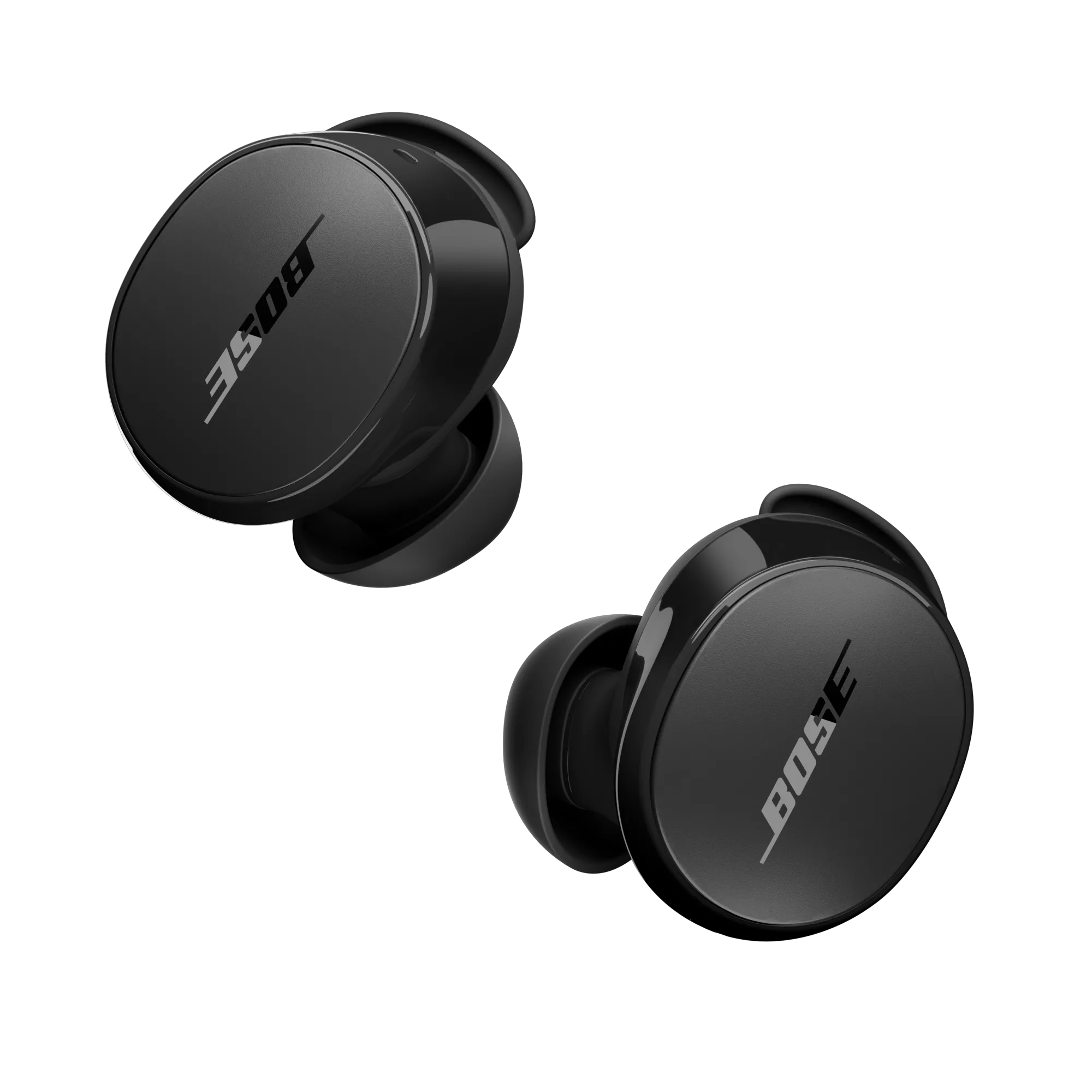
Technology is always advancing. The newest Bose headphones use Bluetooth 5.2, offering faster connections, longer range, and better resistance to interference. Over the next few years, expect:
- More automatic updates via apps
- Stronger integration with smart assistants (like Alexa and Google)
- Better multi-device switching
- Improved battery life and charging speeds
Keeping your headphones updated means you’ll enjoy these improvements as they arrive.
Frequently Asked Questions
Why Do My Bose Headphones Connect To My Phone But Not My Laptop?
This usually happens because your laptop’s Bluetooth drivers are outdated, or your headphones have too many devices stored. Try updating your laptop’s Bluetooth driver, clearing the headphones’ paired device list, and pairing again.
How Do I Reset My Bose Headphones If They Won’t Turn On?
For most models, plug them into power for at least 5 minutes, then press and hold the power button for 10 seconds. If they still won’t turn on, the battery may be dead or there may be hardware damage—contact Bose support.
Can I Use My Bose Headphones With More Than One Device?
Yes, most Bose wireless headphones can connect to two devices at once and remember up to eight. However, connecting to too many devices can sometimes cause confusion. Use the Bose app to manage your connected devices.
Is It Safe To Use Bose Headphones While Charging?
It’s generally safe, but not all models support using Bluetooth while charging. Some will automatically disconnect. Check your user manual for your specific model.
Why Do My Bose Headphones Disconnect Randomly?
This can be caused by low battery, interference from other devices, or moving out of Bluetooth range. Make sure your headphones are fully charged, avoid crowded wireless environments, and stay within 30 feet of your device.
Getting your Bose headphones to connect doesn’t have to be stressful. By following these steps, you’ll solve most problems quickly and get back to enjoying your music, calls, and quiet time. Remember, most issues are temporary and have practical solutions. With regular updates and a little patience, your Bose headphones will keep delivering the high-quality sound they’re known for.