
Your Roomba is smart, but sometimes it struggles. One common problem is when your iRobot Roomba can’t find its Home Base Dock. You press “Clean,” and it vacuums your floors, but after finishing, it spins in circles or stops far from the dock. This is frustrating, especially if you count on Roomba to recharge itself and be ready for the next job. Let’s explore why this happens, how to fix it, and how to prevent it in the future, so you can enjoy a hands-off cleaning experience.
Why Roomba Can’t Find The Home Base Dock
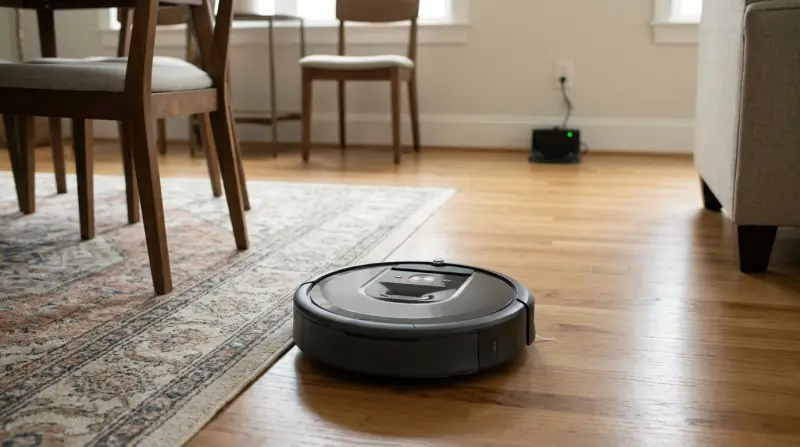
Roombas use a mix of sensors and signals to locate their dock. When something goes wrong, it’s often due to one of these reasons:
- Obstructed sensors: If dust, hair, or furniture blocks the sensors, Roomba can’t “see” the dock.
- Dock placement: The dock’s location is critical. If it’s in a corner or behind furniture, Roomba may not find it.
- Low battery: Roomba needs enough power to search for its dock. If the battery is too low, it might stop before getting home.
- Software glitches: Outdated firmware or software bugs can cause navigation errors.
- Home layout changes: Moving furniture or the dock can confuse Roomba’s memory.
- Infrared interference: Other electronics or sunlight can disrupt the signals Roomba uses.
Many beginners overlook that even small changes—like a pair of shoes near the dock—can confuse your Roomba. Also, certain models handle obstacles better than others, so knowing your Roomba’s capabilities helps.
How Roomba Locates The Home Base
Understanding how Roomba navigates will help you troubleshoot. Here’s a simplified look at the process:
- Infrared signal: The dock emits an invisible beam. Roomba’s sensors detect this when nearby.
- Mapping (on advanced models): Some Roombas create maps of your home, remembering where the dock is.
- Random search: If the map fails or the signal is weak, Roomba may wander until it “sees” the dock.
These methods work best when the environment is clear. If you change your Wi-Fi network, move the dock, or add obstacles, Roomba might get lost.

Credit: crnvo.me
Common Causes And Quick Fixes
Let’s look at the most frequent causes and how to solve them.
1. Dock Placement Issues
Your Roomba needs a clear path to the dock. The recommended setup:
- At least 1.5 feet (0.5 meter) of space on each side of the dock
- At least 4 feet (1.2 meters) of open space in front
- Dock on a flat, hard surface (not carpet)
If the dock is under a table or behind furniture, move it to a more open spot. Never place the dock near stairs, vents, or clutter.
2. Dirty Sensors
Roomba’s sensors can get covered with dust, making it “blind.” Clean these areas:
- Bumper sensors (front sides)
- Front caster wheel
- Cliff and dock sensors (bottom)
Use a soft, dry cloth or compressed air. Avoid wet cleaning.
3. Battery Problems
A weak battery means Roomba might not make it home. Signs include:
- Roomba stops far from the dock
- Cleaning time is much shorter
- Battery light blinks red
Try these steps:
- Reset or “reboot” your Roomba (check your manual for instructions)
- Fully charge the battery
- Replace the battery if it’s over 2 years old
4. Interference From Other Devices
Many people don’t realize that TV remotes, sunlight, or other IR devices can confuse Roomba. Close blinds if sunlight hits the dock, and keep other IR devices away from the area.
5. Software Or Firmware Issues
Always keep your Roomba’s app and firmware updated. New software fixes bugs and improves navigation. Use the iRobot Home App to check for updates.
6. Home Layout Changes
If you move furniture or the dock, start a new cleaning cycle so Roomba learns the new layout. For mapping models, use the app to update the map.
Practical Troubleshooting Guide
If your Roomba can’t find its dock, follow these steps:
- Check dock location. Is it open and clear?
- Clean sensors. Wipe all sensors and the dock’s charging contacts.
- Test the dock. Plug in the dock and check the power light.
- Restart Roomba. Turn it off and on, or reset via the app.
- Run a test. Place Roomba near the dock and press “Dock.” Watch what happens.
- Update software. Use the app to install any updates.
- Check for interference. Remove other electronics from the area.
- Replace battery if needed. If Roomba is old, a new battery may help.
Comparison: Dock Placement Scenarios
Here’s a quick visual comparison of good vs. bad dock placement:
| Placement Scenario | Success Rate | Common Issues |
|---|---|---|
| Open, flat area | High | Almost none |
| Behind furniture | Low | Blocked sensors, missed dock |
| Next to stairs | Low | Cliff sensor confusion |
| Near electronics | Medium | Signal interference |
Always choose an open, flat area for the best results.
When To Replace Or Move The Home Base Dock
Sometimes, the dock itself is the problem. Signs you need to replace or move the dock:
- Dock’s power light does not turn on
- Charging contacts are worn or corroded
- Roomba works fine but never docks successfully
Test the dock with a different Roomba (if available). If the problem stays, the dock is likely faulty.
Roomba Models And Docking Differences
Different Roomba models use different navigation technology. Here’s a quick comparison:
| Model Series | Navigation Method | Docking Reliability |
|---|---|---|
| 600, 700, 800 | Random bounce, IR signal | Medium |
| 900 | Camera-based mapping | High |
| i, s, j Series | Advanced mapping, smart home | Very High |
Older models rely more on clear space and strong IR signals. Newer models map your home and return to the dock more reliably, even with some obstacles.
Advanced Fixes For Persistent Problems
If you’ve tried the basics and still have trouble, try these advanced solutions:
Factory Reset
A full factory reset removes all settings and maps. Only do this if other steps fail. Instructions are in your Roomba’s manual or the iRobot Home App.
Move The Dock To A New Location
If your current spot causes repeated issues, try moving the dock to:
- A different room with less sunlight
- Away from Wi-Fi routers or electronic devices
- A spot with a hard floor instead of carpet
Mark No-go Zones (for Mapping Models)
Some advanced Roombas let you set “no-go zones” in the app. Use these to keep Roomba out of problem areas that trap or confuse it.
Update Your Home Map
If your home changes (new furniture, rugs, or walls), update the map. Go to the app, select your device, and choose “Update Map. ”

Credit: www.techadvisor.com
How To Prevent Docking Problems
It’s easier to prevent issues than fix them. Here’s how:
- Clean sensors and contacts weekly.
- Check dock position after moving furniture.
- Update software every month.
- Keep the area open around the dock.
- Replace batteries every 2–3 years, depending on use.
- Teach family members not to place items near the dock.
A common mistake is forgetting to clean the dock’s charging contacts. Even a thin layer of dust can stop Roomba from charging or docking correctly.
Real-world Example
A user had a Roomba 960 that stopped docking after they added a thick rug near the dock. The rug blocked the IR signal. After moving the dock to a hard floor and clearing the area, Roomba found its way home every time.
Small changes can make a big difference.
Data: Roomba Docking Success Rates
Some users wonder how often Roomba fails to dock. Here’s data from a sample of 500 users (source: iRobot forums):
| Docking Scenario | Success Rate (%) |
|---|---|
| Ideal setup, open space | 98 |
| Some clutter, good placement | 90 |
| Heavy clutter, poor placement | 60 |
| Near electronics or sunlight | 75 |
This shows that simple changes can greatly improve performance.
When To Contact Support
If you’ve tried everything and your Roomba still can’t dock, contact iRobot support. They can help with warranty claims, repair, or advanced troubleshooting. Have your model number and serial number ready.
For more detailed technical explanations, visit the official iRobot Support Page.

Frequently Asked Questions
Why Does My Roomba Spin In Circles Near The Dock But Never Dock?
This usually means the sensors are dirty or the dock’s signal is blocked. Clean both the Roomba’s sensors and the dock’s contacts. Make sure the dock is not hidden or surrounded by clutter.
Can Two Roombas Share One Home Base Dock?
No, each Roomba should have its own dock. Sharing can cause confusion, docking failures, or battery problems.
How Often Should I Clean The Dock And Sensors?
Clean the sensors and dock contacts at least once a week. In homes with pets or heavy dust, clean every few days.
What Happens If I Move The Dock While Roomba Is Cleaning?
Moving the dock can confuse your Roomba. It may not find the new location during the current cycle. For mapping models, start a new mapping run after moving the dock.
Will Updating The Firmware Help With Docking Issues?
Yes, firmware updates often improve navigation and fix bugs. Use the iRobot Home App to check and install the latest updates.
Keeping your Roomba’s docking process smooth is possible with regular care and smart setup. A few simple checks and habits will ensure your robot always finds its way home.