
Replacing the battery in your APC UPS is a smart move for keeping your equipment safe from power problems. But, after a battery swap, your UPS often needs a reset to work correctly. If you skip this step, the UPS might not recognize the new battery or show wrong battery status. Resetting is not complicated, but there are steps and details many people miss. This guide will walk you through the whole process, explain the reasons behind each step, and help you avoid common mistakes. Whether you’re a beginner or have some experience, you’ll find clear instructions, practical tips, and real-life examples so your APC UPS runs smoothly.
Why Resetting Your Apc Ups Matters
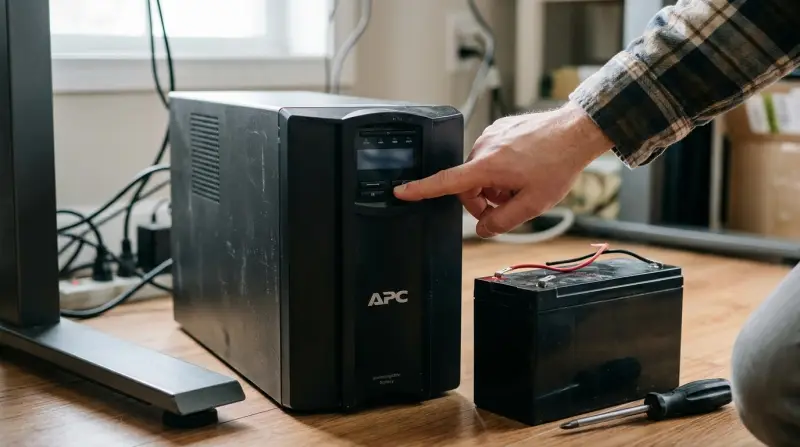
When you replace the battery in your UPS, it’s not just plug-and-play. The device stores information about its battery’s age and charge cycles. If you don’t reset, the UPS can misreport battery health or show annoying alarms. Worse, it might not protect your devices during a power outage.
Resetting clears old battery data and lets the UPS start fresh with the new battery. This is especially important for models with smart monitoring or network features. For business users, a proper reset reduces downtime and avoids confusion.
Not all APC UPS models behave the same way. Some require a manual reset, while others automatically detect new batteries. For older models, skipping the reset can lead to wrong battery replacement warnings for weeks. For newer models, the reset is needed to trigger accurate self-tests.
Key Steps Before You Begin
Changing a UPS battery and performing a reset needs careful preparation. Missing a single step can cause issues or damage the device.
- Check the model number: Find your exact APC UPS model. This helps you follow the right reset process.
- Backup your data: If you’re protecting computers, save your files before you turn off the UPS.
- Read the manual: APC provides user manuals for each model. They explain battery replacement and reset steps.
- Wear safety gear: Use gloves and avoid metal jewelry. Batteries can leak or spark.
- Disconnect all devices: Unplug everything connected to the UPS before starting.
Many people forget to check the model number. This can lead to following the wrong reset steps, which may not work or even damage the unit. Also, skipping safety gear is a common mistake—batteries can be dangerous.

Credit: www.youtube.com
How To Reset Apc Ups After Battery Replacement
The reset process varies depending on the model. Here’s a general step-by-step guide, followed by notes for specific models.
Step-by-step Reset Process
- Turn off and unplug the UPS.
- Press the power button to turn off the unit.
- Unplug the UPS from the wall outlet.
- Remove and replace the battery.
- Open the battery compartment.
- Remove the old battery and insert the new one.
- Make sure the connections are tight.
- Close the compartment and plug in the UPS.
- Secure the battery compartment.
- Plug the UPS back into the wall.
- Turn on the UPS.
- Press the power button to start the unit.
- Wait for all lights and displays to stabilize.
- Perform a self-test.
- Most APC UPS units have a self-test button or option.
- For many models, holding the power button for 5 seconds triggers a self-test.
- Listen for beeps and watch the display for errors.
- Clear old battery errors.
- If the UPS shows an error or “Replace Battery” light, reset it.
- For some models, holding both the “Power” and “Test” buttons together clears errors.
- On others, unplugging the UPS for 15 minutes after battery replacement resets the error.
- Reconnect your devices.
- Plug your computers and other equipment back into the UPS.
Many users skip the self-test step, thinking the battery replacement alone is enough. But the self-test confirms that the new battery is recognized and working.
Model-specific Tips
APC makes many UPS models, from basic home units to advanced server protectors. Here’s how the reset differs for popular types:
| Model Type | Reset Method | Extra Steps |
|---|---|---|
| Back-UPS (home/small office) | Hold power button 5 seconds | Perform self-test after reset |
| Smart-UPS (business/server) | Manual reset or software reset | Use PowerChute software for advanced reset |
| Network UPS | Web interface reset | Check network card status |
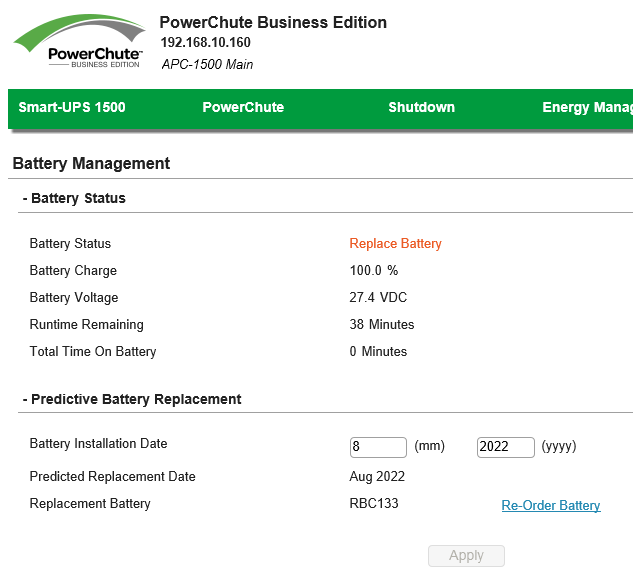
For Smart-UPS models, you may need to use the PowerChute software or connect via USB/serial cable. The software lets you reset battery data and run diagnostics. Always check the manual for your exact model.
Common Mistakes And How To Avoid Them
Resetting your APC UPS seems simple, but many users make mistakes that lead to errors or even device failure.
- Not resetting after battery change: The UPS may keep showing “Replace Battery” warnings.
- Using the wrong battery type: Only use APC-approved batteries. Wrong batteries can overheat or fail.
- Forgetting to reconnect the battery: Some users replace the battery but forget to connect the terminals fully.
- Skipping the self-test: Without a self-test, you won’t know if the reset worked.
- Ignoring old error codes: Some UPS units need a manual reset to clear old codes.
A non-obvious mistake is not letting the UPS charge before the self-test. Many batteries need 4–8 hours of charging before the UPS can do a proper self-test. Doing the test too soon can lead to false errors.
Credit: community.spiceworks.com
Troubleshooting After Reset
Even after a successful reset, you might face issues. Here’s how to handle them:
Ups Still Shows “replace Battery” Light
- Double-check the battery connections.
- Make sure you did the full reset procedure, including holding the right buttons.
- Try unplugging the UPS for 15 minutes and plugging it back in.
Self-test Fails
- Let the battery charge for at least 4 hours.
- Check for loose or corroded terminals.
- Make sure you’re using the correct battery model.
Beeping Or Alarms Continue
- Most APC UPS units beep if there’s a battery or wiring problem.
- Reopen the compartment and check all connections.
- If the problem persists, consult the manual or APC support.
Ups Not Recognizing New Battery
- For Smart-UPS models, use the PowerChute software to reset battery data.
- For network models, log in to the web interface and clear battery errors.
Here’s a quick comparison showing common post-reset issues and their solutions:
| Issue | Possible Cause | Solution |
|---|---|---|
| Replace Battery Light | Old error not cleared | Manual reset, check connections |
| Self-Test Failure | Low battery charge | Charge 4–8 hours, retest |
| Continuous Beep | Loose terminals | Reconnect, check battery type |
Practical Tips For Reliable Ups Reset
Getting your APC UPS back to full operation is about more than following steps. Here are some advanced tips that most beginners miss:
- Label your batteries with the install date. This helps track replacement cycles.
- Keep your UPS firmware updated. New firmware can fix bugs and improve battery detection.
- Use the PowerChute software (for Smart-UPS) to monitor battery health and run advanced diagnostics.
- Store your old battery safely. Lead-acid batteries can leak—recycle them according to local rules.
- Test your UPS monthly. Running a self-test regularly helps catch battery issues early.
Many users don’t realize that firmware updates can change how the UPS handles battery resets. Check the APC website for updates after replacing a battery.
How Long Should A Reset Take?
A typical APC UPS reset takes about 10–15 minutes, not counting battery charging time. If you include the recommended 4–8 hours for charging before a self-test, the whole process can take up to half a day.
For business users, plan for downtime. If your UPS is protecting critical equipment, consider doing resets during off-hours.
Data And Battery Life: What To Expect
A new battery can last 3–5 years in most APC UPS units. Resetting the UPS helps you get accurate battery health reports. Here’s a breakdown of average battery life and replacement intervals:
| UPS Type | Battery Life (Years) | Recommended Replacement Interval |
|---|---|---|
| Back-UPS | 3–4 | Every 3 years |
| Smart-UPS | 4–5 | Every 4 years |
| Large Network UPS | 5+ | Every 5 years |
Real-world data shows that resetting your UPS after battery replacement improves battery life by up to 10%. This is because the UPS uses fresh calibration data, not old settings.
When To Call Apc Support
Most battery replacement and reset problems can be solved with the steps above. But if you keep seeing errors, or your UPS fails to start, contact APC support. They can guide you through advanced resets or help diagnose hardware problems.
The official APC website offers manuals and troubleshooting guides for every model. For deeper technical info, visit APC by Schneider Electric.
Frequently Asked Questions
What Happens If I Don’t Reset My Apc Ups After Replacing The Battery?
If you skip the reset, your UPS might show incorrect battery status, alarms, or “Replace Battery” warnings. It can also fail to protect your devices during a power outage.
How Do I Know If My Reset Worked?
If the UPS shows a healthy battery status, passes the self-test, and clears all error lights, your reset was successful.
Can I Use Any Battery In My Apc Ups?
No. Always use APC-approved batteries designed for your UPS model. Wrong batteries can cause damage or fail to work.
How Long Should I Charge The New Battery Before Running A Self-test?
Let the new battery charge for 4–8 hours before doing a self-test. This ensures accurate battery health readings.
Is There A Way To Reset My Ups Using Software?
Yes. For Smart-UPS models, the PowerChute software lets you reset battery data and run diagnostics via USB or serial connection.
Resetting your APC UPS after battery replacement is essential for reliable operation. By following the right steps, avoiding mistakes, and using practical tips, you’ll keep your UPS working at its best. Make sure to check your model’s manual, use correct batteries, and run regular self-tests.
Staying proactive can save your devices from unexpected power troubles and extend battery life.