
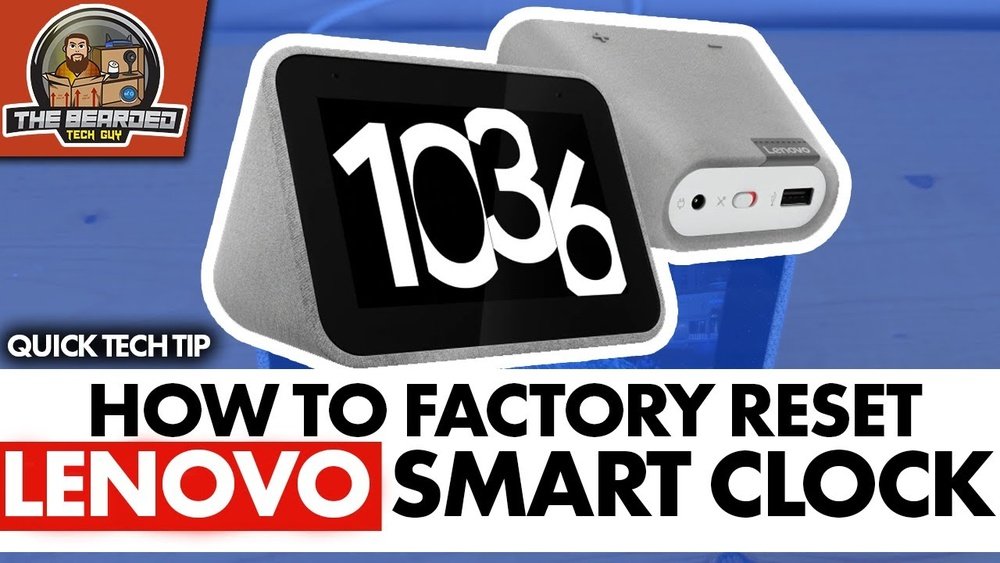
If your Lenovo Smart Clock is not working as expected, resetting it can often fix many problems. Whether you want to clear bugs, prepare the clock for a new owner, or simply start fresh, knowing how to reset your device is essential. This guide will walk you through all the steps you need, including practical tips that even experienced users sometimes miss.
Understanding The Lenovo Smart Clock
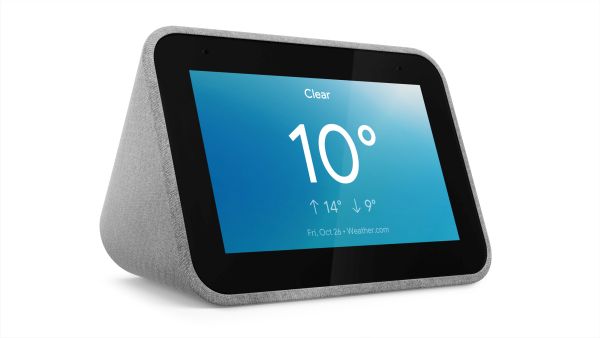
The Lenovo Smart Clock is a small, voice-activated device powered by the Google Assistant. It helps you with alarms, reminders, weather updates, and even smart home control, all from your bedside. There are a few versions, like the original Lenovo Smart Clock and the Smart Clock Essential. Most features are similar, but some buttons and menus can be slightly different.
Here’s a quick comparison of the two main models:
| Model | Screen Type | Physical Buttons | Release Year |
|---|---|---|---|
| Lenovo Smart Clock (Original) | Color Touchscreen | Volume, Mute, Power | 2019 |
| Lenovo Smart Clock Essential | LED (No Touch) | Volume, Alarm, Play/Pause | 2020 |
It’s important to know your model because the reset method may change slightly.
When Should You Reset Your Lenovo Smart Clock?
You don’t need to reset your clock every time there’s a small problem. Here are the most common reasons users choose to reset:
- Device not responding: The clock freezes, doesn’t react to touch, or ignores voice commands.
- Wi-Fi issues: Trouble connecting to your home network, or network changes.
- Selling or giving away: You want to remove all your personal data.
- Software bugs: Alarms not ringing, display errors, or apps crashing.
- Setup problems: Problems during first-time setup or Google account linking.
A simple restart may fix small glitches, but for bigger issues, a reset is best.

Types Of Reset: Soft Reset Vs Factory Reset
There are two main ways to reset your Lenovo Smart Clock:
- Soft Reset: This is just a restart. No data is lost, but it can clear temporary bugs.
- Factory Reset: This erases everything. Your Google account, alarms, and settings are removed. The clock returns to its original state.
Let’s look at the differences:
| Type | What It Does | When To Use | Data Loss |
|---|---|---|---|
| Soft Reset | Restarts the device | Minor bugs, unresponsive device | No |
| Factory Reset | Erases all data and settings | Major issues, selling, or giving away | Yes |
Most users look for the factory reset, but sometimes a soft reset is enough.
How To Perform A Soft Reset
A soft reset is the easiest way to refresh your clock. It’s like turning your phone off and on again.
For The Original Lenovo Smart Clock
- Unplug the power cable from the back of the clock.
- Wait 10 seconds. This gives the device time to fully shut down.
- Plug the cable back in. The clock will reboot automatically.
For Lenovo Smart Clock Essential
- Find the power cable at the back.
- Remove the cable, wait for about 10 seconds.
- Reconnect the cable. The screen should light up and start normally.
Pro tip: If your device keeps freezing, try plugging it into a different wall socket. Sometimes, power issues can cause unexpected reboots or shutdowns.
How To Factory Reset Lenovo Smart Clock
A factory reset is more serious. It deletes all your personal information. Only do this if you’re sure you want to wipe everything.
For Lenovo Smart Clock (original)
- Find the volume buttons on the top or back of the device.
- Press and hold both the volume up and volume down buttons at the same time.
- Keep holding for about 10 seconds. You’ll see a message on the screen saying “Resetting to factory settings.”
- Release the buttons. The clock will restart and the reset will begin. This can take a few minutes.
For Lenovo Smart Clock Essential
- Locate the reset button. It’s a small pinhole at the bottom or back of the device.
- Insert a paperclip or SIM eject tool into the hole.
- Press and hold for 10–15 seconds. The display will show a reset message.
- Release when you see the message. The clock will now reset.
What Happens Next?
After a factory reset, the clock will reboot and show the setup screen. You’ll need to use the Google Home app on your phone to set it up again.
Important: You must reconnect the clock to Wi-Fi, link your Google account, and set up alarms again.
Resetting Using The Google Home App
Some users don’t realize you can also restart the device from your phone, using the Google Home app.
Here’s how:
- Open the Google Home app on your smartphone.
- Find your Lenovo Smart Clock in the device list.
- Tap on the device, then tap the gear icon for Settings.
- Scroll down and select Remove Device to unlink your account. (This does not factory reset but removes your data.)
- If you want a full factory reset, you still need to use the hardware buttons.
Non-obvious tip: Removing your account from the Google Home app can fix some sync problems without erasing everything.
Common Mistakes To Avoid
- Not backing up important alarms: If you rely on custom alarms or routines, write them down before resetting. After a factory reset, you’ll need to set them up again.
- Trying to reset while the clock is updating: Wait until all software updates are finished. Resetting during an update can cause software errors.
- Using the wrong method for your model: The reset button is only on the Essential model. The original uses the volume buttons.
- Not unplugging the clock: Some users try to press the buttons without disconnecting power. The device must be powered on for a reset to work.
- Forgetting to remove from Google Home: If you’re selling or gifting the device, unlink it from your account first.
Troubleshooting After A Reset
Sometimes, things don’t go smoothly after a reset. Here’s what to check:
The Clock Won’t Turn On
- Check the power cable and wall socket.
- Try another USB adapter or cable (if your model uses USB).
- If the screen stays black, hold the volume buttons for 15 seconds to try another reset.
Setup Fails In Google Home App
- Make sure your phone is on the same Wi-Fi network.
- Restart your phone and the clock.
- Move the clock closer to your router during setup.
Voice Assistant Not Working
- After resetting, you must re-link your Google account.
- Check the microphone switch (some models have a mute switch).
- Update the Google Home app for the latest features.

What To Do Before Selling Or Gifting Your Clock
If you plan to give away your Lenovo Smart Clock, these steps protect your privacy:
- Factory reset the device using the steps above.
- Remove the device from your Google account in the Google Home app.
- Check for personal data: Delete Wi-Fi passwords, routines, or calendar connections.
- Include the power cable and adapter with the device.
Extra insight: If you used your clock to control smart home devices, check that you’ve unlinked all connections. Some smart bulbs or plugs may remain connected otherwise.
Is There A Way To Reset Without Buttons?
Unlike some smart speakers, the Lenovo Smart Clock does not allow a full factory reset using just voice commands or through the app. You must use the physical buttons or reset pin. This is a security feature to prevent accidental resets.
Useful tip: If your clock’s buttons are broken, contact Lenovo support. They may offer a repair or replacement if it’s under warranty.
Data Privacy And Your Lenovo Smart Clock
Resetting your clock is not just about fixing bugs. It’s also about protecting your personal data. After a factory reset, your voice queries, alarms, and account info are deleted from the device.
However, some data may remain in your Google account. You can check and delete your Google Assistant activity by visiting the Google My Activity page.
How To Set Up Your Clock Again After Reset
After a factory reset, setting up your Lenovo Smart Clock is simple:
- Plug in the device and wait for the welcome screen.
- Download or open the Google Home app on your phone.
- Tap ‘+’ and select ‘Set up device’.
- Follow the instructions to connect to Wi-Fi and sign in with your Google account.
- Customize alarms, routines, and display settings as you like.
Setting up usually takes less than 10 minutes.
Key Differences: Restarting Vs Resetting
Many users confuse restarting with resetting. Here’s a simple summary:
| Action | Effect | When to Use |
|---|---|---|
| Restart | Turns the device off and on (no data loss) | Minor issues, lag, app crashes |
| Factory Reset | Erases all data, returns to new state | Major errors, selling, privacy reasons |
Non-obvious insight: Restarting is always safe. Factory reset is permanent—you can’t undo it.
When To Contact Support
If your Lenovo Smart Clock still doesn’t work after a reset, or you see error messages you can’t fix, contact Lenovo customer support. Provide your device’s serial number and a description of the problem. This helps them diagnose faster.
For warranty info and repairs, visit the official Lenovo Support page.
Frequently Asked Questions
How Do I Know If My Lenovo Smart Clock Has Reset Successfully?
After a factory reset, the clock will show the initial setup screen, usually with a welcome message or a prompt to use the Google Home app. If you see this, the reset worked.
Can I Reset My Lenovo Smart Clock Without The Google Home App?
Yes. You can perform both a soft reset and a factory reset using the physical buttons or pinhole on the clock. The Google Home app is only needed for setup after the reset.
Will Resetting My Lenovo Smart Clock Delete My Google Account?
A factory reset removes your account from the device, but not from your main Google account or other devices. You may need to manually remove the clock from your Google Home app.
What Should I Do If The Reset Button Doesn’t Work?
First, make sure you’re pressing and holding the correct button or pinhole for at least 10 seconds. Try another tool if the pin is too thick. If it still doesn’t work, contact Lenovo support for help.
Is It Safe To Reset The Lenovo Smart Clock Multiple Times?
Yes, you can reset your clock as often as needed. However, frequent resets can be a sign of hardware problems or unstable Wi-Fi. If you need to reset often, look for deeper issues.
Resetting your Lenovo Smart Clock is a simple but powerful way to fix problems and protect your privacy. Just remember to back up any important settings and follow the steps for your specific model. With the right approach, your smart clock will be ready for a fresh start whether it’s for you or a new owner.