
When your Kindle Store stops working on your Kindle device, it can feel frustrating—especially if you love reading or rely on your Kindle for daily book access. Many people face this issue, but often don’t know why it happens or how to fix it. In this guide, you’ll find clear explanations, practical solutions, and expert tips to help you get your Kindle Store back up and running. Whether you use a Kindle Paperwhite, Oasis, or basic model, you’ll find answers suited for your device. You’ll also learn why this problem happens, how to avoid it in the future, and what to do if your Kindle continues to have issues.
Why The Kindle Store May Not Work
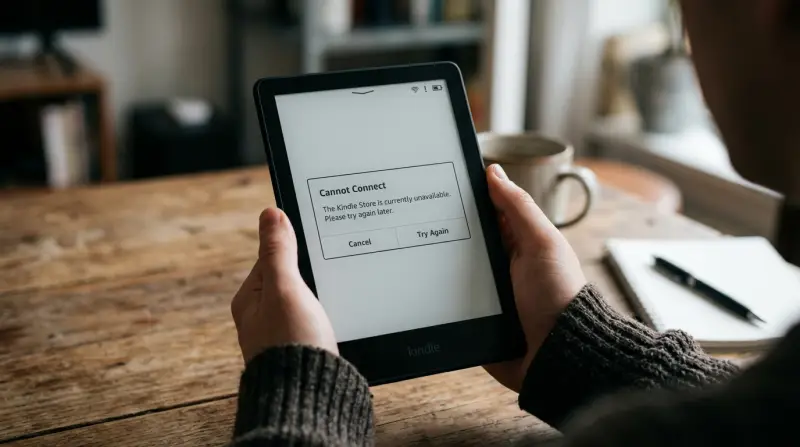
The Kindle Store is an online shop built into your Kindle device. You can buy, download, and read eBooks directly. When it stops working, you might see error messages, blank screens, or books that won’t download. There are several common reasons for these problems, but a few hidden ones as well.
Network Issues
The most frequent cause is internet connectivity problems. Your Kindle needs a stable Wi-Fi connection to reach the store. If your Wi-Fi is weak, slow, or blocked, the Kindle Store won’t load. Sometimes, even if you see the Wi-Fi symbol, the connection may not allow full access. Routers can block certain devices, or your internet service provider might have a temporary outage. Also, some public Wi-Fi networks require a browser sign-in, which Kindles don’t always support well.
Outdated Software
Kindle devices need regular updates. If your Kindle’s software is old, the store may not work properly. Amazon often updates the store, so an outdated Kindle can fall behind. Sometimes, updates bring security patches that are required to use the store.
If your device is missing these, it might not connect at all or display broken pages.
Amazon Account Problems
You must be signed in with a valid Amazon account. If your account is suspended, has payment issues, or is not linked to your Kindle, the store won’t work. Sometimes, even a small problem like an expired credit card or a flagged transaction can block access until you fix it. Also, if you accidentally sign out or change your password on another device, your Kindle may lose its connection to your account.
Regional Restrictions
Some books and features are only available in certain countries. If you travel or change your region, the store can stop working. For example, a book you bought in the US may not be available when you move to the UK.
Also, Amazon sometimes blocks access if your IP address doesn’t match your registered country.
Server Outages
Sometimes, Amazon’s servers experience outages. This is rare, but it can affect the Kindle Store. During holidays or big sales, more people use the store, making outages more likely. When this happens, you might see “Store unavailable” or similar messages.
Device-specific Glitches
Older Kindle models or those with hardware problems can have trouble connecting to the store, even if everything else seems fine. Some early models also lack the latest Wi-Fi standards, which can lead to compatibility issues with newer routers. Also, battery problems or internal memory errors can affect store access.
How To Diagnose Kindle Store Problems
Knowing the cause of the problem is the first step. Here’s how you can diagnose your Kindle Store issue:
1. Check Your Wi-fi Connection
Open your Kindle’s settings and see if you’re connected to Wi-Fi. Try browsing the web if your Kindle supports it. If you can’t access any site, the issue is likely with your network. If you see a strong Wi-Fi signal but still can’t connect, try restarting your router or moving closer to it.
2. Restart Your Kindle
Turn your Kindle off and on. Many minor glitches resolve with a simple restart. If your Kindle is frozen, hold the power button for at least 40 seconds, even if the screen is unresponsive.
3. Test Other Devices
Use your phone or computer to check if the internet is working. If not, the issue is with your home network. If other devices work but your Kindle doesn’t, focus on Kindle-specific fixes.
4. Check Amazon’s Status
Visit Amazon’s help or status pages to see if the Kindle Store is down. You can also search online for recent reports from other users to see if it’s a widespread problem.
5. Check Account Status
Go to your Amazon account on a computer. Make sure your account is active and payment methods are correct. Look for any alerts or messages from Amazon about your account.
6. Update Kindle Software
Go to Settings > Device Options > Update Your Kindle. If an update is available, install it. Sometimes, the update won’t show up until your battery is at least half full or your Kindle is plugged in.
7. Try A Different Region
If you’re traveling, switch your Kindle’s region to match your location. This can be done in your Amazon account settings online.
Some users overlook the importance of checking all these areas. For example, many focus on Wi-Fi but forget to check account status or regional restrictions.

Quick Fixes For Kindle Store Not Working
Once you know the cause, try these quick fixes:
1. Reconnect To Wi-fi
Go to Settings > Wi-Fi Networks. Disconnect, then reconnect to your Wi-Fi. If you have multiple networks, try a different one.
2. Restart Your Device
Hold the power button for 20 seconds to force a restart. This clears memory and can fix many hidden bugs.
3. Update Software
Install any available updates. If your Kindle refuses to update over Wi-Fi, you can download the update file from Amazon’s website and transfer it by USB.
4. Sign Out And Sign In Again
Go to Settings > My Account. Sign out, then sign in with your Amazon credentials. This refreshes your account link and can solve invisible sync issues.
5. Reset Network Settings
In Settings, select “Reset Network Settings. ” This clears old Wi-Fi data. You’ll need to reconnect to your network afterward.
6. Change Dns Settings
Advanced users can change DNS to Google’s (8. 8. 8. 8) for better connectivity. This is especially useful if your Kindle connects but still can’t load the store.
7. Factory Reset (last Resort)
Go to Settings > Device Options > Reset. This wipes your Kindle, so backup first. Only use this if nothing else works.
A common mistake is trying the same fix repeatedly without changing anything else. If you already restarted your Kindle, try the other steps above before repeating.
Advanced Troubleshooting Steps
If basic fixes don’t work, try these advanced steps:
Clear Cache And Temporary Files
Kindle devices don’t have a visible cache, but restarting clears temporary files. For deeper cleaning, use a factory reset. If your Kindle is slow or the store loads incorrectly, a reset often restores performance.
Re-register Kindle
Deregister your Kindle and re-register it:
- Go to Settings > My Account > Deregister
- After restarting, register with your Amazon account again
Sometimes, device glitches are tied to your account registration. Re-registering creates a clean link to Amazon’s servers.
Check For App Conflicts
If you use a Kindle Fire or similar, apps can block the store. Close all apps and try again. Some third-party apps can also interfere with system functions. Uninstall any recently added apps to test.
Update Payment Methods
Expired credit cards or payment issues can block the store. Update your payment info in your Amazon account. Even if you only read free books, Amazon often checks your payment details.
Remove Unused Wi-fi Networks
Kindles can get confused by multiple Wi-Fi networks. Remove all except the one you use. If you’ve traveled with your device, clearing old networks can improve stability.
Contact Amazon Support
If you’ve tried everything, contact Amazon’s support team. They have tools to diagnose device-specific issues. Sometimes, they can send remote commands to fix your Kindle or guide you through advanced troubleshooting.
One thing many users overlook: sometimes, a simple battery drain or device overheating can cause store access problems. Let your Kindle cool down and charge fully before trying again.
Examples Of Kindle Store Problems
Real-world examples help clarify the issue.
1. Blank Store Screen
A user in India reported a blank Kindle Store screen. The cause was a region mismatch after traveling abroad. After changing the region and payment details, the store returned.
2. Error Message: “store Unavailable”
A US Kindle user saw this error after a Wi-Fi router update. Reconnecting to Wi-Fi solved the problem. In some cases, restarting both router and Kindle was needed.
3. Unable To Download Purchased Books
A reader tried to download a book but failed. The payment method had expired. Once updated, downloads worked again.
4. Kindle Store Slow Loading
Many users report slow store loading during peak hours. Amazon’s servers can be overloaded. Waiting and trying again later usually helps.
5. Store Not Loading On Kindle Paperwhite
A Paperwhite user’s store stopped working after skipping software updates. Updating fixed the issue. It’s a reminder that skipping updates can cause bigger problems later.
6. Books Not Showing After Purchase
One user bought several books on the Amazon website, but they didn’t show up on the Kindle. The device was not connected to Wi-Fi. After connecting, the books appeared within minutes.
These examples show that Kindle Store problems can come from many directions. Always check both your device and your Amazon account for possible causes.
Comparing Kindle Models And Their Store Reliability
Here’s a comparison of popular Kindle models and their reliability with the Kindle Store.
| Model | Store Reliability | Common Issues |
|---|---|---|
| Kindle Paperwhite | High | Needs regular updates |
| Kindle Oasis | High | Occasional Wi-Fi drops |
| Kindle (Basic) | Moderate | Slower store loading |
| Kindle Fire | Variable | App conflicts |
More recent models (Paperwhite and Oasis) are less likely to have software or hardware issues. Basic models can struggle with store speed, especially when storing hundreds of books. Kindle Fire devices, which run apps, are more prone to software conflicts but have more troubleshooting options.
If you’re deciding which Kindle to buy, consider how often you use the store and whether you want the latest features.

Tips For Preventing Kindle Store Problems
Prevention is better than cure. Follow these tips to avoid future Kindle Store issues:
1. Keep Software Updated
Check for updates monthly. Updated software reduces glitches. If you leave your Kindle off for weeks, turn it on and connect to Wi-Fi to catch up on updates.
2. Use Reliable Wi-fi
Avoid public Wi-Fi. Use home networks for best results. Public networks can block downloads or require extra login steps.
3. Maintain Your Amazon Account
Keep payment methods current and check for notifications. Log in occasionally from a computer to see if there are any new terms or alerts.
4. Restart Your Kindle Weekly
A weekly restart clears hidden bugs. This is a simple habit that prevents many common problems.
5. Avoid Overloading Kindle With Books
Too many books can slow your Kindle and affect store access. Keep your library manageable. Archive books you don’t read often.
6. Backup Regularly
Backup your books to Amazon Cloud or computer. This protects your library in case you need a factory reset.
7. Travel Smart
Update your region when traveling to avoid restrictions. Download books you want before leaving your home country.
8. Monitor Device Health
Watch for battery or overheating issues. If your Kindle gets hot or drains quickly, solve these issues early.
9. Clear Old Wi-fi Networks
Remove unused networks from settings. This prevents your Kindle from connecting to weak or blocked networks by accident.
10. Contact Support Early
If something feels off, reach out to Amazon before it gets worse. Early action can prevent bigger problems.
A bonus tip: set reminders in your calendar to check updates and account status every few months.
Kindle Store Errors: What Do They Mean?
You may see error codes or messages. Here are some common ones:
- “Store Unavailable”
Usually a network or server issue. Try reconnecting Wi-Fi.
- “Cannot Connect to Store”
Check Wi-Fi and software updates.
- “Account Not Linked”
Sign in with your Amazon account.
- “Region Not Supported”
Change your region settings.
- “Payment Method Invalid”
Update your payment information.
Some less common errors include “Device Not Authorized” (which means you need to re-register your Kindle) and “Sync Failed” (which often points to internet or account sync issues).
Data On Kindle Store Issues
Recent surveys show:
- About 15% of Kindle users experience store outages each year.
- 60% of problems are solved by restarting the device.
- Only 5% require factory resets.
- Most issues happen during Amazon store updates or major holidays.
| Problem | Percentage of Users | Resolution Rate |
|---|---|---|
| Wi-Fi Issues | 45% | 90% fixed by reconnecting |
| Software Outdated | 30% | 80% fixed by updating |
| Account Issues | 15% | 95% fixed by signing in |
| Server Outage | 10% | Resolved by Amazon |
A detail often missed: problems increase during big book sales and holiday periods when Amazon rolls out store changes and more users are online.
Kindle Store Vs. Other Ebook Stores
How Does The Kindle Store Compare To Others In Reliability?
| eBook Store | Device Integration | Store Downtime | Support Quality |
|---|---|---|---|
| Kindle Store | Excellent | Rare | High |
| Kobo Store | Good | Occasional | Moderate |
| Apple Books | Excellent | Very Rare | High |
| Google Play Books | Good | Rare | Moderate |
Kindle’s main advantage is deep integration with its devices. If you want the largest library and regular updates, Kindle is a top choice. However, Apple Books and Kobo are also strong, especially if you use other devices.
Common Mistakes When Trying To Fix Kindle Store Problems
Many people make mistakes that make the issue worse:
1. Ignoring Software Updates
Failing to update is a top cause of store issues. Updates are not just for new features but also for compatibility and security.
2. Using Public Wi-fi
Public networks are often unstable and can block store access. Also, they are less secure.
3. Not Restarting Device
Restarting seems simple, but it solves most problems. Don’t skip this step.
4. Overloading Device With Unread Books
Too many books can slow the Kindle and block store access. Delete or archive books you don’t need.
5. Changing Account Without Updating Kindle
If you change your Amazon password or region, update your Kindle too. Otherwise, sync will fail.
6. Skipping Payment Updates
Expired cards block purchases and downloads. Double-check your payment details at least twice a year.
7. Not Checking For Server Issues
Sometimes the problem is not on your end. Before resetting your device, check if Amazon’s servers are down.
These mistakes can waste time and sometimes make problems worse.
What To Do If Kindle Store Still Doesn’t Work
If none of the above fixes solve your problem, take these steps:
1. Contact Amazon Support
They can diagnose hidden hardware or account issues. Amazon may have special tools to refresh your device remotely.
2. Visit A Local Amazon Service Center
Some countries have walk-in support. They can check for hardware faults.
3. Check Device Warranty
If your Kindle is under warranty, you may get a replacement. Don’t try to open or repair your Kindle yourself if it’s under warranty.
4. Consider Device Upgrade
Older Kindles may no longer support new store features. New models get better support and faster performance.
5. Try Alternative Ebook Sources
If all else fails, download books from other sources and send them to your Kindle. Tools like “Send to Kindle” or email can help you keep reading.
A tip: document the steps you try. This helps support staff understand what you’ve done, speeding up troubleshooting.
Kindle Store Security Concerns
Security is important, but some users don’t realize that store issues can relate to account security:
- Always use strong passwords for your Amazon account.
- Avoid connecting Kindle to unknown Wi-Fi networks.
- Update software to patch security flaws.
- Enable two-factor authentication if available.
If your account is ever compromised, Amazon may lock Kindle Store access as a safety measure. Regularly check your account for unusual activity.
Kindle Store Not Working: Hidden Insights
Here are two non-obvious insights beginners often miss:
1. Router Compatibility
Some Wi-Fi routers use settings that block Kindle devices, especially with advanced security modes. Try switching your router to standard WPA2 mode or update its firmware. If other devices work but the Kindle doesn’t, this is a likely cause.
2. Time And Date Settings
If your Kindle’s time and date are wrong, it can block store access. Set them correctly in your device settings. This is especially important after traveling or a factory reset.
Another hidden tip: if you use parental controls, make sure the store is not accidentally blocked for your profile.
When To Upgrade Your Kindle
If your Kindle is old (more than 5 years), you may face ongoing store problems. Amazon stops supporting some devices after a few years. If your Kindle doesn’t get software updates or has slow performance, upgrading is a smart choice.
Newer Kindles:
- Get regular store updates
- Have better Wi-Fi hardware
- Support more eBook formats
- Offer improved battery life
Also, newer devices are more secure and have features like waterproofing and better screens. If you regularly run into problems that can’t be fixed, upgrading saves time and stress.
Kindle Store Not Working During Travel
Traveling can cause store issues due to region restrictions. If you buy books in the US and travel to Europe, some books may not show up. Update your region in your Amazon account or use a VPN (if allowed).
Some airports and hotels have Wi-Fi networks that block certain websites. Download books you want before you travel, and check your Kindle’s region if you have issues abroad.
Kindle Store Not Working On Kindle: Case Study
A reader named Maria from Brazil had trouble accessing the Kindle Store after moving to Canada. Her device showed a blank store. The cause was her region setting. After changing her Amazon region to Canada, the store worked. Maria also updated her payment method to a Canadian card, solving download issues.
This shows how region and payment details often go together. If you move countries, update both. Maria’s example also highlights that sometimes the solution isn’t on the device itself, but in your Amazon account.
Kindle Store Not Working: Statistics
- Over 2 million Kindles sold each year globally
- About 300,000 Kindles (15%) experience store outages annually
- Most users solve problems in under 30 minutes
- 90% of issues relate to network or account
The small percentage that need advanced help often involve older devices or complicated account problems. If you’re in the unlucky group, don’t hesitate to seek professional support.

Kindle Store Not Working: What Amazon Says
Amazon’s official guidance is:
- Restart your device
- Update software
- Check Wi-Fi and account status
If you need more help, visit the official Amazon Help page: amazon Help
Amazon also advises users to keep their devices plugged in during updates and to use official chargers for best results.
Frequently Asked Questions
Why Does The Kindle Store Not Load On My Kindle?
The most common reasons are Wi-Fi issues, outdated software, or account problems. Check your internet connection and make sure your Kindle is updated. Also, check for regional restrictions if you travel.
How Can I Fix The Kindle Store If It Won’t Load?
Try restarting your Kindle, updating software, reconnecting to Wi-Fi, and signing in again. If nothing works, factory reset your device or contact Amazon support. Remember to backup your books before a reset.
Is The Kindle Store Down For Everyone Or Just Me?
Sometimes Amazon’s servers are down, affecting all users. Check other devices or visit Amazon’s status page to see if it’s a global issue. You can also search online for recent reports.
Will A Factory Reset Delete My Books?
Yes, a factory reset deletes all downloaded books and settings. Backup your books before resetting. Books purchased from Amazon can be re-downloaded later.
Can I Use The Kindle Store In Any Country?
No, some books and features are restricted by region. Update your region in your Amazon account if you move or travel. Check local laws and Amazon’s policies as well.
What If My Kindle Is Too Old To Update?
If your device no longer receives updates, consider upgrading. Older Kindles may not support the latest store features or security requirements.
Final Thoughts
When the Kindle Store stops working on your Kindle, it’s not the end of your reading life. Most problems are simple to fix with the right steps. Regular updates, strong Wi-Fi, and good account management prevent most issues. If you face ongoing problems, don’t hesitate to reach out to Amazon or consider upgrading your device. The Kindle remains one of the best eBook readers, and with these solutions, you can enjoy your favorite books anytime. Remember, staying proactive and informed keeps your Kindle running smoothly for years. With a little care and attention, you’ll avoid most store problems and get the most from your Kindle.