
When you use Excel, you expect quick calculations and easy answers. One of the most trusted features is Autosum. It helps you add numbers fast, usually with just a click or a shortcut. But sometimes, Autosum does not work as you expect. Suddenly, the totals are wrong, or nothing happens at all. If you rely on Excel, this can cause confusion or mistakes in your work. Understanding why Autosum fails—and how to fix it—is key for anyone who uses spreadsheets, from students to business professionals.
This article will explain the main reasons why Excel Autosum not working is a common problem. You will learn practical solutions, see examples, and find answers to frequent questions. Whether you use Excel for simple lists or complex data, these tips can help you avoid mistakes and get more from your spreadsheet.
What Is Excel Autosum?

Autosum is a simple tool in Excel. It lets you add numbers in a row or column quickly. You select the cell where you want the total, click the Autosum button (Σ), and Excel creates a formula like `=SUM(A1:A10)`. You can also use the shortcut Alt + = to do the same thing.
This feature is popular because:
- It saves time
- It reduces errors from manual typing
- It works with rows or columns
- It can handle large data sets
Autosum is available in most versions of Excel, including Excel for Windows, Mac, and Excel Online.
Common Reasons Why Autosum Does Not Work
If Autosum is not working, there are several possible causes. Some are simple, and some are more complex. Here are the most frequent reasons:
1. Cells Are Formatted As Text
Excel stores numbers as numbers, but sometimes cells look like numbers but are actually text. Autosum cannot add text, so it ignores these cells or gives wrong results.
Example:
You type `123` in a cell, but the cell is formatted as text. Autosum will not include this cell in the sum.
How to check:
- Select the cell.
- Look at the top of the screen (the Home tab).
- If you see “Text” in the Number Format box, the cell is text.
2. Blank Cells Or Hidden Rows
Blank cells usually do not affect Autosum. But if rows are hidden, Autosum may skip them, depending on how you use the feature.
Example:
You hide rows with data, and Autosum only adds visible cells.
3. Filtered Data
If you filter your table, Autosum may sum only visible rows, or sometimes all rows, depending on the formula used.
Example:
You filter sales data by region. Autosum gives a total for all data, not just the filtered rows.
4. Mixed Data Types
If your range contains numbers and text, Autosum may skip cells or give errors.
Example:
A column has numbers, text, and errors (`#VALUE!`). Autosum may not work.
5. Circular References
A circular reference is when a formula refers to itself, directly or indirectly. This causes errors and stops Autosum from working.
Example:
Cell A1 has `=SUM(A1:A10)`. This is a circular reference.
6. Calculation Mode Set To Manual
Excel can calculate formulas automatically or manually. If it is set to manual, Autosum will not update until you force it.
Example:
You add new numbers, but Autosum does not change.
7. Corrupt Excel Files
Sometimes, the Excel file is damaged. This can cause Autosum and other features to stop working.
Example:
You open a file and Autosum gives errors or does nothing.
8. Using Autosum With Merged Cells
Merged cells can block Autosum from working, especially if the sum range includes merged and unmerged cells.
Example:
You merge cells in a column, and Autosum cannot add the numbers.
9. Non-contiguous Ranges
Autosum works best with continuous ranges. If you select cells that are not next to each other, Autosum may fail.
Example:
You select A1, A3, A5. Autosum does not work as expected.
10. Protected Worksheets
If your worksheet is protected, Autosum may not work, especially if you cannot change cells or formulas.
Example:
You try to use Autosum in a locked sheet, and nothing happens.
How To Fix Excel Autosum Not Working
Now that you know the main reasons, let’s look at practical solutions. Try these steps to solve most Autosum problems.
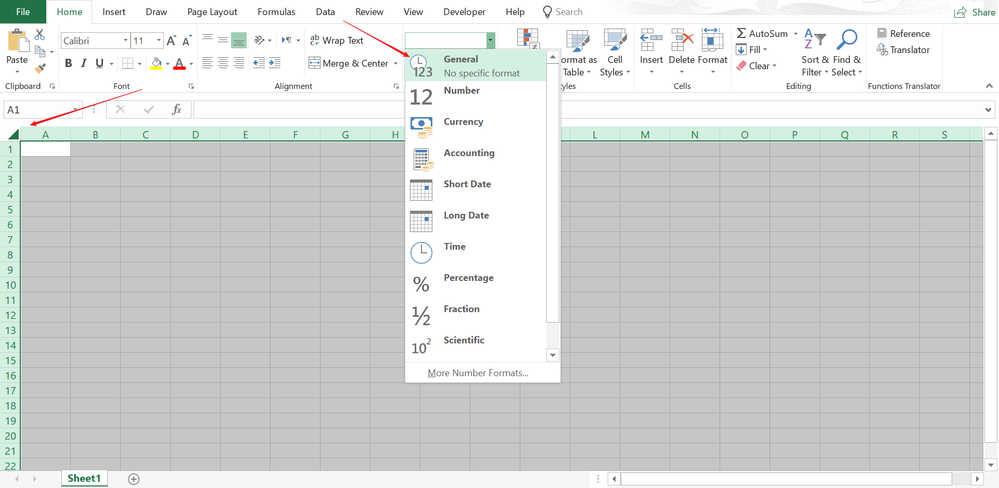
1. Change Cell Format To Number
If your cells are text, Autosum will not add them. To fix:
- Select the cells.
- Go to Home > Number Format.
- Change to “Number” or “General.”
- Re-enter the numbers if needed.
If you have many cells, use “Text to Columns” (Data tab) to convert text to numbers.
2. Remove Blank Cells Or Unhide Rows
If Autosum skips hidden rows, unhide them:
- Select the rows above and below the hidden rows.
- Right-click and choose “Unhide.”
To remove blanks, delete empty cells or use filters.
3. Use Subtotal Instead Of Sum
If you use filtered data, `=SUBTOTAL()` is better than `=SUM()`.
`=SUBTOTAL(9, A1:A10)` sums only visible cells.
4. Fix Mixed Data Types
Check your range for text and errors:
- Use “Go To Special” (F5 > Special > Constants) to find text cells.
- Correct or remove errors like `#VALUE!` or `#DIV/0!`.
5. Resolve Circular References
Excel will warn you about circular references. Check formulas and remove any that refer to themselves.
- Go to Formulas > Error Checking > Circular References.
6. Set Calculation Mode To Automatic
If Excel is not updating, change calculation mode:
- Go to Formulas > Calculation Options.
- Select “Automatic.”
7. Repair Or Recreate Corrupt Files
If your file is damaged, try:
- Open Excel.
- Go to File > Open.
- Select your file.
- Click the arrow next to “Open” and choose “Open and Repair.”
If repair fails, copy data to a new file.
8. Avoid Merged Cells In Sum Range
Unmerge cells in your sum range:
- Select merged cells.
- Go to Home > Merge & Center > Unmerge Cells.
9. Use Continuous Ranges
Autosum works best with continuous ranges. Select only adjacent cells.
If you must sum non-contiguous cells, use `=SUM(A1, A3, A5)`.
10. Unprotect Worksheet
If your worksheet is protected:
- Go to Review > Unprotect Sheet.
- Enter the password if needed.
Data Table: Autosum Errors Vs. Solutions
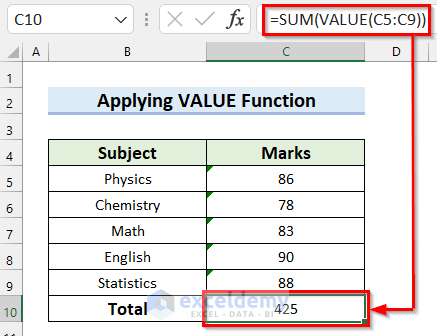
Here’s a quick comparison of common Autosum errors and how to fix them.
| Error Type | Impact | Quick Fix |
|---|---|---|
| Text-formatted cells | Numbers ignored in sum | Change format to Number, re-enter values |
| Hidden rows | Data not summed | Unhide rows |
| Filtered data | Sum includes all, not just visible | Use SUBTOTAL function |
| Merged cells | Autosum fails | Unmerge cells |
| Manual calculation | Autosum does not update | Set calculation mode to Automatic |
Credit: www.exceldemy.com
Checking Cell Formats: Why It Matters
One of the most overlooked issues is cell format. Many users do not realize that Excel treats numbers and text differently. If you copy data from another source (like a website or PDF), Excel may store the numbers as text.
Example:
You copy a column of sales numbers. Autosum gives `0` because Excel sees them as text.
How to fix:
- Select the cells.
- Click the warning sign (if it appears) and choose “Convert to Number.”
- Or use “Text to Columns” on the Data tab.
Non-obvious insight:
If you use formulas like `=A1+A2`, Excel will add text-formatted numbers but Autosum may not.
Calculation Modes: Automatic Vs Manual
Excel has two main calculation modes:
- Automatic: Formulas update as you change data.
- Manual: Formulas update only when you press F9.
If you switch to manual, Autosum will not update totals until you recalculate.
Example:
You add new numbers, but Autosum does not change until you press F9.
Always check calculation mode if Autosum seems stuck.
Data Table: Calculation Modes Comparison
See the differences between calculation modes.
| Mode | Formula Update | Typical Use |
|---|---|---|
| Automatic | Immediate | Most spreadsheets |
| Manual | Only after F9 | Large, complex files |
Working With Filtered And Hidden Data
Autosum can behave differently depending on how you filter or hide data. If you use filters, Autosum may sum all rows, not just the ones you see. This is confusing if you expect only the visible data to be added.
Example:
You filter a column to show only “East” region sales. Autosum sums all regions.
Solution:
Use `=SUBTOTAL(9, A1:A10)` to sum only visible rows.
Non-obvious insight:
SUBTOTAL ignores hidden rows if you hide them with filters, but not if you hide them manually.
Credit: techcommunity.microsoft.com
Merged Cells: Why They Cause Problems
Merged cells are common in headers and formatting. But they can block Autosum from working. If part of your sum range includes merged cells, Autosum may fail or give wrong results.
Example:
You merge cells A1 and A2. Autosum in column A does not work.
Avoid merging cells in data ranges. Use formatting tools (like center alignment) instead.
Non-contiguous Ranges And Autosum
Autosum is designed for continuous blocks of cells. If you select scattered cells, it may not work.
Example:
You select A1, A3, A5. Autosum does nothing.
Solution:
Write a manual formula: `=SUM(A1, A3, A5)`.
Protected Worksheets And Autosum
If your sheet is protected, you may not be able to change cells or use Autosum.
Example:
You try Autosum in a locked worksheet. Excel does not let you.
Unprotect the sheet before using Autosum.
Advanced Troubleshooting Steps
If basic fixes do not solve Autosum issues, try these advanced steps.
1. Check For Add-ins Interference
Some Excel add-ins can change how formulas work. Disable add-ins:
- Go to File > Options > Add-ins.
- Disable any unnecessary add-ins.
2. Update Excel
Older versions of Excel may have bugs. Update your software:
- Go to File > Account > Update Options.
3. Repair Office Installation
If Excel is still not working, repair Office:
- Go to Control Panel > Programs > Microsoft Office > Change > Repair.
4. Check For Worksheet Events
If your worksheet uses VBA macros or events, they may block Autosum.
- Press Alt + F11 to open VBA editor.
- Check for code in “Worksheet_Change” or “Worksheet_Calculate.”

Credit: www.youtube.com
Example: Step-by-step Fix For Autosum Not Working
Let’s walk through a real scenario. Imagine you have a column of numbers, but Autosum gives `0`.
Step 1:
Check if cells are formatted as text. If so, change to Number.
Step 2:
Re-enter numbers. Autosum now works.
Step 3:
If Autosum still fails, check calculation mode. Set to Automatic.
Step 4:
If there are errors in the range, fix or remove them.
Step 5:
Try using SUBTOTAL if your data is filtered.
Data Table: Autosum Vs. Subtotal
Compare Autosum and SUBTOTAL for filtered data.
| Function | Works with Filters? | Ignores Hidden Rows? | Best Use |
|---|---|---|---|
| Autosum (SUM) | No | No | Simple totals |
| SUBTOTAL | Yes | Yes (when filtered) | Filtered data |
Practical Tips To Prevent Autosum Problems
You can avoid Autosum issues by following these steps:
- Always format cells as Number before entering data.
- Avoid merging cells in data ranges.
- Use continuous ranges for Autosum.
- Use SUBTOTAL for filtered lists.
- Check calculation mode (Automatic is best for most users).
- Update Excel regularly.
- Unprotect sheets before editing.
- Keep an eye on error values in your data.
- Use “Text to Columns” to convert text to numbers quickly.
- Make backups of important files.
Real-life Examples And Case Studies
Case 1:
A sales manager noticed Autosum gave wrong totals. The numbers were copied from a PDF and stored as text. After changing the cell format and re-entering the numbers, Autosum worked.
Case 2:
A finance team filtered their sheet by month, but Autosum summed all data. Switching to SUBTOTAL gave the correct total for the filtered month.
Case 3:
A student used Autosum in a protected worksheet and could not get totals. Unprotecting the sheet fixed the problem.
Case 4:
An analyst found that Autosum did not work with merged cells in a report. Unmerging the cells solved the issue.
Non-obvious Insights For Advanced Users
- If you use Excel tables (Insert > Table), Autosum works differently. It automatically extends formulas as you add new rows.
- Using Excel Online may have some limitations compared to desktop Excel. Autosum might not update as quickly.
- If you use array formulas, Autosum might not work as expected. Always check formula types.
Quick Reference: Troubleshooting Checklist
- Check cell format (Number, not Text)
- Unhide all rows and columns
- Use SUBTOTAL for filtered data
- Fix errors in range
- Set calculation mode to Automatic
- Avoid merged cells in sum range
- Unprotect worksheet
- Disable add-ins if needed
- Update Excel
- Repair Office if necessary
When To Seek Expert Help
If you try all the solutions and Autosum still does not work, consider:
- Asking your IT department
- Contacting Microsoft support
- Searching Microsoft’s forums
Some problems may be caused by deeper issues, like corrupt files or software bugs.
For more in-depth solutions, visit the official Microsoft Excel Support.
Frequently Asked Questions
Why Does Autosum Give Zero Instead Of The Correct Total?
This usually happens when cells are formatted as text. Excel ignores text in calculations, so Autosum gives zero. Change the cell format to Number and re-enter the values.
How Can I Sum Only Visible Rows In A Filtered List?
Use the SUBTOTAL function. For example, `=SUBTOTAL(9, A1:A10)` will add only visible rows after filtering.
Does Autosum Work With Merged Cells?
No. If your sum range includes merged cells, Autosum may not work or may give wrong results. Unmerge the cells before using Autosum.
What Should I Do If Autosum Does Not Update Automatically?
Check the calculation mode. Set it to Automatic under Formulas > Calculation Options. If Excel is in Manual mode, formulas will not update until you press F9.
Can Autosum Fail Because Of Excel Add-ins?
Yes. Some add-ins can interfere with formulas. Try disabling add-ins under File > Options > Add-ins to see if Autosum works.
Excel Autosum is a simple but powerful tool. If it stops working, it can cause stress and mistakes. By understanding the main reasons and applying these fixes, you can solve Autosum problems quickly. Remember to check cell format, calculation mode, and use the right formula for your data.
If you still face issues, update Excel and seek expert help. With these tips, you can trust your totals and work faster in Excel.