
Many people rely on their iPhone and iPad to work together seamlessly. You take a picture on your iPhone, and it appears on your iPad. You start an email on your iPad, and finish it on your iPhone. This smooth experience is possible because of Apple’s syncing features. But when your iPad and iPhone stop syncing, it can be frustrating and confusing. Even simple tasks, like sharing notes or updating your calendar, become harder. If you’re facing this problem, you’re not alone. Understanding why syncing fails and how to fix it can save you time and stress.
How Apple Syncing Works
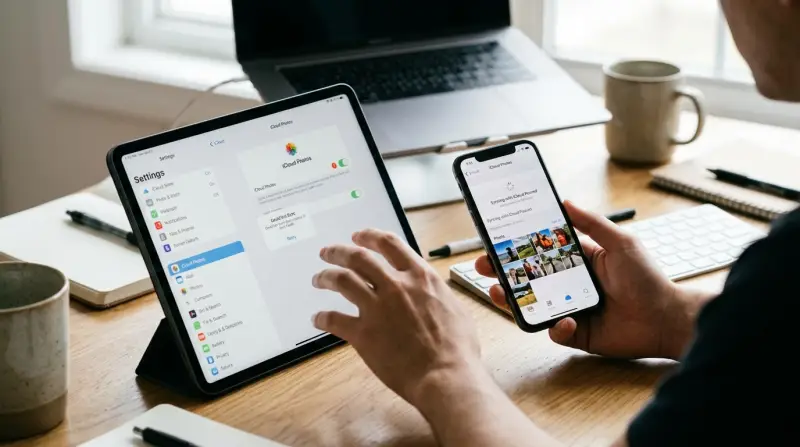
Apple uses a technology called iCloud to keep your data the same across devices. When you add, change, or delete something on one device, it updates everywhere. This includes photos, contacts, messages, calendar events, notes, and app data. You need to use the same Apple ID on both your iPad and iPhone for syncing to work.
Syncing can happen over Wi-Fi or cellular data, depending on your settings. Most syncing is automatic, but sometimes you need to check your settings or take action if things stop working. Understanding how syncing works can help you spot problems quickly.
Common Reasons Why Ipad And Iphone Don’t Sync
Several things can cause syncing issues. Here are the most common reasons:
- Wrong Apple ID: Both devices must use the same Apple ID.
- ICloud Not Enabled: The app or data type must have iCloud turned on.
- Poor Internet Connection: Syncing needs a stable Wi-Fi or cellular connection.
- Low Storage: If iCloud storage is full, syncing may stop.
- Outdated Software: Old versions of iOS or iPadOS may not work well together.
- ICloud Server Issues: Sometimes, Apple’s servers have problems.
- Settings Issues: Incorrect device settings can block syncing.
Some of these are easy to check, while others might need more attention. Beginners often overlook the importance of checking the same Apple ID or updating both devices’ software.
:max_bytes(150000):strip_icc()/001-what-you-need-to-know-to-sync-iphone-to-ipad-1999222-5f8affaf53034ee5a30ec186d5b82bd8-452e472f49f945419196898b374e8b48.jpg)
Quick Checks Before Troubleshooting
Before making big changes, it’s smart to look at a few basics:
- Make sure both devices are connected to Wi-Fi or have a good cellular signal.
- Confirm that Airplane Mode is off.
- Check if you’re signed in with the same Apple ID on both devices (Settings > [your name]).
- Go to Settings > [your name] > iCloud to see if the data type (like Photos or Contacts) is switched on.
Many users forget to check iCloud storage. If your storage is full, nothing will sync. Go to Settings > [your name] > iCloud > Manage Storage.
How To Fix Ipad And Iphone Not Syncing
If your iPad and iPhone still aren’t syncing, try these steps one at a time. You don’t need to do them all—often, one fix is enough.
1. Restart Both Devices
A simple restart solves many syncing issues. Hold the power button, slide to power off, wait a few seconds, and turn the device back on. Restarting clears temporary glitches.
2. Sign Out And Back In To Icloud
Sometimes, your device gets “stuck” in iCloud. Signing out and back in refreshes your connection:
- Go to Settings > [your name] > Sign Out.
- Restart the device.
- Sign in again with the same Apple ID.
Be careful: Signing out of iCloud removes some data from your device, but it will return after you sign in and sync.
3. Update Ios And Ipados
Apple often fixes bugs in new updates. Go to Settings > General > Software Update to check for updates. Install the latest version on both devices.
4. Check Icloud Status Online
Rarely, the problem is with Apple’s servers. Visit the official Apple System Status page to see if iCloud services are down. If there’s a green dot, servers are working. If not, you must wait for Apple to fix it.
5. Reset Network Settings
Network problems can block syncing. Resetting network settings often helps:
- Go to Settings > General > Transfer or Reset iPhone/iPad > Reset > Reset Network Settings.
- You’ll lose saved Wi-Fi passwords, so have them ready.
6. Turn Icloud Services Off And On
Sometimes switching the iCloud option for a specific app off and on again refreshes syncing.
- Go to Settings > [your name] > iCloud.
- Toggle the switch off for the data type (e.g., Contacts), wait 10 seconds, then switch it back on.
7. Free Up Icloud Storage
If your iCloud is full, buy more storage or delete files you don’t need:
- Go to Settings > [your name] > iCloud > Manage Storage.
- Delete old backups, unused files, or large attachments.
8. Check App-specific Settings
Some apps (like Notes or Reminders) have extra settings. Open the app, go to settings, and check if “On My iPad” or “On My iPhone” is selected. Switch to iCloud if you want syncing.
9. Reset All Settings
This is a bigger step. It won’t delete your data, but it will reset Wi-Fi, Bluetooth, and other settings.
- Go to Settings > General > Transfer or Reset > Reset All Settings.
Comparing Key Sync Features: Ipad Vs. Iphone
You might wonder if syncing works the same on both devices. The answer is mostly “yes,” but there are small differences. Here’s a quick comparison.
| Feature | iPad | iPhone |
|---|---|---|
| iCloud Backup | Yes | Yes |
| Photos Sync | Yes | Yes |
| Cellular Sync | Wi-Fi Only (default) | Wi-Fi & Cellular |
| FaceTime/Calls | Requires iPhone nearby | Direct |
| App Data Sync | Some apps only | Some apps only |
A key insight: iPad usually syncs over Wi-Fi by default, while iPhones can use cellular. This can slow down syncing if your iPad isn’t always on Wi-Fi.
When Should You Reset Or Restore Your Device?
Most people don’t need a full reset. But if you’ve tried everything and your iPad and iPhone still won’t sync, a reset or restore might be needed. Resetting clears your settings, while restoring deletes all data and reinstalls the software. Only do this if you have a backup.
| Action | What It Does | When to Use |
|---|---|---|
| Restart | Turns device off and on | Minor glitches |
| Reset All Settings | Resets settings, keeps data | Major settings problem |
| Factory Restore | Wipes all data | Serious, unsolved issues |
Always back up your device before a full restore. Data loss can be permanent.
Two Insights Most Users Miss
- Check the App’s Own Settings: Some apps, like Notes, Reminders, or third-party apps, have their own sync settings. Even if iCloud is on, the app might be saving data “on device” instead of iCloud. Open the app and make sure it is set to use iCloud.
- Syncing Is Not Always Instant: Small delays are normal. For example, photos and notes may take several minutes to appear on the other device, especially on slow connections. Don’t panic if you don’t see changes right away.
How To Prevent Syncing Problems In The Future
Stopping problems before they start is always better. Here’s how you can avoid future syncing headaches:
- Keep your devices updated: Check for iOS/iPadOS updates regularly.
- Connect to reliable Wi-Fi: Weak Wi-Fi causes many sync issues.
- Monitor iCloud storage: Don’t let it fill up.
- Use only one Apple ID: Mixing Apple IDs confuses syncing.
- Review iCloud settings after major updates: Sometimes settings change after big software updates.
- Restart devices every few weeks: This clears out glitches.
Some users forget that even small changes—like switching Wi-Fi networks—can interrupt syncing. If you switch networks often, check your sync settings more often.

What To Do If Only Certain Data Won’t Sync
Sometimes, everything but one app or data type works. Here’s how to handle these:
Photos Not Syncing
- Check if iCloud Photos is on for both devices.
- Make sure “Optimize iPad/iPhone Storage” is set the same way.
- Look at photo formats (HEIC vs JPEG). Sometimes, format differences slow syncing.
Contacts Or Calendars Not Syncing
- Open the Contacts or Calendar app.
- Tap “Groups” and make sure “All iCloud” is selected.
- Check for duplicate accounts (like Gmail, Exchange) that could cause confusion.
Messages Not Syncing
- Go to Settings > Messages > Send & Receive.
- Check that both devices use the same email/phone number.
- Turn “iMessage” off and on again.
Notes, Reminders, Or Other Apps
- Open the app and make sure it’s set to use iCloud, not “On My Device.”
- Try creating a new note or reminder to see if syncing starts.
Real-world Example
Sarah, a college student, noticed her iPhone photos stopped showing up on her iPad. She checked her Wi-Fi and settings, but nothing worked. The problem was her iCloud storage was full. After deleting old files, photos started syncing again within minutes.
This shows why it’s important to check storage, even if everything else looks fine.
Advanced Troubleshooting
If nothing works, consider these steps:
- Contact Apple Support: Sometimes problems are device-specific or need special help.
- Set Up Device as New: After a backup, erase your device and set it up as new. Restore your data and test syncing.
- Check for Restrictions or Profiles: Some work or school devices have profiles that block syncing. Go to Settings > General > VPN & Device Management to check.
Frequently Asked Questions
Why Do My Ipad And Iphone Need The Same Apple Id To Sync?
Apple uses your Apple ID to match your devices. If you use different Apple IDs, data won’t sync because the accounts are separate.
What Should I Do If Only My Photos Are Not Syncing?
First, check that iCloud Photos is turned on for both devices. Next, make sure you have enough iCloud storage. Finally, confirm both devices are on Wi-Fi and running the latest software.
How Can I Tell If Icloud Servers Are Down?
Go to the official Apple System Status page. It shows if any Apple services, including iCloud, are having problems.
Is There A Delay Between Making A Change And Seeing It On Another Device?
Yes, some delay is normal—usually a few seconds to a few minutes. Slow internet or large files can make syncing take longer.
Can I Sync Only Some Data And Not Everything?
Yes, you can choose which data types to sync in Settings > [your name] > iCloud. Toggle off any data you don’t want to sync.
When your iPad and iPhone stop syncing, it can feel like your digital world is broken. But most problems are easy to fix with careful checks and the right steps. Start with the basics—Wi-Fi, Apple ID, and iCloud settings—then move to more advanced solutions only if needed.
Staying updated and watching your iCloud storage will help keep your devices in sync. With these tips, you can enjoy a smooth Apple experience and avoid future syncing headaches.
1 thought on “iPad and iPhone Not Syncing? Quick Fixes to Reconnect Devices”