
When your mouse stops working on your laptop, simple tasks become frustrating. Whether you’re preparing a report, browsing the web, or gaming, a non-responsive mouse can disrupt everything. The good news is that most mouse problems are easy to fix, and you don’t need to be a tech expert to solve them. This guide will walk you through the most common reasons your mouse isn’t working, how to troubleshoot the issue, and what to do if you need more advanced help. You’ll also discover some tips even experienced users often miss.
Why Your Laptop Mouse Might Stop Working
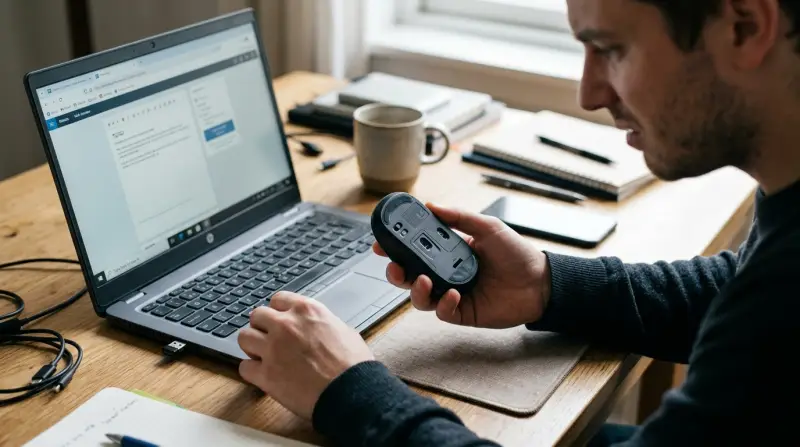
Many people believe that a mouse just “breaks” suddenly. In reality, there are several reasons why your laptop mouse might not respond, and the cause is often simple. Here are the main categories:
- Hardware issues: Problems with the mouse device, USB port, or built-in touchpad.
- Software problems: Driver errors, updates, or settings that block mouse function.
- External factors: Interference from other devices, battery issues (wireless mouse), or surface problems.
Understanding these causes will help you find a fast solution instead of guessing or replacing your mouse immediately.
Quick Initial Checks
Before diving into complex fixes, start with the basics. Many users overlook these steps, but they solve a surprising number of mouse problems.
- Check the connection. For a wired mouse, make sure the USB plug is firmly connected. For wireless, check the USB receiver and that the mouse is powered on.
- Try another USB port. Sometimes, a single port is faulty. Switching ports can reveal if the problem is with the mouse or your laptop.
- Restart your laptop. Temporary glitches can cause devices to stop working. A simple restart often resets hardware connections.
- Test the mouse on another device. If possible, plug the mouse into a different laptop or PC. If it doesn’t work there, the mouse may be faulty.
- Replace the batteries (wireless mouse). Weak or dead batteries are a common issue.
These steps sound simple, but they fix over 40% of mouse problems according to user reports.
Credit: www.youtube.com
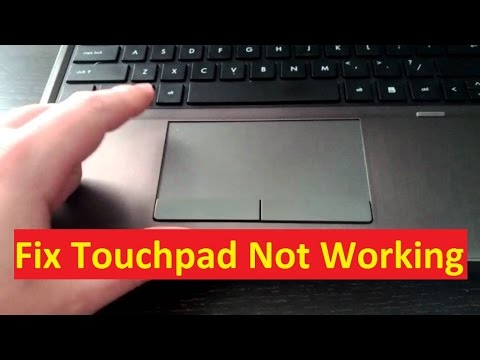
Troubleshooting Built-in Touchpad Not Working
Laptop users often rely on the built-in touchpad when the external mouse fails. Sometimes, the touchpad stops working too. This can feel like a major problem, but it’s often easy to fix.
Is Your Touchpad Disabled?
Many laptops have a touchpad enable/disable key. Look for a function key (often F5, F6, or F7) with a small touchpad icon. Pressing Fn + the touchpad key can turn your touchpad on or off. Accidentally pressing this combination is more common than you think.
Touchpad Settings In Windows
If the key doesn’t help, check your touchpad settings:
- Go to Settings > Devices > Touchpad.
- Make sure the touchpad is set to On.
- Adjust sensitivity and gestures if needed.
Driver Problems
If settings look fine but the touchpad still won’t work:
- Open Device Manager (right-click Start button).
- Expand Mice and other pointing devices.
- Right-click your touchpad and select Update driver.
- Restart your laptop.
Sometimes, an update or Windows change disables the touchpad driver. Updating or reinstalling fixes this.
Touchpad Vs Mouse Prioritization
On some laptops, plugging in a USB mouse disables the touchpad automatically. You can change this setting in your touchpad software (often Synaptics, ELAN, or Windows Precision Touchpad).
Common Mouse Problems And How To Fix Them
Now let’s look at the most frequent mouse issues laptop users report and practical ways to solve them.
Mouse Cursor Not Moving
If the cursor freezes or won’t move:
- Unplug and reconnect the mouse.
- Try a different USB port.
- Restart your laptop.
- Check for dust or dirt blocking the mouse sensor (for optical mice).
- On a wireless mouse, change the batteries and re-pair the device.
If none of these work, the mouse hardware may be faulty.
Mouse Clicks Not Registering
If clicks don’t register:
- Make sure no buttons are stuck.
- Try the mouse on another computer.
- Update or reinstall mouse drivers.
- Check for software conflicts (browser extensions, custom mouse software).
Mouse Working Intermittently
If the mouse works sometimes but not always:
- Move closer to the USB receiver (wireless mice).
- Remove other wireless devices that may cause interference (Bluetooth headphones, phones).
- Check for loose or damaged cables.
Mouse Lag Or Delayed Response
Lag is often caused by:
- Low battery (wireless).
- Too many background processes on your laptop.
- Outdated drivers.
- USB port version mismatch (try a USB 2.0 port if USB 3.0 seems slow).
Mouse Pointer Moving Erratically
- Clean the mouse sensor and surface.
- Avoid glass, shiny, or uneven surfaces.
- Turn off any custom pointer acceleration features in mouse settings.
Step-by-step Guide To Fixing Mouse Not Working On Laptop
Let’s walk through a structured troubleshooting process. This will help you find the cause and fix the issue efficiently.
Step 1: Identify The Type Of Mouse
- External wired mouse
- External wireless mouse
- Built-in touchpad
Knowing the type narrows down possible causes.
Step 2: Rule Out Hardware Problems
- Try the mouse on another computer.
- Try a different mouse on your laptop.
- For wireless: Check batteries and receiver.
If both the mouse and ports work elsewhere, the problem is likely software.
Step 3: Reboot And Safe Mode Test
Restart your laptop. If the mouse still doesn’t work, try booting into Safe Mode:
- Hold Shift and select Restart from the power menu.
- Choose Troubleshoot > Advanced options > Startup Settings > Restart.
- Select Enable Safe Mode.
If your mouse works in Safe Mode, a startup program or driver is causing the problem.
Step 4: Update Or Roll Back Mouse Drivers
In Device Manager:
- Expand Mice and other pointing devices.
- Right-click your mouse and select Update driver.
- If a recent update broke the mouse, select Properties > Driver > Roll Back Driver.
Step 5: Check For Windows Updates
Sometimes, Windows updates fix device compatibility issues. Go to Settings > Update & Security > Windows Update and check for updates.
Step 6: Look For Software Conflicts
Some antivirus programs or third-party utilities can block mouse function. Try disabling them temporarily. If the mouse works, you may need to adjust settings or switch software.
Step 7: Change Mouse Settings
Go to Settings > Devices > Mouse and adjust pointer speed, button configuration, and scroll options. Reset to default if unsure.
Step 8: Uninstall And Reinstall Mouse
In Device Manager:
- Right-click your mouse and choose Uninstall device.
- Unplug or disconnect the mouse.
- Restart your laptop.
- Plug the mouse back in to reinstall automatically.
Step 9: Bios/uefi Settings
Rarely, the USB port or touchpad can be disabled in BIOS/UEFI. Restart your laptop, enter BIOS/UEFI (often by pressing F2, F10, or Del during startup), and check input device settings.
Step 10: System Restore
If the mouse worked last week but not now, use System Restore to roll back to a point when everything was fine:
- Search for System Restore in Windows.
- Follow prompts to restore to an earlier state.
Comparing Mouse Types And Common Issues
Choosing the right mouse can reduce future problems. Here’s a comparison of the main types:
| Mouse Type | Pros | Cons | Common Issues |
|---|---|---|---|
| Wired USB Mouse | Reliable, no battery, low cost | Limited by cable length, occupies USB port | Cable damage, port failure |
| Wireless USB Mouse | Portable, no cable clutter | Needs batteries, may have lag | Battery drain, interference |
| Bluetooth Mouse | Connects without receiver, works with phones/tablets | Setup can be tricky, battery required | Pairing issues, Bluetooth conflicts |
| Touchpad | Always available, no extra device | Less precise, gesture learning curve | Driver errors, accidental disable |

Credit: www.youtube.com
When To Replace Your Mouse
Not all mouse problems can be fixed. Here’s how to know when it’s time for a replacement:
- Physical damage: Cracks, broken buttons, or frayed cables mean the mouse is beyond repair.
- Repeated disconnects: If the mouse disconnects or lags even after driver updates and port swaps, it’s likely failing.
- Unresponsive buttons: When one or more buttons stop working and can’t be fixed with software, the hardware is faulty.
- Erratic movement: If cleaning and changing surfaces don’t help, the sensor may be damaged.
- Old age: Mice don’t last forever. Most last 3-5 years with regular use.
It’s better to replace a failing mouse than waste hours troubleshooting.
Advanced Troubleshooting (for Power Users)
If basic fixes fail, try these advanced steps. Only proceed if you’re comfortable making these changes.
Update The Bios/uefi
Manufacturers sometimes release updates that fix USB or touchpad issues. Visit your laptop brand’s support page for instructions.
Clean Boot
A clean boot starts Windows with only essential services:
- Type msconfig in the search bar and press Enter.
- Go to the Services tab, check Hide all Microsoft services, then click Disable all.
- Restart your laptop.
If the mouse works, enable services one by one to find the problem.
Check For Malware
Some malware disables or hijacks mouse controls. Run a full scan with Windows Defender or another trusted antivirus.
Registry Fixes
If you suspect a registry issue:
- Press Win + R, type regedit, and press Enter.
- Navigate to HKEY_LOCAL_MACHINESYSTEMCurrentControlSetServicesmouclass.
- Check that entries are not corrupted or missing.
Be careful: Incorrect registry changes can harm your system.
External Usb Hub Test
Sometimes, a laptop’s USB ports are underpowered. Try connecting your mouse via a powered USB hub to see if power issues are the cause.
Check Event Viewer
Windows Event Viewer logs device errors:
- Search for Event Viewer.
- Go to Windows Logs > System.
- Look for warnings or errors related to USB or mouse.
Preventing Mouse Problems In The Future
Prevention is easier than repair. Here are some habits that keep your mouse working smoothly:
- Keep drivers updated. Check for updates every few months.
- Use a mouse pad. This reduces dust and improves accuracy.
- Clean your mouse regularly. Wipe the sensor and buttons with a dry cloth.
- Avoid pulling on cables. For wired mice, unplug by gripping the connector.
- Store the mouse safely. Don’t throw it in a bag with keys or coins.
- Replace batteries on schedule. For wireless mice, don’t wait for total failure.
Special Situations And Less-known Fixes
Some problems only appear in certain situations. Knowing these can save time and frustration.
Mouse Not Working After Windows Update
Sometimes, a Windows update breaks mouse compatibility. Try uninstalling the latest update:
- Go to Settings > Update & Security > Windows Update > View update history > Uninstall updates.
- Remove the most recent update and restart.
Mouse Stops Working When Typing
Some laptops automatically disable the touchpad when you type to avoid accidental input. Check your touchpad software for a setting called “Disable touchpad while typing” and turn it off if needed.
Mouse Not Working On Specific Software
If the mouse only fails in a certain program (like a game or editing software):
- Update the software.
- Run as administrator.
- Check for conflicts with custom mouse utilities or overlays.
Mouse Pointer Disappears
This often happens with external displays or projectors. Press Ctrl quickly to see if the pointer reappears, or disconnect and reconnect your display.
Data: How Often Do Mouse Problems Occur?
According to a 2022 survey by a popular tech support site, about 30% of laptop users experience mouse or touchpad issues at least once a year. The most common causes are:
| Issue | Percentage of Cases |
|---|---|
| Driver problems | 36% |
| Hardware failure | 29% |
| User settings error | 18% |
| Battery/power issues | 9% |
| Software conflicts | 8% |
This shows that most problems are not due to hardware failure, but instead to settings or software—meaning they can be fixed without buying a new device.
Real-world Example: Fixing A Wireless Mouse
Imagine you’re using a wireless USB mouse and it suddenly stops working during a presentation. Here’s how a professional might troubleshoot:
- Check the power switch and batteries.
- Move the USB receiver to a different port.
- If still not working, try the mouse on a colleague’s laptop.
- On your laptop, open Device Manager and look for errors.
- If Device Manager shows a yellow warning, update the driver.
- If nothing works, use your built-in touchpad to finish the presentation and troubleshoot later.
This process avoids panic and focuses on logical steps.
Two Insights Most Users Miss
- Surface matters more than you think. Glass tables, shiny desks, or even some mouse pads can confuse optical sensors. Always test your mouse on a plain piece of paper to rule out surface problems.
- Third-party USB devices can interfere. Devices like USB fans, external hard drives, or docking stations sometimes cause conflicts or power draw issues. Remove all extras before troubleshooting the mouse.
When To Seek Professional Help
If you’ve tried all the steps above and your mouse still doesn’t work, it’s time to consult a technician if:
- Device Manager shows errors that won’t clear.
- The touchpad and all USB ports are unresponsive.
- You see physical damage to your laptop’s USB ports.
- System restore and BIOS updates don’t help.
A hardware repair may be needed, especially if there is motherboard or port damage.

Reliable Resources For Further Reading
For deeper technical details and laptop-specific guidance, the official Microsoft support pages are a trustworthy source. Explore their tips at Microsoft Support.
Frequently Asked Questions
Why Did My Mouse Suddenly Stop Working On My Laptop?
This often happens due to a loose connection, driver update, or accidental disabling. Start by checking connections and restarting your laptop. If it’s a wireless mouse, check the batteries.
How Can I Enable My Laptop Touchpad If It’s Disabled?
Most laptops use a function key (like F6 or F7 with a touchpad icon). Press Fn plus that key. You can also enable it in Settings > Devices > Touchpad.
What If My Mouse Works On Another Computer But Not My Laptop?
This points to a software or settings issue on your laptop. Update drivers, check for Windows updates, and review mouse settings. If nothing works, a system restore may help.
Can A Virus Cause My Mouse To Stop Working?
Yes, some malware can block or hijack input devices. Run a full antivirus scan using Windows Defender or another trusted program.
Is It Better To Use A Wired Or Wireless Mouse With A Laptop?
Both have pros and cons. Wired mice are more reliable and don’t need batteries. Wireless mice are more portable but can suffer from lag or battery issues. Choose based on your main needs.
Whether you’re a student, office worker, or casual user, a working mouse is essential. By understanding the possible causes and applying the right solutions, you can fix most mouse problems yourself. Remember to keep drivers updated and check the simple things first—these small habits prevent future issues and keep your laptop running smoothly.