
If you have a Verizon Network Extender and it suddenly stops working, your home or office can quickly feel disconnected. Calls may drop. Texts take forever. Data slows to a crawl. For many users, the network extender is a lifeline—especially in areas with weak cellular coverage. But when problems appear, fixing them can be confusing. Here’s how to troubleshoot, understand, and confidently solve common issues with a Verizon Network Extender that’s not working.
What Is A Verizon Network Extender?
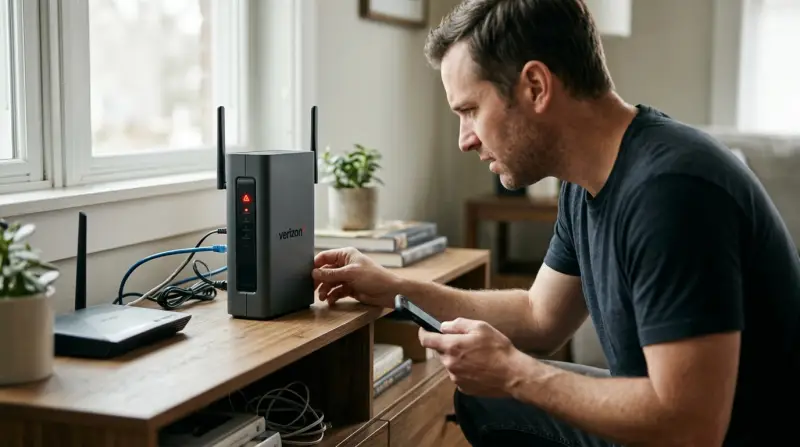
A network extender acts like a mini cell tower inside your building. It uses your internet connection to create a small zone of Verizon coverage. This means your phone can make calls, send texts, and use data as if you had strong Verizon signal—even if you’re far from the nearest cell tower.
These devices are especially helpful in:
- Rural homes with poor outdoor signal
- Basements or apartments with thick walls
- Offices in crowded cities where cell signals struggle to reach inside
But when the device fails, your phone may show “No Service” or “1x” instead of LTE or 5G. Understanding why is the first step to getting reconnected.
Common Reasons The Verizon Network Extender Isn’t Working
Several things can go wrong with a network extender. Here are the most frequent causes:
- Internet connection issues: The extender needs a steady, fast internet link.
- Power outages or loose cables: A simple unplugged cord can cause failure.
- Device overheating: If the extender gets too hot, it may shut down.
- Software or firmware problems: Updates can fail or become corrupted.
- GPS signal loss: The extender must “see” GPS satellites to work.
- ISP firewall or router settings: Some home networks block the required ports.
- Interference from other electronics: Wireless routers or microwaves nearby can cause trouble.
- Account or activation issues: Sometimes your extender is not registered to your Verizon account correctly.
Knowing which of these is your root cause will save you time and headaches.
Quick Fixes To Try First
Before diving into advanced steps, try these simple actions. They solve many problems fast.
- Restart the extender: Unplug, wait 30 seconds, and plug back in.
- Check cable connections: Make sure Ethernet and power cables are secure.
- Test your internet: Try streaming a video or running a speed test. If it’s slow or down, the extender will not work.
- Move the device: Place it away from thick walls, metal surfaces, and other electronics.
- Check for service outages: Sometimes Verizon or your internet provider has an outage.
If these don’t help, move on to more detailed troubleshooting.
Understanding Status Lights And What They Mean
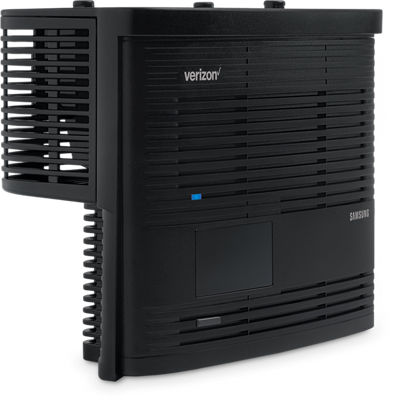
Your network extender uses LED lights to show what’s happening. Here’s a quick reference:
| Light Color | Meaning | Action Needed? |
|---|---|---|
| Solid Blue | Ready and working | No |
| Blinking Blue | Starting up or updating | Wait a few minutes |
| Solid Red | Error or hardware fault | Check cables, restart |
| Blinking Red | Critical error | Reset or call support |
| No Light | No power | Check power cable |
Understanding these signals can quickly point you in the right direction.
Step-by-step Troubleshooting
Check Your Internet And Router
Since the extender uses your home internet, any problem with your Wi-Fi or router will affect it.
- Reboot your router and modem.
- Plug another device (like a laptop) into the same Ethernet port to confirm it works.
- If you use a mesh Wi-Fi system, try connecting the extender directly to the main router.
Verify Gps Signal
The extender needs a strong GPS signal. This is required by law so emergency calls route correctly.
- Place the GPS antenna near a window, away from tall buildings or thick walls.
- Use the included GPS extension cable if needed.
- Wait up to 30 minutes for first-time setup.
If the device can’t get GPS, it will not provide Verizon coverage.
Check For Software/firmware Updates
Outdated software can cause glitches.
- Log into your extender’s web interface from a browser (the address is in the manual).
- Look for a “Firmware Update” section and follow prompts.
- If the device updates, allow it to restart fully.
Reset The Network Extender
If nothing works, a factory reset can help.
- Locate the reset button (usually small, needs a paperclip).
- Hold for 10 seconds.
- Wait for the device to reboot and run through setup again.
This erases any saved settings, so you’ll need to reconnect everything.
Check Verizon Account And Registration
Sometimes the device is not linked to your account, or there’s a billing issue.
- Log in to your Verizon account online.
- Look for network extender registration details.
- Make sure your phone number is authorized to use the extender.
- If you see error messages, call Verizon support.
Confirm Port Settings On Your Router
Some routers block the ports the extender needs. Make sure these are open:
- UDP ports: 500, 4500, 53, 52428
- TCP port: 80
You can check this in your router’s admin settings. If you’re unsure, ask your internet provider for help.
Move The Extender
Physical placement matters. For the best results:
- Place the extender in a central, open spot
- Avoid putting it in closets, cabinets, or basements
- Keep away from large metal objects and microwaves
A small change in location can fix many signal issues.
Comparing Models: Are Some Extenders More Reliable?
Not all Verizon Network Extenders are the same. Older models may have more issues, especially with new internet or 5G phones.
Here’s a quick comparison of popular models:
| Model | Max Users | Coverage Area | Release Year |
|---|---|---|---|
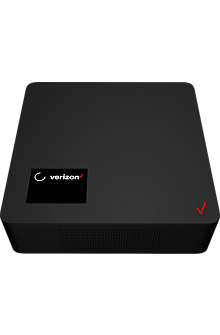
| Samsung SLS-BU10B | 14 | 7,500 sq. ft. | 2019 |
| Samsung SCS-2U01 | 8 | 5,000 sq. ft. | 2016 |
| 4G LTE Network Extender 2 | 16 | 7,500 sq. ft. | 2021 |
Older devices may not support the newest phones or have up-to-date security features. If your extender is several years old, upgrading may solve chronic issues.
When To Call Verizon Support
You’ve tried all the basic steps, but nothing helps. Here are signs it’s time to call Verizon:
- Solid red or blinking red lights after restart
- Device never gets past “Starting Up”
- You see error codes you don’t understand
- Your extender is missing from your Verizon account
Verizon can check if your device is online, push updates, or replace faulty hardware.
Advanced Tips Most Beginners Miss
Two important ideas often go unnoticed:
- Interference from other devices: Microwaves, cordless phones, and even some baby monitors use similar frequencies. Move the extender far from these.
- ISP carrier-grade NAT (CGNAT): Some internet providers use special settings that block the ports network extenders need. If nothing else works, ask your ISP if they use CGNAT and if they can put your connection in “bridge mode.”
Another tip: If your internet speed is less than 1 Mbps upload or download, the extender may work poorly, especially with many users.
Real-world Example: Fixing A Network Extender In A Basement Apartment
Anna lives in a basement apartment with thick concrete walls. Her Verizon Network Extender kept blinking blue for hours but never worked. She tried restarts and checked cables—no luck. After reading online, she realized the GPS antenna was sitting on a metal shelf.
She moved it to a window well and used the extension cable. Within 10 minutes, the light turned solid blue. Anna’s calls and texts worked perfectly again.
This shows how small details, like GPS placement, can make a big difference.
Should You Buy A New Network Extender?
If your device is over five years old or keeps failing, a new model can make life easier. Newer network extenders offer:
- Better support for LTE and 5G phones
- Larger coverage areas
- Support for more users at once
- Easier setup and updates
You can compare models and see what’s best for your needs at Verizon’s official site or read more at Verizon Support.

Cost And Warranty Information
Network extenders are often sold for $250 to $400. Sometimes, Verizon offers discounts if your coverage is especially poor. Most devices come with a one-year warranty. If yours is broken and still under warranty, Verizon may send a replacement for free.
Network Extender Vs. Wi-fi Calling
Many phones now support Wi-Fi Calling—making calls and sending texts over your home Wi-Fi instead of the cellular network. Here’s how the two compare:
| Feature | Network Extender | Wi-Fi Calling |
|---|---|---|
| Works with any Verizon phone? | Yes | No, only compatible models |
| Needs GPS? | Yes | No |
| Improves text and data? | Yes | Yes (if supported by phone) |
| Counts toward mobile data? | No | No |
| Setup required? | Yes, physical device | Just enable in phone settings |
If your phone supports Wi-Fi Calling and you don’t need to support many users, you may not need a network extender at all.
Frequently Asked Questions
Why Does My Verizon Network Extender Say “gps Failure”?
This usually means the device cannot detect enough GPS satellites. Try moving the GPS antenna closer to a window, away from metal objects or thick walls. Allow 20–30 minutes for it to lock on after moving.
Can I Use My Network Extender If I Change Internet Providers?
Yes. Just make sure the new router does not block required ports (UDP 500, 4500, 53, 52428; TCP 80). If you change Wi-Fi or Ethernet settings, reconnect the extender to the new network.
Does The Network Extender Work With 5g Phones?
Most newer models support both 4G LTE and 5G phones for calls and texts. Older models may only support 3G or 4G. Check your device’s model number and specifications to confirm.
How Do I Know If My Phone Is Connected To The Extender?
When connected, your phone may show “VZW Network Extender” or a small icon. You can also check your extender’s web interface for a list of connected devices.
What Should I Do If My Extender Keeps Restarting?
Frequent restarts often mean a power or overheating issue. Ensure the power cable is secure, the device is in a cool, open area, and no firmware update is stuck. If the problem continues, contact Verizon for support.
If you follow these steps and insights, your Verizon Network Extender should work more reliably. Even small changes—like moving the GPS antenna or updating firmware—can quickly turn a “dead zone” into a strong signal area. Don’t hesitate to reach out to Verizon support if you’re stuck; sometimes, only they can fix device or account issues.
With the right approach, you’ll stay connected wherever you need it most.