
When your Brother wireless printer says it’s connected but refuses to print, it’s enough to make anyone frustrated. You see the printer online, your Wi-Fi looks fine, and yet nothing comes out. This is a common headache, but it’s not a dead end. Understanding the causes and solutions can save time, money, and stress. Whether you use your printer for work, school, or personal needs, a reliable connection is essential. Let’s break down why this happens, how to fix it, and what you can do to avoid future problems.
Why Does This Happen?
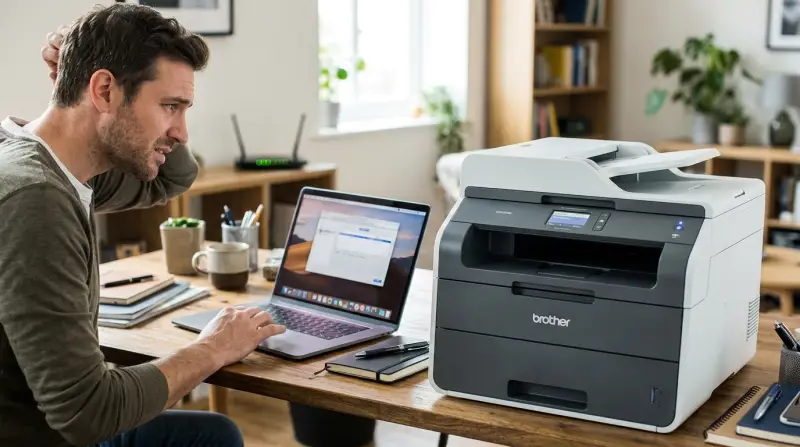
A wireless printer connected but not printing means your computer or device “sees” the printer but can’t send print jobs successfully. The issue often hides in plain sight. It could be a software glitch, a network hiccup, or something simple like the wrong default printer. Let’s look at the most common reasons.
Network Problems
Many users assume that if the printer shows “Connected,” the network is fine. But Wi-Fi can be tricky. For example, your printer and computer might be on different Wi-Fi bands (2.4GHz vs 5GHz), or your network may have split SSIDs. This split confuses devices, especially in dual-band routers. A quick test: try printing from another device. If it works, your network is likely fine, but if not, the problem is deeper.
Driver And Software Issues
Outdated or corrupt drivers are a hidden cause. Even if your printer was working last week, a Windows or Mac update can break compatibility. The Brother printer might show as online, but jobs get stuck in the queue or vanish. Always check if you have the latest Brother printer driver from the official website.
Wrong Default Printer
In homes or offices with multiple printers, the wrong default printer confuses Windows or Mac. Your computer may send the print job to a different device or a “virtual” printer like Microsoft XPS. Always confirm the correct default in your system settings.
Print Queue And Spooler Problems
The print spooler is a software bridge between your computer and printer. If it’s stuck or crashed, nothing prints—even if everything else seems fine. Clearing the print queue and restarting the spooler often solves the problem.
Firewall Or Security Software
Some security programs block network printing. This is more common in offices but can happen at home, too. Windows Firewall, antivirus software, or even network-level controls can silently stop print jobs.
Physical Issues
Low ink, empty paper trays, or an open printer cover can all stop printing. While obvious, these are easy to overlook when you’re focused on the network.
Non-obvious Insight: Power Saving Settings
Many Brother wireless printers have power-saving or “deep sleep” modes. In these modes, the printer appears connected but ignores print jobs. Try waking the printer by pressing a button or toggling the power.
Quick Fixes To Try First
Before diving into advanced troubleshooting, try these easy steps. They solve most problems and don’t require special skills.
- Restart Devices: Turn off your printer and computer, wait 30 seconds, then turn them back on.
- Check Wi-Fi: Make sure both the printer and computer are on the same network and Wi-Fi band.
- Default Printer: In Windows, go to “Printers & Scanners” and set the Brother printer as default.
- Clear Print Queue: Open the print queue and delete all pending jobs.
- Wake the Printer: Press any button on the printer’s control panel to exit sleep mode.
- Check Paper and Ink: Refill paper and replace empty ink or toner if needed.
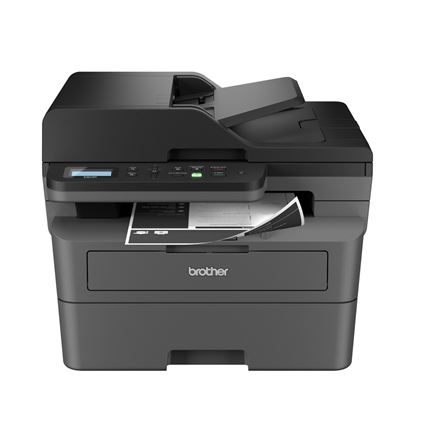
Credit: www.brother-usa.com
In-depth Troubleshooting Steps
Sometimes the basics aren’t enough. Here’s how to dig deeper.
Update Or Reinstall Printer Drivers
Outdated drivers are a silent killer for printing. Go to the Brother support page, search for your model, and download the latest driver for your operating system. Uninstall the old driver before installing the new one.
Example: Driver Versions
| Brother Model | Latest Driver Version | Supported OS |
|---|---|---|
| HL-L2350DW | 1.7.0 | Windows 10/11, MacOS 13+ |
| MFC-J995DW | 2.1.4 | Windows 10/11, MacOS 12+ |
| DCP-L2550DW | 1.6.2 | Windows 8/10/11, MacOS 10.15+ |
Restart The Print Spooler Service (windows)
- Press Windows + R, type “services.msc”, and press Enter.
- Find “Print Spooler” in the list.
- Right-click and select “Restart”.
- Try printing again.
Reconnect The Printer To Wi-fi
Sometimes, the printer appears connected but lost its real link. Re-run the wireless setup using the printer’s control panel. Enter your Wi-Fi password again, and make sure you see a “Connection OK” message.
Test Printing From Another Device
This step narrows down the issue. If your phone, tablet, or a second computer also can’t print, the issue is likely with the printer or network—not your main computer.
Disable Firewall/antivirus Temporarily
Turn off your firewall or antivirus briefly and try printing. If it works, add an exception for network printing. Don’t forget to re-enable security when done.
Try A Different Usb Connection
If your wireless printing fails, connect the printer via USB. This helps test if the printer itself is working. If USB works but Wi-Fi doesn’t, focus on network settings.
Deeper Network Troubleshooting
When basic fixes don’t work, a network issue could be the culprit. Wireless printing relies on stable connections, and small details can break the link.
Compare Network Settings
Check if your printer and computer are on the same subnet (e. g. , 192. 168. 1. x). If not, they might not “see” each other. You can find your printer’s IP address in its settings menu.
Example: Network Configuration
| Device | IP Address | Wi-Fi Band |
|---|---|---|
| Brother Printer | 192.168.1.105 | 2.4GHz |
| Computer | 192.168.1.111 | 5GHz |
If your router has “AP Isolation” or “Guest Network” enabled, devices won’t communicate. Turn these features off for your main network.
Assign A Static Ip Address
Dynamic IP addresses can change, breaking the connection. Assign a static IP to your printer through your router’s settings. This way, your computer always knows where to send the print jobs.
Router Restart
Routers build up errors over time. Power cycling your router can resolve hidden bugs that affect wireless printing.

Credit: www.youtube.com
Special Cases: Brother Printer Models
Some Brother models are more prone to specific problems. For example, the Brother HL-L2350DW sometimes has sleep issues, while the MFC series can get stuck on firmware updates. Check your model’s support page for known issues and patches.
Mac Vs Windows Differences
The steps above work for both Windows and Mac, but there are some platform-specific details.
On Windows
- Use the “Troubleshoot” feature under “Printers & Scanners” for automated fixes.
- Remove and re-add the printer if it still won’t print.
On Mac
- Go to System Preferences > Printers & Scanners.
- Right-click (or Control-click) the printer and select “Reset printing system”. This deletes all printers and queues—add your Brother device again afterward.
Example: Mac Printing System Reset
| Step | Action |
|---|---|
| 1 | Go to System Preferences > Printers & Scanners |
| 2 | Right-click in the printer list, choose “Reset printing system” |
| 3 | Re-add your Brother printer |
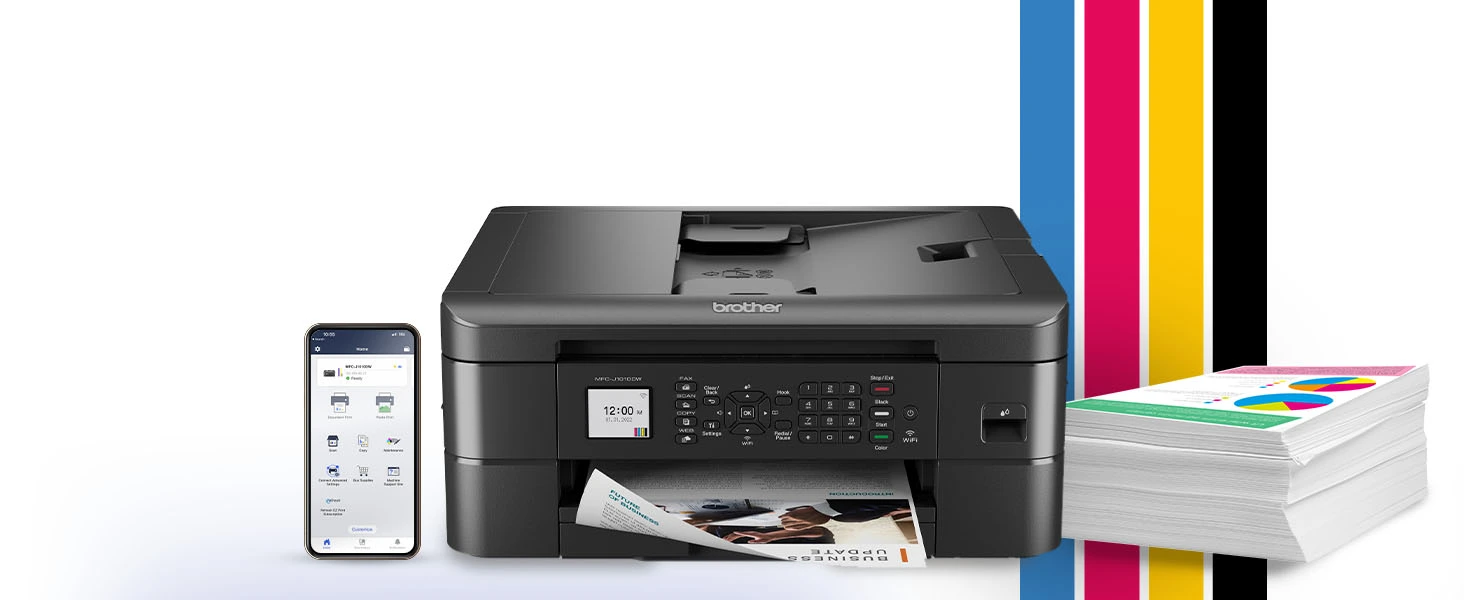
Credit: www.brother-usa.com
Common Mistakes To Avoid
- Ignoring Firmware Updates: Printers need updates, too. Check for firmware updates on the Brother website.
- Overlooking Simple Errors: An open paper tray or low ink warning will stop printing, even if everything else is perfect.
- Mixing Wi-Fi Bands: If your printer is on 2.4GHz and your computer on 5GHz, issues can arise—especially with older routers.
- Not Restarting After Changes: Always restart your devices after making network or driver changes to apply settings fully.
Pro Tips For Reliable Wireless Printing
- Print a Network Configuration Page: Most Brother printers have this option in the menu. This page shows current settings and error messages.
- Use Brother’s Mobile Apps: The Brother iPrint&Scan app can help test printing directly from your phone.
- Keep Software Updated: Update both your operating system and printer drivers after major system changes.
- Router Placement: Keep the printer within the router’s coverage area, away from thick walls or electronic interference.
- Static IP for Stability: As mentioned, a static IP helps prevent connection loss during router reboots.
When To Contact Support
If you’ve tried all steps and your Brother wireless printer still won’t print, it’s time to reach out to Brother support. Persistent issues could signal hardware failure, a network incompatibility, or a deeper software bug. Have your printer model, serial number, and a summary of steps you’ve already tried ready to speed up the process.
You can also find valuable resources at the official Brother Support Center.
Frequently Asked Questions
Why Does My Brother Printer Say “ready” But Nothing Prints?
The “Ready” status means the printer is connected but doesn’t guarantee it received the print job. Common reasons include jobs stuck in the queue, driver errors, or the printer being in sleep mode. Check the print queue and wake the printer if needed.
How Can I Fix A Stuck Print Job?
Open the print queue on your computer, select the stuck job, and click “Cancel. ” If the job won’t clear, restart the print spooler service (on Windows) or reset the printing system (on Mac).
Why Does My Brother Wireless Printer Work With One Device But Not Another?
This usually means a network or software mismatch. One device may have the correct driver or be on the same Wi-Fi band as the printer, while the other is not. Check network settings and update drivers on all devices.
Is A Static Ip Necessary For Wireless Printing?
A static IP isn’t required but is highly recommended. It prevents your printer’s address from changing, which can break connections—especially after router reboots.
My Brother Printer Prints From Usb But Not Wi-fi. What’s Wrong?
This points to a network or wireless setup issue. Check if the printer and computer are on the same Wi-Fi network, and re-run the wireless setup wizard on your printer. Also, verify your router settings for device isolation or guest network features.
If you follow these steps, you’ll solve most problems where your Brother wireless printer is connected but not printing. Small details matter, and one overlooked setting can make all the difference. Fix the basics first, dig deeper if needed, and enjoy reliable printing once again.