
If your Arlo security cameras are not working as expected, or you have trouble connecting them to your network, the solution is often a simple reset of the Arlo Base Station. Resetting can fix many problems, from offline cameras to connection errors, and can help you set up your system again from scratch if needed. But the process can be confusing, especially for first-time users or those not familiar with smart home devices. This guide will explain how to reset your Arlo Base Station in clear, simple steps, with extra tips and answers to common questions.
What Is An Arlo Base Station?
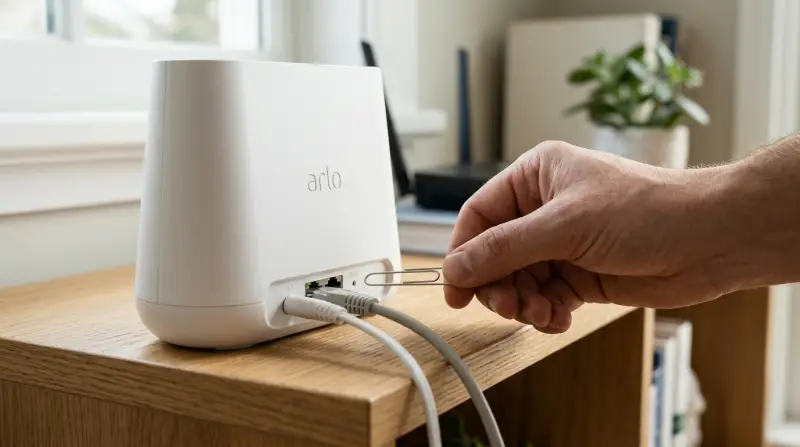
The Arlo Base Station is the central hub for your Arlo wireless cameras. It connects your cameras to the internet, allowing you to view live video, receive alerts, and store recordings in the cloud. The base station manages communication between the cameras and the Arlo app. There are different models, like the Arlo Pro, Pro 2, Pro 3, and the newer SmartHub, but most have similar reset procedures.
When Should You Reset Your Arlo Base Station?
Resetting is not something you need to do often. It’s best used when:
- Cameras go offline and won’t reconnect
- The base station is not responding in the app
- You want to connect the base station to a new Wi-Fi network
- You plan to give away, sell, or move your Arlo system
- You are asked to by Arlo support
A reset will erase certain settings, but your videos saved in the cloud will not be lost. However, you will need to set up your cameras and base station again after a full reset.
Types Of Reset: Soft Vs. Factory Reset
There are two main ways to reset your Arlo base station:
- Soft Reset – This is a simple restart of the base station. It keeps all your settings and camera connections.
- Factory Reset – This erases all settings and removes the base station from your Arlo account. You must set up everything again.
The right choice depends on your problem. If your system is just acting slow or cameras are offline, try a soft reset first. If you need to start over, use a factory reset.
Here’s a quick comparison:
| Reset Type | Keeps Settings? | Removes from Account? | When to Use |
|---|---|---|---|
| Soft Reset | Yes | No | Minor issues, unresponsive app |
| Factory Reset | No | Yes | Major errors, changing networks, selling device |
How To Perform A Soft Reset
A soft reset is quick and easy. Follow these steps:
- Unplug the base station from power.
- Wait about 10 seconds.
- Plug it back in and wait for the lights to turn solid green.
This simple step solves many problems, like temporary connection drops or slow response. Try this before a factory reset. If the problem continues, move to a full reset.
How To Factory Reset Your Arlo Base Station
A factory reset will erase all your base station settings and remove it from your Arlo account. After resetting, you will need to re-add the base station and pair your cameras again.
Step-by-step Factory Reset
Locate The Reset Button
On most Arlo base stations, the reset button is a small, round hole labeled “Reset” on the back. You may need a paperclip or pin.
Press And Hold The Reset Button
Insert the paperclip and press the button for 10 seconds.
Release when the LED lights on the front blink amber.
Wait For Reboot
The base station will restart. The lights will blink and then turn off for a moment.
Remove Base Station From Arlo App
Open the Arlo app. If the base station still appears, remove it:
- Go to Settings > My Devices
- Select your base station
- Tap Remove Device
- Add the Base Station Again
After the reset, the base station acts like a new device. In the app:
- Tap Add New Device
- Select your base station model
- Follow the instructions to connect it to your Wi-Fi or router
- Re-Sync Your Cameras
After adding the base station, press the Sync button on each camera, then the Sync button on the base station. Wait for the cameras to connect.
Here’s a summary of the steps in a quick reference:
| Step | Action | Estimated Time |
|---|---|---|
| 1 | Press and hold reset button | 10 seconds |
| 2 | Remove device from Arlo app | 2 minutes |
| 3 | Add base station back to app | 5 minutes |
| 4 | Sync cameras again | 2–5 minutes per camera |
Tips And Troubleshooting
Resetting can sometimes cause confusion if you miss a step or if your network has issues. Here are some practical tips:
- Check Internet Connection: Before resetting, make sure your router and internet are working. A weak or unstable connection can cause the base station to appear offline, even if it’s not faulty.
- Use the Correct Reset Button: Some Arlo base stations have multiple buttons. Make sure you use the small reset hole, not the power or sync button.
- Wait for Lights: After a reset, the lights on the base station may blink for several minutes before turning green. Don’t rush this process.
- Update Firmware: Sometimes, outdated firmware can cause issues. After resetting, check for updates in the Arlo app.
- Don’t Forget Cloud Recordings: Factory resetting does NOT delete your cloud videos, but removing the base station before you download local USB recordings will erase those.
Common Mistakes To Avoid
- Not Removing the Device in the App: If you don’t remove the old base station entry in your Arlo app, you may have trouble adding it again.
- Using the Wrong Power Adapter: Some users accidentally swap power supplies with other devices, causing startup issues.
- Interrupting the Reset: Don’t unplug the base station during the reset process. Wait until the lights stabilize.

What To Do After Resetting
After a factory reset, your base station is like new. Here’s what to do next:
- Re-add to Your Account: Use the Arlo app to add the base station. Follow the on-screen steps.
- Sync Cameras: Each camera must be paired again. Hold the Sync button on the base station, then on the camera. Wait for the blinking blue light.
- Check Camera Placement: If you moved cameras or changed your Wi-Fi, check signal strength in the app. Weak signals can cause disconnections.
- Adjust Settings: All custom settings, like schedules, modes, and alerts, must be set up again.
- Test Everything: Once set up, test each camera from the app. Walk in front of each camera and check if you get notifications.
Here’s a quick comparison of what is and isn’t erased by a factory reset:
| Item | Erased by Factory Reset? |
|---|---|
| Wi-Fi settings | Yes |
| Camera pairings | Yes |
| Cloud recordings | No |
| Local USB recordings | Yes, if not backed up |
| App settings | Yes |
Special Scenarios
Resetting For A New Wi-fi Network
If you change your home Wi-Fi, you must do a factory reset of the base station. There is no way to simply update the network settings. After the reset, connect the base station to your new network and re-add your cameras.
Selling Or Giving Away Your Arlo System
Always perform a factory reset before selling or giving away your base station. This removes your account and personal information from the device, keeping your data safe.
Multiple Base Stations
If you have more than one base station (for example, in a large house or different locations), reset and re-add each one separately. Name them clearly in the app to avoid confusion.

Non-obvious Insights Most Beginners Miss
Reset Does Not Fix Camera Batteries
Some users think resetting the base station will help if cameras don’t turn on. But if your camera battery is dead or faulty, a reset won’t help. Always check batteries first.
Local Storage Can Be Lost
If you use a USB drive or SD card to record video locally, remember to back up your files before resetting the base station. Local storage is erased during a factory reset, but cloud recordings are not.
Extra Resources
For more detailed technical support, visit the official Arlo Knowledge Base, which provides step-by-step guides and troubleshooting for all Arlo products.

Frequently Asked Questions
How Do I Know If My Arlo Base Station Needs A Factory Reset?
If you have tried a soft reset and your cameras are still offline, or you need to connect the base station to a new Wi-Fi, a factory reset is the best option. Also, if the app tells you the base station is already in use or cannot be added, a factory reset will help.
Will I Lose My Cloud Recordings If I Reset The Arlo Base Station?
No, your cloud recordings are tied to your Arlo account, not the base station itself. Resetting the base station will not delete videos already saved in the Arlo cloud.
What Happens If I Don’t Remove The Base Station From The App After A Reset?
If you skip removing the device from the app, you may not be able to add the base station again or may see duplicate entries. Always remove the device in the app after a factory reset.
Do I Need To Reset My Arlo Cameras As Well?
After a factory reset, you need to re-sync your cameras to the base station, but you do not need to factory reset each camera. Just press the Sync button on both the base station and the camera to pair them again.
How Long Does It Take To Reset And Set Up The Arlo Base Station?
A soft reset takes less than a minute. A factory reset plus setup can take 10-20 minutes, depending on the number of cameras and your network speed.
Resetting your Arlo base station is a simple but powerful tool to solve many problems. Whether you are troubleshooting offline cameras or moving your system to a new network, following the steps above will help you get your Arlo security back on track quickly and safely.
Remember to back up local files, check batteries, and always remove the device from your app before starting a factory reset. With these tips, your home security will be running smoothly again in no time.