
If you own an iRobot Roomba and it won’t connect to WiFi, you’re not alone. Many people run into this issue, and it can be frustrating, especially if you want to use smart features or control your Roomba from your phone. The good news is that most WiFi connection problems with Roomba can be fixed at home with a little guidance. This article explains why your Roomba might not connect to WiFi, how you can fix it, and what mistakes to avoid. Whether you’re setting up your Roomba for the first time or suddenly facing connection issues, this guide will help you get back on track.
Why Your Roomba Needs Wifi
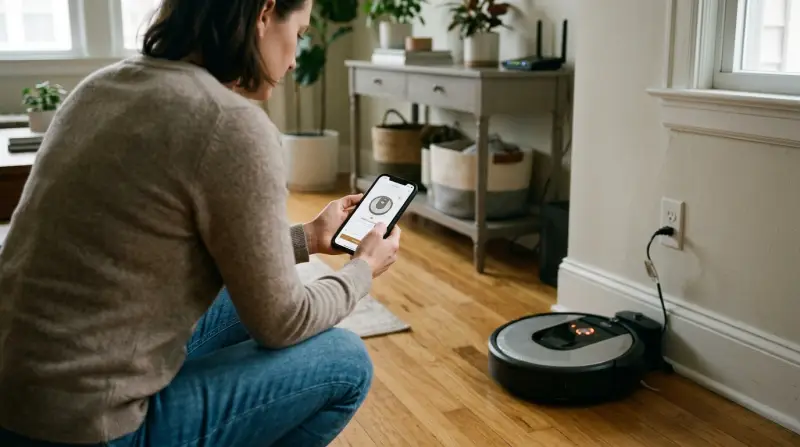
WiFi is not just for convenience. With a good connection, your Roomba can:
- Receive software updates for better performance and new features.
- Allow you to schedule cleanings from your phone, even when you’re not home.
- Work with voice assistants like Alexa or Google Assistant.
- Give you cleaning reports and notifications.
If Roomba can’t connect to WiFi, you lose these benefits. That’s why fixing this issue is important.
Common Reasons Roomba Won’t Connect To Wifi
Several factors can prevent your Roomba from connecting to your home network. Here are the most common reasons:
- Wrong WiFi frequency: Many Roomba models only support 2.4 GHz WiFi, not 5 GHz.
- Weak WiFi signal: If your router is too far away, Roomba can’t get a strong enough signal.
- Incorrect password: Mistyping the WiFi password is a common mistake.
- Network settings: Advanced settings like MAC filtering or hidden SSIDs can block new devices.
- App issues: Sometimes, the iRobot Home app needs updating or has bugs.
- Outdated firmware: Both Roomba and your router might need updates.
- Interference: Other electronics can sometimes block or confuse WiFi signals.
Quick Checklist Before You Start Troubleshooting
Before you dig deeper, check these basics first:
- Make sure your phone is connected to the same WiFi network you want Roomba to use.
- Verify your WiFi password is correct.
- Restart your router and Roomba.
- Update the iRobot Home app to the latest version.
Many connection problems are solved just by doing these simple steps.
Understanding Your Roomba’s Wifi Compatibility
Not all Roomba models support the same WiFi features. Most connect only to 2.4 GHz networks. Let’s see which series support which frequencies:
| Roomba Series | 2.4 GHz Support | 5 GHz Support |
|---|---|---|
| 600, 800, 900 | Yes | No |
| e, i, j, s Series | Yes | Some models only |
| Roomba Combo | Yes | No |
Non-obvious tip: Some dual-band routers use the same name (SSID) for both 2.4 GHz and 5 GHz. If your Roomba fails to connect, try creating a separate SSID for 2.4 GHz and connect your phone to it during setup.
Step-by-step Solutions For Roomba Wifi Issues
Let’s look at how to fix the problem. Follow these steps in order. If one doesn’t work, move to the next.
Check Your Wifi Network
- Make sure your WiFi network is visible and not hidden.
- Confirm that your router is broadcasting on 2.4 GHz.
- Place your Roomba and phone near the router for setup.
Restart Everything
- Unplug your router for 30 seconds, then plug it back in.
- Restart your Roomba by holding the CLEAN button for 10 seconds until it beeps.
Reset Network Settings On Roomba
Different Roomba models use different reset methods. Here’s a quick guide:
| Model | Reset Method |
|---|---|
| 600/800/900 Series | Hold DOCK + SPOT + CLEAN for 10 seconds |
| e/i/j/s Series | Hold HOME + SPOT + CLEAN until lights swirl |
Insight: After a network reset, your Roomba will forget all WiFi info. You must set it up again in the app.
Update Everything
- Make sure your phone’s operating system is up to date.
- Update the iRobot Home app.
- Check for firmware updates for your router.
Use The Irobot Home App Properly
- Connect your phone to the 2.4 GHz WiFi network before starting.
- Open the app and follow the on-screen steps.
- When prompted, enter your WiFi password carefully.
Practical tip: If setup fails, try closing the app completely and starting again. Some phones need location services turned on for the app to work.
Move Closer To The Router
If possible, set up your Roomba within a few feet of your router. Walls, doors, and furniture can weaken WiFi signals. After setup, you can move Roomba back to its usual place.
Check For Network Interference
- Turn off devices like baby monitors, cordless phones, or microwaves during setup.
- Avoid placing your router near thick walls or metal objects.
Adjust Advanced Router Settings
Some routers have features that block new devices:
- MAC Address Filtering: Turn this off during setup.
- Guest Network: Don’t use guest networks for Roomba.
- Parental Controls: Make sure your Roomba isn’t blocked.
If you are not sure how to change these, check your router’s manual or look for help on the manufacturer’s website.
Factory Reset As A Last Resort
If nothing works, a factory reset will erase all settings and let you start over. The reset method is usually:
- Hold HOME + SPOT + CLEAN together for 20 seconds (for most newer models).
After resetting, set up WiFi again in the app.
Wifi Connection Troubleshooting Table
Here’s a quick reference for solving common problems:
| Problem | Possible Cause | Solution |
|---|---|---|
| Roomba not found by app | Phone not on 2.4 GHz WiFi | Switch phone to correct network |
| Wrong password error | Mistyped WiFi password | Re-enter password carefully |
| “Unable to connect” message | Signal too weak, interference | Move closer to router, reduce interference |
| Connection drops after setup | Router restarts, settings change | Update router firmware, check settings |
| App crashes during setup | Outdated app or phone OS | Update app and phone |
What Most Beginners Miss
Many people focus only on the Roomba, but the problem is often with the router settings or the phone’s WiFi connection. For example, if your phone is connected to 5 GHz during setup, Roomba will never connect, even if your router also broadcasts 2.4 GHz. Separating your WiFi bands during setup often solves the issue.
Another common mistake is using a VPN or having mobile data turned on while setting up. This can confuse the app and block the connection. Always turn off VPN and mobile data during setup.
Signs Your Roomba Is Connected
Once your Roomba is connected to WiFi, you should see:
- A green or blue WiFi icon on the robot (model-dependent).
- The iRobot Home app shows the robot as “Online.”
- You can start, stop, or schedule cleaning from your phone.
- Roomba receives software updates.
If you do not see these, repeat the troubleshooting steps.
When To Contact Irobot Support
If you have tried all the steps and your Roomba still won’t connect:
- Your router may have special security features that need expert help.
- Your Roomba’s WiFi module could be broken.
- The app or firmware may have a rare bug.
Contact iRobot support with your model number, router brand, and a summary of what you’ve tried. You can find official help at iRobot Support.
How To Avoid Future Wifi Problems
- Place your router in a central spot in your home.
- Avoid changing your WiFi name or password often.
- Update your router and Roomba firmware regularly.
- Do not hide your WiFi network SSID.
If you move to a new house or get a new router, remember to set up your Roomba’s WiFi again.
Frequently Asked Questions
Why Does My Roomba Only Work With 2.4 Ghz Wifi?
Most Roomba models are designed for 2.4 GHz WiFi because it has a longer range and penetrates walls better than 5 GHz. Only some high-end models support both.
What Should I Do If My Roomba Keeps Disconnecting From Wifi?
Check for signal interference, weak WiFi signal, or router settings that might block devices. Try moving your Roomba closer to the router and updating your firmware.
Can I Use Roomba Without Wifi?
Yes, your Roomba can still clean without WiFi. However, you lose features like app controls, scheduling, and software updates.
What Does The Flashing Wifi Light Mean On My Roomba?
A flashing WiFi light usually means your Roomba is trying to connect or has lost connection. Solid light often means it’s connected. Check your user manual for your model’s specific indicators.
Is It Safe To Reset My Roomba’s Network Settings?
Yes. Resetting the network settings will only erase WiFi info, not your cleaning history or other settings. You will need to set up WiFi again in the app.
Getting your iRobot Roomba connected to WiFi shouldn’t be a mystery. By following these steps, checking your router’s settings, and understanding your model’s requirements, you can usually fix the problem yourself. This keeps your Roomba working at its best, with all the smart features you paid for. If all else fails, iRobot’s support team can help get you back up and running.