
When you sit down to watch your favorite show, there’s nothing more frustrating than your Vizio TV refusing to recognize the HDMI input. The screen stays blank, or you see “No Signal”—but you know your streaming box, gaming console, or Blu-ray player is working fine. This is a common problem that leaves many Vizio owners searching for answers.
While HDMI issues can happen with any TV brand, Vizio users report this problem more often than expected. In most cases, you don’t need a new TV or expensive repairs. With a clear understanding and a few practical steps, you can fix the issue yourself or know exactly when to get professional help.
This guide will walk you through every detail of why a Vizio TV might not recognize HDMI, how to fix it, and how to avoid the problem in the future. Whether you’re a tech beginner or comfortable with settings menus, you’ll find practical solutions here—plus some insights that even long-time users often miss.
Common Causes For Vizio Tv Not Recognizing Hdmi
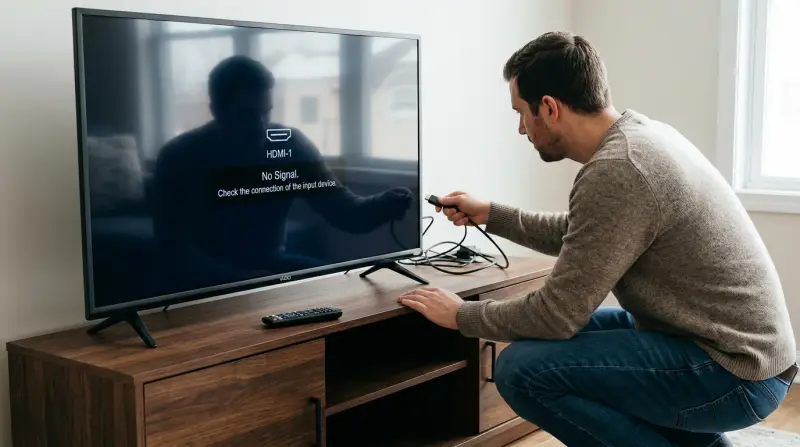
Before jumping to solutions, it’s important to know what might cause the problem. HDMI issues can come from several different sources:
- Loose or Damaged Cables – The most common cause. Even a small wiggle can break the connection.
- Incorrect Input Selection – The TV might be set to the wrong HDMI input.
- Device Problems – The device (like a Roku or PlayStation) may not send a signal.
- HDMI Port Failure – One or more of the TV’s HDMI ports could be damaged.
- Software Glitches – Firmware bugs or settings can block the signal.
- HDCP Errors – Copy protection handshake fails, causing “No Signal.”
- Resolution Mismatch – The device’s output resolution doesn’t match what the TV supports.
Many users only check the cable and input, but other factors—especially HDCP or resolution mismatch—are often overlooked. Ignoring these can lead to hours of wasted effort.
Basic Troubleshooting Steps
Let’s start with the easiest, quickest checks. These steps solve HDMI problems for a large majority of Vizio TV owners.
Check Hdmi Cables And Connections
- Unplug the HDMI cable from both the TV and the device.
- Inspect both ends for bent pins, dirt, or damage.
- Firmly plug the cable back into the TV and the device.
- If possible, try a different HDMI cable. Many issues come from faulty or low-quality cables.
Choose The Correct Hdmi Input
- Use the Input or Source button on your Vizio remote.
- Cycle through each HDMI input (HDMI 1, HDMI 2, etc. ).
- Wait a few seconds at each input to see if the picture appears.
Power Cycle The Tv And Devices
- Turn off the TV and unplug it from the wall.
- Unplug the connected device.
- Wait at least 60 seconds.
- Plug both back in and turn them on.
- This clears temporary glitches in HDMI communication.
Test With A Different Device
- Connect a different device (another streaming stick, laptop, or game console) to the same HDMI port.
- If the TV recognizes this device, the first device might be the problem.
Try A Different Hdmi Port
- Move the HDMI cable to a different port on the TV.
- Select the matching input using the remote.
- Some ports may fail while others work fine.
If the HDMI signal still doesn’t appear, it’s time to check deeper causes.
Advanced Troubleshooting For Hdmi Detection
Basic steps didn’t work? Let’s dive into more technical solutions that address less obvious problems.
Hdmi Port Comparison Table
Below is a quick reference comparing HDMI port behavior when working versus when faulty.
| HDMI Port Status | Typical Behavior | What You See |
|---|---|---|
| Fully Working | Recognizes signal instantly | Picture and sound appear |
| Loose Connection | Signal drops with movement | Flickering or “No Signal” |
| Physically Damaged | Never recognizes any device | Always “No Signal” |
| Software Glitch | May recognize after restart | Inconsistent results |
Update Vizio Tv Firmware
Sometimes, a simple update can fix HDMI bugs.
- Press the Menu button on the remote.
- Go to System > Check for Updates.
- Download and install any available updates.
- After updating, repeat the HDMI test.
Older firmware can cause handshake and compatibility issues, especially with new devices.
Reset Hdmi-cec Settings
HDMI-CEC lets devices control each other (like turning on the TV when you power the game console). But sometimes, CEC gets confused.
- Open the Menu.
- Go to System > CEC.
- Turn CEC Off, then On again.
- Power cycle the TV and devices.
If you have multiple HDMI devices, turning CEC off completely can sometimes restore HDMI function.
Check For Hdcp Errors
HDCP (High-bandwidth Digital Content Protection) is a copy-protection system. If the handshake fails, you’ll see “No Signal” or a black screen. This happens often with streaming boxes and Blu-ray players.
- Try turning everything off, unplugging for 2 minutes, and reconnecting.
- Use a high-quality HDMI cable labeled “High Speed.”
- If possible, set your device to a lower resolution (like 1080p instead of 4K) and test again.
- Avoid splitters or adapters between device and TV, as these can break HDCP.
A surprising number of HDMI “failures” are really HDCP handshake issues, not hardware faults.
Adjust Output Resolution
If a device outputs a resolution the TV doesn’t support, you’ll get no picture.
- Connect the device to another TV or monitor.
- Lower the device’s resolution (for example, from 4K to 1080p).
- Reconnect to your Vizio TV.
Many streaming boxes and consoles default to the highest possible resolution—sometimes higher than your TV supports.
Factory Reset The Tv
If all else fails, a full reset clears any corrupted settings.
- Press Menu on the remote.
- Go to System > Reset & Admin > Reset TV to Factory Defaults.
- Enter your passcode (if set) or the default code (usually 0000).
- Confirm and wait for the TV to restart.
Remember, this will erase all custom settings and Wi-Fi passwords. Only use this as a last resort.
Deeper Insights: What Users Often Miss
Even experienced users sometimes miss these advanced causes:
Hdmi Version Compatibility
Not all HDMI cables and ports are created equal. For example, a modern 4K streaming box needs a cable and port supporting HDMI 2.0 or higher for full functionality. If you use an old HDMI 1.4 cable, you might get no signal or strange errors.
- Check your device and TV manuals for HDMI version requirements.
- Use cables labeled for 4K or “Premium Certified.”
- If you have an older Vizio TV, try lowering the device’s output to 1080p.
Input Labeling And Renaming
Vizio TVs let you rename HDMI inputs (like “Cable Box” or “Game Console”). If you’ve renamed or hidden certain inputs, you might accidentally select the wrong one.
- Check your TV’s input list in the menu.
- Make sure the input you’re using is visible and not disabled or renamed confusingly.
Signal Boosters And Switches
Some users connect HDMI splitters, switches, or extenders. These can cause handshake problems or degrade the signal. Whenever troubleshooting, connect the device directly to the TV with no extra hardware.
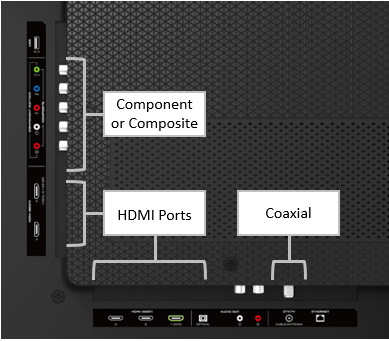
When To Suspect A Hardware Problem
If you’ve tried all software and cable troubleshooting, your TV’s HDMI port may be physically damaged. Here’s how to know:
- None of the HDMI ports recognize any device, even after resets.
- The port is physically loose or wobbly.
- You see visible damage or broken pins inside the port.
To confirm, connect your device to another TV. If it works there, your Vizio TV likely has a hardware issue.
Hdmi Port Vs. Device Comparison
Here’s a table to help you decide what’s likely at fault.
| Test Result | Device | TV | Likely Problem |
|---|---|---|---|
| Works on other TV | Yes | No | Vizio HDMI port issue |
| Works on other device | No | Yes | External device issue |
| Fails everywhere | No | No | Cable or device issue |
If only one HDMI port is bad, you can often use the others. If all fail, repair may be needed.
How To Prevent Hdmi Issues In The Future
A few simple habits can help you avoid the headache of HDMI recognition problems.
Use Quality Hdmi Cables
Cheap or old cables cause most problems. Look for:
- Premium High-Speed or Ultra High-Speed labels
- Support for your TV’s maximum resolution (4K or 8K)
- Trusted brands with good reviews
Avoid very long cables (over 10 feet) unless you buy specifically for long-distance HDMI transmission.
Avoid Frequent Plugging And Unplugging
HDMI ports are not designed for constant use. Repeated plugging and unplugging can loosen or damage the port. If you need to switch devices often, consider an HDMI switch with a remote.
Keep Tv Firmware Up To Date
Vizio regularly releases updates to fix bugs, add compatibility, and improve performance. Make it a habit to check for updates every few months.
Don’t Overload With Adapters Or Splitters
Every extra device between your source and TV increases the chance of errors. Use direct connections whenever possible.
Handle Cables Carefully
Never yank or sharply bend HDMI cables. A kinked cable can break the tiny wires inside, causing intermittent failures.

When To Contact Support Or Get Professional Help
If your Vizio TV still doesn’t recognize HDMI after all troubleshooting, it may need service. Here’s when to call for help:
- All HDMI ports have stopped working.
- You see physical damage (bent or broken ports).
- The TV is still under warranty.
- You are uncomfortable opening or repairing electronics.
Contact Vizio Support through their website or phone line. If your TV is out of warranty, local TV repair shops can often replace HDMI ports, but get an estimate before deciding—it’s sometimes less expensive to replace the TV.
If you’re a technical user and your TV is out of warranty, HDMI port repairs are possible, but require delicate soldering and experience.
Vizio Tv Model Differences: Are Some More Prone To Hdmi Issues?
Vizio offers a range of models, from basic D-Series to high-end P-Series Quantum. Some models are more likely to experience HDMI issues due to:
- Older firmware (especially on D-Series and E-Series TVs made before 2018)
- Early 4K models (sometimes have HDMI handshake problems with modern devices)
- Low-end models (may use lower quality HDMI ports)
If you own a newer M-Series or P-Series, you’re less likely to have hardware failures. But firmware bugs can affect any model.
Model Comparison Table
Here’s a quick reference of Vizio TV series and their common HDMI issues.
| Series | Release Years | Known HDMI Issues | Notes |
|---|---|---|---|
| D-Series | 2016–2021 | Frequent handshake errors | Update firmware for best results |
| E-Series | 2015–2018 | Loose HDMI ports | Be gentle with cables |
| M-Series | 2018–Present | Rare, mostly software | Update fixes most issues |
| P-Series | 2017–Present | Very rare, usually user error | Premium ports and cables |
Older models are more likely to need firmware updates or hardware repair.
Real-world Examples And User Experiences
To bring these solutions to life, here are a few real examples:
- A user with a 2017 Vizio D-Series found that only one HDMI port worked. The problem was a slightly bent pin in the other port, caused by a heavy cable pulling down over time.
- A gamer with a PS5 and Vizio M-Series couldn’t get 4K HDR to show. Lowering the PlayStation’s output to 4K SDR solved the issue—his cable didn’t support full HDMI 2.1 bandwidth.
- A family using a streaming stick kept seeing “No Signal” after the TV updated. A quick check revealed the stick was plugged into HDMI 3, but the TV was set to HDMI 1. Renaming the inputs in the menu helped them avoid confusion in the future.
These stories show that HDMI problems often have simple causes, but sometimes require careful testing and patience.
Frequently Asked Questions
Why Does My Vizio Tv Say “no Signal” Even Though The Device Is On?
This usually means the TV isn’t receiving a signal from the device. Double-check that the HDMI cable is firmly connected, the device is powered on, and the correct input is selected. If it still fails, try a different cable or device to isolate the problem.
Can A Bad Hdmi Cable Cause My Vizio Tv Not To Recognize Devices?
Yes. Cheap or damaged HDMI cables are the number one cause of HDMI recognition problems. Even if the cable looks fine, internal wires may be broken. Always test with a known-good cable before suspecting the TV.
What Is Hdcp, And How Does It Affect Hdmi On Vizio Tvs?
HDCP is a security protocol to prevent copying digital content. If your device or cable can’t “handshake” with the TV, you’ll see errors or no signal. Using quality cables and avoiding adapters or splitters can prevent most HDCP issues. For more details, you can read about HDCP on the Wikipedia HDCP page.
How Do I Update My Vizio Tv’s Firmware To Fix Hdmi Issues?
Press the Menu button, go to System, then Check for Updates. If there’s a new update, follow the prompts to install it. Updates fix bugs and add compatibility for new devices.
My Vizio Tv Only Recognizes Some Devices, But Not Others. Why?
Some devices use different HDMI versions or resolutions. If your TV is older, it may not support the latest standards. Try lowering the output resolution of the device, or use a high-quality HDMI cable. Also, check for firmware updates on both the TV and your devices.
HDMI problems can be annoying, but they’re rarely a sign that your Vizio TV is broken for good. With the right approach—testing cables, inputs, and settings—you can solve most issues yourself. Remember, patience and careful troubleshooting save time and money.
And if all else fails, Vizio support and local repair shops can help bring your TV back to life. Happy viewing!