
Many people use Excel every day to work with data, organize information, and make reports. One feature that helps users read large spreadsheets is Freeze Panes. This tool lets you keep rows or columns visible while you scroll, making it easier to compare data or follow headers. But sometimes, you try to freeze panes and it just doesn’t work. The screen won’t lock the rows or columns, or the command is greyed out. If you have faced this problem, you are not alone. This article will show you why Freeze Panes not working in Excel happens, how to fix it, and what you can do to prevent it in the future. We’ll also cover common mistakes and hidden tips that even experienced users sometimes miss.
What Is Freeze Panes In Excel?
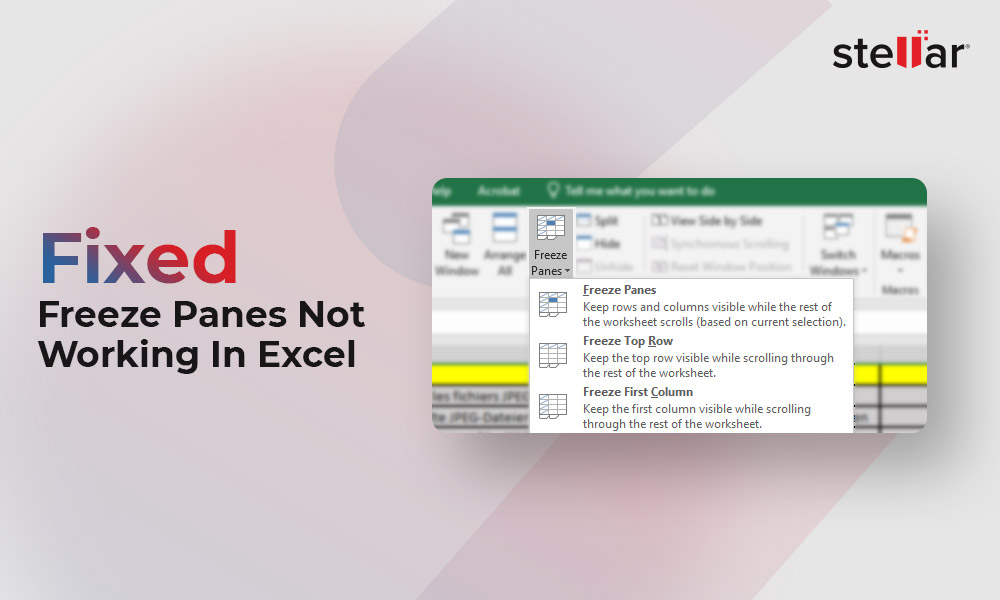
Freeze Panes is a tool in Excel that lets you lock certain rows or columns on your screen. For example, you can freeze the top row so you always see your headers, or freeze the first column to keep names visible as you scroll sideways. This makes working with big sheets simpler. You can find Freeze Panes under the View tab in Excel’s ribbon.
There are three main options:
- Freeze Panes: Freezes both rows and columns above and to the left of your selection.
- Freeze Top Row: Locks only the first row.
- Freeze First Column: Locks only the first column.
Knowing these options helps you pick the right one for your data. But sometimes, when you click Freeze Panes, nothing happens, or the option is unavailable. Let’s see why.
Common Reasons Freeze Panes Is Not Working
Many users run into problems with Freeze Panes. Some reasons are easy to fix, while others need more attention. Here are the most common causes:
Worksheet Is Protected
If your worksheet is protected, Excel blocks Freeze Panes. You must unprotect the sheet first. Go to Review > Unprotect Sheet.
You’re In Page Layout View
Excel has different views: Normal, Page Layout, and Page Break Preview. Freeze Panes only works in Normal View. If you’re in Page Layout, switch back to Normal under View > Normal.
Multiple Windows Open
If you have opened the same workbook in several windows, Freeze Panes may not work. Close extra windows and try again.
Hidden Rows Or Columns
If you select a row or column that is hidden, Excel cannot freeze panes. Unhide all rows/columns first.
Tables Interfere
If your selection is inside an Excel Table (not just a range), the Freeze Panes option is often disabled.
Merged Cells
Freeze Panes cannot work with merged cells in the area you’re trying to freeze. Unmerge cells in the freeze area.
Selection Not Set Properly
To freeze panes, select the cell just below the row and just right of the column you want to keep visible. If your selection is off, Excel may freeze the wrong rows/columns or not freeze at all.
Corrupted Workbook
Rarely, the workbook itself is corrupted, making Freeze Panes not work. Try copying your data to a new workbook.
Let’s compare the main causes and solutions:
| Problem | Fix |
|---|---|
| Worksheet Protected | Unprotect Sheet |
| Page Layout View | Switch to Normal View |
| Hidden Rows/Columns | Unhide All |
| Merged Cells | Unmerge |
| Inside Table | Use a Range |
Step-by-step Solutions For Freeze Panes Problems
If Freeze Panes is not working, follow these steps to fix it:
Check Worksheet Protection
Go to the Review tab and look for Unprotect Sheet. If this button is active, click it. If you need a password, ask the person who made the sheet.
Change Your View
Click the View tab, then choose Normal. If you are in Page Layout or Page Break Preview, Freeze Panes won’t work.
Unhide Rows And Columns
Right-click on row or column headers and choose Unhide. Make sure there are no hidden rows or columns in the area you want to freeze.
Remove Merged Cells
Select the area around your freeze panes, then click Home > Merge & Center > Unmerge Cells. Merged cells can block Freeze Panes.
Exit Excel Table
If your selection is inside an Excel Table, click outside the table or convert the table to a range. Go to Table Tools > Design > Convert to Range.
Set The Correct Selection
Click the cell below the last row and to the right of the last column you want to freeze. Example: To freeze rows 1-2 and columns A-B, select cell C3.
Here’s how the selection works:
| What You Want to Freeze | Where to Click |
|---|---|
| Top Row | Any cell (use Freeze Top Row) |
| First Column | Any cell (use Freeze First Column) |
| Rows 1-2 & Columns A-B | Cell C3 |
| Row 1 & Columns A-B | Cell C2 |
Copy To A New Workbook
If none of the above works, your workbook may be corrupted. Copy all your data to a new Excel file and try Freeze Panes again.
Advanced Tips And Hidden Insights
Even experienced Excel users miss some things about Freeze Panes. Here are two non-obvious tips:
Custom Freeze Panes For Multiple Areas
Excel can only freeze one area at a time. But you can mimic this by splitting your window using Split under the View tab. This lets you scroll two areas independently.
Freeze Panes With Filters
If you use filters, Freeze Panes will still keep your header visible while you filter data. But if you filter out your frozen row or column, you’ll lose the freeze effect.
Another tip: When working with very large sheets (over 100,000 rows), Freeze Panes can slow down scrolling. Try freezing only what you need.
Preventing Freeze Panes Issues In The Future
To avoid problems, follow these steps:
- Always check for merged cells before freezing panes.
- Unhide all rows and columns before you start.
- Work in Normal View for best results.
- Avoid using Freeze Panes inside Excel Tables.
- Save your workbook often—corruption can cause random issues.
Many users forget to check for hidden rows or merged cells, which are the most common causes of Freeze Panes problems.
Real-life Examples
Let’s look at some real examples to help you understand:
Example 1:
A finance manager tries to freeze the top three rows for a sales report. He selects row 4 and clicks Freeze Panes, but nothing happens. Solution: He was in Page Layout View. After switching to Normal View, Freeze Panes worked.
Example 2:
A teacher wants to freeze the first column and first two rows for student grades. She selects cell B3, but Freeze Panes is greyed out. Solution: The sheet was protected. After unprotecting, she could freeze panes.
Example 3:
A researcher has a large dataset. He freezes the header row, but scrolling is slow. Solution: He used Split instead of Freeze Panes, which improved performance.
Comparing Freeze Panes To Other Excel Features
Sometimes, users confuse Freeze Panes with other tools. Here’s a quick comparison:
| Feature | Purpose | Best Use |
|---|---|---|
| Freeze Panes | Lock rows/columns | Large sheets with headers |
| Split | Scroll two areas | Compare distant data |
| Protect Sheet | Block editing | Security |
| Hide Rows/Columns | Remove from view | Focus on key data |
What To Do When Freeze Panes Still Doesn’t Work
If you have tried all solutions and Freeze Panes still fails, try these steps:
- Restart Excel: Sometimes, Excel needs a fresh start. Save your work and restart the program.
- Update Excel: An outdated version can cause bugs. Go to File > Account > Update Options and check for updates.
- Check For Add-ins: Some Excel add-ins can interfere. Disable add-ins under File > Options > Add-ins.
- Repair Office: If Excel is broken, you can repair it via Control Panel > Programs > Microsoft Office > Change > Repair.
If you continue to face issues, visit Microsoft’s support or check forums for help. For official guidance, see Microsoft Support.

Frequently Asked Questions
Why Is The Freeze Panes Option Greyed Out?
Usually, Freeze Panes is greyed out when you are in Page Layout View, your worksheet is protected, or you have selected an area inside an Excel Table. Switch to Normal View and unprotect the sheet.
Can I Freeze More Than One Area In Excel?
No, Excel only allows one freeze area at a time. But you can use Split to view two parts of your sheet. This is helpful for comparing data far apart.
Why Does Freeze Panes Not Work With Merged Cells?
Merged cells change the structure of the sheet, making it hard for Excel to lock rows or columns. Unmerge cells in the area you want to freeze before using Freeze Panes.
Does Freeze Panes Affect Printing?
No, Freeze Panes is only for viewing on your screen. It does not change what is printed. If you want headers on every printed page, use Print Titles under Page Layout.
How Do I Fix Slow Scrolling After Using Freeze Panes?
If your sheet is very large, Freeze Panes can slow down Excel. Try freezing fewer rows or columns, or use Split instead. Also, keep Excel updated for better performance.
Excel’s Freeze Panes feature is a small tool, but it makes a big difference in how you work with data. When it stops working, it can be frustrating. By understanding the reasons and solutions, you can fix problems quickly. Remember to check for hidden rows, merged cells, and worksheet protection.
Using the right selection and working in Normal View are key steps. For big sheets, consider Split or limit what you freeze. With these tips, you’ll keep your data organized and easy to read. If all else fails, updating Excel and repairing Office can help.
Now, you can solve Freeze Panes issues confidently and keep your workflow smooth.