
When your Tecknet mouse suddenly stops working, it can disrupt your workflow and cause a lot of frustration. These mice are popular for their affordable price and good performance, but sometimes, like all devices, they have issues. Whether your Tecknet mouse is wired or wireless, there are proven steps to diagnose and fix most problems. This guide will help you understand why your mouse is not working and how to get it functioning again—using simple words and practical advice that works for both beginners and experienced users.
Common Reasons Why A Tecknet Mouse Stops Working
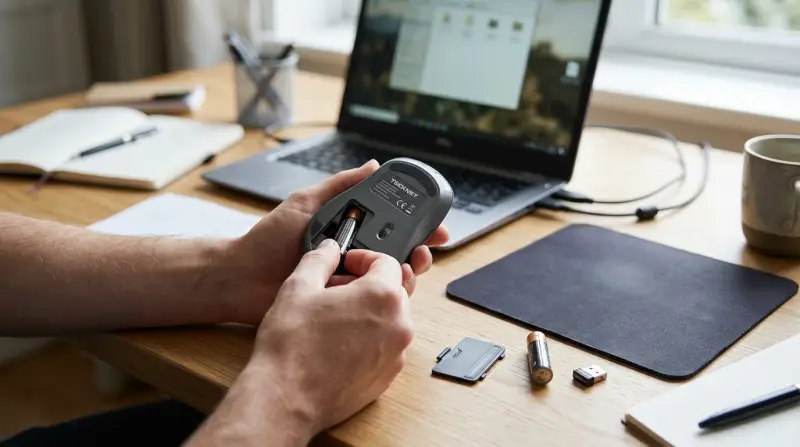
Several factors can cause a Tecknet mouse to stop working. Knowing the most frequent causes will help you fix the problem quickly.
- Connection issues: Wireless mice may lose connection due to low battery, interference, or a faulty USB receiver. Wired mice may have damaged cables or loose USB ports.
- Driver problems: Outdated or missing drivers can prevent the mouse from working properly.
- Power issues: Wireless mice need enough battery power to function. Dead or weak batteries are a common cause.
- Physical damage: Drops, spills, or wear and tear can damage internal components.
- Software conflicts: Sometimes, third-party software or recent system updates can interfere with your mouse.
- Surface problems: Using the mouse on a rough or reflective surface may affect performance.
Understanding these basic causes will help you decide which solution to try first.
Quick Checks Before Troubleshooting
Before diving into detailed solutions, perform these quick checks. Many mouse issues are caused by simple, easy-to-fix problems.
- Check the batteries (for wireless models). Replace with fresh ones.
- Test on another computer. This helps you see if the problem is with the mouse or the computer.
- Try a different USB port. Ports can sometimes fail.
- Restart your computer. This can fix temporary glitches.
- Clean the mouse sensor. Dust or debris can block the optical sensor.
If your Tecknet mouse still doesn’t work after these steps, move on to deeper troubleshooting.
How To Fix A Tecknet Mouse That’s Not Working
1. Check Physical Connections
For wired Tecknet mice, inspect the USB cable for any visible damage. Try plugging the mouse into another USB port or a different device. If the mouse works elsewhere, the problem could be with your computer’s USB port.
For wireless models, make sure the receiver is fully inserted into the USB port. Some computers have low-power USB ports that may not supply enough energy for external devices—try a port on the back of a desktop PC, as these often provide more power.
2. Replace Or Recharge Batteries
One of the most common reasons a wireless Tecknet mouse fails is weak or dead batteries. Always use new, high-quality batteries. Rechargeable models should be charged fully before use. Some users overlook the battery orientation, so double-check you have inserted them correctly.
3. Update Or Reinstall Mouse Drivers
Drivers help your mouse communicate with your computer. Outdated or corrupt drivers can cause connection problems. Here’s how to update or reinstall them:
- Open Device Manager (press Windows Key + X, select Device Manager).
- Find “Mice and other pointing devices” and right-click your Tecknet mouse.
- Choose “Update driver” and follow the instructions.
- If updating doesn’t work, uninstall the device and restart your PC. Windows should reinstall the correct driver automatically.
Some users find that manually downloading the latest driver from the manufacturer’s website gives better results.
4. Test On Different Surfaces
An often-overlooked issue is the surface under your mouse. Optical sensors work best on non-reflective, even surfaces. Avoid glass, mirrors, and highly patterned mouse pads. Try using a plain piece of paper as a test surface.
5. Look For Software Conflicts
Recent software installations or updates can sometimes interfere with your mouse. Try booting your computer in Safe Mode to see if the mouse works there. If it does, a third-party application might be causing the issue. Uninstall any recent software that could affect input devices.
6. Check For Hardware Problems
If your mouse still doesn’t work, it might have a hardware problem. Look for signs of physical damage like cracks, broken buttons, or signs of liquid spills. If the mouse has been dropped or exposed to moisture, it may need professional repair or replacement.
Comparing Tecknet Mouse Models: Common Issues
Different models have their own strengths and weaknesses. Here’s a quick look at typical issues found in popular Tecknet mice:
| Model | Type | Common Issues | Fix Difficulty |
|---|---|---|---|
| Tecknet M003 | Wireless | Battery drain, connection loss | Easy |
| Tecknet Raptor | Wired | Scroll wheel, USB cable wear | Moderate |
| Tecknet Pro | Wireless | Receiver failure, pointer lag | Moderate |
When troubleshooting, it helps to know your exact model and its typical faults.
Credit: www.youtube.com
Advanced Troubleshooting Steps
If the basic steps haven’t fixed your Tecknet mouse, try these more advanced methods.
Update Your Operating System
Sometimes, a Windows or macOS update can resolve compatibility issues. Go to your system settings and check for updates. Install any available updates and restart your computer.
Change Power Management Settings
Windows can sometimes turn off USB devices to save power. To prevent this:
- Open Device Manager.
- Go to “Universal Serial Bus controllers.”
- Right-click each “USB Root Hub” and select “Properties.”
- Under the Power Management tab, uncheck “Allow the computer to turn off this device to save power.”
This step can make a big difference, especially for wireless mice.
Reset The Mouse
Some Tecknet mice have a small reset button. Use a paperclip to press and hold the reset button for 5–10 seconds. Reconnect the mouse to your computer and test again.
Try The Mouse On Another Operating System
If possible, test your Tecknet mouse on a different operating system (for example, a Mac if you usually use Windows). If it works, the issue is likely with your current system, not the mouse itself.
Contact Tecknet Support
If you have tried everything and your mouse still doesn’t work, reach out to Tecknet customer support. They may offer a replacement or additional help if your device is under warranty. Keep your purchase receipt and product details handy.
How Tecknet Mice Compare To Other Brands
You might wonder if switching brands would avoid these problems. Here is a comparison between Tecknet and two popular competitors:
| Brand | Average Price | Reliability | Warranty |
|---|---|---|---|
| Tecknet | $10–$20 | Good for price | 18 months |
| Logitech | $15–$40 | Very high | 12–24 months |
| Microsoft | $20–$50 | High | 12 months |
Tecknet offers strong value for the price, but sometimes has more frequent connection problems than higher-end brands. However, most issues can be fixed with the steps above, so replacing your mouse is rarely needed unless there’s real hardware damage.

Credit: www.amazon.com
Two Non-obvious Insights For Tecknet Mouse Users
- USB receiver location matters: For wireless models, placing the receiver in a front-facing USB port (rather than behind your PC or near metal objects) can dramatically improve performance and reduce lag.
- Interference from other devices: Wireless Tecknet mice use 2.4GHz signals, which can suffer interference from Wi-Fi routers, Bluetooth headphones, or even microwaves. Moving these devices farther from your mouse or changing Wi-Fi channels can help.
How To Prevent Future Problems
You can avoid many mouse issues by following these simple habits:
- Keep your mouse clean. Wipe the sensor area regularly.
- Use high-quality batteries in wireless models.
- Store your mouse carefully to avoid drops and spills.
- Update your system and drivers every few months.
- Avoid using the mouse on glass or reflective surfaces.
These small steps extend the life of your Tecknet mouse and reduce the chances of future problems.

Credit: manuals.plus
When To Replace Your Tecknet Mouse
Not every problem can be fixed. Consider buying a new mouse if:
- The mouse does not work on any device or operating system.
- You see physical damage like broken buttons, cracked casing, or loose parts.
- The mouse disconnects frequently, even after trying all fixes.
- The scroll wheel or buttons are unresponsive, despite cleaning and resetting.
Modern mice are not expensive, and sometimes, replacement is more cost-effective than repair.
Useful Resources
If you want more technical information, you can visit the Wikipedia page on computer mice for a deeper look at how these devices work and common issues.
Frequently Asked Questions
Why Does My Tecknet Wireless Mouse Keep Disconnecting?
Frequent disconnections are often caused by low battery power, USB receiver interference, or power-saving settings on your computer. Try replacing the batteries, moving the receiver to a different USB port, and disabling power-saving for USB devices.
How Do I Reset My Tecknet Mouse?
Many Tecknet mice have a small reset button on the bottom. Press and hold this button for several seconds. If your model does not have a reset button, remove the batteries (or unplug the mouse), wait 30 seconds, and reconnect.
My Tecknet Mouse Pointer Is Moving Erratically. What Should I Do?
Erratic movement is usually caused by a dirty sensor or using the mouse on a poor surface. Clean the bottom of the mouse and try it on a plain, non-reflective surface like a mouse pad or a sheet of paper.
Can I Use My Tecknet Mouse With A Mac Or Linux Computer?
Yes, most Tecknet mice are plug-and-play and work with Mac, Linux, and Windows. However, advanced features or extra buttons may need drivers that are only available for Windows.
How Long Do Tecknet Mice Usually Last?
With normal use, a Tecknet mouse can last 1–3 years. Lifespan depends on care, usage, and model. Regular cleaning and using high-quality batteries can help your mouse last longer.
When your Tecknet mouse stops working, it doesn’t always mean you need a new one. With the right troubleshooting steps and a bit of patience, most issues can be solved at home. Remember, many problems are simple—dead batteries, dirty sensors, or a loose USB receiver.
By following the advice in this article, you can get your mouse working again and prevent future headaches. If all else fails, Tecknet’s customer support is there to help, and with affordable prices, replacement is always an option. Stay proactive, and your mouse will serve you well for years to come.