
If you enjoy watching TV at your own pace, a DVR is a must-have tool. With Verizon Fios DVR, you can record shows, pause live TV, and catch up whenever you want. But sometimes, the DVR doesn’t work as expected. Maybe recordings fail, playback is choppy, or the device won’t respond at all. These problems are frustrating especially if you miss your favorite show or an important sports event. In this guide, you’ll learn why a Verizon Fios DVR might stop working, how to fix common issues, and when to get extra help. By the end, you’ll know how to keep your DVR running smoothly and avoid missing out on entertainment.
Common Reasons Your Verizon Fios Dvr Isn’t Working
Several things can stop a Fios DVR from working. Understanding these helps you fix problems faster and sometimes prevent them in the future.
- Loose or Damaged Cables: If any cable connecting your DVR to the TV or router is loose or damaged, your DVR might not work at all.
- Software Glitches: Like any smart device, DVRs sometimes have bugs or software errors that cause freezing or crashes.
- Full Storage: When your DVR’s hard drive is full, it can’t record new content or might delete existing shows.
- Network Issues: Fios DVRs often need a working internet connection, especially for remote scheduling or multi-room DVR features.
- Outdated Firmware: Old software can make your DVR less stable or miss new features.
- Remote Control Problems: Sometimes the DVR is working, but the remote is not sending signals.
- Service Outage: Verizon Fios service can sometimes go down in your area, affecting your DVR.
These causes often overlap. For example, a network problem may lead to failed recordings. Knowing the likely reason speeds up fixing the issue.
Quick Fixes For Verizon Fios Dvr Problems
Before calling support, try some simple troubleshooting steps. These can solve most DVR issues in minutes.
Check All Connections
- Make sure every cable is plugged in tightly.
- Look for damaged cables and replace them if needed.
- If you use a splitter, try connecting the DVR directly to the wall outlet.
Restart Your Dvr
- Unplug the DVR’s power cord.
- Wait at least 30 seconds.
- Plug it back in and wait for the device to reboot (this can take a few minutes).
Clear Storage Space
- Delete old or watched recordings to free up space.
- Empty the “Recently Deleted” folder if your DVR has one.
- Check the DVR’s storage menu to see how much space is left.
Test Your Internet
- Use another device to check if your internet is working.
- If not, restart your router and modem.
- For Wi-Fi issues, move the DVR closer to the router or use a wired connection.
Update Dvr Software
- Go to your DVR’s settings menu.
- Look for “Software Update” or similar options.
- Follow prompts to install any available updates.
Check The Remote
- Replace batteries in the remote control.
- Ensure you’re pointing it at the DVR, not the TV.
- Try resetting the remote (instructions are usually in the DVR manual).
Check For Service Outages
- Visit the Verizon Fios outage page or call customer support.
- Outages in your area can affect recording and playback.
If these steps don’t work, move on to more detailed troubleshooting.
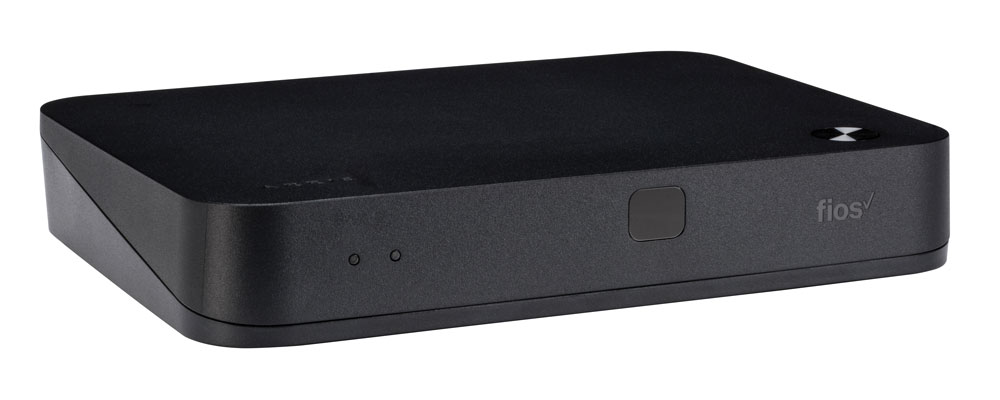
Troubleshooting Specific Dvr Issues
Some DVR problems are more complex and need special steps. Here’s how to handle the most common ones.
Recording Fails Or Shows Are Missing
- Check recording conflicts: Make sure you are not trying to record more shows than the DVR can handle at once.
- Verify series recording settings: Series recordings may stop if the show changes time or channel.
- Look at recording history: This shows why recordings failed (for example, “No Signal” or “Disk Full”).
- Try manual recording: Test by recording a show you know is airing soon to see if it saves correctly.
Playback Is Choppy Or Skips
- Clean up space: Too many saved shows can slow playback.
- Reboot the DVR: This fixes memory leaks or temporary errors.
- Check for overheating: Ensure the DVR has space around it for airflow. Overheating can cause performance drops.
Live Tv Doesn’t Pause Or Rewind
- Confirm DVR is active: Some Fios set-top boxes are not DVRs—make sure you’re using the right device.
- Test with different channels: Sometimes one channel has a signal problem.
- Reboot and retry: Restarting the DVR often fixes this issue.
Remote Dvr Scheduling Not Working
- Check network connection: Remote features need internet access.
- Log into your Fios app or online account: Ensure you’re using the correct username and password.
- Update the app: Outdated apps can cause scheduling issues.
Dvr Not Responding Or Frozen
- Force a reboot: Unplug and replug the device.
- Factory reset: As a last resort, perform a factory reset (note: this erases all recordings).
- Contact Verizon support: If the device still doesn’t respond, you may need a replacement.
Comparing Fios Dvr Models And Features
Verizon offers several DVR models, each with different features. Understanding these can help you troubleshoot or decide if you need an upgrade.
| DVR Model | Max Recording Hours (HD) | Simultaneous Recordings | Multi-Room Support |
|---|---|---|---|
| VMS1100 | 100 | 6 | Yes |
| IPC1100 | N/A | N/A | Yes (client only) |
| VMS4100 (Fios TV One) | 200 | 6 | Yes |
VMS4100 (Fios TV One) is the latest and has the most storage. The IPC1100 is not a DVR itself but acts as a client for multi-room setups. If you’re running out of space or want better features, upgrading to a newer model can help.

Dvr Storage Space: How It Affects Performance
A full or nearly full DVR can cause all kinds of problems, from failed recordings to slow menu performance. Here’s a quick look at how much you can store on different models:
| DVR Model | Approx. HD Hours | Approx. SD Hours |
|---|---|---|
| VMS1100 | 100 | 500 |
| VMS4100 | 200 | 1,000 |
SD (Standard Definition) recordings use less space than HD (High Definition). Always delete unneeded recordings, especially if you often record in HD.
Advanced Tips For Fios Dvr Users
Many people don’t realize there are hidden settings and extra steps that can prevent future problems.
- Schedule recordings during off-peak hours: If you notice failed recordings during busy TV times (like Sunday night), try to schedule some shows at less crowded times.
- Use external drives carefully: Some older DVR models allow external storage, but compatibility and reliability can vary.
- Regularly reboot your DVR: Doing this once a month can help clear out minor glitches.
- Monitor for overheating: Place your DVR in a cool, open area. Dust buildup can block vents, so clean around the device every few months.
- Check for hidden menus: Some models have advanced diagnostic menus (usually accessed by pressing a sequence on the remote). These can show signal strength and error logs.
If you have a multi-room setup, make sure all boxes have the latest software and are on the same network segment. If only one room has issues, the problem may be with a single client box, not the main DVR.
When To Contact Verizon Support
You’ve tried everything, but your DVR still isn’t working right. Here are signs it’s time to call Verizon:
- Frequent crashes or reboots: This usually means hardware failure.
- Complete loss of recording ability: If manual and scheduled recordings both fail.
- Error messages you can’t clear: Like “Hard Drive Failure” or “No Signal.”
- DVR won’t power on at all: Check the power supply, but if it’s dead, call support.
When you contact Verizon, have this information ready:
- Your account number
- DVR model number (on the sticker under the device)
- Details about what’s wrong (error messages, what you’ve already tried)
- How long the problem has been happening
This helps the support team solve your issue faster or arrange a replacement if needed.
Preventing Future Dvr Problems
A little care goes a long way with electronics. Here’s how to keep your Fios DVR healthy:
- Keep software updated: Check for updates regularly.
- Clear space often: Don’t let the storage fill up.
- Reboot the device: Do this monthly, even if it seems to be working fine.
- Keep it cool: Place your DVR in an open spot away from direct sunlight and dust.
- Check cables: Loose or damaged cables cause many problems.
A big mistake many users make is ignoring small glitches until the DVR stops working. Pay attention to minor issues—like slow menus or missed recordings—and take action early.

Frequently Asked Questions
Why Do My Verizon Fios Dvr Recordings Keep Failing?
Most failed recordings are caused by storage issues, signal problems, or recording conflicts. Check if your DVR is full and make sure you’re not trying to record too many shows at once. Look in the recording history for clues.
Can I Fix My Fios Dvr Without Losing Recordings?
Yes. Most troubleshooting steps, like rebooting or checking cables, will not erase your recordings. Only a factory reset will delete everything—so avoid this unless absolutely necessary.
How Do I Know If My Dvr Has A Hardware Problem?
If your DVR won’t power on, makes strange noises, or displays messages like “Hard Drive Failure,” the hardware is likely bad. Frequent crashes, even after rebooting, also point to hardware issues.
Does Verizon Replace Faulty Dvrs For Free?
If your DVR is under contract or warranty, Verizon will usually replace it at no extra cost. If you own the device, there may be a fee. Contact Verizon support to check your options.
Where Can I Get Official Verizon Fios Dvr Troubleshooting Help?
You can find official guides and support at the Verizon Fios TV Troubleshooting page. It has step-by-step instructions and the latest information.
A working DVR is key to enjoying your favorite shows on your schedule. By following these steps and tips, you’ll fix most problems quickly and avoid bigger issues down the road. With a little routine care, your Verizon Fios DVR should provide smooth, reliable service for years to come.