
If your Elo touchscreen monitor stops working, it can quickly disrupt your business or daily tasks. Touchscreens are now common in retail, hospitals, restaurants, and offices. When they fail, you lose fast access and efficiency. In this guide, you’ll find clear steps to diagnose and fix your Elo touchscreen, learn what causes the most problems, and discover smart ways to keep your monitor running smoothly. Even if you don’t speak English perfectly, you’ll understand everything here. Let’s solve your monitor issues together.
Common Causes Of Elo Touchscreen Monitor Failure
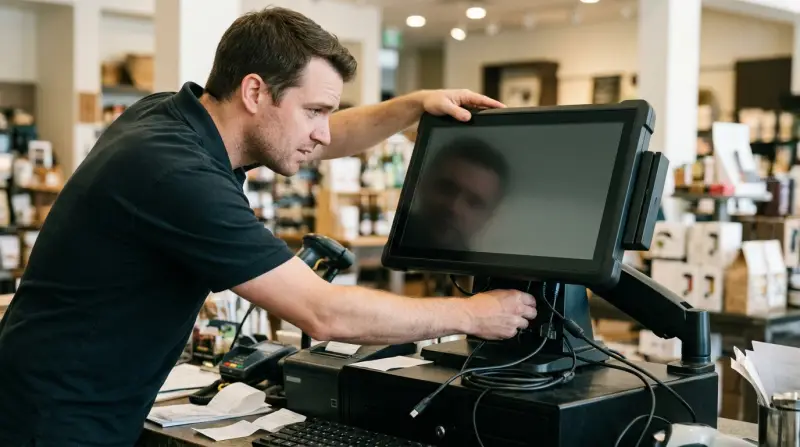
Most problems with Elo touchscreen monitors come from a few main sources. Understanding these can help you fix issues faster.
- Loose or faulty cables: If cables are not connected well, the monitor won’t get power or data.
- Driver problems: Software drivers let your computer talk to the touchscreen. If they’re outdated or missing, the monitor may not respond.
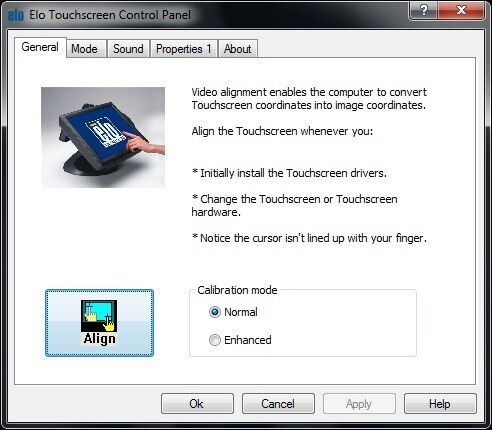
- Touchscreen calibration: Sometimes the touch accuracy gets lost, so your touches don’t match the screen.
- Operating system updates: Updates can change settings or remove drivers.
- Physical damage: Cracks, scratches, or water can stop the monitor from working.
- Electrical surges: Power spikes can damage internal parts.
- Faulty USB ports: If your USB port fails, the touch function may not work.
- Dirty screen: Dirt or fingerprints can make touches hard to detect.
Often, beginners miss the impact of software conflicts and environmental factors like humidity. These can cause the monitor to act strangely even if hardware seems fine.
Quick Troubleshooting Steps
If your Elo touchscreen monitor stops working, try these steps first. They solve most simple issues.
- Check all cables
- Make sure power, USB, and video cables are plugged in securely.
- Try swapping cables if you suspect damage.
- Restart the monitor and computer
- Turn off both devices. Wait 30 seconds. Turn them back on.
- Clean the screen
- Use a soft, dry cloth. Avoid water or chemicals.
- Check for physical damage
- Look for cracks or deep scratches.
- Try another USB port
- Sometimes only one port fails. Switch to another port.
- Test the monitor on another computer
- This reveals if the problem is with the monitor or your computer.
Many people forget to test with a different USB port or another computer. Doing this can save time and point to the real issue.
Credit: www.elotouch.com
Deep-dive: Software And Driver Issues
Software is often the hidden cause of touchscreen failures. Here’s how you can tackle these problems.
Checking Device Drivers
- Open Device Manager (Windows).
- Look for Elo Touchscreen under “Human Interface Devices.”
- If you see a yellow exclamation mark (! ), the driver is faulty.
To fix:
- Right-click the device.
- Select “Update Driver.”
- Choose “Search automatically.”
If Windows cannot find the driver, download the latest one from Elo’s official website.
Reinstalling Drivers
Sometimes, updating isn’t enough. Remove and reinstall the driver:
- Right-click the device, select “Uninstall.”
- Restart your computer.
- Windows will try to reinstall the driver automatically.
Operating System Compatibility
Touchscreen drivers sometimes break after a Windows update. Always check if your OS version supports your Elo monitor. Go to Elo’s website for compatibility lists.
Software Conflicts
Other applications, especially kiosk software or security apps, can block touch input. Try closing these programs and see if the touchscreen works.
Hardware Checks And Solutions
If software isn’t the issue, check hardware.
Inspecting Cables And Ports
Loose or damaged cables are a top cause. Use new cables if possible. Also, check the port’s shape—bent pins or dirt can block connection.
Power Supply Issues
If your monitor doesn’t turn on, check the power adapter. Use a voltmeter if you have one, or borrow an adapter from another Elo monitor.
Internal Hardware Failure
Rare, but possible. Signs include:
- No power even with working cables.
- Flickering screen.
- Random shutdowns.
Contact Elo support if you suspect internal failure.
Calibration Problems
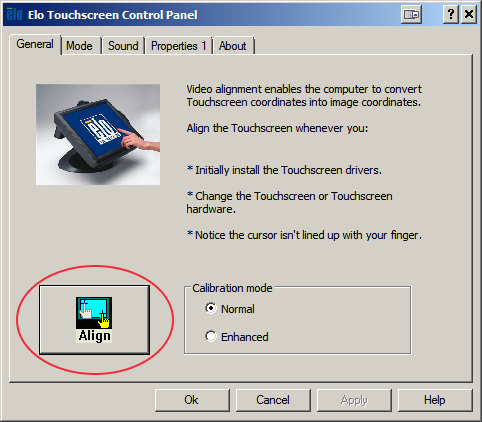
Sometimes the touchscreen responds, but not accurately. This is a calibration issue.
How To Recalibrate
- Open Elo’s calibration utility (usually installed with drivers).
- Follow on-screen instructions to touch certain points.
- Save settings.
Symptoms Of Bad Calibration
- Touches appear in the wrong place.
- Swipes don’t work as expected.
Calibration is often ignored, but it’s vital after repairs or software updates.
Comparing Elo Touchscreen Models
Some Elo monitors are more reliable than others. Here’s a quick comparison of popular models:
| Model | Screen Size | Resolution | Touch Technology | Common Issues |
|---|---|---|---|---|
| 1523L | 15″ | 1024×768 | Resistive | Calibration, cable wear |
| 1717L | 17″ | 1280×1024 | IntelliTouch | Driver, USB port |
| 2202L | 22″ | 1920×1080 | PCAP | Software updates, screen damage |
IntelliTouch and PCAP models usually have fewer calibration problems, but are more sensitive to software issues.
Advanced Fixes For Persistent Problems
If basic fixes don’t work, try these advanced steps.
Firmware Updates
Elo sometimes releases firmware updates. Download these from their site and follow instructions. Firmware can fix bugs and improve compatibility.
Resetting To Factory Settings
Some monitors allow a factory reset:
- Press and hold Menu button for 10 seconds.
- Select “Factory Reset.”
- Confirm.
This restores original settings and can fix hidden software problems.
Using Diagnostic Tools
Elo offers diagnostic apps. These run tests on the touchscreen, cables, and ports. Download from their site and follow instructions.
Preventing Future Issues
Keeping your Elo touchscreen healthy is easier than fixing it after it breaks.
- Regular cleaning: Use a microfiber cloth weekly.
- Avoid sharp objects: Pens, keys, or nails can scratch or crack the screen.
- Power surge protection: Use a surge protector.
- Update drivers regularly: Check for updates every few months.
- Monitor environment: Avoid extreme temperatures or humidity.
Most people ignore surge protection. Yet, a single power spike can ruin your monitor permanently.
Data: Elo Touchscreen Reliability
Here’s some data showing how Elo touchscreen monitors perform in real-world settings.
| Environment | Failure Rate (Annual %) | Most Common Problem |
|---|---|---|
| Retail | 2.3% | Cable wear |
| Healthcare | 1.8% | Calibration |
| Restaurant | 3.1% | Screen damage |
| Office | 1.2% | Driver issues |
Retail and restaurants see higher failure rates, mostly from heavy use and frequent cleaning.
When To Seek Professional Help
Sometimes, you can’t fix the monitor yourself. Here’s when you should call a pro:
- The screen is cracked or badly scratched.
- The monitor won’t power on after all checks.
- Software fixes do not solve touch issues.
- You see error messages you don’t understand.
Elo has official support teams. Use their help if your monitor is under warranty.

Warranty And Support
Most Elo monitors come with a 3-year warranty. Always check your purchase date. If your monitor fails within this time, contact Elo for repair or replacement. You’ll need your serial number and proof of purchase.
For more details, you can visit the official Elo support site.
Practical Tips For Non-native English Speakers
- Use simple language when searching for solutions.
- Take photos of your monitor and cables to show support teams.
- If you need help, use translation apps to explain your problem.
Many non-native speakers hesitate to ask for support. But Elo’s team is used to helping people from many countries.
Credit: www.hopeindustrial.com
Frequently Asked Questions
Why Does My Elo Touchscreen Monitor Show No Touch Response?
Usually, this means a driver problem or a loose cable. Check cables first, then update or reinstall drivers.
How Do I Clean My Elo Touchscreen Safely?
Use a soft, dry microfiber cloth. Do not use water or cleaning sprays. Avoid rough materials that can scratch the screen.
Can I Use My Elo Touchscreen Monitor With Mac Computers?
Yes, but you may need special drivers. Check Elo’s website for Mac compatibility before installing.
What Should I Do If My Monitor Works But Touch Accuracy Is Poor?
Run the calibration utility. If the problem continues, check for software conflicts or reinstall drivers.
Is It Possible To Repair A Cracked Elo Touchscreen?
Small cracks may still allow the monitor to work, but large cracks can cause touch failure. Contact Elo support for repair options.
Solving Elo touchscreen monitor issues doesn’t have to be stressful. With careful steps, most problems are easy to fix. Focus on cables, drivers, and calibration. For tougher issues, use diagnostic tools or ask for professional help. Regular cleaning and protection can prevent trouble before it starts. Whether you’re a beginner or experienced user, these tips will help your Elo touchscreen stay reliable and efficient.