
If you’re a Fallout 4 player on Xbox, mods can turn a good game into a great one. Mods let you change graphics, add new quests, and fix bugs. But sometimes, Fallout 4 Xbox mods just stop working, leaving players confused and frustrated. This article breaks down the main reasons why mods fail, how to fix them, and what every player needs to know. Whether you’re new to mods or have used them for years, you’ll find clear advice and practical solutions here.
Why Fallout 4 Xbox Mods Stop Working
Mods add extra features to the game, but they rely on both the game and the console working together. When mods don’t load or break, there are usually four main causes. Let’s look at each one.
Mod Limit Reached
The Xbox version of Fallout 4 has a mod storage limit. You can only install so many mods before you hit a wall. The mod limit isn’t about how many mods you use, but about their total file size.
- Storage Limit: Xbox One allows up to 2 GB of mods. Xbox Series X|S is slightly higher, around 5 GB.
- Common Symptoms: Mods fail to download, or older mods vanish when new ones are added.
Here’s a quick comparison of mod limits:
| Console | Mod Storage Limit |
|---|---|
| Xbox One | 2 GB |
| Xbox Series X|S | ~5 GB |
This limit is enforced by Bethesda, the game’s developer, to prevent crashes and performance problems.
Mod Load Order Issues
Mods must load in a certain sequence. The load order decides which mods are applied first. If mods conflict or overwrite each other, the game can break.
- Load Order Example: A mod that changes weather should load before one that changes lighting.
- Common Problems: Mods not appearing, crashes, or strange bugs.
You can change load order from the Fallout 4 mod menu. Some mods even require specific load orders to work well together.
Corrupted Mod Files
Sometimes a mod is corrupted during download or installation. Corrupted files can stop mods from working, cause crashes, or even break the game.
- Signs of Corruption: The game freezes, won’t start, or mods stop appearing.
- How It Happens: Slow internet, interrupted downloads, or errors from Bethesda’s servers.
Here’s a quick comparison of mod errors:
| Error Type | Typical Result |
|---|---|
| Corrupted File | Game crash or mod missing |
| Bad Load Order | Mod conflicts or glitches |
| Storage Limit | Mods won’t download |
Fallout 4 Game Updates Or Patch Changes
Bethesda sometimes releases game updates or patches. These updates can change how mods work or even break them.
- What Changes: Sometimes the game’s code changes, making old mods incompatible.
- Common Symptoms: Mods stop working after an update, or you get a warning when you launch the game.
This is especially common after big updates or new DLC releases.
How To Fix Fallout 4 Xbox Mods Not Working
Fixing mods can be simple if you know what to look for. Below are the most reliable steps for each problem.
Check Your Mod Limit
First, check if you’ve reached your mod storage limit. Go to the Fallout 4 mod menu, and look at the storage bar.
- Delete unused mods to free up space.
- Try installing smaller mods if you’re close to the limit.
This simple step solves many issues, especially for players who like to experiment with lots of mods.
Adjust Mod Load Order
If your mods are conflicting, fix the load order:
- Go to the mod menu in Fallout 4.
- Select “Load Order.”
- Move mods up or down to change their sequence.
- Follow instructions from mod creators about recommended load order.
Some advanced mods need to be first or last in the list. Always check the mod details before changing the order.
Remove And Reinstall Corrupted Mods
If you suspect a mod is corrupted:
- Delete the mod using the mod menu.
- Restart Fallout 4.
- Re-download the mod.
- Check that your internet is stable during download.
If the problem persists, wait a few hours and try again. Sometimes Bethesda’s servers are overloaded.
Check For Game Updates And Mod Compatibility
After a game update, many mods may not work. Here’s what to do:
- Visit Bethesda.net to see if mod creators have updated their mods.
- Remove mods that aren’t compatible with the new patch.
- Wait for updates if your favorite mods are not yet compatible.
This process may take a few days after a big update.
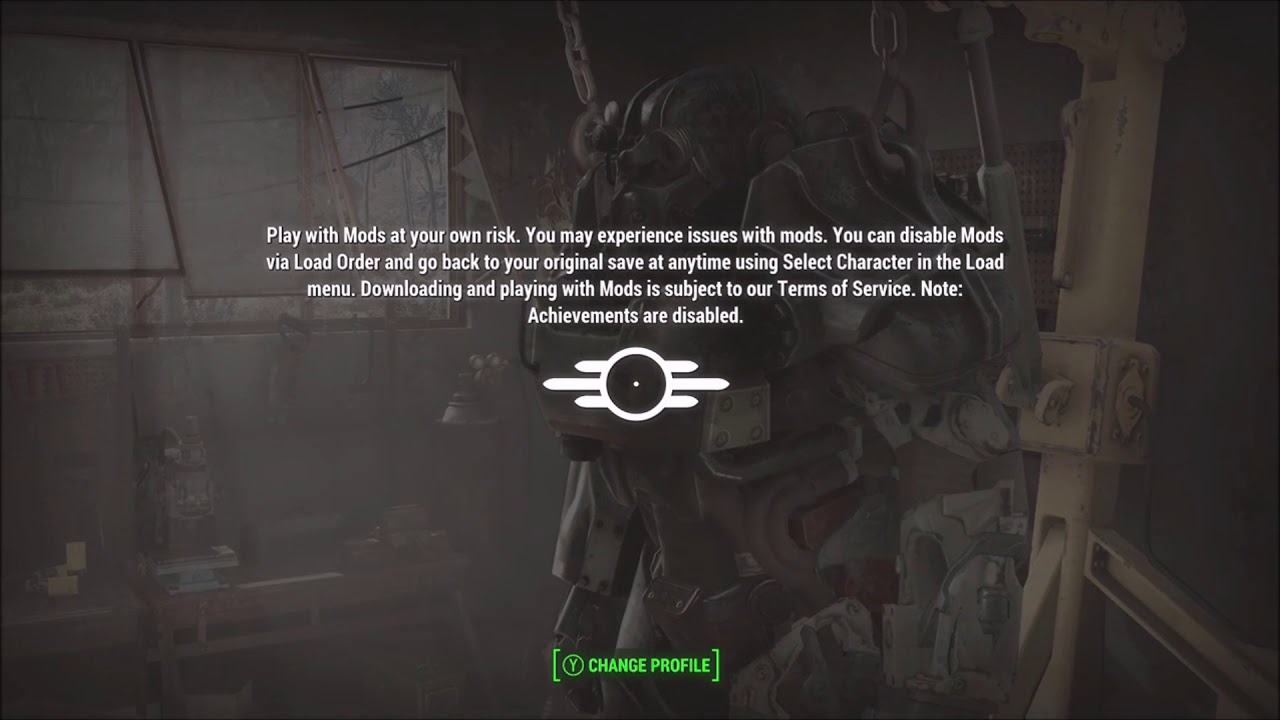
Extra Tips For Smooth Modding
Modding on Xbox is not as flexible as on PC, but you can still have a great experience. Here are some insider tips most beginners miss:
- Backup Your Saves: Mods can break your game saves. Keep a backup before adding new mods.
- Test Mods One at a Time: Add mods gradually, testing the game after each install. This helps you spot which mod causes problems.
- Read Mod Descriptions: Many mods need other mods to work. Always read the requirements.
- Clear Mod Cache: Sometimes, clearing the mod cache (by deleting all mods and restarting the game) fixes hidden problems.
Here’s a quick table of practical modding tips:
| Tip | Benefit |
|---|---|
| Backup saves | Protects progress |
| Test mods one by one | Identifies issues fast |
| Read requirements | Prevents missing dependencies |
| Clear cache | Fixes hidden errors |
Real Example: Troubleshooting A Broken Mod
Imagine you install “Enhanced Settlements,” but it doesn’t work. First, check your mod storage space. If you’re under the limit, look at the load order. Maybe another mod is overwriting “Enhanced Settlements. ” Move it higher in the list. If it still fails, delete and reinstall it.
Finally, check if a recent game patch made it incompatible. By following these steps, you can fix most mod issues.

Common Mistakes Xbox Modders Make
Even experienced players make mistakes with mods. Here are two non-obvious errors most people miss:
- Ignoring Mod Dependencies: Some mods need other mods to work. If you skip the requirements, mods may load but not function.
- Misreading Storage Limit: The mod menu shows the storage bar, but some mods use extra hidden space. Always leave 10–20% free to avoid sudden issues.
Avoiding these mistakes helps you get the most from Fallout 4 mods.
Where To Find Reliable Help
If your mods still don’t work, try these resources:
- Bethesda.net forums for official advice.
- Reddit’s r/FalloutMods for community tips.
- YouTube tutorials for step-by-step guides.
For official info about mod storage limits and compatibility, visit Bethesda Support.

Frequently Asked Questions
Why Do Fallout 4 Xbox Mods Disappear After Installing New Ones?
This usually happens because you hit the mod storage limit. When you try to add a new mod, the game may remove an older mod to free up space. Always check your storage bar and delete unused mods before adding new ones.
Can Corrupted Mods Damage My Fallout 4 Save Files?
Yes, corrupted mods can break save files. If your game crashes or won’t load, it’s often because a bad mod changed your save. Always back up your saves before installing new mods, especially large or experimental ones.
How Do I Know If A Mod Is Compatible With The Latest Fallout 4 Update?
Check the mod’s page on Bethesda.net. Mod creators often list compatibility and update dates. If the mod hasn’t been updated since the last game patch, wait for an update or try a similar mod.
What Is The Best Way To Fix Load Order Issues?
The easiest way is to use Fallout 4’s mod menu. Move mods up or down in the list. Follow the order recommended by mod creators. If you’re unsure, test by enabling mods one at a time and see which order works best.
Why Does My Game Crash After Installing Multiple Mods?
Crashes often happen when mods conflict or when you reach the storage limit. Make sure mods don’t overwrite each other, and leave some storage space free. Test mods one by one to find which mod causes the crash.
Fallout 4 mods on Xbox can transform your game, but only if you manage them well. By understanding the main reasons mods fail and following practical steps, you can enjoy a smoother, more creative wasteland adventure. Always stay updated, read mod instructions carefully, and back up your saves.
With the right approach, Fallout 4 mods will work reliably on your Xbox, letting you explore the Commonwealth in new ways.