
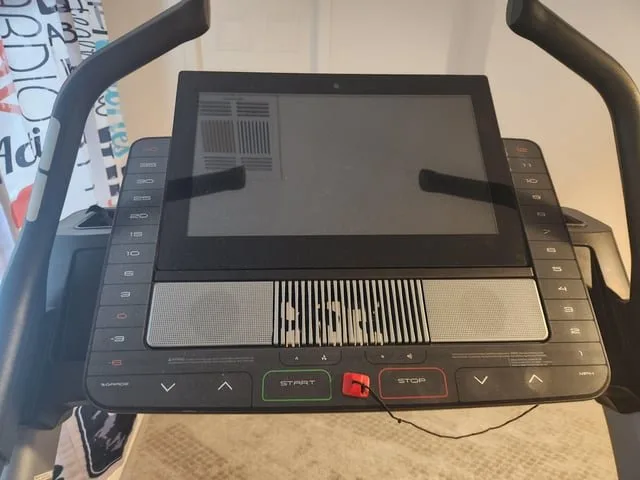
Learning how to reset Nordictrack X22I treadmill consoles using the pinhole button on the back of the monitor is an effective way to fix software glitches or screen freezes. This process takes about three minutes and requires only a paperclip or thin pin. It is the best solution for connectivity errors, unresponsive touchscreens, or failed firmware updates.
Tools for your treadmill reset
-
A straightened paperclip or a thin SIM card tool: These are the only objects small enough to fit inside the reset port without damaging the internal components. Avoid using wooden toothpicks, which can snap off inside the port and create a permanent blockage.
-
A stable power connection: Ensure the machine is plugged into a grounded wall outlet. A power failure during the reset process can corrupt the system software, potentially bricking the console. If you live in an area prone to surges, use a high-quality surge protector rated for at least 1,500 joules.
-
Your Wi-Fi network credentials: A reset clears all saved network settings. Keep your SSID and password written down nearby. If you use a hidden network, ensure you know the security protocol, such as WPA2 or WPA3, as the console may not auto-detect these settings.
-
A clear view of the console: You need to see the status light to confirm the device has successfully powered off and restarted. If the light doesn’t blink within 30 seconds of the button press, the reset didn’t trigger.
-
A helper (optional): If you can’t reach the back of the console while standing on the treadmill, a second person can assist. This prevents you from leaning over the console, which can cause you to accidentally slip or lose your balance.
If you have lost your password, check the sticker on your router or your service provider’s app. If the console remains unresponsive after three attempts, the internal hardware may be faulty. In that case, contact the manufacturer through the iFIT Support Center.
Step-by-step
- Turn off the treadmill by flipping the main power switch located near the base of the machine to the “Off” position.
- Wait for at least sixty seconds to allow the internal capacitors to discharge completely, which ensures the console doesn’t retain any residual power.
- Locate the small reset port on the back of your X22I console, which is usually a tiny circular hole near the data ports or the power input.
- Insert your straightened paperclip gently into this hole until you feel a soft physical click, which indicates you have pressed the internal reset switch.
- Hold the paperclip in the pressed position while you flip the main power switch back to the “On” position.
- Keep the switch held down for ten to fifteen seconds until you see the screen backlight flicker or the iFIT logo appear on the display.
- Release the paperclip once the startup sequence begins and allow the system to load, which may take up to five minutes depending on your internet connection speed.
- Follow the on-screen prompts to reconfigure your time zone, language, and Wi-Fi connection to restore full functionality.
If the screen remains black, don’t force the paperclip harder, as you may damage the switch; instead, double-check that your wall outlet is providing power.
Careful: Never attempt to open the console casing yourself to access the motherboard, as this will void your warranty and poses a risk of electrical shock.
Situations affecting your reset
The time and effort required for this task vary based on your console’s current state and your network stability.
| Situation | Time Required | Difference | What to watch |
|---|---|---|---|
| Simple software glitch | 3 minutes | Standard reboot | Screen responsiveness |
| Firmware update loop | 10 minutes | Requires cache clear | Status bar movement |
| Network connection error | 8 minutes | Need Wi-Fi login | Signal strength bars |
| Factory data wipe | 15 minutes | Full setup required | User account sync |
Most users mistake a frozen screen for a hardware failure. If the status bar remains frozen for more than ten minutes, you’re likely in a firmware loop. In this case, a hard power cycle is required. Unplug the power cable from the wall, wait exactly thirty seconds to drain the residual capacitor charge, and then reconnect.
If you attempt a factory wipe while your console is in a low-power state, you risk corrupting the internal partition. Always verify your console is plugged into a high-quality surge protector to protect the console’s sensitive internal components.
It’s always safer to start with a simple power cycle before moving to the physical reset button to avoid unnecessary setup time.
How to tell you did it right
You have succeeded when the console boots to the main dashboard and displays the current date and time correctly. A successful reset clears the temporary memory, allowing the interface to respond quickly to your touch.
Look for the “System Ready” notification in the top right corner. If this icon appears within five seconds of the dashboard loading, your cache has been successfully purged. If the screen remains frozen or stuck on the loading logo, the machine likely has a deeper hardware fault.
This failure usually indicates that the internal storage has become corrupted or a critical component is failing to report to the motherboard. You can distinguish between a software glitch and a hardware failure by checking the power light. A blinking amber light signifies a hardware error, while a solid white light suggests a software hang.
Prevent these issues by keeping your firmware updated and using a surge-protected outlet. If the console remains unresponsive after three manual reset attempts, stop immediately and contact a certified technician. Don’t attempt to bypass the software or open the unit, as this can lead to permanent damage. The cost of a professional diagnostic is far lower than replacing a fried logic board.
Guidelines and follow-up steps
The primary rule for maintaining your console is to follow the power-cycling procedures outlined in the iFIT User Manual. After performing a reset, you should immediately check for any pending software updates to ensure the system is running the most stable version of the firmware.
Clear any dust from the vents behind the console regularly to prevent overheating. Overheating is the leading cause of unexpected freezes during high-intensity workouts. If your console feels hot to the touch, move it at least six inches away from the wall to improve airflow.
You should record your Wi-Fi credentials in a secure place if you find yourself resetting the console often. If you encounter persistent errors after a successful reset, document the specific error code displayed on the screen. Providing this alphanumeric string to the official support team helps them diagnose the issue more efficiently.
Never try to flash the firmware using unauthorized software or external drives. This action triggers a hardware lockout that permanently disables the console. If your screen remains black for more than five minutes after a power cycle, don’t force another reset. Instead, wait for the system to complete its internal boot sequence to avoid corrupting the primary storage drive.
Different ways to troubleshoot
Power cycle the console
This is the lightest touch and involves simply unplugging the machine for sixty seconds. It often resolves minor connectivity drops without wiping your saved settings or user data.
Contact iFIT support
If the reset fails, the support team can remotely access the console’s logs to identify if a specific component, like the memory board, has failed.
Factory reset via software
If the touchscreen is still working, you can sometimes trigger a factory reset through the “Settings” menu instead of using the physical button.
Frequently asked questions
Can I reset the console while it’s running?
No, you should never attempt to reset the console while the treadmill is in motion. Always bring the belt to a complete stop and turn off the power switch first to ensure your safety and prevent damage to the drive motor electronics.
Why is my screen still black after the reset?
If the screen remains black, check that the main power switch at the base is in the “On” position and that the power cord is firmly seated in the wall outlet.
How long does the update take after a reset?
The update process usually takes about ten minutes, but this depends entirely on your internet connection speed and the size of the update package being downloaded.
Is it safe to reset the treadmill daily?
No, you should only perform a manual reset when the system is unresponsive or experiencing persistent software errors, as unnecessary resets can wear out the internal components.
What happens to my workout history?
Your workout history is stored on the iFIT cloud servers, so it will remain safe and will sync back to your console once you log into your account.
Will a reset fix a broken touchscreen?
No, a reset only fixes software-based issues; if the physical glass is unresponsive to touch, it indicates a hardware failure that requires a replacement part.
You have now completed the reset process and should be able to use your treadmill as intended.
Final Thoughts
If your screen still doesn’t respond correctly after this, don’t worry. It’s likely time to reach out to the manufacturer’s support team for further guidance. They’ll help you determine if there’s a deeper hardware issue, so you can get back to your workouts and enjoy your fitness journey again soon.