
If you’re ready to work out but your Nordictrack treadmill is stuck on the iFit screen, frustration can quickly replace your motivation. Many treadmill owners face this problem, and it’s often not obvious what to do next. This guide explains why it happens, how to fix it, and how to avoid it in the future. Whether you’ve just unboxed your treadmill or have used it for years, you’ll find practical steps and clear solutions here.
Why Nordictrack Treadmills Get Stuck On The Ifit Screen
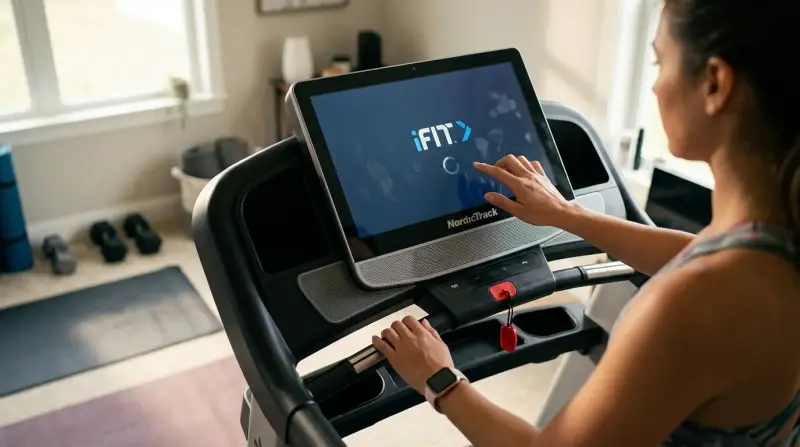
Many Nordictrack treadmills use a built-in touchscreen that runs the iFit app, which provides workouts and tracks your progress. Sometimes, the treadmill freezes on the iFit loading screen and won’t move forward. This issue usually shows up as a blue or black screen with the iFit logo, and nothing else happens, even after waiting for several minutes.
Common causes include:
- Software bugs after an update
- Poor Wi-Fi connection
- Corrupted firmware
- Power supply issues
- Problems with iFit account setup
Understanding these causes helps you troubleshoot more effectively. For example, a weak Wi-Fi signal can prevent the treadmill from connecting to iFit servers, while a failed firmware update can stop the system from booting.
Quick Troubleshooting Steps
Before diving into advanced fixes, try these simple actions first. These often solve the problem with little effort.
- Restart the Treadmill: Unplug the treadmill from the wall, wait 60 seconds, and plug it back in. This resets the system and clears temporary glitches.
- Check Wi-Fi Connection: Make sure your treadmill is within range of your router. Try connecting another device to the same network near the treadmill to confirm the signal is strong.
- Wait for Updates: Sometimes, the iFit screen shows up while the treadmill is downloading or installing updates. If you see a spinning circle or progress bar, give it 10–15 minutes.
- Press the iFit Button: On some models, pressing and holding the iFit button for 10–20 seconds can force a reload or reboot.
These steps fix the issue for many users, but if your treadmill is still stuck, it’s time for more focused solutions.

Hard Reset And Factory Reset
When a simple restart doesn’t work, a hard reset or factory reset can help. This clears out software bugs and restores the treadmill to original settings.
How To Perform A Hard Reset
- Turn off the treadmill using the power switch.
- Unplug the power cord from the outlet.
- Wait 5 minutes to let all power drain from the console.
- Plug the cord back in and turn on the treadmill.
This process works for minor software freezes.
How To Perform A Factory Reset
If your treadmill is still stuck, try a factory reset. Here’s a general method, but always check your model’s manual for details.
- Locate the reset hole (often on the side or back of the console).
- Use a paperclip to press and hold the reset button.
- While holding the button, turn on the treadmill.
- Keep holding for 10–15 seconds until the screen shows a logo or starts to reboot.
Be aware: a factory reset will erase all user data and settings. Afterward, you’ll need to set up your treadmill and reconnect your iFit account.
Checking Your Wi-fi And Internet
Poor internet is a frequent cause of the iFit screen freeze. The treadmill needs a steady connection to start and load iFit content.
How To Test Your Connection
- Connect your phone or laptop to the same Wi-Fi network and stand near the treadmill.
- Run a speed test (like speedtest.net). Aim for at least 3 Mbps download speed.
- If the signal is weak, move your router closer or use a Wi-Fi extender.
Wi-fi Troubleshooting Table
Below is a quick comparison to help you diagnose common Wi-Fi issues:
| Issue | Possible Cause | Solution |
|---|---|---|
| Won’t connect to Wi-Fi | Wrong password or network type | Re-enter Wi-Fi info, check router settings |
| Frequent disconnects | Weak signal, interference | Move router closer, reduce other devices |
| Slow loading | Low bandwidth | Upgrade plan, limit streaming devices |
If your connection is solid but the treadmill still won’t load, the problem is likely within the treadmill’s software.

Updating Firmware And Software
Sometimes, the treadmill’s firmware may be out of date or corrupted, especially after a power outage or interrupted update. Updating or reinstalling the software can get the treadmill working again.
How To Check For Updates
- Go to the treadmill’s Settings menu (if accessible).
- Look for a “Check for Updates” or “Software Update” option.
- If the treadmill is stuck and you can’t access the menu, you may need to reinstall the firmware using a USB drive.
Steps For Usb Firmware Update
- Visit the official Nordictrack support website and download the correct firmware for your model.
- Copy the file to a USB flash drive (formatted to FAT32).
- Insert the USB into the treadmill’s USB port.
- Restart the treadmill; it should detect the firmware and start updating.
Always use files from the official source to avoid further issues.
Dealing With Ifit Account And Subscription Issues
Some users find the treadmill stuck if there are problems with their iFit account. This can happen if:
- The account is not activated
- The subscription has expired
- There’s a temporary outage on iFit’s servers
Try logging into your account from a computer or smartphone. If you see any errors, resolve them before trying the treadmill again. Sometimes, logging out and back in on the treadmill console helps.
Power Supply And Hardware Checks
A stable power supply is essential for the treadmill’s console to work. Fluctuations, loose cables, or faulty outlets can cause the system to freeze.
What To Check
- Make sure the power cord is firmly connected to both the treadmill and the wall.
- Avoid using extension cords or power strips, which can cause voltage drops.
- Try plugging the treadmill into a different outlet.
If the treadmill powers off randomly or the screen flickers, there may be an electrical problem. In this case, contact Nordictrack support or a professional technician.
Comparing Fixes: What Works Best?
Here’s a summary comparing the most common solutions, their effectiveness, and time required:
| Fix | Success Rate | Time Needed | Difficulty |
|---|---|---|---|
| Power cycle (restart) | High for simple freezes | 2 minutes | Easy |
| Factory reset | High for software bugs | 10 minutes | Medium |
| Firmware update | Medium | 30+ minutes | Advanced |
| Wi-Fi troubleshooting | Medium | 5–20 minutes | Easy |
Most users succeed with a simple power cycle or factory reset. Firmware updates or Wi-Fi troubleshooting are needed less often but solve harder problems.

When To Call For Help
If none of these steps work, the issue may be hardware-related, such as a faulty touchscreen or internal memory failure. Contact Nordictrack customer support and provide your treadmill’s model and serial number. Keep a record of what you’ve already tried.
You might need a technician if:
- The screen stays black after resets
- There are unusual noises or burning smells
- Other features (like incline or speed controls) also fail
Don’t open the console yourself, as this can void the warranty.
Preventing Future Ifit Screen Freezes
Once your treadmill is working, a few habits can prevent future problems.
- Update software regularly: Check for firmware and app updates every few months.
- Use a surge protector: This prevents damage from power spikes.
- Keep Wi-Fi strong: Place your treadmill close to your router or use a mesh Wi-Fi system.
- Shut down properly: Use the power switch instead of just unplugging the treadmill.
If you plan to store the treadmill for a long time, unplug it to avoid slow battery drain or memory errors.
Non-obvious Insights Most People Miss
- USB Keyboard Trick: On some Nordictrack models, plugging in a USB keyboard and pressing Ctrl+Alt+Del can trigger a hidden menu or restart. This isn’t in the manual but has helped some users unfreeze their screens.
- Hidden Android Recovery Mode: Many consoles run a form of Android OS. If you hold certain button combinations (often the Stop and Speed+ buttons) during startup, you may access a recovery menu. Be careful—changes here can erase data, but sometimes you can clear cache or reset the system without a full factory reset.
- Router Reboot Helps: If your treadmill gets stuck repeatedly, rebooting your home router can clear up network conflicts specific to iFit servers.
- Guest Wi-Fi Problems: Some routers create “guest” networks that block certain device types. Always connect your treadmill to the main network if possible.
- Time/Date Errors: Incorrect time or date on the treadmill (often after a total power loss) can prevent iFit from connecting. Check and correct this in the settings if possible.
Frequently Asked Questions
Why Does My Nordictrack Treadmill Require Ifit To Start?
Many newer Nordictrack treadmills come with iFit as the main operating system. While you can use the treadmill in manual mode, the initial setup often requires connecting to iFit at least once to unlock all features.
Can I Bypass The Ifit Screen And Use My Treadmill Offline?
Yes. On most models, you can hold down the iFit button (or sometimes the Bluetooth button) for 20–30 seconds at startup to skip account activation and use manual controls. This may not unlock all advanced features but allows basic operation.
What Should I Do If My Treadmill Is Stuck After A Power Outage?
Try unplugging the treadmill for several minutes, then restarting. Power outages can cause firmware glitches. If that doesn’t help, perform a factory reset as described earlier.
Will A Factory Reset Delete My Workout History?
Yes, a factory reset erases all user data, including saved workouts and profiles. If you use iFit, your history should be saved online and synced back after logging in again.
Where Can I Find Official Firmware Updates?
You can download firmware updates and find support guides on the official Nordictrack Support website. Always use files from the official source to avoid risks.
Getting stuck on the iFit screen can be annoying, but most problems have a clear fix. With the right steps, you can get your Nordictrack treadmill working again and keep your fitness routine on track. Remember, staying patient and systematic is key—don’t skip the basics, and never hesitate to contact support for tough cases.
1 thought on “Nordictrack Treadmill Stuck on Ifit Screen: Quick Fix Guide”