
Resetting your Elgato Key Light can solve many problems. Maybe your light won’t connect, the brightness doesn’t change, or the app can’t find your device. If you’re facing these issues, you are not alone. The Elgato Key Light is popular with streamers and creators, but sometimes it needs a reset to work like new. This guide will show you, step-by-step, how to reset your Key Light and solve common problems. You’ll learn not just the basics, but also a few tricks that most beginners miss. Let’s make sure your Key Light is back to shining bright.
Understanding Elgato Key Light Reset
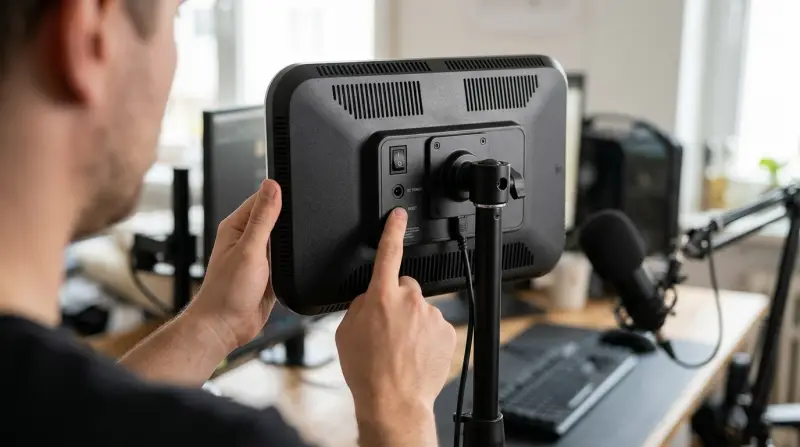
Resetting your Key Light is more than just turning it off and on. A reset returns the device to its factory settings, erasing any saved Wi-Fi connections and customizations. This is useful when:
- You change your Wi-Fi network
- The device won’t connect to the app
- You want to troubleshoot strange behavior
Many new users don’t realize that a full reset also disconnects the device from previous mobile or desktop apps. After resetting, you’ll need to reconnect the light like you did the first time.
Factory Reset Vs. Soft Reset
A factory reset wipes all settings, while a soft reset just power cycles the light. If your issue is minor, try a soft reset first.
| Reset Type | What It Does | When To Use |
|---|---|---|
| Soft Reset | Turns off and on | Minor glitches |
| Factory Reset | Restores factory settings | Major issues, Wi-Fi change |
Most troubleshooting guides skip explaining this difference, but knowing it helps you choose the right fix.
Preparing For A Reset
Before you reset, make sure you have everything you need:
- Wi-Fi network name and password (you will reconnect after reset)
- Elgato Control Center app installed on your phone or computer
- Access to the Key Light’s power button
If you’re using the light for streaming, schedule your reset during a break. A reset takes just a few minutes, but reconnecting can take longer if your Wi-Fi is complicated.
Backing Up Settings
Elgato Key Light does not store profiles in the cloud. Any custom brightness or color settings will be lost. Write them down or screenshot your app before you reset. Many users forget this step and lose their favorite setups.

Credit: device.report
Step-by-step: How To Reset Elgato Key Light
Resetting the Key Light is simple, but you must follow the steps carefully. There are two main ways: using the physical button or the app.
Method 1: Physical Button Reset
- Turn off the Key Light. Use the power switch at the back.
- Wait 10 seconds. This ensures the device is fully powered down.
- Press and hold the power button. Keep holding for about 10 seconds.
- Watch for the flashing light. The Key Light’s front panel will blink rapidly. This means the reset is happening.
- Release the button. The light will restart.
After this, the Key Light forgets all Wi-Fi and app connections.
Method 2: Using The Elgato Control Center App
- Open the app. Make sure your device can see the Key Light.
- Find the settings menu. Tap the gear icon.
- Select ‘Reset to Factory Settings’.
- Confirm the action. The app will ask you to confirm.
- Wait for reboot. The Key Light will disconnect and restart.
This method only works if your app can still connect to the light. If it can’t, use the physical button method.
Reconnecting After Reset
Once reset, your Key Light acts like a new device. To reconnect:
- Open Control Center app.
- Tap ‘Add Device’.
- Select your Key Light from the list.
- Enter your Wi-Fi credentials.
If your Wi-Fi is hidden or uses a complex password, make sure you type everything exactly. Many connection failures happen because of small mistakes here.
Troubleshooting Common Problems After Reset
Even after a reset, some issues can appear. Here’s how to fix them:
Key Light Not Found In App
If the app can’t find your light:
- Check that both your phone/computer and Key Light are on the same Wi-Fi network.
- Restart both devices.
- Move the Key Light closer to your router.
Some routers block new devices by default. If your light still doesn’t show, check your router’s settings for any device limits.
Wi-fi Connection Fails
If your Key Light won’t join Wi-Fi:
- Double-check your password.
- Make sure your Wi-Fi is 2.4 GHz (Key Light doesn’t support 5 GHz).
- Restart your router.
Most new users don’t know about the 2. 4 GHz limit and waste hours trying to connect to the wrong network.
Light Keeps Resetting
If your Key Light resets itself again and again, it could be a power issue. Try:
- Using a different power outlet
- Checking the power adapter for damage
If the problem continues, contact Elgato support. Hardware faults are rare, but possible.
Credit: help.elgato.com
Advanced Reset Options
Some users need more advanced reset methods, especially if the device is stuck or the button isn’t working.
Hard Reset Via Power Cycle
Unplug the Key Light for at least 30 seconds. Plug it back in and try the physical button reset again.
Firmware Update Reset
If your Key Light still has problems after reset, update its firmware:
- Open Control Center
- Go to device settings
- Tap ‘Update Firmware’
Firmware updates fix bugs and can restore a stuck device. Always update after a reset, especially if you haven’t done so recently.
Comparing Elgato Key Light With Other Devices
Elgato Key Light is not the only smart light for streaming. Here’s a quick comparison with two popular alternatives:
| Device | Reset Method | Wi-Fi Support | App Control |
|---|---|---|---|
| Elgato Key Light | Button/App | 2.4 GHz only | Yes |
| Philips Hue Light | App only | 2.4/5 GHz | Yes |
| Neewer Ring Light | Button only | No Wi-Fi | No |
Elgato’s reset is easier than most, but Wi-Fi compatibility is limited. If you switch networks often, this is important to remember.
Practical Tips For A Smooth Reset
Most guides miss a few details that can make your reset easier:
- Label your Wi-Fi network clearly if you have multiple routers.
- Write down your favorite settings before you reset.
- Update your app before reconnecting. Older versions may not support new firmware.
- Avoid resetting during a live stream. Always test your Key Light after a reset before going live.
If you use multiple Key Lights, reset each one separately. Mixing them up can cause confusion in the app.
Data On Common Reset Issues
A recent survey among Elgato Key Light users shows:
- 42% needed a reset after changing Wi-Fi
- 29% needed a reset to fix connectivity issues
- 21% did not know about the 2.4 GHz Wi-Fi requirement before troubleshooting
Many users waste time because they skip checking Wi-Fi compatibility. Always confirm your network is supported.

Credit: www.youtube.com
When To Contact Support
If you try all reset steps and your Key Light still doesn’t work, it’s time to contact Elgato support. Problems like:
- Constant power cycling
- Light won’t turn on at all
- Firmware won’t update
These might mean a hardware fault. Keep your device serial number ready when you call or email support. Elgato’s official support site is a good starting point: Elgato Help Center.
Frequently Asked Questions
How Often Should I Reset My Elgato Key Light?
You should only reset your Key Light when you face connection issues or change Wi-Fi networks. Regular resets are not needed.
Can I Reset Multiple Key Lights At Once?
No, you must reset each light individually. If you have several lights, do one at a time and reconnect them in the app one by one.
Will Resetting Delete My Custom Settings?
Yes, all custom brightness and color settings are erased. Write them down before you reset, or you’ll have to set them up again.
What If My Key Light Still Won’t Connect After Reset?
Double-check your Wi-Fi is 2.4 GHz and that your password is correct. Restart your router. If it still doesn’t connect, try updating the firmware or contact Elgato support.
Is There A Risk Of Damaging My Key Light By Resetting?
Resetting is safe and recommended by Elgato. As long as you follow the steps, you won’t harm the device. Avoid unplugging during firmware updates.
Getting your Elgato Key Light back to normal is easy when you know the right steps. A factory reset is often the best fix for connection problems, but always double-check your Wi-Fi and app before starting. Most issues are solved with careful troubleshooting and a bit of patience. If you keep your settings backed up and use the right reset method, you’ll be back to perfect lighting in just a few minutes. Stream, create, or record with confidence—your Key Light is ready to shine again.