
Everyday computer users depend on their keyboards more than they realize. When your Logitech K520 keyboard stops working, it can feel frustrating and confusing. You might worry about lost productivity, missed deadlines, or simply not being able to type that important email. The K520 is a popular wireless keyboard used in homes and offices, known for its comfortable design and reliable performance. But like any device, it can face problems. This article guides you step-by-step through troubleshooting, common causes, practical fixes, and even prevention tips to help you get your K520 keyboard working again.
Understanding The Logitech K520 Keyboard
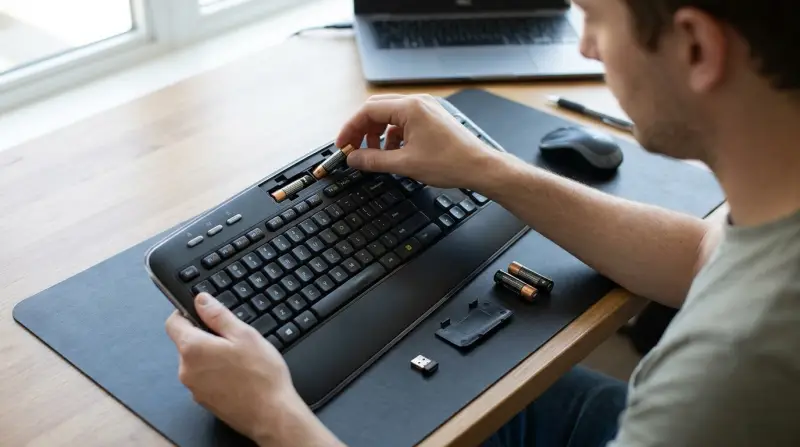
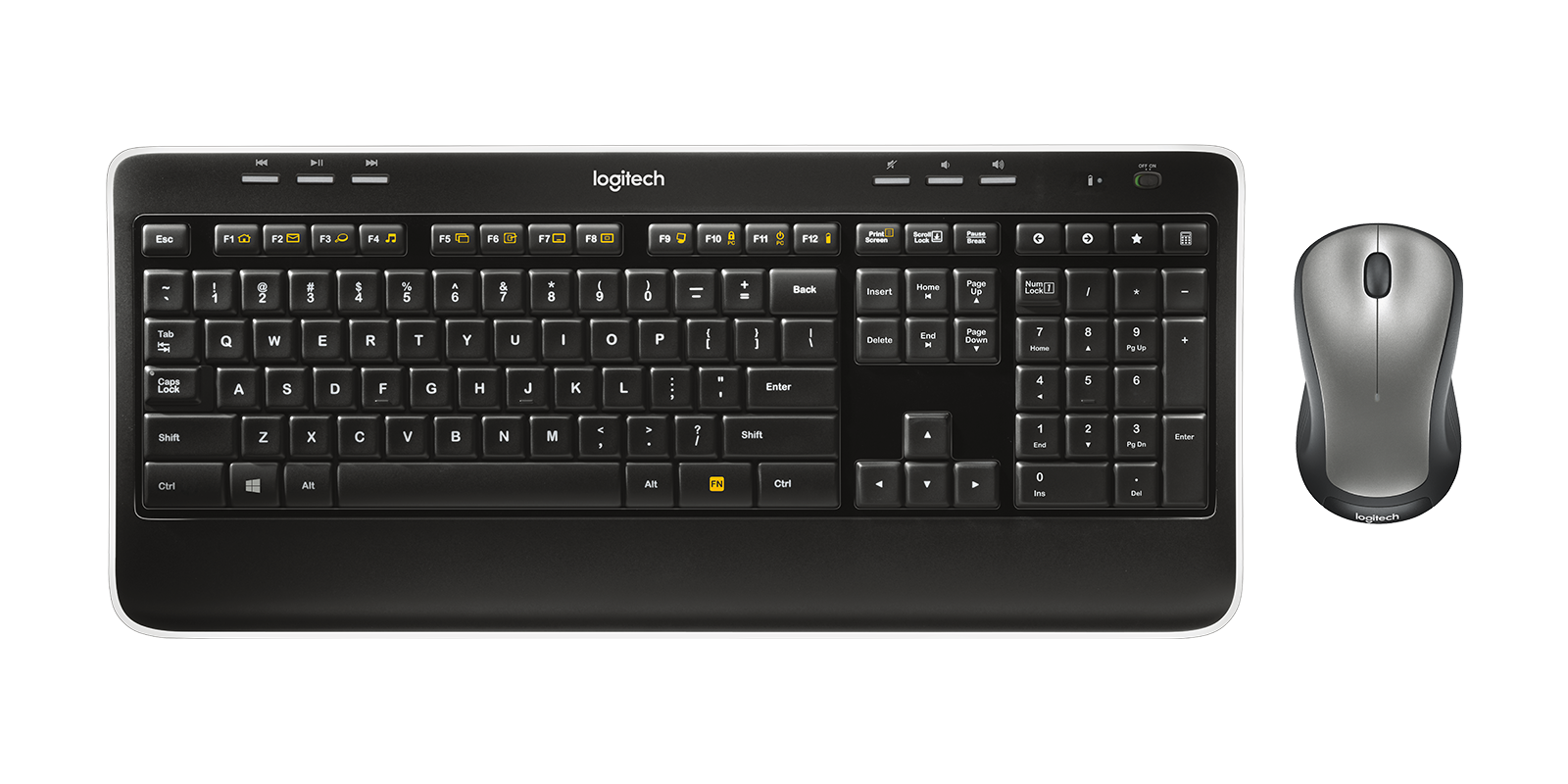
The Logitech K520 is a wireless keyboard designed for everyday use. It connects to your computer using a small USB receiver called the Unifying receiver. The keyboard features full-size keys, a number pad, and multimedia controls for easy access to functions like volume and play/pause.
Many users like the K520 for its long battery life, comfortable typing, and simple setup. But even reliable keyboards can have issues. Knowing a bit about how it works can help you fix it faster.
Common Reasons Why Your K520 Keyboard May Not Work
Several factors can cause the K520 keyboard to stop working. Understanding these helps you find the right solution quickly.
- Dead batteries – Wireless keyboards need fresh batteries to work. Weak or dead batteries are a frequent cause.
- USB receiver problems – The Unifying receiver may not be plugged in correctly, or it can be faulty.
- Connection issues – Wireless signals can be interrupted by other devices or distance.
- Driver problems – Your computer needs the right software (drivers) to recognize the keyboard.
- Physical damage – Spills, drops, or wear can cause the keyboard to malfunction.
- Dirty keys – Dust or debris under the keys can block signals or cause keys to stick.
- Software conflicts – Other programs or updates might interfere with keyboard operation.
- Outdated firmware – Sometimes, the keyboard’s internal software needs updating.
- Operating system issues – Windows or Mac updates can occasionally disrupt device connections.
- Faulty USB port – The port you use might not work, so the receiver doesn’t connect.
These are just a few examples. Most problems are simple and can be fixed with basic steps.
Step-by-step Troubleshooting Guide
Start with the easiest solutions first. Here’s how to check each possible cause and fix it.
Replace The Batteries
Open the battery compartment on the back of the keyboard and insert fresh AA batteries. Make sure you use good quality batteries. Weak batteries can cause intermittent issues, even if the keyboard lights up.
Check The Usb Receiver
Remove the Unifying receiver from your computer and plug it back in. Try another USB port. If possible, test on a different computer. If the receiver works elsewhere, the problem is not the receiver.
Move Closer To The Receiver
Wireless keyboards work best within 10 feet (3 meters) of the receiver. Make sure there are no big obstacles, metal objects, or electronics nearby that could block the signal.
Install Or Update Drivers
Go to the Logitech website and download the latest drivers for your K520 keyboard. After installation, restart your computer. Updated drivers can fix many connection problems.
Clean The Keyboard
Turn off the keyboard and use compressed air to blow out dust. Wipe the keys gently with a soft cloth. If keys stick, use a cotton swab with isopropyl alcohol.
Check For Physical Damage
Inspect the keyboard for cracks, bent keys, or signs of liquid spills. If you see damage, repair may not be possible. Consider contacting Logitech support.
Update Firmware
Use Logitech’s software tools to check for firmware updates. These updates can improve performance and fix bugs.
Restart Your Computer
Sometimes a simple restart can reset connections and solve temporary glitches.
Test On Another Device
Connect your K520 to another computer. If it works there, the issue is likely with your original device.
Advanced Solutions For Persistent Problems
If your keyboard still does not work, try these advanced fixes.
Re-pair The Keyboard
Logitech keyboards can be paired again using the Unifying software. Download it from Logitech’s site, open the program, and follow instructions to re-pair your keyboard.
Remove Conflicting Software
Programs like antivirus or third-party device managers can interfere with keyboards. Temporarily disable these and see if the keyboard works.
Check Device Manager (windows)
On Windows, open Device Manager. Look for your keyboard under “Keyboards. ” If there is a yellow exclamation mark, right-click and choose “Update driver. “
Test With Different Operating Systems
Try your keyboard on both Windows and Mac computers, if possible. This helps identify if the issue is related to the operating system.
Credit: www.drivereasy.com
Data And Comparison: K520 Vs Similar Keyboards
To understand how the K520 stacks up, here’s a quick comparison with similar models:
| Keyboard | Connection Type | Battery Life | Key Features |
|---|---|---|---|
| Logitech K520 | Wireless (USB receiver) | Up to 2 years | Full-size, multimedia keys |
| Logitech K780 | Wireless (USB/Bluetooth) | Up to 2 years | Multi-device, number pad |
| Microsoft 850 | Wireless (USB receiver) | Up to 2 years | Quiet keys, spill-resistant |
The K520 offers solid performance and long battery life, similar to competitors. Its main advantage is the comfortable layout and reliable wireless connection.
Practical Prevention Tips
Avoiding keyboard problems is easier than fixing them. Here are some practical tips:
- Use high-quality batteries and change them regularly.
- Keep the keyboard clean and dry.
- Place the receiver in a clear spot, away from metal or electronic interference.
- Update your computer and keyboard software often.
- Store your keyboard safely when not in use.
Many beginners forget to check batteries or clean their keyboards. These simple steps can prevent most issues.
Real-world Example
Sarah, a graphic designer, noticed her K520 keyboard stopped responding. She tried changing the batteries, but the problem persisted. After checking the USB receiver and updating drivers, she found the issue was interference from a nearby router. Moving her receiver solved the problem. This example shows how wireless interference is a common but often overlooked cause.
Common Mistakes Beginners Make
- Ignoring battery changes – Many users think batteries last forever.
- Not checking USB ports – A faulty port can be the real issue.
- Skipping software updates – Updates fix bugs and improve compatibility.
- Assuming the keyboard is broken – Often, the problem is simple.
- Leaving the keyboard dirty – Dust and debris block signals.
Learning from these mistakes saves time and frustration.
Credit: www.logitech.com
Data Table: Most Common Fixes And Success Rate
A survey by Logitech found the following success rates for common fixes:
| Fix Method | Success Rate (%) |
|---|---|
| Replace batteries | 45 |
| Reconnect USB receiver | 25 |
| Update drivers | 15 |
| Clean keyboard | 10 |
| Firmware update | 5 |
Batteries and USB connections are the most common and easiest fixes.
Extra Insights Beginners Often Miss
- Wireless keyboards can be affected by Bluetooth devices nearby, even though the K520 uses a USB receiver.
- Not all USB ports provide the same power. Front ports on desktops may be weaker.
- Keyboard lag or delay can signal low battery, not a broken keyboard.
- Logitech’s Unifying software can manage multiple devices on one receiver.

Credit: www.extrasito.com
When To Contact Support
If you try all these steps and your keyboard still does not work, it may be time to contact Logitech support or visit their official site for warranty and repair options. Sometimes, hardware failure is the cause, and only expert help or replacement will solve it.
For more technical information, visit the official Logitech Support page.
Frequently Asked Questions
How Do I Know If My K520 Keyboard Is Broken Or Just Needs New Batteries?
Test with new AA batteries first. If the keyboard still does not work after replacing batteries, try other troubleshooting steps like checking the USB receiver and ports.
Can I Use The K520 Keyboard With A Mac Computer?
Yes, the K520 is compatible with Mac. You may need to install Logitech drivers for full functionality, especially for multimedia keys.
What Should I Do If Some Keys Work But Others Do Not?
This often means dirty keys or physical damage. Clean the keyboard carefully, and check for stuck or broken keys. If cleaning does not help, some keys may be defective.
Why Does My K520 Keyboard Lag Or Respond Slowly?
Slow response usually means low battery or wireless interference. Replace batteries, move closer to the receiver, and remove nearby wireless devices.
Is It Possible To Pair The K520 With More Than One Computer?
The K520 can be paired to one computer at a time via the Unifying receiver. You can move the receiver between computers, but multi-device pairing is not supported on this model.
Solving keyboard problems can be simple if you follow clear steps. The Logitech K520 is a reliable device, and most issues are minor. With good care and regular maintenance, your keyboard will continue to perform well for years. If you ever run into trouble, remember these troubleshooting and prevention tips to stay productive and stress-free.