
A Samsung TV that flashes on and off can be frustrating. You sit down to watch a movie, but the screen keeps blinking, interrupting your viewing experience. This issue is more common than many people think, and it can happen to both new and old Samsung TVs.
The flashing can mean the screen turns black and then comes back, sometimes every few seconds, or the TV power cycles without warning. Some users panic, thinking their TV is broken. However, many causes are simple, and you can often fix the problem yourself.
Understanding why your Samsung TV flashes on and off is important. You need to know what triggers it, how to check your TV, and what solutions work. With the right approach, you can save time, avoid unnecessary repairs, and even extend your TV’s life. Let’s explore the main reasons behind the flashing, how to diagnose the issue, and the best ways to fix it.
Common Causes Of Samsung Tv Flashing
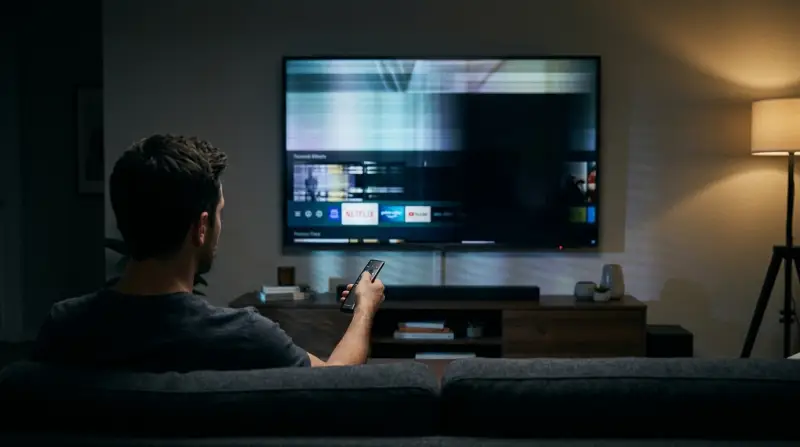
The flashing problem is usually caused by one of several factors. Knowing these can help you pinpoint the issue faster.
1. Power Supply Problems
If the TV doesn’t get stable power, it can turn on and off. Loose power cables, faulty wall sockets, or power surges may cause this. Sometimes, damaged power boards inside the TV also trigger flashing.
2. Remote Control Malfunction
A stuck button or a faulty remote can send repeated signals, making the TV power cycle. If the remote is dirty or has bad batteries, it may send wrong commands.
3. Faulty Hdmi Or External Devices
Connected devices like gaming consoles, streaming sticks, or Blu-ray players can cause the TV to blink. This happens if the device sends unstable signals or if the HDMI cable is damaged.
4. Firmware Or Software Issues
Outdated software can cause glitches. If your Samsung TV’s firmware is not updated, it may have bugs that lead to flashing.
5. Backlight Or Panel Failure
If the TV’s backlight is failing, the screen may flicker or turn off randomly. This is more common in older models, but newer TVs can also have this problem due to manufacturing defects.
6. Settings Conflict
Incorrect settings, like high brightness or automatic features (Eco mode, motion smoothing), can sometimes cause screen flickering.
7. Environmental Factors
Strong lighting, sunlight hitting the screen, or electromagnetic interference from other appliances can make the TV flash.
Diagnosing The Flashing Problem
Finding the cause is the first step. Here’s a practical guide to diagnose your Samsung TV.
Check Power Supply
Unplug the TV for 60 seconds, then plug it back in. This resets the power system. Try a different wall outlet to rule out socket problems. If the TV flashes less or stops, the issue is likely power-related.
Inspect The Remote Control
Remove the batteries from the remote and see if the TV stops flashing. If it does, the remote may be sending unwanted signals. Clean the remote, replace batteries, or try a universal remote.
Disconnect External Devices
Remove all HDMI, USB, and other cables. Start the TV with nothing connected. If it works fine, reconnect devices one by one to find the culprit. Damaged HDMI cables are often the problem.
Update Firmware
Go to Settings > Support > Software Update. Check for updates and install them. Firmware updates can fix bugs and improve stability.
Test Backlight
Set the TV to a dark screen (for example, pause a movie during a black scene) and look for flickering. If you see uneven flashes, the backlight may be failing.
Review Settings
Reset picture settings to default. Disable Eco mode, ambient light detection, and motion smoothing. Sometimes, these settings cause conflicts.
Environmental Check
Move the TV away from strong lights or other electronics. Sometimes, interference can trigger the flashing.
How To Fix Samsung Tv Flashing On And Off
Once you know the cause, try these solutions.
Fixing Power Supply Issues
- Use a surge protector to stabilize power.
- Check the power cable for damage. Replace if needed.
- If the TV’s internal power board is faulty, you may need professional repair.
Solving Remote Control Problems
- Clean the remote with a soft cloth.
- Replace batteries with fresh ones.
- Use a universal remote if yours is faulty.
Addressing Hdmi And Device Issues
- Change HDMI cables if they look worn or damaged.
- Update firmware on external devices (like streaming sticks).
- Use quality cables to avoid signal problems.
Updating Software
- Always keep your TV’s firmware up to date.
- Updates fix bugs and improve performance.
- If the TV cannot update, try a manual update using a USB stick.
Repairing Backlight Or Panel
- If the backlight is faulty, contact Samsung support or a local technician.
- For panel issues, professional repair is often needed. Sometimes, it’s more cost-effective to replace the TV if it’s very old.
Adjusting Settings
- Reset picture settings to factory defaults.
- Turn off features like Eco mode or ambient light detection.
- Adjust brightness and contrast to moderate levels.
Reducing Environmental Interference
- Move electronics like routers or microwaves away from the TV.
- Close curtains if sunlight hits the screen.
- Keep the TV in a stable, cool environment.
Samsung Tv Model Differences
Not all Samsung TVs are the same. Some models are more prone to flashing. Here’s a comparison of common series:
| Model Series | Common Issue | Recommended Fix |
|---|---|---|
| Samsung QLED | HDMI flicker, software bugs | Update firmware, quality HDMI cables |
| Samsung Crystal UHD | Backlight failure | Professional repair, adjust settings |
| Samsung The Frame | Remote control glitch | Replace remote, check settings |
| Older LCD models | Power supply issues | Surge protector, replace power board |
Older TVs tend to have more hardware issues, while newer models are more affected by software bugs and external device conflicts.
Preventing Flashing Problems
Prevention is better than cure. Here’s how you can stop the flashing issue before it starts:
- Regular Updates: Keep your TV’s firmware updated. Set automatic updates if possible.
- Quality Accessories: Use certified HDMI cables and surge protectors. Cheap accessories often cause problems.
- Clean Environment: Dust and humidity can cause internal damage. Clean your TV regularly and keep it dry.
- Safe Placement: Avoid placing the TV near windows, microwaves, or routers.
- Routine Checks: Check cables, power supply, and remote control at least once a month.
Real-life Examples
Many Samsung TV owners report similar flashing problems. For example, John from Texas had a Samsung QLED that flashed every time his game console was plugged in. The issue disappeared when he replaced the HDMI cable with a certified one.
Maria from California experienced flashing after a power surge. Her Crystal UHD stopped blinking after she used a surge protector and changed the wall socket. In another case, a family in Florida fixed their The Frame TV by updating the firmware and replacing the remote batteries.
These stories show that simple steps can solve the problem. Most users don’t need expensive repairs.
When To Call A Professional
Some issues require expert help. Here’s when you should call a technician:
- The TV flashes even after you try all solutions above.
- You hear strange noises or see physical damage.
- The TV is under warranty. Contact Samsung for free repairs.
- The backlight or panel is visibly broken.
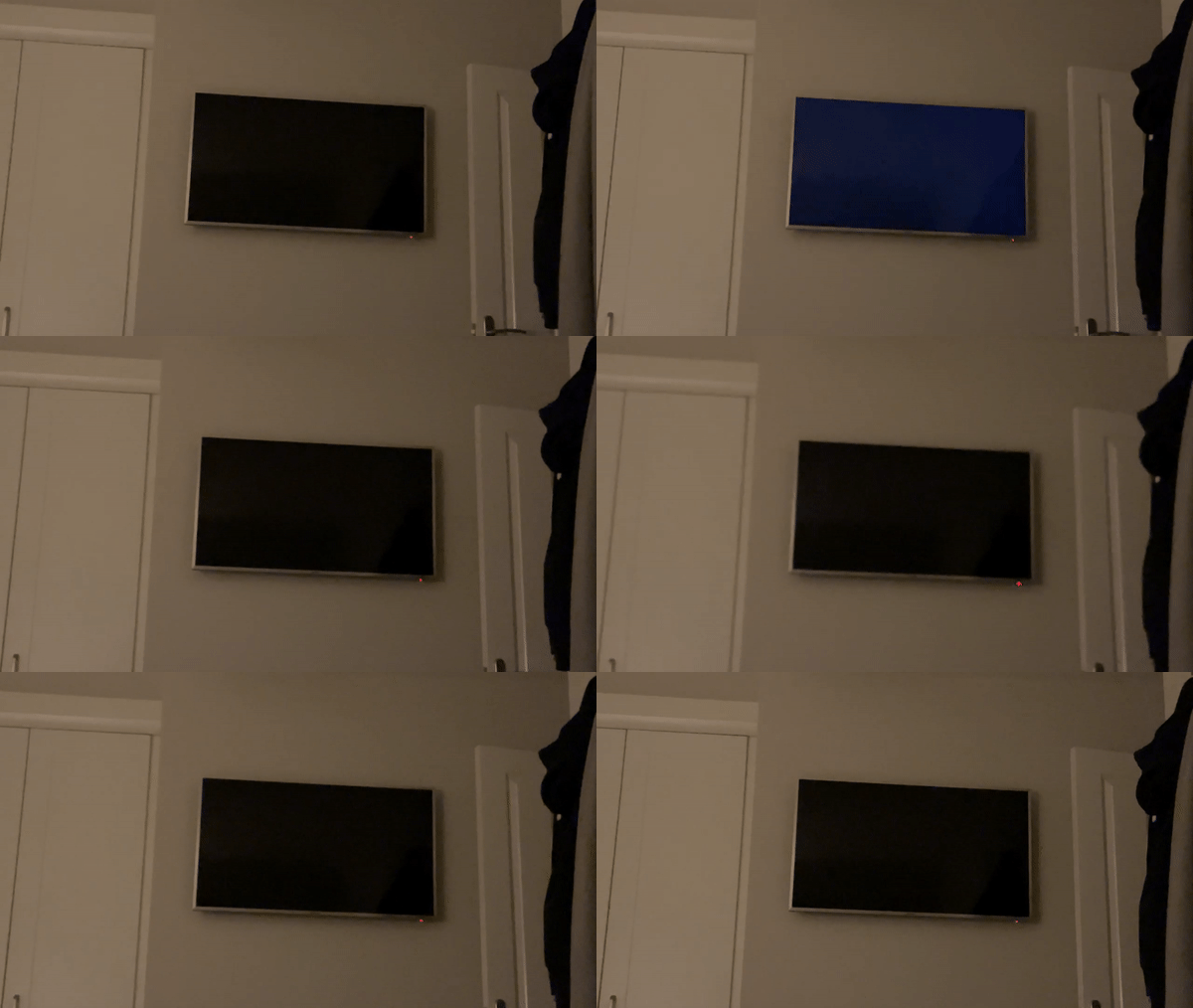
Professional technicians can diagnose deeper problems. Sometimes, they find faults in the power board, mainboard, or panel. Repairs can cost anywhere from $100 to $400, depending on the issue and model.
Cost Comparison: Repair Vs Replacement
Let’s compare repair costs with buying a new TV:
| Repair Type | Average Cost | New TV Price |
|---|---|---|
| Power Board Replacement | $120 | $400-$900 |
| Backlight Repair | $150 | $400-$900 |
| Mainboard Repair | $180 | $400-$900 |
If your TV is older than five years, buying a new model may be smarter. New TVs have better features, longer warranties, and fewer flashing problems.

Non-obvious Insights For Beginners
Many beginners overlook a few key points:
- Check the TV’s status light. If the standby light flashes, the issue is often power-related or caused by the remote.
- Firmware updates can fix hidden bugs. Some flashing issues disappear after a software update, even if the screen seems fine.
- Don’t ignore small flashes. Early flickering may signal a bigger hardware problem. Fix it early to avoid expensive repairs.
Frequently Asked Questions
Why Does My Samsung Tv Flash On And Off After A Power Outage?
A power outage can cause voltage spikes. This sometimes damages the TV’s power board or software. Try unplugging the TV for 60 seconds. If the problem continues, use a surge protector or call a technician.
Can A Faulty Remote Cause My Tv To Flash?
Yes, a bad remote can send repeated signals that make the TV turn on and off. Remove the batteries and see if the issue stops. Clean the remote or use a replacement.
Is Flashing A Sign Of A Failing Backlight?
It can be. If your TV flashes on dark screens or shows uneven brightness, the backlight may be failing. Contact Samsung support for help.
How Do I Update My Samsung Tv Firmware?
Go to Settings > Support > Software Update. Select “Update Now. ” Make sure your TV is connected to Wi-Fi. For manual updates, download firmware from the Samsung website and use a USB stick.
Should I Repair Or Replace My Samsung Tv If Flashing Persists?
If your TV is less than five years old and the repair cost is under $200, repair is usually better. For older TVs, replacement is often smarter. New TVs have fewer flashing problems and better support.
If you follow the steps above, you’ll often fix the flashing problem yourself. For more technical details, check the official Samsung Support site. Remember, most flashing issues are minor and easy to solve with the right approach. Enjoy your Samsung TV without interruptions!