
Banking from your phone is now normal for millions of people. The Bank of America app is one of the most popular tools for mobile banking in the United States. It lets you check your balance, pay bills, transfer money, and even deposit checks—all from your smartphone. But what happens when the app stops working? For many, this can be stressful, especially if you need to do something urgent.
If you have ever seen the Bank of America app crash, freeze, not open, or show strange error messages, you are not alone. Many users have reported problems, especially after updates or during busy hours. This article will help you understand why the app might not work, how to fix common issues, and how to avoid future problems.
Whether you use Android or iOS, these tips will make your mobile banking experience smoother and safer.
Why The Bank Of America App Stops Working
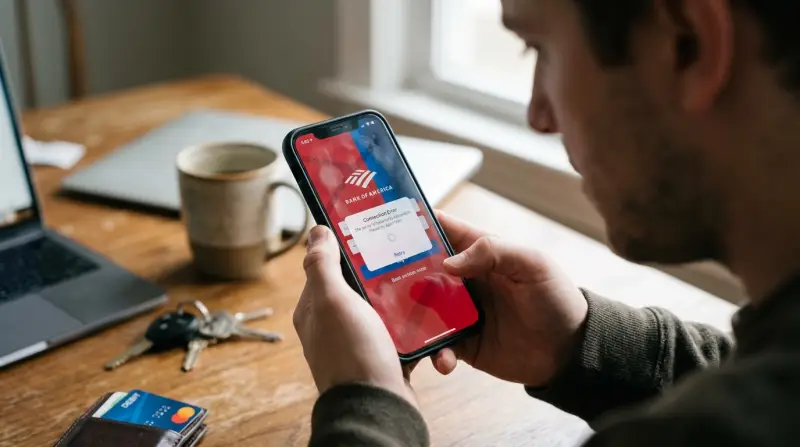
Before jumping into solutions, it’s important to know what causes problems with the app. Here are the most common reasons:
- Internet connection problems: Weak or unstable Wi-Fi or mobile data can stop the app from loading.
- Outdated app version: Older versions may have bugs or not support new features.
- Device software issues: If your phone’s operating system is not updated, the app may not work well.
- Bank server downtime: Sometimes, Bank of America’s own servers are down for maintenance or unexpected technical issues.
- App cache/data corruption: Too much stored data or a corrupted cache can slow down or break the app.
- Incorrect login details: Entering the wrong username or password too many times can lock you out.
- Security or firewall settings: Some security apps or VPNs can block access.
- Device compatibility: Very old devices may not support the latest app version.
Understanding these causes can save you time. For example, if Bank of America’s servers are down, no fix on your phone will work until the bank resolves the issue.
Quick Checks Before Troubleshooting
It’s a good idea to try some quick checks before you dive into detailed fixes. These often solve the most common problems in seconds:
- Confirm that your internet connection is working by visiting a website.
- Restart the app and your device.
- Check for app updates in the App Store or Google Play.
- Ensure you are using the correct login credentials.
- See if Bank of America has announced a system outage on their website or social media.
If the app is still not working, it’s time to try more specific solutions.
Step-by-step Fixes For The Bank Of America App
1. Update The App
An outdated app is a common cause of trouble. Developers often release updates to fix bugs and improve security.
- Go to the App Store (for iOS) or Google Play Store (for Android).
- Search for Bank of America.
- If there is an “Update” button, tap it.
- After updating, restart the app.
2. Clear Cache And Data
Sometimes, old or corrupted data stored by the app can cause glitches.
- On Android:
- Go to Settings > Apps > Bank of America.
- Tap Storage.
- Tap Clear Cache and Clear Data.
- On iOS:
- Delete the app.
- Reinstall it from the App Store.
This removes temporary files and usually fixes loading or crashing issues.
3. Check For Device Updates
Your phone’s operating system (OS) should be up to date for the app to run smoothly.
- On iOS: Settings > General > Software Update.
- On Android: Settings > System > Software Updates.
Install any available updates and restart your device.
4. Test Your Network
A weak or unstable connection often causes problems. Try these steps:
- Switch between Wi-Fi and mobile data to see if one works better.
- Move closer to your router or use a different network.
- Turn Airplane mode on, then off, to reset your connection.
5. Disable Vpn And Security Apps
Some VPNs or security apps block banking apps as a safety feature.
- Turn off your VPN and security apps temporarily.
- Open the Bank of America app again.
If it works now, you may need to add the app to your security app’s “safe” list.
6. Reinstall The App
If none of the above works, uninstall and reinstall the app:
- Long-press the app icon, then select “Uninstall” or “Remove App.”
- Download and install the app again from the store.
- Log in with your credentials.
7. Reset Your Password
If you think you entered the wrong password too many times, your account may be locked.
- Use the “Forgot Password” link in the app or on the Bank of America website.
- Follow the steps to reset your password.
8. Contact Customer Support
If the app still isn’t working, you may need expert help.
- Call Bank of America customer service: 1-800-432-1000 (for personal accounts).
- Use the bank’s online chat or secure messaging.
Support can help with account-specific issues or tell you about ongoing outages.
Comparing Common App Issues And Solutions
Here’s a quick look at the most frequent Bank of America app problems and their usual fixes:
| Problem | Possible Cause | Recommended Fix |
|---|---|---|
| App won’t open | Corrupted cache or outdated app | Clear cache/data, update or reinstall app |
| Login error | Wrong credentials or account lock | Reset password, check username |
| Slow performance | Too much stored data | Clear cache, restart device |
| Transactions not showing | Server delay | Wait, refresh app, check bank status |
| Error messages | Network or server issues | Check internet, try later |
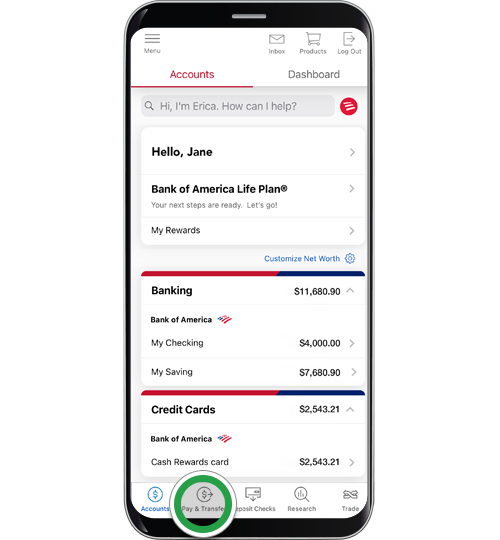
When The Problem Is On Bank Of America’s Side
Sometimes, the issue is not your device or your settings. Bank of America may have scheduled maintenance or experience unexpected server outages. These can affect thousands or even millions of users at the same time.
How Can You Tell If This Is The Case?
- Check Bank of America’s official website or social media for outage reports.
- Use third-party sites like DownDetector to see if others are reporting similar issues.
- Wait and try again later, especially if you see an error message mentioning “server” or “maintenance.”
If the app is not working due to a bank-side problem, your only option is patience. Avoid entering your password many times, as this could lock your account.
Bank Of America App Vs. Mobile Web: Which To Use When The App Fails?
If the app is down but you need to access your account, try using the mobile website instead. The web version often works when the app does not, especially during app-specific outages.
Here’s a quick comparison:
| Feature | Bank of America App | Mobile Website |
|---|---|---|
| Speed | Faster, optimized for mobile | Slower, depends on browser |
| Security | Biometric login (Face ID/Touch ID) | Standard password login |
| Features | Full banking features | Most features, but some limited |
| Offline access | Limited (cached info only) | Not available |
| Notifications | Push notifications | Email or SMS alerts |
If you use the mobile website, make sure the address starts with https:// and ends with bankofamerica.com to avoid phishing scams.
Security Warnings And Safe Practices
Banking apps are a target for scammers. When the Bank of America app is not working, you may feel pressure to search for quick solutions. Be careful:
- Never enter your login details into apps or websites that are not official.
- Do not download “fix” apps or tools from unofficial sources.
- Be cautious with emails or texts claiming to help you restore access—they could be phishing attempts.
Always use official channels for help. Bank of America will never ask for your full password, PIN, or Social Security number in an email or text.
Non-obvious Insights And Pro Tips
Most guides stop at the basics, but here are two advanced tips many users miss:
- App permissions matter: If you deny the Bank of America app access to storage, camera, or location, some features (like check deposit or location-based fraud checks) may not work. Check your device’s app permissions if you notice missing features.
- Background data restrictions: On Android, if you restrict background data for the app, it may not sync or notify you of important account activity. Make sure background data is allowed in your device settings.
These small settings can make a big difference in how well the app works.
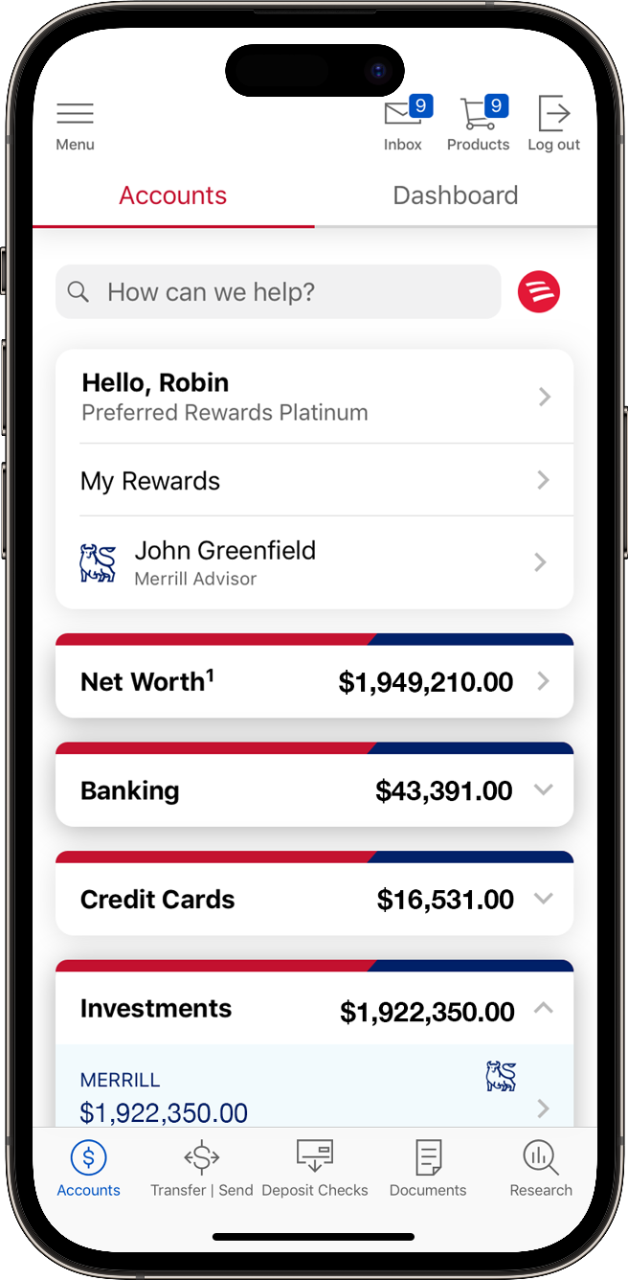
What To Do If You Can’t Fix The Problem
If you have tried all the steps above and the app is still not working, consider these options:
- Try using the app on a different device (friend’s phone or tablet).
- Access your account from a desktop computer.
- Visit a local Bank of America branch if you need urgent help.
Bank of America also provides accessibility support for customers with disabilities. Call the bank’s dedicated line or visit their Accessibility Support page for more options.
Frequently Asked Questions
Why Does My Bank Of America App Keep Crashing After An Update?
This can happen if there is a bug in the new version or if your device is not fully compatible. Try clearing the app’s cache and data, or uninstall and reinstall the app. If the issue continues, wait for the next update or contact customer support.
Can I Still Use Online Banking If The App Is Not Working?
Yes, you can log in to your account using a web browser at www. bankofamerica. com. Most features are available on the website, although some, like check deposit, are app-only.
How Do I Know If Bank Of America’s Servers Are Down?
Check the bank’s official social media or website for outage announcements. Third-party sites like DownDetector can also show if many users are experiencing problems at the same time.
Is It Safe To Uninstall And Reinstall The Bank Of America App?
Yes, as long as you download the app from the official App Store or Google Play. Your account information is not stored on the device, so uninstalling does not affect your bank account.
What Should I Do If I Get Locked Out Of My Account?
Use the “Forgot Password” option in the app or website to reset your password. If you are still locked out, call Bank of America customer service for help unlocking your account.
Banking apps are powerful tools, but they’re not perfect. The key is to stay calm, check the basics, and follow the right steps. Keeping your app and device updated, using safe practices, and knowing when to contact support will help you handle most issues quickly.
If you ever feel uncertain, always use official Bank of America channels for help and avoid sharing your information with anyone you do not trust.