
Resetting your Nest Thermostat can solve many common problems, from connectivity issues to incorrect temperature readings. Maybe your device is not responding, or you want to clear your personal data before selling it. Resetting is also helpful if you want to start fresh with new settings.
But before you hit reset, it’s important to know exactly what happens, which reset type is best, and how to do it correctly. This guide will walk you through every step, explain the differences, and help you avoid mistakes that many beginners make.
You’ll finish knowing not just how to reset your Nest Thermostat, but how to do it safely, quickly, and confidently.
Understanding Nest Thermostat Reset
There are two main ways to reset your Nest Thermostat: soft reset and factory reset. Each has a different effect and purpose. Knowing which to use is crucial. Let’s compare them side by side:
| Reset Type | What It Does | When to Use | Data Lost |
|---|---|---|---|
| Soft Reset | Restarts device, keeps settings | Device is frozen, minor issues | None |
| Factory Reset | Erases all settings, returns to default | Major issues, selling, starting over | All |
Soft reset is safe and quick. It’s like turning your phone off and on. Factory reset is more serious; it wipes everything and you start from scratch. If you only need to fix small issues, start with a soft reset. Only use factory reset if you want to erase all data or the device has major problems.
When Should You Reset Your Nest Thermostat?
Resetting is not always necessary. Here are some situations where it’s a smart move:
- Device is unresponsive: Screen won’t react, or controls don’t work.
- Wi-Fi problems: Can’t connect to your network, or keeps dropping connection.
- Temperature errors: Room feels hotter or colder than what’s displayed.
- Changing ownership: Selling your home or the device.
- Wanting a fresh start: Too many confusing settings or schedules.
Many users try a factory reset first, but this is often a mistake. Start with a soft reset, and only factory reset if the problem doesn’t go away.
How To Soft Reset Nest Thermostat
A soft reset is simple. Here’s how you do it:
- Press the ring on your Nest Thermostat to bring up the menu.
- Scroll to Settings and select it.
- Find Reset and select it.
- Choose Restart (not Factory Reset).
- Wait for the device to turn off and back on.
This process takes just a minute or two. All your settings and schedules stay the same. If your device is frozen and the ring doesn’t respond, try holding it down for 10 seconds.
Common Soft Reset Mistakes
- Choosing Factory Reset by accident: Double-check before you select.
- Not waiting long enough: Give it a full minute to restart.
- Ignoring power issues: If the screen stays black, check if it’s getting power.
How To Factory Reset Nest Thermostat
Factory reset is more detailed. It wipes all data and settings. Make sure you want to erase everything before starting.
- Press the ring to open the main menu.
- Go to Settings.
- Scroll down to Reset.
- Select Factory Reset.
- Confirm your choice.
- Wait for the reset to finish. The device will restart and show the setup screen.
This can take several minutes. Once done, you’ll need to set up your Nest Thermostat again, just like when it was new. That means connecting to Wi-Fi, entering your location, setting schedules, and linking to the Nest app.
Before You Factory Reset
- Backup settings: Write down your preferred schedules or take photos.
- Unlink accounts: Remove the device from your Nest app and Google Home app.
- Inform other users: All connected accounts will be removed.
| Action | Why It Matters |
|---|---|
| Backup schedules | Prevents loss of favorite settings |
| Remove from app | Avoids account confusion |
| Inform users | Ensures everyone knows reset is happening |

Setting Up Your Nest Thermostat After Reset
After a factory reset, your Nest Thermostat is like new. You must set it up again. Here’s what to do:
- Connect to Wi-Fi: Select your home network and enter the password.
- Enter location: This helps Nest adjust for local weather.
- Set temperature schedule: Choose times and temperatures for comfort.
- Link to Nest app: Open the app, add the device, and follow prompts.
- Check compatibility: Make sure your heating and cooling systems are connected properly.
Many users skip the location step, but this affects energy savings. Always enter your zip code for accurate results.
Tips For Smooth Setup
- Use the latest Nest app: Updates fix bugs and add features.
- Check wiring: Loose wires cause setup problems.
- Test after setup: Adjust temperature and make sure the system responds.
Troubleshooting Reset Problems
Sometimes, the reset doesn’t go as planned. Here’s how to fix common issues:
- Device won’t restart: Check if the power is connected. If battery-powered, charge it fully.
- Can’t connect to Wi-Fi: Move router closer, or restart your router. Double-check password.
- Stuck on setup screen: Restart the device again or unplug and replug.
- App won’t recognize device: Delete and reinstall the Nest app, or clear app cache.
- Error codes: Look up the exact code on the Google Nest Help site.
| Error Code | Meaning | Solution |
|---|---|---|
| E73 | No power to Nest base | Check wiring, breaker |
| E74 | No power to Rh wire | Check HVAC system |
| E195 | Low battery | Charge or replace battery |
Advanced Reset Tips Most Beginners Miss
Resetting isn’t just about pressing buttons. Here are two key insights:
- Resetting does not fix wiring issues: If your Nest Thermostat keeps losing power or shows error codes, check your wiring. Many beginners think a reset will solve hardware problems, but it only fixes software issues.
- Factory reset removes device from all smart home setups: If your thermostat is linked to Google Home or other smart systems, you must reconnect after reset. Forgetting this step can stop automation routines.
How Nest Thermostat Reset Helps With Energy Savings
Resetting your Nest Thermostat can improve energy savings in surprising ways. If your schedules or settings have drifted over time, starting fresh allows you to optimize for your current habits. After a factory reset, you can:
- Set new, efficient schedules
- Use the latest energy-saving features
- Remove old user profiles that may cause conflicts
According to Google, Nest Thermostats can save up to 10-12% on heating and 15% on cooling when set up correctly. Resetting and updating your schedules is a simple way to boost these savings.
What To Avoid When Resetting Nest Thermostat
Don’t make these mistakes:
- Rushing through the reset: Read each menu carefully. Many users accidentally erase all data instead of just restarting.
- Forgetting to unlink accounts: If selling, remove from your Nest and Google Home apps first.
- Ignoring error codes: If you see errors, fix the underlying problem before resetting.
- Not backing up schedules: If you love your current settings, write them down.
Real-world Example: Reset To Fix Wi-fi Issues
Maria, a homeowner in Texas, noticed her Nest Thermostat kept disconnecting from Wi-Fi. She tried restarting her router, but it didn’t help. After a soft reset, the device reconnected, and her schedules stayed intact. If she had done a factory reset first, she would have lost her data.
This shows why starting with a soft reset is best for minor problems.
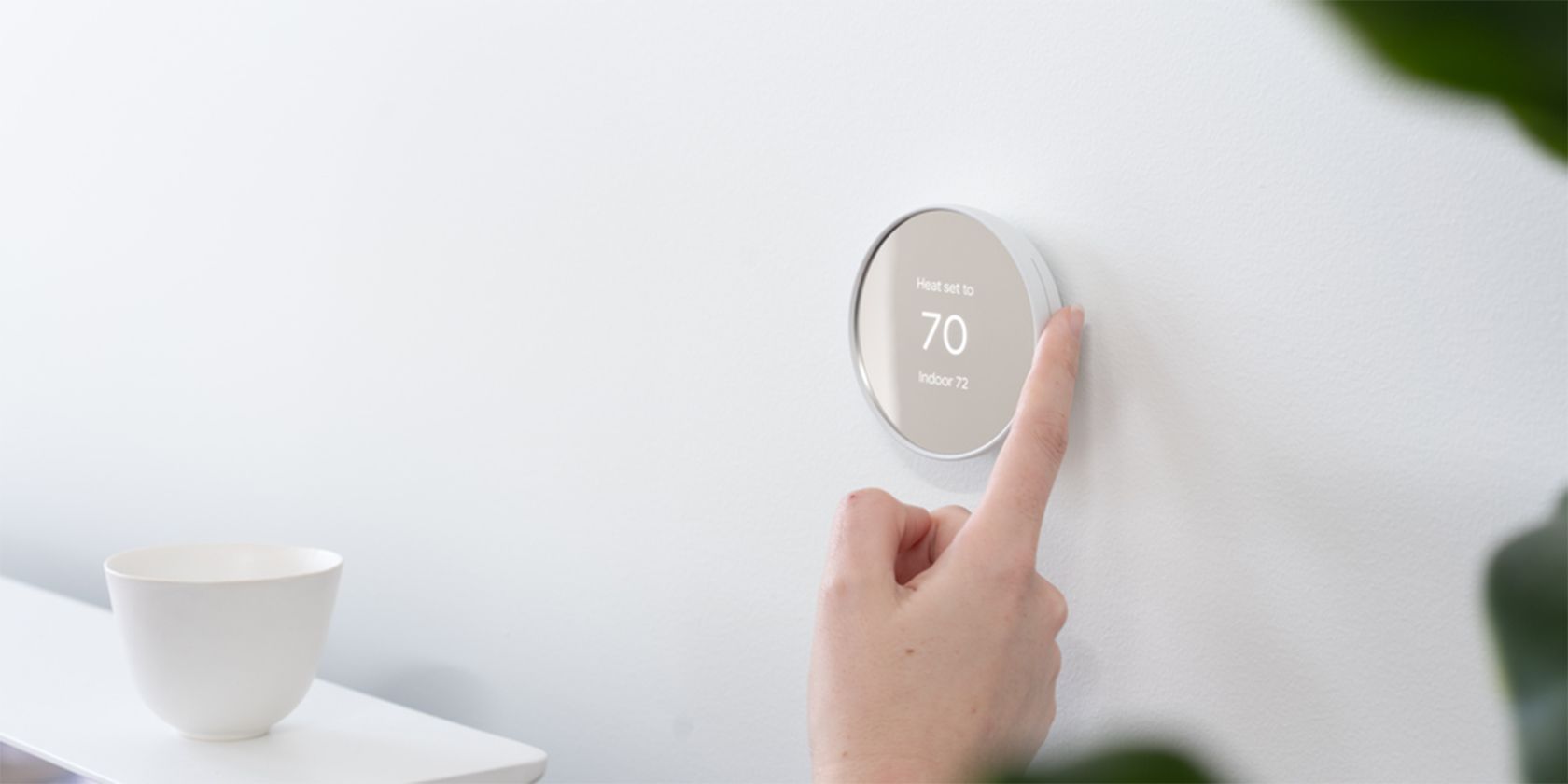
Frequently Asked Questions
How Often Should I Reset My Nest Thermostat?
You rarely need to reset your Nest Thermostat. Only reset when you face problems, want to clear data, or are changing ownership. Regular resets are not necessary and can waste time.
Will A Factory Reset Remove My Device From The Nest App?
Yes. After a factory reset, your thermostat is removed from your Nest app and Google Home app. You will need to add it again as a new device.
Can I Reset My Nest Thermostat Remotely?
You cannot factory reset remotely. You must be at the device to perform a factory reset. However, you can restart (soft reset) using the Nest app if the device is online.
What Happens To My Energy History After A Reset?
A factory reset erases all energy history and usage data. If you want to keep this information, export it or note it down before resetting.
Where Can I Find Official Troubleshooting Help?
For official troubleshooting, visit the Google Nest Help Center. It offers step-by-step guides, error code explanations, and live support.
Resetting your Nest Thermostat is simple once you know the steps and what to expect. Start with a soft reset for minor issues, and only factory reset when you need a fresh start. Remember to back up your settings, unlink accounts, and check for wiring problems before resetting.
With these tips, you can keep your home comfortable and your device running smoothly. Whether you’re fixing problems or preparing to sell, a proper reset will help your Nest Thermostat work like new.