
If your Eufy Robovac is acting strange, not responding, or having trouble with cleaning routines, a reset can often solve the problem. Many owners worry that resetting will erase important settings or damage the device, but done correctly, it’s a safe and effective solution. This guide will show you how to reset your Eufy Robovac step-by-step, explain when a reset is needed, and share practical tips to avoid common mistakes. Whether you’re troubleshooting a technical issue or preparing to sell your robot vacuum, you’ll find clear instructions and expert advice below.
When Should You Reset Your Eufy Robovac?
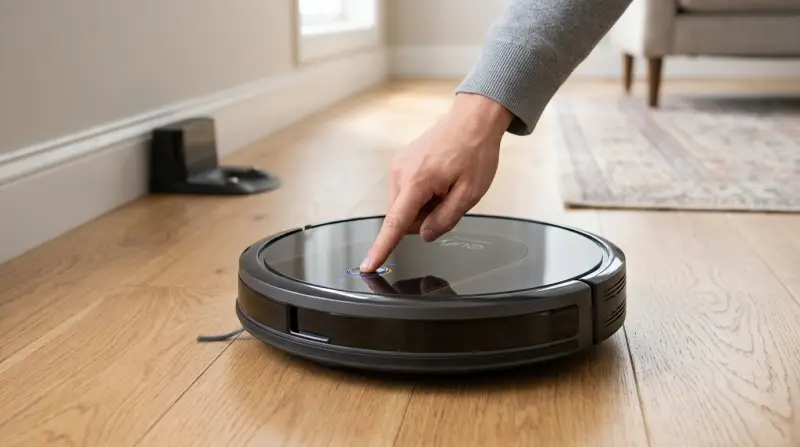
Resetting isn’t something you need to do regularly. It’s best used for specific situations:
- Connectivity issues: The robot won’t connect to Wi-Fi or the app.
- Navigation errors: It gets stuck or doesn’t return to the charging base.
- Software glitches: Unresponsive buttons or random shutdowns.
- Preparing for sale: Erasing your personal data and schedules.
- Routine maintenance: Sometimes recommended after major firmware updates.
A reset can refresh your Robovac’s system, clear stored errors, and restore factory settings. But it won’t fix hardware problems like broken wheels or sensors.
Types Of Eufy Robovac Resets
Eufy offers several Robovac models, including the 11S, 30C, G30 Edge, and others. While the basic reset process is similar, there are two main types:
- Soft Reset: Clears minor glitches, keeps most settings.
- Factory Reset (Hard Reset): Erases all data, restores default settings.
Knowing which reset you need is important. For simple connection issues, try a soft reset first. For bigger problems or before selling, use a factory reset.
Comparison Of Reset Types
Here’s a quick overview of what each reset does:
| Reset Type | Clears Errors | Erases Settings | Best For |
|---|---|---|---|
| Soft Reset | Yes | No | Temporary glitches |
| Factory Reset | Yes | Yes | Major issues, sale |

Step-by-step: How To Soft Reset Eufy Robovac
A soft reset is quick and doesn’t erase your schedules or Wi-Fi information. Here’s how to do it:
- Turn Off Robovac: Press the power button on the robot or remote until it powers down.
- Unplug Charging Base: Remove the charging base from the outlet.
- Wait 2 Minutes: Give the robot and base time to discharge any stored energy.
- Plug In and Turn On: Reconnect the base and power up the robot.
This simple process can fix minor bugs. If your Robovac still doesn’t respond, a factory reset may be needed.
Step-by-step: How To Factory Reset Eufy Robovac
Factory reset steps vary by model. Always check your user manual for specific instructions, but here’s the general process for most Eufy Robovac models:
For Robovac 11s, 30c, 15c Max, And Similar
- Power Off: Hold the power button for a few seconds until the robot turns off.
- Press and Hold Reset Button: On most models, there’s a small reset button near the Wi-Fi indicator. Use a paperclip to press and hold for 10 seconds.
- Wait for Beep: The robot will beep or the indicator light will flash, confirming the reset.
- Restart: Power the robot back on.
For Smart Models (g30, L70 Hybrid, X8)
These models are often controlled via the EufyHome app.
- Open EufyHome App: Connect your phone to Wi-Fi and open the app.
- Select Robovac: Tap on your device.
- Go to Settings: Find the “Device Settings” or “Reset Device” option.
- Factory Reset: Tap “Factory Reset” and confirm.
Factory Reset Comparison By Model
| Model | Physical Button | App Reset | Wi-Fi Required |
|---|---|---|---|
| 11S | Yes | No | No |
| 30C | Yes | No | No |
| G30 Edge | No | Yes | Yes |
| L70 Hybrid | No | Yes | Yes |
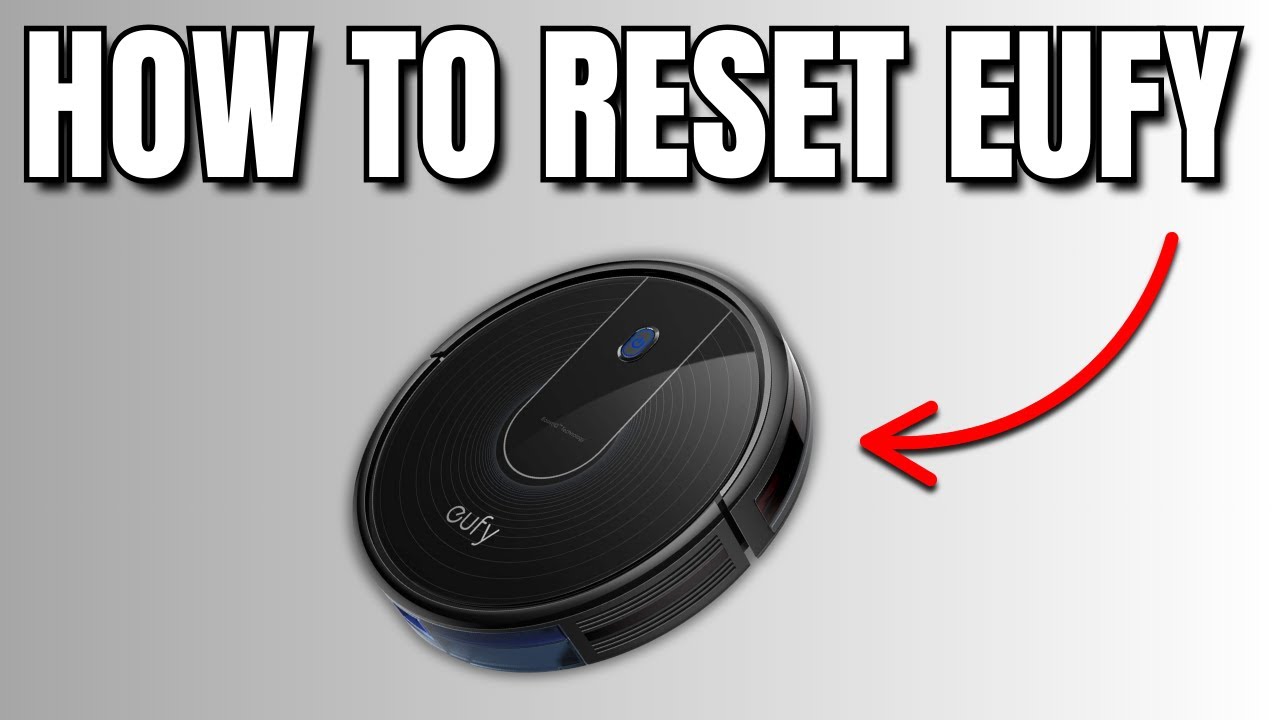
What Happens After Reset?
After a factory reset, your Robovac will:
- Forget Wi-Fi networks: You’ll need to reconnect in the app.
- Erase cleaning schedules: All programmed routines are deleted.
- Restore default settings: Cleaning mode, suction power, and language return to default.
- Delete user data: Personal info, saved maps (for mapping models) are erased.
It’s important to set up your robot again after resetting. Connect it to Wi-Fi, program your cleaning schedule, and choose your preferred cleaning mode.
Common Mistakes When Resetting Eufy Robovac
Many owners make simple errors when trying to reset their Robovac. Here are some to avoid:
- Not holding the reset button long enough: Ten seconds is standard, but some models need up to 15 seconds.
- Using the wrong button: Some models have multiple small buttons. Check your manual.
- Skipping Wi-Fi reconnection: After a factory reset, you must reconnect to your home network.
- Over-resetting: Too many resets can confuse the robot’s system. Only reset when needed.
- Ignoring firmware updates: Sometimes the problem is a pending update, not a glitch.
One non-obvious insight: After a reset, Robovac may take longer to map your home during the first cleaning. Don’t worry if it seems slower or less accurate at first.
Setting Up Eufy Robovac After Reset
Once reset, your Robovac is like new. Here’s how to set it up again:
- Connect to Wi-Fi: Use the EufyHome app to add your robot to the network.
- Update Firmware: Check for updates in the app. Updated firmware fixes bugs and improves performance.
- Program Cleaning Schedule: Set daily or weekly routines in the app.
- Choose Cleaning Mode: Select standard, max, or spot cleaning based on your needs.
- Check Map (for mapping models): Let the robot run a full cleaning cycle to remap your home.
Setup Checklist
| Step | Required? | Time (Minutes) |
|---|---|---|
| Wi-Fi Connection | Yes | 5 |
| Firmware Update | Optional | 3-10 |
| Schedule Setup | Optional | 2 |
| Cleaning Mode Selection | Optional | 1 |
| Remapping (Mapping models) | Optional | 40-60 |
Practical Tips To Prevent Future Issues
Resetting can fix a lot, but prevention is even better. Here are some practical tips:
- Keep firmware updated: Regular updates from Eufy solve many bugs.
- Clean sensors and wheels: Dirt causes navigation errors.
- Avoid overloading schedules: Too many routines can make the robot confused.
- Use quality Wi-Fi: Weak signals cause connection problems.
- Place charging base in open area: Avoid corners or clutter.
A useful insight: Some owners notice fewer glitches when the charging base is on a hard floor, not carpet.
Troubleshooting Before Resetting
Not every problem needs a reset. Try these steps first:
- Restart Robovac: Power off and on.
- Check for error codes: Eufy models flash lights or beep for specific errors. Look them up in the manual.
- Inspect sensors and wheels: Remove hair and dust.
- Update app and firmware: Many bugs are fixed with updates.
- Move charging base: Sometimes, poor placement prevents docking.
If these don’t help, a reset is the next step.
How To Reset Without Losing Data
If you only want to fix minor bugs, do a soft reset. This won’t erase schedules or Wi-Fi info. For smart models, you can also backup settings in the EufyHome app before a factory reset. After resetting, restore your settings to save time.
Some mapping models allow you to export maps. Check if your model supports this in the app.
Resetting Eufy Robovac For Sale Or Transfer
If you’re selling or giving away your Robovac, factory reset is essential. This erases all your personal info and routines. The new owner can set up the robot as new.
Don’t forget to remove the device from your EufyHome app and unlink from your account.
Real-world Data: How Often Do Users Need To Reset?
According to surveys on Eufy forums, about 12% of owners report needing a reset in their first year. Most resets are for Wi-Fi issues or after firmware updates. Only 2-3% need a factory reset for major problems.
These numbers show that resets are not common, but knowing how to do them saves time and stress.
Where To Find Official Support
For model-specific instructions or advanced troubleshooting, visit the official Eufy support page. Official guides and manuals are updated regularly and give accurate reset steps.
Here’s a helpful link: Eufy Support.
Frequently Asked Questions
How Do I Know If My Eufy Robovac Needs A Reset?
If your robot stops responding, fails to connect to Wi-Fi, or shows unusual behavior like random shutdowns or navigation errors, a reset is often the best solution. Always try basic troubleshooting first.
Will Resetting Delete My Cleaning Schedule And Maps?
A soft reset will not delete schedules or maps. A factory reset will erase all settings, schedules, Wi-Fi info, and saved maps (for mapping models). Be prepared to set up everything again.
Can I Reset Robovac Using The Remote Control?
Most Eufy models do not support full factory resets via remote control. Some basic functions, like powering off or changing modes, are possible with the remote. For a factory reset, use the physical button or app.
What If The Reset Button Doesn’t Work?
If the reset button fails, check your manual for the correct location and method. Make sure you hold it long enough. If the robot still doesn’t reset, contact Eufy support or try resetting via the app (for smart models).
Are Resets Safe For Robovac Hardware?
Yes, resets are safe and will not harm the robot’s hardware. They only affect software and settings. Avoid repeated resets unless needed, as this can confuse the system.
Resetting your Eufy Robovac is a straightforward solution for many common issues. With the right steps and proper setup, your robot will be back to cleaning efficiently. If problems persist, consider contacting official support or checking for hardware issues. Remember, regular maintenance and updates help prevent the need for resets, keeping your home clean with less hassle.