
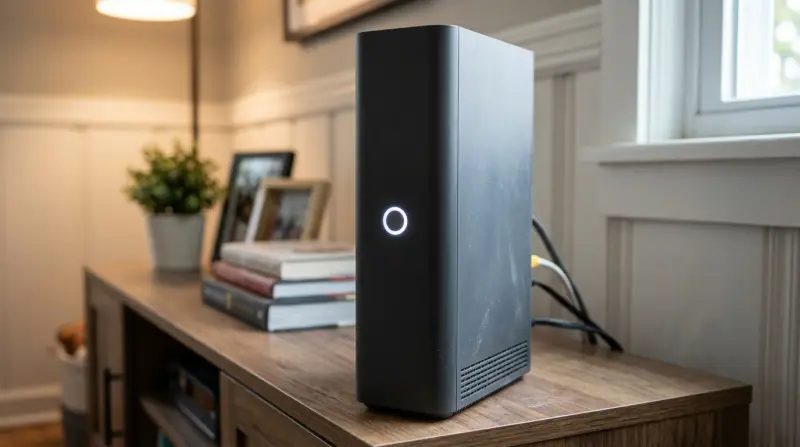
A Verizon Fios Router Blinking White indicates the device is connecting to the internet or updating firmware. This temporary signal doesn’t mean your hardware is broken. If the light pulses for over 15 minutes, the router is likely stuck attempting a handshake with the central office, which usually requires a simple power cycle to resolve.
Why your Fios router is blinking white
| What you notice | What it usually means | What to do first |
|---|---|---|
| Slow pulsing white light | Router is booting up | Wait 5 minutes |
| Fast flashing white light | Firmware is updating | Don’t unplug |
| Solid white light | Connection is healthy | No action needed |
| Blinking white for hours | Lost internet signal | Check cable connections |
| Blinking red and white | Hardware error detected | Restart the device |
| No lights at all | Power supply issue | Check power outlet |
If the light stays white but your devices show no internet, the issue is likely with the router’s configuration or the ISP service. Don’t reset the router yet. Instead, bypass the router and plug your computer directly into the modem with an Ethernet cable. If you have a connection, the router is the culprit.
Many users mistakenly power cycle their hardware during a firmware update. This mistake often corrupts the internal software, effectively bricking the device. If the light flashes rapidly, wait at least twenty minutes before assuming a freeze.
Use this simple decision rule: if the light is red, focus on the hardware. If the light is white but inactive, focus on the external cables. A loose coax cable is the most common cause of a persistent white blink. Ensure the connector is hand-tightened against the wall plate before calling your service provider. If the cable is tight and the blink continues, swap the patch cable to rule out a simple wire break.
Software updates and boot cycles
A router often displays a blinking light because it’s performing necessary background maintenance. During a firmware update, the system downloads and installs new code to ensure your network remains secure and compatible with updated Verizon Fios network standards. If you see a fast, rhythmic flash, the device is writing data to its internal memory. If you unplug the router during this window, you risk corrupting the operating system, which could render the hardware unusable.
If the light is a slow, steady pulse, the router is likely in its boot sequence. This happens after a power outage or a manual restart. This process takes about three to five minutes to complete for most standard models. If you have a larger home network with multiple extenders, the entire system may take up to ten minutes to sync fully.
A common mistake people make is hitting the reset button on the back of the unit as soon as they see a light. This wipes your custom network name and password, forcing you to reconfigure the entire setup from scratch.
To distinguish a standard boot from a hardware failure, check the light color. A pulsing white light typically indicates a normal startup. A solid red or amber light suggests a connection error or a failure to reach the server. If the light stays white for more than 20 minutes, don’t reset it yet. Instead, perform a standard power cycle: unplug the power cord from the wall, wait 60 seconds, and plug it back in. If the light returns to a solid state after the reboot, the system has successfully re-established its link to the service provider. If the light remains red after two power cycles, contact support.
Connection issues between devices
The router might struggle to establish a connection if the physical cables are loose or damaged. A blinking white light can signal that the router is “searching” for a signal from the Optical Network Terminal (ONT). This is the small box usually mounted on your wall where the fiber optic cable enters your home.
Check the Ethernet cable that runs from the WAN port on the back of your router to the ONT. If the plastic clip is broken or the cable is pinched, the router can’t receive the signal it needs to go online. If X is a loose cable, push it until you hear a click; if Y is a damaged cable, replace it with a standard Cat6 Ethernet cable.
A common mistake is assuming the router is at fault when the ONT has lost power. Check the ONT power brick; if the lights on the box are dark, the device is off. Ensure the power cable is pushed firmly into the wall outlet. If the outlet is controlled by a light switch, someone may have flipped it off by accident.
This cause is distinct from a firmware update because the light often changes from white to yellow or red if it fails to find a signal for a long time. If you have verified the cables are tight and the light is still blinking, look at your ONT. If the ONT itself has a light that isn’t green, the issue is with the fiber line outside your home rather than your router. This is a trade-off: you can fix your local cables, but you can’t fix the outside fiber line yourself. If you aren’t comfortable moving equipment, contact support.
Hardware faults or power failures
Sometimes the blinking is caused by a power supply that isn’t providing enough voltage to keep the processor running correctly. This varies by model; check the label on the bottom of your router for the required input wattage. If the power brick is hot to the touch or buzzing, it’s failing.
If you have multiple devices plugged into the same power strip, move the router directly to a wall outlet. If you see the router blinking white, then turning off, then blinking white again, it’s stuck in a power-cycling loop. This isn’t a configuration issue; it’s a hardware failure.
If you have confirmed the outlet works by plugging a lamp into it and the router still fails to stabilize, the power adapter or the router itself is likely at the end of its life. In that case, no software fix will resolve the blinking.
When to stop and get help
If the light stays blinking white for over 30 minutes after a restart, there’s likely a service outage in your area. Check the Verizon status page on your mobile data before calling.
If you see any smoke or smell burning plastic near the power port, unplug the device immediately and don’t plug it back in. A short circuit here can damage your wall outlet or start a fire.
If the fiber optic cable itself is bent at a sharp angle or broken, don’t touch it, as the fiber is fragile and can be easily damaged. If you see a kink, call a technician to replace the line.
If the router requires a port forward configuration or a complex network bridge, leave this to a professional. Configuring these settings incorrectly often leaves your home network vulnerable to external security threats.
If the issue persists, contact the Verizon support team. They can run a remote diagnostic to see if your ONT is responding. If the equipment is faulty, they will ship a replacement unit to your address. Don’t attempt to open the router casing. Doing so voids your warranty and poses a significant risk of electrical shock.
Frequently asked questions
Can I fix a blinking light by factory resetting?
No, you should avoid a factory reset as your first step because it deletes your Wi-Fi name and password. A factory reset is a final option when the router is unresponsive to a standard power cycle. If you reset the device, you’ll need to use the default credentials printed on the router label to log back in and set up your network again.
How long does it take for the router to update?
Updates usually finish within 10 to 15 minutes. If your router is blinking rapidly for longer than 30 minutes, it’s likely stuck in a loop. In this case, you should perform a power cycle by unplugging the unit for one minute. If it continues to blink rapidly after the restart, the firmware file may be corrupted, and you should contact support for a remote update.
Is it safe to leave the router blinking all night?
Yes, it’s safe to leave the device connected even if it’s blinking. The router is designed to handle temporary connection losses without overheating or causing a fire hazard. However, you won’t have internet access while the light is blinking. If you need the connection, you should try the power cycle steps mentioned in the body of this article to restore your service.
What happens if I move the router?
Moving the router can cause the blinking light if the cables become loose during the process. Always ensure the Ethernet cable connected to the WAN port is firmly seated in both the router and the wall jack. If you have moved the router to a new room, ensure the wall jack is active and connected to the main fiber line, as not all wall outlets in a home are wired for internet.
Does the blinking mean I need a new router?
Not necessarily, as most blinking issues are caused by temporary signal loss or pending updates. Only consider a new unit if you have verified the power supply is working, the cables are secure, and the device has been power-cycled multiple times without success. You can check your account status on the official Verizon website to see if your hardware is still supported or if you’re eligible for an upgrade.
Why is my router blinking white and red?
A combination of white and red lights often indicates a hardware error or a failure to authenticate with the network. This is different from a simple white blink, which usually means the device is busy. If you see red, perform a hard power cycle by removing the power cord for 60 seconds. If the red light returns, the router may have a internal fault that requires a replacement from your service provider.
Final Thoughts
If the connection doesn’t stabilize after your restart, don’t worry. You shouldn’t hesitate to reach out to Verizon’s support team through their mobile app. They’ll be able to run a remote diagnostic on your line to see if there’s a service outage in your area that’s preventing a stable signal.
Related guides