
Resetting your SkyBell video doorbell can solve many issues, from Wi-Fi problems to device glitches. Many homeowners rely on SkyBell for security and convenience, but sometimes it stops working as expected. A proper reset can bring it back to life, but there are different methods, and you need to know which one is right for your situation.
If you’re unsure where to start, this article will walk you through each step, share practical tips, and highlight mistakes that users often make. Let’s get your SkyBell working smoothly again.
Understanding Skybell Reset Types
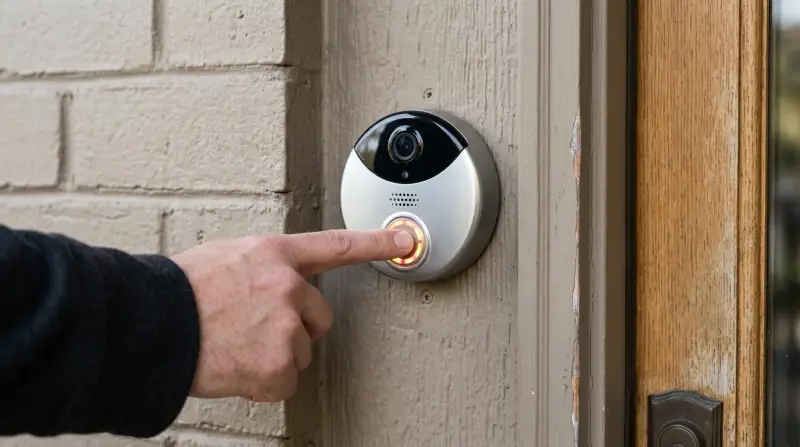
Before you begin, it’s important to know that SkyBell offers two main reset options:
- Soft Reset: Restarts the device without erasing settings.
- Factory Reset: Erases all data and restores original settings.
Choosing the right reset depends on your problem. If your SkyBell isn’t connecting to Wi-Fi, a soft reset may help. For bigger issues, like pairing problems or forgotten settings, a factory reset is usually best. Many users who experience random disconnects or frozen video feeds often find a soft reset is enough.
But if your SkyBell keeps failing to pair with the app, or you’re handing the device to a new owner, a factory reset is the safer choice.
Common Reasons To Reset Skybell
- Wi-Fi connectivity issues
- Device not responding
- App pairing problems
- Want to change Wi-Fi network
- Selling or moving the device
Less common reasons can also include preparing for a firmware update or clearing old device data before giving it to a family member. Sometimes, after a power outage, settings can become corrupted, and a reset restores normal function. Understanding your reason helps you pick the right reset method.
Preparing For A Skybell Reset
Getting ready is important. You’ll need:
- Stable internet connection
- Access to SkyBell device
- SkyBell app installed on your phone
- Small pin or paperclip (for some models)
Make sure you know your Wi-Fi password. After a factory reset, you will need it to reconnect.
One thing many people overlook is double-checking the battery level or wired power supply before starting. If your SkyBell loses power during a reset, it can get stuck in a reboot loop or fail to reset properly. If your device is battery-powered, charge it to at least 50% first.
Skybell Model Differences
SkyBell has several models: SkyBell HD, SkyBell Trim Plus, and SkyBell Slim. The reset steps are similar, but button placement and app menus differ. Here’s a quick comparison:
| Model | Reset Button Location | App Compatibility | Special Notes |
|---|---|---|---|
| SkyBell HD | Front (main button) | SkyBell App, Alarm.com | Classic round shape |
| SkyBell Trim Plus | Side (small pinhole) | SkyBell App | Thinner design, side button |
| SkyBell Slim | Back (panel) | SkyBell App | Less common, back panel access |
Check your model before starting. Using the wrong reset method can cause extra problems. For example, pressing the wrong button might only restart the device, not reset it, leaving your issue unsolved.
Credit: www.alarmgrid.com
How To Perform A Soft Reset
A soft reset is quick and safe. It’s best for minor glitches or temporary issues.
Steps For Soft Reset
- Press and hold the main button on your SkyBell for 30 seconds.
- Wait until the LED light turns amber or flashes (color may differ by model).
- Release the button.
- The device will restart. Wait for the LED to turn green or blue, showing it’s ready.
This process does not erase your settings. Your SkyBell should reconnect to Wi-Fi automatically. In most cases, you won’t need to open the app or re-enter your Wi-Fi details. If your device doesn’t reconnect within a couple of minutes, try rebooting your router as well.
Example: Fixing Wi-fi Drop
If your SkyBell suddenly disconnects from Wi-Fi, a soft reset often solves the problem. Many users report that their device reconnects within two minutes after a soft reset. For instance, if you notice that your video stream is lagging or the app says “Device Offline,” try a soft reset before anything else.
It’s a simple fix that often saves time.
Soft resets are also helpful after a router firmware update or when you move your router to a new location. The device may lose its connection but will usually recover with a soft reset.
How To Perform A Factory Reset
A factory reset is more powerful. It wipes all settings and removes the device from your app. Use this if you plan to change owners, switch networks, or fix major errors.
Steps For Factory Reset
- Find the reset button or pinhole on your SkyBell (see table above).
- Using a paperclip or pin, press and hold the reset button for 60 seconds.
- Watch for the LED to turn red or amber and then start flashing.
- Release the button.
- The device will reboot and return to its original state.
After the factory reset, you must set up SkyBell again using the app. Be patient—sometimes, the reboot process takes a minute or more, especially on older models.
Re-pairing After Factory Reset
Open the SkyBell app, choose Add Device, and follow the instructions to connect your SkyBell to your Wi-Fi and account. You will need your Wi-Fi password and SkyBell serial number.
When re-pairing, keep your phone close to the SkyBell device. Weak Bluetooth or Wi-Fi signals can cause pairing errors. If you get a “device not found” error, restart your phone and try again. Also, make sure to delete any old device entries from your app if you see duplicates.
| Reset Method | Duration | Settings Erased? | Common Uses |
|---|---|---|---|
| Soft Reset | 30 seconds | No | Minor glitches, Wi-Fi reconnect |
| Factory Reset | 60 seconds | Yes | Major errors, change owner/network |

Credit: www.alarmgrid.com
Reconnecting Skybell To Wi-fi
After a factory reset, you must reconnect SkyBell to your Wi-Fi network.
Steps For Wi-fi Setup
- Open the SkyBell app.
- Tap Add Device or Set Up New Device.
- Enter your Wi-Fi network name and password.
- Follow on-screen instructions to pair the device.
If your Wi-Fi network uses 5GHz, switch to 2.4GHz. SkyBell only works with 2.4GHz networks. Some routers broadcast both bands with the same name, which can confuse setup. If possible, give your 2.4GHz network a unique name to make pairing easier.
Common Mistake: Wrong Wi-fi Band
Many people accidentally connect SkyBell to a 5GHz network. This band is faster but incompatible with SkyBell. Always use 2. 4GHz for setup. If your phone is connected to 5GHz during setup, temporarily switch it to 2. 4GHz as well.
This simple action solves most pairing failures.
Another mistake is entering the wrong Wi-Fi password. Double-check for typos, and remember that passwords are case-sensitive.
Troubleshooting Reset Problems
Sometimes, SkyBell may not respond after a reset. Here’s what to do:
- Check power supply: Make sure your SkyBell is getting enough power. Low voltage causes reset failures. If you’re unsure, use a multimeter to test the voltage at the doorbell wires. SkyBell usually needs 10-36V AC.
- Restart your router: Sometimes, your router needs a reboot for new devices to connect. Unplug it for 30 seconds, then plug it back in.
- Try a different phone: If the app isn’t pairing, use another smartphone. Some older phones have Bluetooth issues that block pairing.
- Update the SkyBell app: Old app versions may not work with the device after a reset. Always download the latest version before starting.
Data: Common Reset Failures
A survey from the SkyBell community forum found that 27% of users who failed to reset their device were using the wrong Wi-Fi band, and 18% had low voltage issues.
| Issue | % of Cases | Fix |
|---|---|---|
| Wrong Wi-Fi band | 27% | Switch to 2.4GHz |
| Low voltage | 18% | Check transformer, wiring |
| App version outdated | 13% | Update app |
| Incorrect reset method | 11% | Follow correct steps |
Some advanced users recommend power cycling your home’s main breaker if the doorbell transformer is old or inconsistent, as this can clear wiring faults that prevent a proper reset.
Tips For A Successful Skybell Reset
- Read the manual: Each model has unique reset details. The manual often explains LED color codes, which can be confusing if you skip this step.
- Use correct tools: For pinhole resets, use a small pin or paperclip—not a sharp object. Toothpicks and needles can break or get stuck inside.
- Give enough time: Wait for full LED cycles before releasing buttons. If you let go too soon, the reset will not work.
- Update firmware: After reset, check for firmware updates in the app. New updates often fix bugs that cause connection issues.
- Write down settings: Before factory reset, note any custom settings you want to restore. This includes notification preferences or custom motion zones.
Non-obvious Insights
- If SkyBell is mounted outdoors, moisture can affect the reset button. Dry the area before pressing. Some users have found that a wet button can prevent the reset signal from registering.
- After a factory reset, you may need to remove the old device from your app before adding it again. Many users skip this step and face errors. Deleting the old entry prevents pairing conflicts.
Another tip: If you have multiple smart devices near your door, like smart locks or cameras, turn off their Wi-Fi during setup. This reduces interference and helps your phone connect to SkyBell smoothly.
When To Contact Skybell Support
If your SkyBell still won’t reset or reconnect after trying these steps, contact SkyBell support. Persistent issues often mean hardware problems or wiring faults. You can reach their official support at SkyBell Support. Their team can walk you through advanced troubleshooting or check if your device needs repair or replacement.

Credit: www.youtube.com
Frequently Asked Questions
How Do I Know If My Skybell Reset Worked?
You’ll see the LED light change colors, then return to its normal state (usually green or blue). The device will also reappear in your app during setup. If the LED stays red or off, the reset was not successful.
Can I Reset Skybell Without Removing It From The Wall?
Yes, most models let you reset using the front or side button without uninstalling. For back panel resets, you may need to remove the device. Be careful not to damage wiring if you need to access the back panel.
Will Resetting Skybell Delete My Videos?
A factory reset erases device settings but does not delete videos stored in your app or cloud account. Check your app storage for confirmation. However, if your SkyBell is linked to a third-party service, check their policy on video retention.
Why Is My Skybell Not Connecting After Reset?
Usually, it’s a Wi-Fi band issue or low voltage. Make sure you use 2.4GHz Wi-Fi and check your doorbell transformer. Also, confirm you entered the correct Wi-Fi password and your app is up-to-date.
How Often Should I Reset My Skybell?
Reset only if you experience problems. Frequent resets are not necessary unless troubleshooting specific issues. If you find yourself resetting often, consider updating your firmware or checking for wiring problems.
Resetting your SkyBell is often the fastest way to solve technical problems and restore security. Whether you need a soft or factory reset, following the correct steps can make all the difference. Avoid common mistakes, use the right tools, and remember to double-check your Wi-Fi settings.
Most issues are solved with careful attention to detail, but if you still struggle, SkyBell support is ready to help. With a little patience, your SkyBell will be back to keeping your home safe and connected.