
When your Sengled smart bulbs or devices stop working with Alexa, it can be frustrating. Smart homes are meant to make life easier, but sometimes things don’t go as planned. Many users experience issues like Alexa not discovering Sengled bulbs, devices showing as “offline,” or voice commands not working. This guide will help you solve these problems with step-by-step advice, clear explanations, and non-obvious tips that most people miss.
Common Reasons Sengled Is Not Working With Alexa
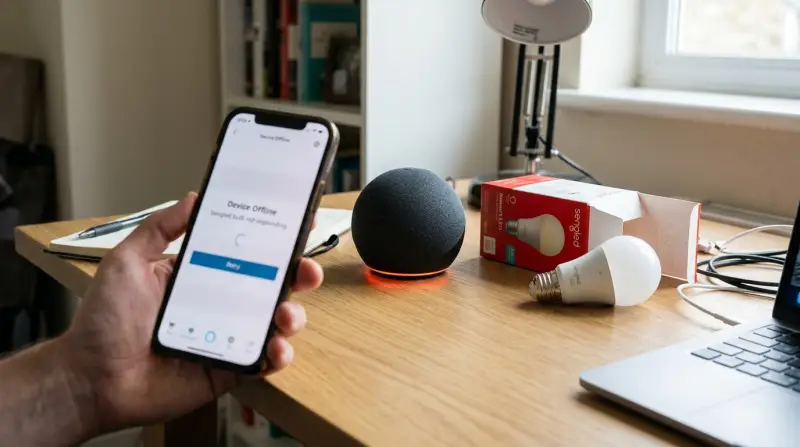
Understanding why your Sengled device isn’t working with Alexa is the first step. Here are the main causes:
- Wi-Fi Issues: Sengled bulbs (especially Wi-Fi models) need a stable 2.4 GHz Wi-Fi connection. If your network is down or too weak, Alexa can’t talk to your bulbs.
- Account Linking Problems: If your Sengled account isn’t linked correctly to Alexa, devices won’t show up or respond.
- Firmware Outdated: Old firmware on bulbs or your Sengled hub can cause compatibility issues.
- Alexa App Glitches: Sometimes, the Alexa app has bugs or needs an update.
- Device Name Conflicts: If two devices have similar names (like “Bedroom Light” and “Bedroom Lamp”), Alexa might get confused.
- Sengled Hub Issues: For Zigbee bulbs, a problem with the Sengled hub or its connection to your router can break communication.
- Alexa Routine Errors: Custom routines can sometimes stop working if devices are renamed, moved, or deleted.
It’s important to identify which issue you’re facing before spending time on fixes. For example, do your lights work through the Sengled app but not Alexa? Or do they not respond anywhere? This helps narrow down the cause.
Quick Checks Before Troubleshooting
Before you dive into advanced fixes, try these quick checks:
- Make sure your Sengled bulb is powered on and screwed in tightly.
- Restart your router and wait for the internet connection to fully restore.
- Restart your Alexa device (like an Echo Dot or Show).
- Update both the Sengled Home and Amazon Alexa apps.
- Make sure your phone is connected to the same Wi-Fi network as your Sengled devices during setup.
These steps solve many simple issues. If your device still doesn’t work, keep reading for targeted solutions.

Step-by-step Solutions For Sengled Not Working With Alexa
Let’s walk through the most effective ways to get your Sengled devices working with Alexa again.
Re-link The Sengled Skill In The Alexa App
Sometimes, the connection between Sengled and Alexa breaks. Here’s how to fix it:
- Open the Alexa app.
- Go to “More” > “Skills & Games.”
- Search for Sengled Home.
- Tap “Disable Skill,” then confirm.
- Enable the skill again and log in with your Sengled account.
- After linking, ask Alexa to “Discover Devices.”
This process refreshes the connection and often solves device discovery problems.
Reset Your Sengled Device
If a bulb or plug is not responding, try a factory reset. The reset process depends on your model:
- For most Sengled Wi-Fi bulbs: Turn the bulb on and off 10 times quickly. The bulb will blink 3 times to confirm.
- For Zigbee bulbs: Turn the bulb on and off 10 times. It should flash 5 times.
After resetting, add the bulb again in the Sengled app, then ask Alexa to discover devices.
Check Wi-fi And Network Settings
Sengled bulbs need a 2.4 GHz Wi-Fi network. If you have a dual-band router, make sure your phone and the bulb connect to 2.4 GHz, not 5 GHz. Here’s a quick comparison:
| Wi-Fi Band | Range | Speed | Best For |
|---|---|---|---|
| 2.4 GHz | Longer | Slower | Smart bulbs |
| 5 GHz | Shorter | Faster | Streaming, gaming |
If your Sengled device is too far from the router, try moving it closer during setup.
Update Firmware
Outdated firmware causes many smart home issues. Open the Sengled Home app, go to the device settings, and check for firmware updates. Also, update the Alexa app and your Echo device. Keeping everything current ensures compatibility.
Rename Devices For Clarity
Alexa might get confused if you have two devices with similar names. Rename your bulbs with unique, simple names like “Living Room Bulb 1,” “Bedroom Lamp,” or “Desk Light. ”
Reboot The Sengled Hub
If you use Zigbee Sengled bulbs, the hub is crucial. Unplug the hub, wait 30 seconds, and plug it back in. Wait for all lights on the hub to turn solid before trying Alexa again.
Troubleshooting Advanced Problems
Sometimes, your setup may have more complex issues. Here’s how to address them.
Device Shows Offline In Alexa But Works In Sengled App
This often means Alexa and Sengled aren’t communicating. Try:
- Disabling and re-enabling the Sengled skill in Alexa.
- Removing the device from Alexa, then rediscovering it.
- Checking your Sengled account login in both apps.
Alexa Can’t Discover New Sengled Devices
If Alexa can’t find new bulbs:
- Reset the bulb (see above).
- Make sure the bulb is added in the Sengled app first.
- Ask Alexa to “Discover Devices” again.
- Move the bulb closer to the hub or router during setup.
Voice Commands Work Sometimes, Not Always
If Alexa only sometimes responds:
- Avoid using complicated device names.
- Check for network slowdowns or interference.
- Make sure no other device has the same name.
Zigbee Vs. Wi-fi Sengled Bulbs
Not all Sengled bulbs work the same way with Alexa. Here’s a comparison:
| Type | Connection | Needs Hub? | Common Issues |
|---|---|---|---|
| Wi-Fi Bulb | Direct to router | No | Network drops, setup errors |
| Zigbee Bulb | Via Sengled Hub | Yes | Hub offline, range limits |
Understanding your bulb type helps you focus your troubleshooting.
Real-world Examples
Let’s look at some examples:
- Case 1: Maria’s Sengled bulbs stopped responding to Alexa after a power outage. In the Sengled app, the bulbs worked fine, but Alexa said they were “unresponsive.” She fixed it by disabling and re-enabling the Sengled skill in the Alexa app.
- Case 2: Andy could not add a new bulb. The app showed “device not found.” After moving the bulb closer to his router and making sure he used the 2.4 GHz Wi-Fi, the problem was solved.
These real-world cases show that the solution is often simple, but it’s important to check each part of the system.
Non-obvious Insights Most People Miss
- Router Settings Matter: Some routers have advanced features like AP isolation or guest networks that block devices from talking to each other. Turn off these settings for smart home devices.
- Account Region Conflicts: If your Sengled and Amazon accounts are registered in different countries, linking can fail. Make sure both accounts are in the same region.
These are issues that don’t come up in basic guides but can stop Alexa and Sengled from working together.
When To Reset Everything
If you’ve tried all the above steps and Sengled still won’t work with Alexa, consider a full reset:
- Remove all Sengled devices from both the Alexa and Sengled apps.
- Factory reset the Sengled bulbs.
- Uninstall and reinstall both the Sengled Home and Alexa apps.
- Set up your Sengled bulbs again in the Sengled app.
- Link the Sengled skill in the Alexa app and discover devices.
This “start fresh” approach can clear hidden errors, but it’s best as a last resort.
Preventing Future Issues
To avoid problems in the future:
- Keep your firmware and apps updated.
- Use unique names for all devices.
- Place your router, Sengled hub, and Alexa device in locations with good Wi-Fi coverage.
- Don’t overload your Wi-Fi with too many smart devices—split them between 2.4 GHz and 5 GHz if possible.
- Document your setup—write down device names, locations, and network info for reference.
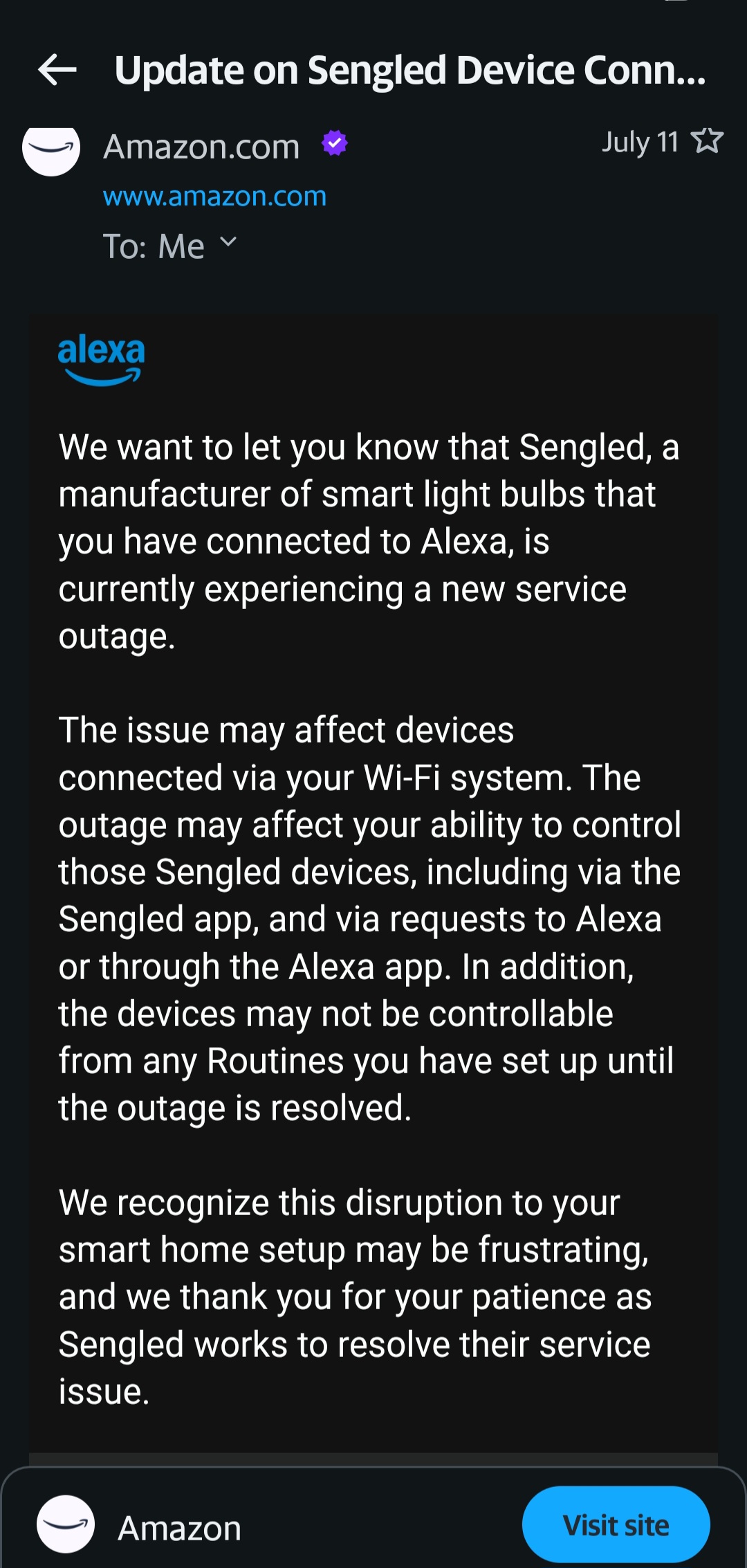
Comparing Sengled With Other Smart Bulbs For Alexa
If you keep having issues, you might wonder if other brands work better with Alexa. Here’s a quick comparison:
| Brand | Works with Alexa | Needs Hub? | Reliability |
|---|---|---|---|
| Sengled | Yes | Some models | Good, some network issues |
| Philips Hue | Yes | Yes | Very stable |
| LIFX | Yes | No | Strong, but app can glitch |
| TP-Link Kasa | Yes | No | Simple, reliable |
Sengled is a popular choice for its price and features, but like all smart bulbs, setup and network quality are important.
Getting More Help
If you’ve tried every step and your Sengled devices still won’t work with Alexa, it might be a deeper technical issue. Contact Sengled support or check the Amazon Alexa forums for help. Sometimes, firmware bugs or outages can cause problems that only the manufacturer can fix. A helpful resource is the Sengled Support Center, which offers troubleshooting guides and contact information.

Frequently Asked Questions
Why Is My Sengled Bulb Not Showing Up In The Alexa App?
This usually means the bulb isn’t added in the Sengled app, or the Alexa-Sengled account link is broken. Reset the bulb, add it in the Sengled app, and re-link the Sengled skill in Alexa.
Can I Use Sengled Bulbs With Alexa Without A Hub?
Yes, but only for Sengled Wi-Fi bulbs. Zigbee bulbs require the Sengled hub to work with Alexa.
Why Does Alexa Say My Sengled Device Is “unresponsive”?
This can happen if the bulb lost Wi-Fi connection, the hub is offline, or the Alexa app is outdated. Check your internet, restart your hub, and update the Alexa app.
How Do I Reset A Sengled Bulb For Alexa?
Turn the bulb on and off 10 times quickly. The bulb will flash to confirm reset. Then add it back in the Sengled app and rediscover it in Alexa.
Are Sengled Bulbs As Reliable As Philips Hue With Alexa?
Sengled bulbs are reliable for most people, but Philips Hue is known for higher stability and advanced features. However, Sengled is more budget-friendly and still works well for most Alexa setups.
Smart homes offer amazing convenience, but sometimes things don’t work as expected. With the right steps, you can get your Sengled bulbs and Alexa working smoothly again and enjoy voice-controlled lighting throughout your home.