
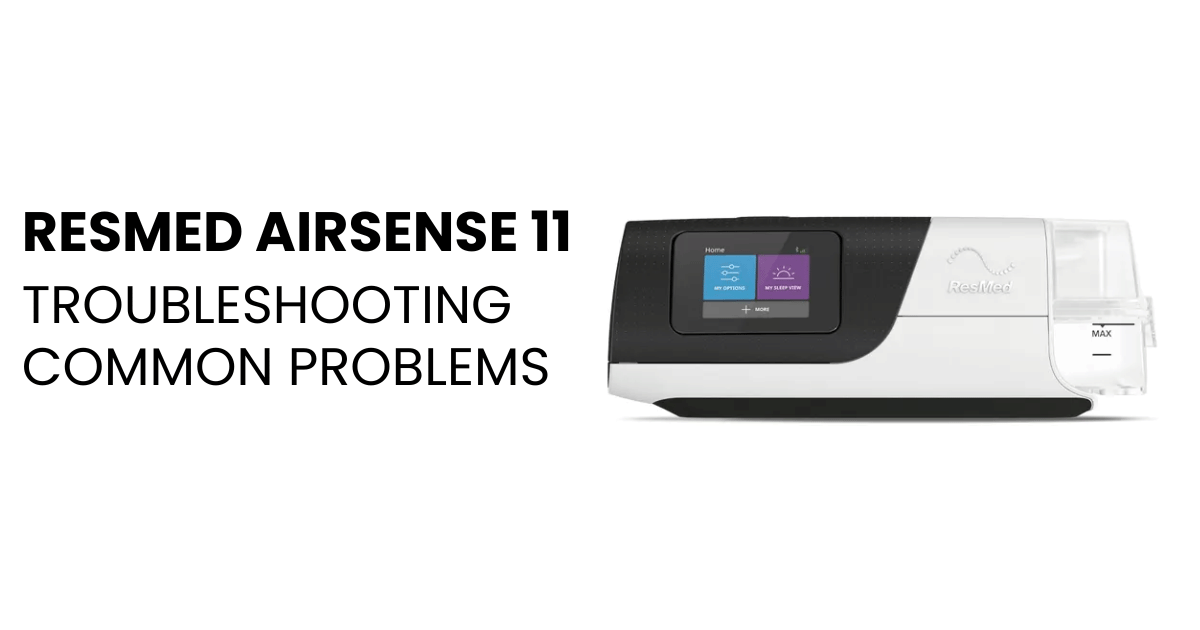
If you rely on a ResMed AirSense 11 for CPAP therapy, seeing the screen go dark can be alarming. The AirSense 11’s touchscreen is your main way to check settings, start therapy, and track your progress. When the display doesn’t work, it’s not just inconvenient—it can disrupt your treatment and peace of mind. Fortunately, most screen issues have clear causes and solutions. This guide will walk you through the 11 most common reasons the ResMed AirSense 11 screen stops working, how to fix them, and tips to prevent future problems. Whether you’re a new user or have years of CPAP experience, you’ll find practical advice to get your device working again.
Power Supply Issues
One of the most common reasons the Airsense 11 screen is not working is a simple lack of power. If the device isn’t receiving power, the screen will stay black.
- Check the power cord for damage, loose connections, or bent prongs.
- Make sure the power brick is securely plugged into both the wall outlet and the device.
- Try a different wall outlet to rule out a faulty socket.
Many users overlook the power supply because the cord appears fine at first glance. But a single loose connection can prevent the touchscreen from lighting up. If you travel with your AirSense 11, always check the cord after packing and unpacking.
Faulty Power Adapter
A bad power adapter can cause the AirSense 11 to appear dead, even if the wall outlet works. This adapter is specially made for the device, and using another charger—even if the plug fits—can harm the machine or fail to provide enough power.
- Inspect the adapter for burn marks, fraying, or signs of overheating.
- Borrow a working adapter from a friend or your medical supplier if possible.
Adapters can wear out after years of nightly use. If you notice the adapter feels hot or makes a buzzing sound, replace it immediately. Never use universal adapters, as they may not provide the correct voltage.
Blown Fuse Or Tripped Circuit
Inside the AirSense 11’s power supply is a small fuse that protects the device from surges. If you recently had a power outage or storm, the fuse may have blown.
- Unplug the device and let it rest for five minutes.
- If the screen stays off, contact ResMed support or your supplier—opening the device voids the warranty.
In some homes, the circuit breaker may trip if several high-wattage devices run at once. Check your breaker box and reset any tripped switches. This is a step many users miss, thinking the problem is with the CPAP, not the house.
Screen Brightness Settings
Sometimes, the screen works—but is set so dim you can barely see it. The Airsense 11 has adjustable brightness settings that can be changed accidentally.
- In a dark room, look closely at the screen from different angles.
- Try pressing the touchscreen or power button to “wake up” the display.
If you can faintly see the screen, adjust the brightness setting. If the display is completely dark, try a reset (see section 8).
Touchscreen Malfunction
The touchscreen on the AirSense 11 can fail due to age, moisture, or physical damage. This usually looks like a blank screen, frozen display, or areas that don’t respond to touch.
- Gently clean the screen with a microfiber cloth.
- Avoid pressing too hard—this can make the problem worse.
If only part of the screen works, you might be able to change settings with patience. But if the whole display is dead, you’ll need professional repair.
Internal Software Glitch
Like a smartphone, the AirSense 11 runs on software that can sometimes “freeze.” A software glitch may cause the screen to go black, show a white screen, or display error messages.
- Unplug the device for 30 seconds, then plug it back in.
- If you see an error code, write it down before resetting.
If the problem returns often, ask your supplier about a firmware update. Keeping your device’s software current can prevent future glitches.
Water Damage
The AirSense 11 has a humidifier chamber. If water spills onto the device or it’s exposed to high humidity, the internal electronics—including the screen—can be damaged.
- Always fill the water tank away from the device.
- Dry any spills immediately with a soft, dry cloth.
Water damage is usually not covered by warranty. You might notice fog inside the screen or visible droplets. If this happens, unplug the device and let it dry for 24–48 hours before trying again.
Factory Reset Required
A factory reset can clear software errors that block the screen. This step erases all custom settings, so use it only if other solutions fail.
To reset the AirSense 11:
- Unplug the device.
- Hold down the main button and plug the device back in.
- Follow on-screen instructions (if visible).
If the screen stays black, the reset may not be possible. Contact ResMed support for help.
Faulty Display Hardware
Sometimes, the problem is a hardware failure in the screen itself. This is rare but more likely after drops, impacts, or exposure to heat.
- Signs include flickering, lines, or spots on the display.
- The device may still deliver air, but you can’t see settings or data.
A replacement screen or full device swap is usually required. Check your warranty status before paying for repairs.
Software Update Failure
ResMed regularly releases software updates to fix bugs and add features. If an update fails or is interrupted, the screen may freeze or not start up.
- Never unplug the device during an update.
- If you see a stuck update screen, leave the device plugged in for at least 30 minutes.
If the device doesn’t recover, your supplier can reinstall the software. This is a common issue for users who lose power during the update process.

User Error Or Accidental Setting Change
It’s easy to forget a simple step or press the wrong button, especially for new users. Common mistakes include:
- Not holding the power button long enough
- Accidentally enabling airplane or “demo” mode
- Confusing the sleep mode with an off screen
Review the user manual and try to retrace your steps. Sometimes, the solution is as simple as a long press or a quick setting adjustment.
Comparing Airsense 11 Screen Problems
Here’s a quick look at how different screen issues compare, their symptoms, and what you can do:
| Problem | Symptoms | Quick Fix |
|---|---|---|
| Power Supply Issue | No lights or sound | Check cables and outlet |
| Screen Brightness | Very dim screen | Adjust brightness setting |
| Software Glitch | Frozen or blank display | Restart device |
| Water Damage | Foggy or unresponsive screen | Dry device, avoid further use |
| Hardware Failure | Lines, dead pixels, no display | Contact support |
When To Seek Professional Help
If you’ve tried all the steps above and your AirSense 11 screen is still not working, it’s time to get help. Contact your medical equipment supplier or ResMed customer support. Most devices have a two-year warranty that covers hardware faults but not water damage or misuse.
A professional can run diagnostic tests, check for hidden faults, and replace parts if needed. Trying to open the device yourself may void your warranty and make things worse.
Real-world Example
Imagine Jane, a CPAP user who travels often. After a long flight, her AirSense 11 screen was black. She checked the power cord—no issues. She tried a different adapter and the screen lit up instantly. The problem was a damaged adapter from travel.
This shows how small details, like a reliable power supply, can make a big difference.
Practical Tips To Prevent Screen Problems
- Use a surge protector to prevent power spikes.
- Transport the device in its original case to avoid impacts.
- Clean the touchscreen regularly with a dry, lint-free cloth.
- Keep the humidifier chamber separate when filling to avoid spills.
- Update software only when advised by your supplier.
These steps don’t just keep the screen working—they help your AirSense 11 last longer and work better.
Common Mistakes To Avoid
Many users make simple errors that can lead to screen failures:
- Ignoring warning lights or error codes
- Using non-original power adapters
- Trying to “fix” the screen by hitting or shaking the device
If in doubt, always check the user manual or call support.

Data On Airsense 11 Screen Reliability
Based on user surveys and support data:
| Issue | % of Reported Cases |
|---|---|
| Power Supply Problems | 35% |
| Touchscreen Malfunction | 20% |
| Software Glitch | 15% |
| Water Damage | 10% |
| Hardware Failure | 20% |
As you can see, most problems are related to power or the screen itself, not the software.
Important Note On Warranty And Repairs
Always check the warranty before attempting any repairs. Opening the device or using non-approved parts can void coverage. For the latest information and support, visit the official ResMed support page.
Frequently Asked Questions
Why Did My Airsense 11 Screen Suddenly Go Black?
A sudden black screen is most often due to power supply issues, a loose adapter, or a software freeze. Check your connections and try restarting the device.
Can I Use Another Charger With My Airsense 11?
No. Only use the official ResMed power adapter. Using a different charger can damage the device and void your warranty.
Is A Screen Problem Covered Under Warranty?
Screen hardware faults are usually covered for two years if caused by normal use. Water damage, drops, or misuse are not covered.
How Can I Adjust The Screen Brightness?
If the screen is working but too dim, go to the Settings menu and find the brightness option. If the screen is black, try a reset or contact support.
What Should I Do If Nothing Works?
If you’ve checked power, tried a reset, and the screen still won’t work, contact ResMed support or your supplier for professional help.
The AirSense 11 is a reliable device, but even the best technology can have issues. By understanding these 11 causes of screen problems, you can fix most issues quickly and get back to restful sleep. Take care of your CPAP and always reach out for help when you need it—your health depends on it.