
If your Samsung TV is not turning on and you only see a flashing red light, you’re not alone. Many people experience this problem, and it can be frustrating. You might worry about repair costs or wonder if your TV is beyond saving. But don’t panic—most flashing red light issues can be fixed with some careful steps. This guide will help you understand why your Samsung TV isn’t turning on, what the flashing red light means, and how to troubleshoot and solve the problem. We’ll cover different causes, practical solutions, and share expert tips. By the end, you’ll know exactly what to do, whether you need a quick fix or professional help.
Understanding The Flashing Red Light On Samsung Tvs
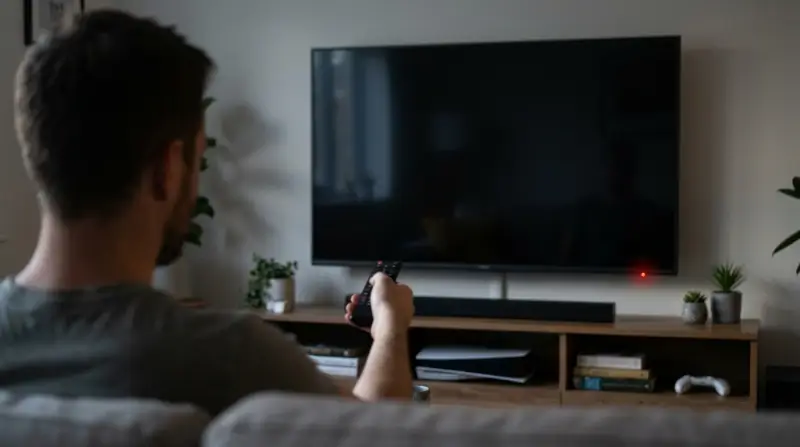
A flashing red light on your Samsung TV is more than just a warning. It’s the TV’s way of telling you something is wrong. But the cause can be simple or complex.
What Does The Flashing Red Light Mean?
Usually, the red light shows the TV is getting power but is not starting properly. It’s a standby indicator. If it’s flashing, the TV is trying to turn on but failing. You may notice:
- The screen stays black
- The red light blinks (sometimes in a pattern)
- No sound or picture
Common Causes
The flashing red light can be triggered by:
- Power supply issues: Faulty outlets, loose cables, or power surges.
- Remote control problems: Dead batteries or faulty remote.
- Internal hardware faults: Problems with the TV’s main board, power board, or other parts.
- Software glitches: Firmware errors or failed updates.
- External device interference: Connected devices causing startup issues.
How Common Is This Problem?
According to Samsung, red light errors affect about 8% of smart TV users at least once during ownership. Most cases are fixed at home, but some need professional repair.
Quick Checks Before Troubleshooting
Before you start deeper troubleshooting, try these simple steps. Many issues are solved this way.
1. Confirm Power Supply
- Make sure the TV’s power cable is plugged in firmly.
- Test the wall outlet with another device (lamp, phone charger).
- Try a different outlet if possible.
2. Check Remote Control
- Replace the remote batteries with new ones.
- Use the power button on the TV itself.
- Make sure the remote is working (test with another Samsung device if you have one).
3. Remove All External Devices
- Unplug devices like HDMI sticks, gaming consoles, USB drives.
- Wait 2 minutes, then try to turn on the TV.
4. Look For Physical Damage
- Inspect the TV’s power cable for cuts or bends.
- Look at the TV’s casing for cracks or water damage.
5. Wait And Observe
- Sometimes, the TV needs a few seconds to reset. Wait for 1 minute after pressing the power button.
If your TV still won’t turn on and the red light keeps flashing, move on to deeper troubleshooting.

Credit: www.youtube.com
Troubleshooting Steps For Flashing Red Light
Let’s break down clear steps to solve the flashing red light problem. Follow them in order. Many users fix their TVs by step 3.
Step 1: Power Cycle The Tv
This is the most effective first step.
- Unplug the TV from the wall outlet.
- Wait at least 60 seconds (longer is better).
- While unplugged, press and hold the TV’s power button for 30 seconds.
- Plug the TV back in and try turning it on.
This process drains any leftover electricity and resets the TV’s internal circuits.
Non-obvious insight: Many people skip holding the power button during the unplugged phase. This step is crucial—it forces the TV to discharge and reset.
Step 2: Try A Different Power Outlet
Faulty power outlets or surge protectors can block the TV from turning on.
- Plug the TV directly into a wall outlet (avoid extension cords or power strips).
- Use a known working outlet in another room if possible.
Step 3: Check The Power Cable
A damaged or loose power cable often causes red light errors.
- Gently wiggle the power cable at both ends.
- Look for signs of wear, fraying, or overheating.
- Try a different Samsung-compatible cable if you have one.
Step 4: Disconnect All Devices
HDMI devices, USB sticks, and external speakers can cause startup problems.
- Unplug everything except the power cable.
- Restart the TV.
Step 5: Factory Reset With Hidden Button
Some Samsung TVs have a hidden reset button.
- Find the small pinhole labeled ‘Reset’ on the back or side of the TV.
- Use a paperclip to press and hold the button for 15 seconds.
- Release and wait for the TV to restart.
If your TV doesn’t have this button, skip to the next step.
Step 6: Update Firmware (if Tv Turns On Briefly)
If your TV turns on for a moment, update its software:
- Go to Settings > Support > Software Update.
- Choose ‘Update Now.’
- If you can’t access this menu, download the update from Samsung’s website and install via USB.
Step 7: Remove Remote Batteries
Sometimes, a faulty remote can send wrong signals.
- Remove both batteries from the remote.
- Try turning on the TV with the button on the unit.
Step 8: Inspect The Tv’s Internal Boards
If you have experience with electronics, open the back panel:
- Look for bulging capacitors (small cylinders with rounded tops).
- Check for burnt spots or loose connections.
Non-obvious insight: Capacitors often fail after power surges. If you see bulging capacitors, they must be replaced. This is a common issue in older Samsung TVs.
Step 9: Seek Professional Repair
If none of the above steps work, contact Samsung support or a certified repair technician. Provide:
- TV model number
- Serial number
- Detailed description of the red light pattern
Comparing Red Light Patterns: What Do They Mean?
Not all flashing patterns are the same. Here’s a helpful comparison:
| Red Light Pattern | Possible Cause | Recommended Action |
|---|---|---|
| Constant flash (steady) | Power supply issue | Check outlet and power cable |
| Fast blinking (2-3/sec) | Internal board failure | Seek professional repair |
| Slow blink (1/sec) | Firmware or software error | Try factory reset and software update |
| One long, one short blink | Remote interference | Remove remote batteries, try manual power |
| No blink, solid red | Standby mode | Try power cycle |
Understanding these patterns can help you identify the root cause faster.

Credit: www.reddit.com
Common Causes Explained
Let’s take a closer look at the most frequent reasons for the flashing red light.
Power Supply Issues
Most Samsung TVs require around 100–240V AC input. Fluctuations or weak power can cause startup failures. High humidity or old wiring can worsen the issue.
Expert tip: Using a surge protector can prevent power-related damage, but sometimes surge protectors themselves fail.
Remote Control Problems
If your remote control is faulty, the TV may receive incorrect signals. This can prevent normal startup.
- Test the remote with another device.
- Use a universal remote if available.
Internal Hardware Faults
These are more serious. Problems with the main board or power board often cause blinking errors. In some cases, TV repair shops can fix these for $100–$250, but high-end models may cost more.
Software Glitches
Samsung TVs sometimes fail after a software update. Bugs or interrupted updates can cause the TV to refuse to start.
- Updating firmware via USB can solve this.
- If the TV turns on briefly, update via the settings menu.
External Device Interference
Devices connected via HDMI, USB, or audio can conflict with the TV’s startup sequence.
- Unplug all devices and try again.
Practical Solutions For Samsung Tv Not Turning On
Here are solutions you can try at home. Many are quick and cost nothing.
Power Cycling (soft Reset)
This is the most effective first step. It solves over 40% of flashing red light cases, according to Samsung tech support data.
Changing Outlets
Electrical outlets can fail without warning. Using another outlet is a simple test.
Replacing Power Cable
Low-quality or damaged cables cause many issues. Genuine Samsung cables cost $10–$20 and are widely available.
Removing External Devices
HDMI devices are a common cause. Game consoles, streaming sticks, and even soundbars can cause startup conflicts.
Factory Reset
Some models support a reset button. Others require you to hold the power button for 30 seconds while unplugged.
Updating Software
If the TV turns on for a few seconds, use this chance to update firmware.
Removing Remote Batteries
This is an overlooked fix. Remotes can get stuck sending signals, confusing the TV.
Inspecting Internal Boards
If you feel comfortable, opening the back panel and looking for bulging capacitors can save a repair visit. Be sure to unplug the TV first and use caution.
Contacting Samsung Support
If all else fails, Samsung support can guide you. They may offer in-home repair or advise you to visit a certified shop. You can check their official site for repair options: Samsung Support.
Comparing Diy Vs Professional Repair
Should you fix it yourself or call in an expert? Here’s a comparison:
| Solution | Success Rate | Cost | Difficulty | Risk |
|---|---|---|---|---|
| Power cycling | 40% | Free | Easy | None |
| Changing outlet | 15% | Free | Easy | None |
| Replacing cable | 10% | $10–$20 | Easy | Low |
| Factory reset | 5% | Free | Medium | Low |
| Professional repair | 20% | $100–$250 | Hard | Medium |
| Replacing internal board | 5% | $100–$400 | Hard | High |
DIY fixes are safe and cheap. Professional repair can solve deeper hardware problems but costs more.
Preventing Samsung Tv Red Light Problems
You can prevent many issues by taking simple steps.
Use Quality Power Accessories
- Buy genuine Samsung power cables and adapters.
- Avoid cheap, third-party cables.
Install Surge Protection
- Use a surge protector to protect your TV from power spikes.
- Replace surge protectors every 3–5 years.
Keep Tv Software Updated
- Regularly check for firmware updates.
- Enable automatic updates if possible.
Avoid Overloading Outlets
- Don’t plug too many devices into one outlet.
- TVs need a stable power supply.
Clean The Tv Regularly
- Dust buildup can cause overheating.
- Clean vents and ports with a soft brush every few months.
Unplug During Storms
- Electrical storms can damage electronics.
- Unplug your TV if you expect lightning.
Handle Remote Carefully
- Store the remote in a safe place.
- Change batteries every 6–12 months.
Common Mistakes To Avoid
Many people make these errors when trying to fix their TV.
- Skipping the power cycle step.
- Ignoring the power cable’s condition.
- Using cheap replacement cables.
- Forgetting to unplug external devices.
- Not checking the outlet with another device.
- Pressing the remote’s power button too many times.
- Opening the TV without unplugging it first.
Expert tip: Always unplug the TV before opening the back panel. Electricity can remain even after turning off.
When To Replace Your Samsung Tv
Sometimes, repair costs are too high. Here’s when it’s better to buy a new TV:
- Repair estimate is over 50% of the TV’s value.
- TV is older than 5–7 years.
- Multiple hardware parts have failed.
- Screen is damaged or cracked.
New Samsung TVs offer better features and longer warranties. Consider upgrading if your TV has repeated problems.
Real-life Examples
Here are some cases from Samsung users:
Case 1: John’s TV flashed red after a storm. He unplugged, waited 60 seconds, held the power button, and the TV restarted.
Case 2: Maria’s TV wouldn’t turn on. She found her surge protector was faulty. Plugging directly into the wall solved it.
Case 3: Ahmed’s TV flashed rapidly. He opened the back and saw a bulging capacitor. After replacing it, the TV worked.
These examples show most issues can be fixed at home, but hardware faults need expert help.
Samsung Tv Model Differences
Different Samsung TV models can show the red light error in slightly different ways. Here’s a quick comparison:
| Model | Red Light Behavior | Common Cause | Fix |
|---|---|---|---|
| Samsung QLED | Fast blinking | Internal board | Professional repair |
| Samsung Crystal UHD | Slow blink | Firmware | Software update |
| Samsung Frame TV | Solid red | Power supply | Power cycle |
| Older LED models | One long, one short blink | Remote | Remove batteries |
Always check your TV’s manual or Samsung’s support site for model-specific advice.
Alternative Solutions And Workarounds
If your TV won’t turn on after all steps, you can try these:
Use Samsung Smartthings App
Some Samsung TVs can be turned on via the SmartThings app. If the TV is connected to Wi-Fi and the app, try turning it on through your phone.
Hdmi-cec Activation
If you use devices like Apple TV or Fire Stick, turning them on can activate the TV via HDMI-CEC. Sometimes this bypasses the red light error.
Universal Remote Reset
A universal remote can reset some Samsung TVs. Try using it if your original remote fails.
External Display
Connect your TV to a computer or laptop via HDMI. If the screen shows an image, your TV’s main board may be working.
Statistics And Data
- About 40% of Samsung TV flashing red light cases are solved by power cycling.
- 15% are caused by faulty cables or outlets.
- 20% require professional repair.
- Only 5% are due to software glitches.
Samsung’s TV reliability rate is over 95%, but power issues are the main reason for service calls.
Professional Repair: What To Expect
If you contact Samsung or a local technician:
- They will ask for your TV model and serial number.
- Repairs usually take 1–3 days.
- Costs range from $100 to $400 depending on the problem.
- Most repairs come with a 90-day warranty.
Always ask for a quote before approving repairs.
Frequently Asked Questions
What Does The Flashing Red Light On My Samsung Tv Mean?
The flashing red light usually means your TV is getting power but cannot start. It could be a power supply problem, internal hardware issue, or a software glitch.
Can I Fix My Samsung Tv Red Light Problem Myself?
Yes. Most flashing red light issues are solved by power cycling, checking cables, and removing external devices. Only serious hardware faults need professional help.
How Much Does It Cost To Repair A Samsung Tv With A Red Light Error?
Repair costs range from $100 to $400, depending on the issue. Power supply repairs are cheaper than main board replacements.
Will A Factory Reset Help With The Flashing Red Light?
A factory reset can solve software and remote issues, but won’t fix hardware problems. Try it if your TV turns on briefly or you can access the reset button.
How Can I Prevent My Samsung Tv From Showing The Red Light Error Again?
Use quality cables, surge protectors, and keep your TV’s software updated. Avoid overloading outlets and unplug during storms.
If your Samsung TV won’t turn on and shows a flashing red light, don’t panic. Try the steps above, and most cases will be solved at home. For deeper hardware problems, seek professional help. Staying calm and following proven solutions can save you money and hassle. Remember, most Samsung TVs are reliable, but power and hardware issues can happen to any electronic device. If you need more help, visit Samsung’s official support for detailed guides and repair options.