
If your Xfinity voicemail suddenly stops working, it can be stressful—especially if you rely on it for important calls. Whether you’re missing messages from loved ones or business contacts, voicemail problems can disrupt your routine. The good news: most Xfinity voicemail issues have clear causes and practical solutions. In this guide, you’ll discover why your voicemail might not work, how to fix common problems, and what to do if nothing seems to help.
Why Xfinity Voicemail Stops Working
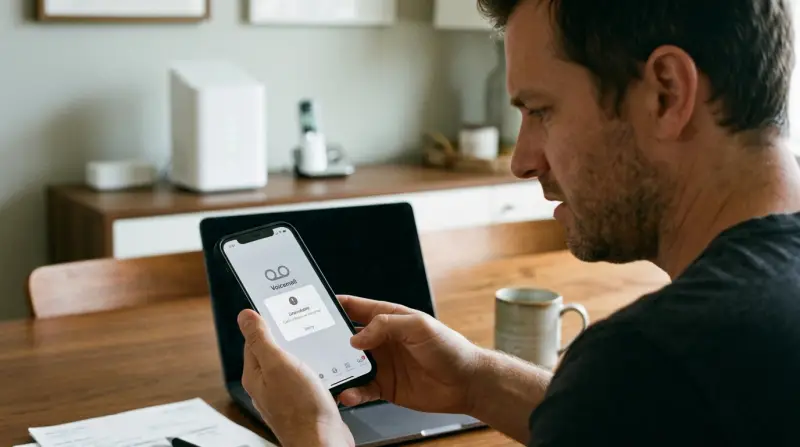
Voicemail is a basic feature, but many things can go wrong. Here are the most frequent causes:
- Network outages: When Xfinity’s network is down, voicemail services may not work.
- App glitches: The Xfinity Connect app or your phone’s voicemail app may freeze or fail to sync messages.
- Incorrect settings: A small change in your phone or Xfinity account settings can silence voicemail.
- Full mailbox: If you don’t delete old voicemails, your inbox can fill up, blocking new messages.
- Account issues: Billing problems or account suspensions sometimes disable voicemail.
- Device problems: Outdated software or incompatible devices can create conflicts.
Many users overlook account status and mailbox storage as root causes. Even if you haven’t changed anything, your voicemail can stop working because of automatic app updates or system changes.
Quick Checks Before Troubleshooting
Before you try detailed fixes, do these quick checks:
- Restart your phone: This simple step can resolve many temporary glitches.
- Check for outages: Visit Xfinity’s service status page to see if there are known issues in your area.
- Confirm coverage: Make sure your phone has a strong signal and is not in airplane mode.
- Test with a different phone: Call your number from another device to see if voicemail picks up.
If your phone’s battery is low, voicemail functions might be affected. Charging your device can sometimes restore normal service.

Credit: forums.xfinity.com
Common Xfinity Voicemail Problems And Solutions
Let’s look at the most common voicemail issues and how to resolve them.
1. Voicemail Not Receiving Messages
Symptoms: Callers say they left a message, but nothing appears in your inbox.
Possible causes:
- Your voicemail is full.
- Forwarding is set up incorrectly.
- Network delays.
Solutions:
- Delete old messages to free up space.
- Check call forwarding settings in the Xfinity app or your phone’s menu.
- Wait a few minutes; sometimes messages are delayed by high network traffic.
2. Voicemail App Not Working
Symptoms: The app crashes, freezes, or fails to load messages.
Possible causes:
- Outdated app version.
- Corrupted app cache.
- Device software issues.
Solutions:
- Update the Xfinity Connect app to the latest version.
- Clear the app cache and data (find this in your phone’s app settings).
- Uninstall and reinstall the app.
- Restart your device.
3. Can’t Access Voicemail
Symptoms: You call your voicemail, but the system doesn’t respond or asks for a password you don’t have.
Possible causes:
- Account security updates.
- Forgotten PIN.
Solutions:
- Reset your voicemail PIN from the Xfinity website or app.
- Make sure you’re using the correct number to dial into your voicemail.
- Contact Xfinity support if you’re locked out.
4. Visual Voicemail Issues
Symptoms: Voicemails don’t appear in your visual voicemail inbox, or you can’t listen to them.
Possible causes:
- Data connection problems.
- Visual voicemail not enabled.
- Device incompatibility.
Solutions:
- Turn on mobile data or connect to Wi-Fi.
- Check if your plan supports visual voicemail.
- Restart your phone.
- Update your device software.
5. Voicemail Notification Not Showing
Symptoms: You only notice a new voicemail when you call in, not from a notification.
Possible causes:
- Notifications turned off.
- App permissions restricted.
Solutions:
- Enable notifications for your voicemail or Xfinity app in your phone’s settings.
- Check notification permissions for the app.
- Restart your device after changing settings.
Many users forget to check app permissions after an update, leading to missed notifications.
Troubleshooting Steps For Xfinity Voicemail
If quick fixes don’t help, follow these troubleshooting steps:
Step 1: Check Your Xfinity Account
Log in to your Xfinity account online. Make sure your service is active and there are no billing issues. Sometimes, a missed payment can suspend voicemail without warning.
Step 2: Update Everything
Keep your phone’s operating system and voicemail app up-to-date. Updates fix bugs and improve compatibility.
- On Android: Go to Settings > System > Software Update.
- On iPhone: Go to Settings > General > Software Update.
Step 3: Reset Network Settings
If your device can’t connect to Xfinity voicemail, reset its network settings.
- On Android: Settings > System > Reset > Reset Wi-Fi, mobile & Bluetooth.
- On iPhone: Settings > General > Transfer or Reset iPhone > Reset > Reset Network Settings.
This won’t delete your personal data, but you’ll need to reconnect to Wi-Fi networks.
Step 4: Set Up Voicemail Again
Sometimes, re-initializing voicemail solves hidden problems.
- Call your voicemail box (usually hold “1” or dial 99).
- Follow prompts to set up your greeting and PIN.
- Test by leaving yourself a message.
Step 5: Contact Xfinity Support
If nothing works, contact Xfinity support for help. They can reset your voicemail box or check for account-specific issues.
Xfinity Voicemail Features And Settings
Understanding how voicemail works can prevent future problems. Here’s a quick overview of main features and how they compare.
| Feature | Standard Voicemail | Visual Voicemail | App Voicemail |
|---|---|---|---|
| Listen by phone call | Yes | Optional | No |
| See list of messages | No | Yes | Yes |
| Receive transcriptions | No | Yes | Yes |
| Delete messages easily | No | Yes | Yes |
| Works without data/Wi-Fi | Yes | No | No |
Most issues with visual voicemail and the app happen because data or Wi-Fi is required for messages to sync.
How To Set Up And Manage Xfinity Voicemail
Setting up voicemail correctly ensures you don’t miss important calls. Here’s how:
- Dial 99 or hold “1”* on your phone.
- Follow the prompts to create a PIN and record your greeting.
- Access settings through the Xfinity Voice Portal or the Xfinity Connect app.
- Set up notifications via email or text if you want alerts.
- Regularly delete old messages to avoid a full inbox.
For visual voicemail, you may need to enable it in your phone’s settings or download the Xfinity Mobile app.

Advanced Troubleshooting: Dealing With Unusual Problems
Sometimes, voicemail issues are less obvious. Here are a few advanced scenarios:
Calls Not Going To Voicemail
If calls never reach voicemail, check these:
- Call forwarding: Make sure calls aren’t being sent to another number.
- Do Not Disturb: This feature may block calls from reaching voicemail.
- Ring time: If ring time is too short, calls may not transfer before disconnecting.
You can adjust ring time through your phone’s settings or by contacting Xfinity.
Messages Disappear After Listening
If messages vanish after you listen, it’s often a syncing issue between your phone and the server. Try these steps:
- Log out and back in to the Xfinity app.
- Make sure you’re connected to the internet.
- Update your app and device software.
Preventing Future Xfinity Voicemail Issues
A little maintenance goes a long way. Here’s how to keep your voicemail working smoothly:
- Delete old messages weekly to avoid a full inbox.
- Keep apps and software updated to avoid compatibility issues.
- Review your settings after phone or app updates—sometimes permissions are reset.
- Check Xfinity’s outage map if you notice sudden problems.
These small habits can save you from bigger headaches later.
Xfinity Voicemail Vs. Other Providers
How does Xfinity’s voicemail compare to major competitors? Here’s a side-by-side look:
| Provider | Standard Voicemail | Visual Voicemail | App Support | Transcription |
|---|---|---|---|---|
| Xfinity | Yes | Yes | Yes | Yes |
| AT&T | Yes | Yes | Yes | No |
| Verizon | Yes | Yes | Yes | Yes |
| T-Mobile | Yes | Yes | Yes | Yes (extra cost) |
Xfinity stands out for including transcription at no extra cost, while some carriers charge for this feature.
When To Contact Xfinity Support
You should reach out to Xfinity support if:
- You’ve tried all troubleshooting steps and voicemail still doesn’t work.
- Your account is in good standing but voicemail is disabled.
- You need to reset your voicemail box or PIN and can’t do it yourself.
- There are ongoing outages in your area, but no updates are available.
Xfinity’s support can be reached through chat, phone, or the Xfinity My Account app. For official troubleshooting guides, visit the Xfinity support page.
Frequently Asked Questions
Why Is My Xfinity Voicemail Suddenly Not Working?
Voicemail may stop working due to network outages, a full inbox, app glitches, or account issues. First, check your account status and ensure your device is updated. Restart your phone and check for outages in your area.
How Do I Reset My Xfinity Voicemail Pin?
To reset your PIN, log in to your Xfinity account online or use the Xfinity Connect app. Go to voicemail settings and select “Reset PIN. ” Follow the prompts to set a new code.
Can I Access Xfinity Voicemail From Another Phone?
Yes, you can check voicemail from any phone by dialing your own number and pressing the “*” key during the greeting. Enter your PIN when prompted to hear messages.
Why Am I Not Getting Voicemail Notifications?
Check that notifications are enabled for your voicemail or Xfinity app. Also, review app permissions after updates, as they can be reset, blocking alerts.
What Should I Do If Visual Voicemail Isn’t Working?
First, make sure your data connection is active. Update your phone’s software and the Xfinity app. If visual voicemail still won’t work, disable and re-enable the feature in your settings.
Voicemail is a small but important part of staying connected. With the right steps and a little attention to detail, you can solve most Xfinity voicemail problems quickly and avoid missing important messages in the future.