
If your home or business depends on a steady power supply, you probably use an APC battery backup (also called an uninterruptible power supply, or UPS). These devices protect computers, routers, and other electronics from sudden power loss or surges. But what if your APC battery backup starts beeping, flashing error lights, or fails to provide backup power? Often, a reset can solve the problem—no need to buy a new unit right away.
This article explains, in clear and simple steps, how to reset an APC battery backup. You’ll learn why resets matter, when to perform one, and how to do it safely for different APC models. Whether you’re a home user or IT manager, this guide will help you get your backup up and running again.
Why Resetting An Apc Battery Backup Matters
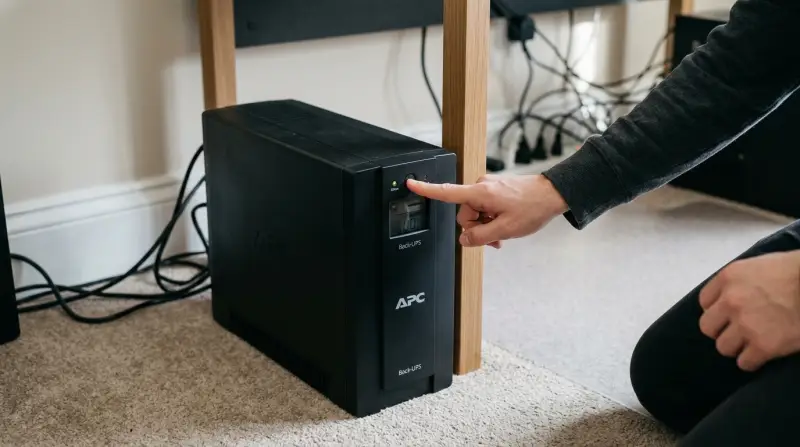
An APC battery backup has a small computer inside. Over time, this “brain” can get confused due to power surges, battery changes, or software glitches. A reset clears temporary errors and often brings the UPS back to normal.
Some common problems that a reset can fix include:
- Constant beeping even when power is normal
- Incorrect battery status
- Backup not powering devices during an outage
- Error messages on the LCD screen
A reset is usually safe and quick. It’s a good first step before calling support or buying a replacement.
When Should You Reset Your Apc Battery Backup?
Resetting is not needed for every small issue. Here are the main signs a reset is a smart step:
- After replacing the battery: New batteries may not be recognized until a reset.
- When the UPS does not start: If the device does not turn on after pressing the power button.
- Strange beeping or blinking lights: These can signal a software glitch.
- Battery shows “replace” even when new: The UPS may need to “learn” the new battery.
- Unit is unresponsive: Buttons or the display do not work as expected.
If you smell burning, see smoke, or notice melted plastic, unplug the UPS and do NOT try to reset it. Such problems need expert attention.
Safety First: Precautions Before You Begin
Working with a battery backup involves electricity. Always put safety first:
- Unplug the UPS from the wall before opening it.
- Remove all devices from the battery and surge outlets.
- Keep the UPS away from water or damp areas.
- If you feel unsure, ask someone experienced or contact APC support.
Never use metal tools inside the UPS. Batteries can deliver high current and cause burns if shorted.
Identifying Your Apc Model
APC offers several types of battery backups. The most common for home and small office are:
- Back-UPS (e.g., BE600M1, BX1500M)
- Smart-UPS (e.g., SMT1000, SUA1500)
Back-UPS units are simpler, with a few buttons and lights. Smart-UPS models have LCD displays and more advanced options. Some high-end models connect to computers via USB or network.
Find your model number on the bottom or back of the unit. Knowing your model helps you follow the right reset steps.
How To Reset A Basic Apc Back-ups
Most Back-UPS units use a simple reset method. Here’s how to do it:
- Turn off and unplug: Press the power button to turn off the UPS. Unplug it from the wall.
- Disconnect the battery: Open the battery compartment (usually on the bottom or rear). Gently slide out the battery connector.
- Wait: Leave the battery disconnected for 5-10 minutes. This drains leftover power and resets the internal memory.
- Reconnect battery: Plug the battery connector back in. Make sure it’s secure.
- Plug in and turn on: Plug the UPS back into the wall. Press the power button to turn it on.
If the unit does not power up, try repeating the steps. Some models need the reset twice after a battery change.
Example: Resetting Apc Be600m1
The APC BE600M1 is a popular home model. After replacing the battery, users sometimes see the “Replace Battery” light stay on. A reset using the method above usually clears this.
How To Reset A Smart-ups (with Lcd)
Smart-UPS units have more advanced features and a display screen. Their reset process is slightly different:
- Shutdown and unplug: Power off the UPS and unplug it from the wall.
- Remove all connected devices.
- Disconnect battery: Open the battery compartment and unplug the battery.
- Press and hold the power button: With the UPS unplugged and battery out, hold the power button for 10-15 seconds. This discharges any leftover charge.
- Reconnect battery and power: Plug the battery back in, close the compartment, and reconnect to wall power.
- Turn on the UPS: Press the power button. The LCD should boot normally.
Some Smart-UPS models may need a “cold start. ” To do this, hold the power button for 2-3 seconds with the UPS unplugged, then release. This starts the UPS using battery power only.
Table: Key Differences Between Back-ups And Smart-ups Reset
| Feature | Back-UPS | Smart-UPS |
|---|---|---|
| Display Type | LED lights | LCD screen |
| Reset Button | Power button only | Power + Menu options |
| Common Models | BE600M1, BX850M | SMT1000, SUA1500 |
| Cold Start Option | No | Yes |
How To Reset Apc Battery Backup With Network Management Card
Some larger APC units in server rooms or data centers come with a Network Management Card (NMC). These allow you to reset the UPS remotely.
Steps for resetting via NMC:
- Log in to the NMC web interface using your browser.
- Go to the “Control” or “UPS” menu.
- Find the option for “Turn Off UPS” or “Reboot UPS.”
- Confirm your action. The UPS will cycle off and on, resetting its internal computer.
Always warn users before remote resets, as connected devices may lose power during the process.
Resetting After Battery Replacement: Learning Mode
When you install a new battery, the UPS may need to “learn” the new battery’s characteristics. This is called battery calibration.
Some models run calibration automatically after reset. Others need a manual process:
- Fully charge the new battery (keep the UPS plugged in for 8 hours).
- Disconnect the UPS from wall power and let it run on battery until it shuts down.
- Recharge again.
This helps the UPS estimate battery life accurately. Skipping calibration can cause wrong “Replace Battery” warnings.

Credit: www.youtube.com
Common Mistakes To Avoid When Resetting
Many users make avoidable errors when trying to reset an APC battery backup:
- Not unplugging from wall power: Always disconnect to avoid electric shock.
- Forgetting to remove connected devices: Surges can damage computers during reset.
- Rushing the process: Wait the full 5-10 minutes after battery removal.
- Mismatching batteries: Use only APC-approved batteries. Wrong batteries can cause errors or even fire.
- Ignoring persistent alarms: If problems return after several resets, the UPS or battery may be faulty.
If you have doubts, check the APC manual for your exact model. Free manuals are available on the APC website.
When A Reset Won’t Fix The Problem
Sometimes, a reset is not enough. You may need professional help if you notice:
- The UPS stays dead after reset and battery change.
- The LCD shows hardware error codes (e.g., F02, F06).
- The UPS overheats or smells strange.
- The battery leaks or bulges.
In these cases, contact APC support or a qualified technician. Trying to fix hardware problems yourself can be dangerous.
Troubleshooting: What If The Reset Doesn’t Work?
If your APC battery backup still does not work after resetting:
- Try a different wall outlet to rule out wiring problems.
- Test with another battery if you have a spare.
- Check the circuit breaker on the UPS (some have a reset button on the back).
- Update firmware if your model supports it (instructions on APC’s website).
- If all else fails, the unit may need repair or replacement.
Table: Quick Troubleshooting Steps
| Problem | Possible Fix |
|---|---|
| No Power On | Check battery connection, try another outlet |
| Constant Beeping | Reset, check battery health |
| Wrong Battery Status | Calibrate battery |
| Overload Warning | Unplug some devices, restart |
How To Maximize Apc Battery Backup Lifespan
Resetting can solve many UPS issues, but good habits keep your battery backup working longer:
- Plug only essential devices into battery outlets.
- Test the UPS every month (most have a self-test button).
- Replace the battery every 3-5 years (or sooner if the unit warns you).
- Keep the UPS cool and dust-free.
- Use surge protection on the wall outlet if you live in a storm-prone area.
These steps reduce the chance of surprise failures during a power outage.
Real-world Example: Home Office Recovery
Imagine you work from home and your APC Back-UPS suddenly starts beeping, refusing to charge your laptop during a blackout. Before buying a new unit, you follow the reset steps:
- Unplug, disconnect battery, wait, reconnect, and power on.
- The beeping stops, and backup power returns.
In most cases, this simple reset avoids expensive downtime and keeps your equipment protected.
Apc Support And Where To Get Help
If you need more guidance, the official APC website offers manuals, troubleshooting guides, and live support. You can also find user forums where real people discuss model-specific issues.
For warranty claims or repairs, always use authorized service centers. DIY repairs may void your warranty or cause more damage.
For more technical background on how uninterruptible power supplies work, see this Wikipedia article.
Frequently Asked Questions
Why Does My Apc Battery Backup Keep Beeping Even After A Reset?
If your UPS keeps beeping, it may signal a bad battery, an overload, or a hardware fault. Make sure only essential devices are plugged in. If the beeping returns after reset and battery replacement, the unit may need service.
How Often Should I Reset My Apc Ups?
You do not need to reset regularly. Only reset after a battery change, software error, or if the UPS is unresponsive. Routine resets are not necessary and won’t extend battery life.
Can I Reset My Apc Ups Without Unplugging It?
No, always unplug the UPS from wall power before opening the battery compartment or resetting. This protects you and the UPS from electric shock or short circuits.
Is It Safe To Replace The Apc Battery Myself?
Yes, if you follow safety steps: unplug the UPS, remove devices, and use only official APC batteries. Avoid touching battery terminals with metal objects.
What Is The Difference Between A Reset And A Calibration?
A reset clears software errors and reboots the UPS. Calibration trains the UPS to recognize the new battery’s capacity. Both may be needed after a battery change for best performance.
Resetting your APC battery backup is a simple yet powerful way to fix many common problems. With careful steps, you can restore backup power and protect your electronics—without expensive repairs or replacements.