
The Logitech M317 is a popular wireless mouse loved for its comfort, design, and reliability. But even the best devices have issues. If your Logitech M317 mouse is not working, it can be frustrating, especially if you use it every day for work or study. The good news is, most problems with this mouse are easy to fix at home. This guide will walk you through all the main reasons your M317 might not work and give clear, step-by-step solutions to get you back on track.
Basic Checks Before Troubleshooting
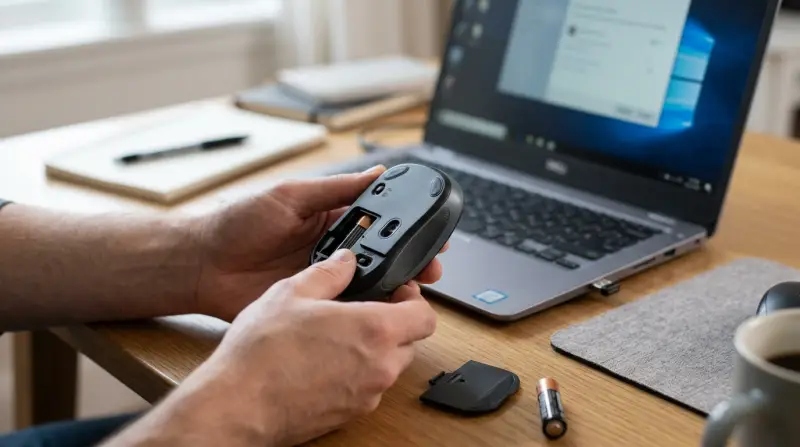
Before diving into advanced fixes, start with these essential steps. Many users overlook simple mistakes.
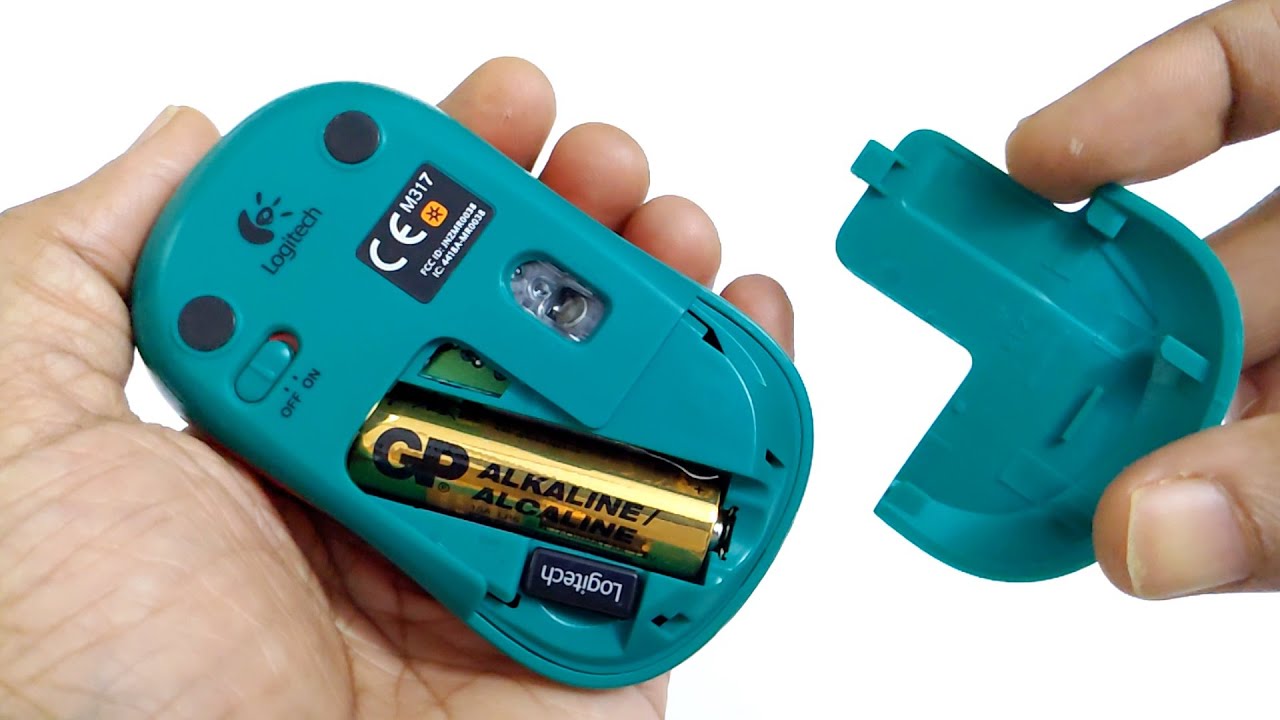
- Check the batteries: The M317 uses one AA battery. If your mouse is unresponsive or slow, replace the battery with a new one.
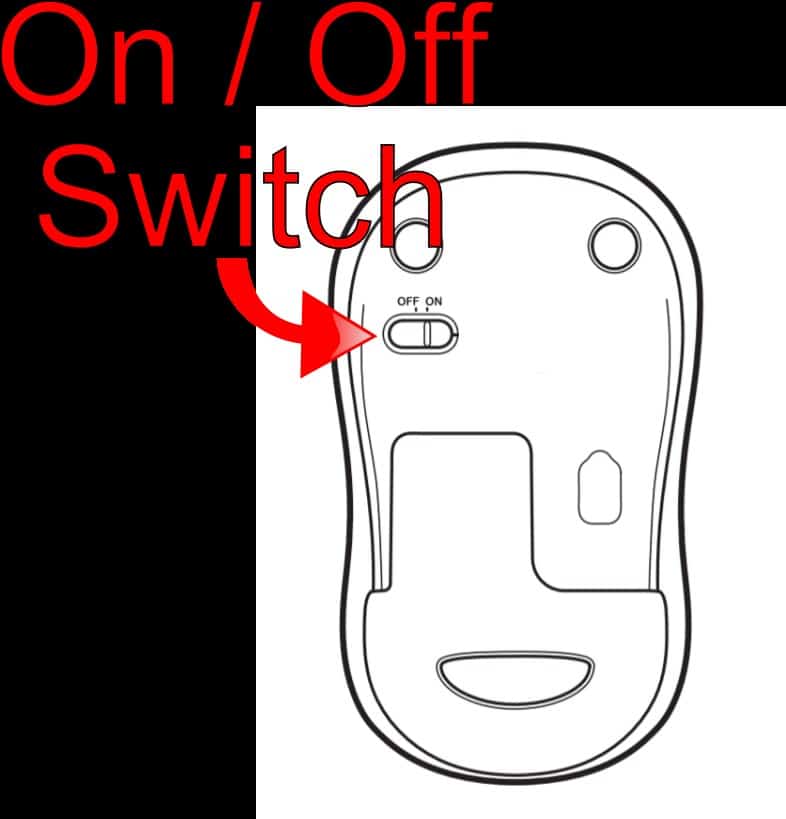
- Power switch: Make sure the mouse is switched on. The switch is at the bottom.
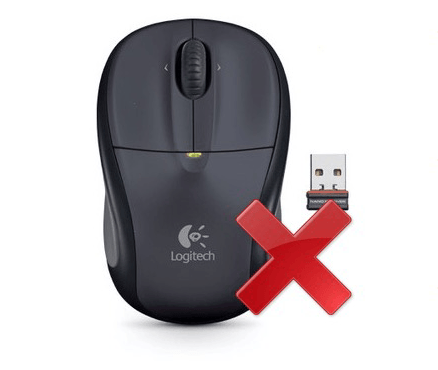
- USB receiver: The small USB receiver must be plugged into your computer. If it’s loose or missing, the mouse will not work.
- Try another USB port: Sometimes, the port is the problem. Move the receiver to a different port, preferably on the back of your PC.
- Restart your computer: This basic step can solve many hardware issues.
Wireless Connection Problems
Wireless mice depend on a strong signal between the mouse and receiver. Here’s what to do if the wireless connection seems weak or lost.
Interference From Other Devices
Wireless signals can be affected by other electronics, like routers, Bluetooth devices, or even microwaves. Keep the receiver close to the mouse and away from such devices.
Distance Issues
For the best performance, the M317 should be within 10 feet (about 3 meters) of the receiver. If you’re further away, move closer.
Re-pairing The Mouse
If the connection drops, try unplugging the receiver and plugging it back in. You can also press the reset button (if present) on the mouse’s bottom to re-establish the link.
Driver And Software Issues
Outdated or missing drivers can cause your M317 mouse to stop working.
Updating Drivers Automatically
Windows usually installs drivers automatically. But, sometimes, you need to update them yourself.
- Go to Device Manager (press Win + X, then select Device Manager).
- Find “Mice and other pointing devices.”
- Right-click your mouse, then click “Update driver.”
- Choose “Search automatically for updated driver software.”
Downloading Logitech Software
For extra features or to fix bugs, download Logitech Options from the official Logitech website. This software lets you customize buttons and check for updates.
Hardware Problems
If basic steps fail, your mouse or receiver might be damaged.
Testing On Another Computer
Try using your M317 and its receiver on a different computer. If it works there, the problem is with your original PC. If not, the mouse or receiver may be faulty.
Inspecting For Physical Damage
Look for cracks, loose buttons, or corrosion in the battery compartment. Dirt or dust can also block the sensor underneath the mouse. Clean it gently with a soft cloth.
Operating System Settings
Sometimes, settings in Windows or Mac can stop your mouse from working.
Disabling Power Saving For Usb
Windows may turn off USB devices to save power. To prevent this:
- Open Device Manager.
- Find “Universal Serial Bus controllers.”
- Right-click each “USB Root Hub” and select “Properties.”
- Go to the “Power Management” tab.
- Uncheck “Allow the computer to turn off this device to save power.”
Checking Mouse Settings
Go to Settings > Devices > Mouse to see if your mouse is recognized. Adjust sensitivity and scrolling as needed.
Logitech M317 Mouse: Common Problems And Fixes
Let’s look at some specific issues users face, and how to resolve each one.
Cursor Not Moving
- Check for dirt on the sensor under the mouse.
- Make sure the surface is flat and non-reflective.
- Try a mouse pad for better tracking.
Mouse Lag Or Delay
- Replace the battery.
- Remove wireless interference.
- Update drivers and software.
Double-clicking Instead Of Single Click
- This is often a hardware problem (faulty switch).
- Try changing the double-click speed in Windows settings.
- If the issue remains, the mouse may need repair.
Mouse Not Detected
- Re-insert the receiver.
- Test another USB port.
- Restart your computer.
Logitech M317 Vs. Other Wireless Mice
To help you decide if you should replace your M317, here’s a quick comparison with two other popular models.
| Feature | Logitech M317 | Logitech M185 | Logitech M720 |
|---|---|---|---|
| Battery Life | 12 months | 12 months | 24 months |
| Programmable Buttons | No | No | Yes |
| Bluetooth Support | No | No | Yes |
| Price (USD) | $20 | $15 | $40 |
When To Replace Your Logitech M317
No device lasts forever. Here are signs you may need a new mouse:
- Repeated connection drops even after troubleshooting
- Physical damage (broken buttons, cracked case)
- Short battery life even with new batteries
- Mouse is not detected on any computer
If your M317 is still under warranty, contact Logitech support for a replacement.
Essential Maintenance Tips
Keep your mouse working longer with these practices:
- Clean regularly: Wipe the surface and sensor gently. Don’t let dust collect.
- Change batteries early: Don’t wait for the mouse to stop working.
- Store safely: Avoid dropping or exposing it to liquids.
- Update software: Keep drivers and Logitech Options current.
Real-world Data: Logitech M317 Reliability
According to a 2022 user survey by TechRadar, 89% of M317 users reported reliable performance for over two years. Only 8% experienced serious problems, mostly due to battery or receiver issues.
| Issue | Percentage of Users Affected |
|---|---|
| Battery Problems | 7% |
| Receiver Issues | 5% |
| Hardware Damage | 3% |
| Software/Driver Issues | 2% |
This shows that most problems are minor and can be fixed with basic troubleshooting.
Advanced Troubleshooting Steps
If your mouse is still not working, try these advanced methods.
Resetting The Mouse
Some M317 models have a small reset button. Press and hold it for 3-5 seconds, then reconnect the receiver.
Updating The Usb Receiver
Logitech’s Unifying Receiver can connect to up to six devices. If your M317 uses this, download the Unifying Software from Logitech’s site and try pairing again.
Testing With Safe Mode
Boot your computer in Safe Mode to see if third-party software is interfering. If the mouse works in Safe Mode, uninstall recent software updates.
Checking For Windows Updates
Windows updates can fix hardware problems. Go to Settings > Update & Security > Windows Update and install the latest updates.
Non-obvious Insights For Beginners
- USB port power: Front-panel USB ports sometimes have less power than rear ports. Always test the receiver in a rear USB port for better reliability.
- Receiver placement: Using a USB extension cable to move the receiver closer to your mouse can reduce interference and improve performance, especially on crowded desks.
When To Get Professional Help
If none of the above steps work, your mouse might have a rare internal fault. Contact Logitech support or visit a certified repair center. If under warranty, you may qualify for a free replacement.
You can check official troubleshooting advice and warranty policies on the Logitech Support site.
Frequently Asked Questions
Why Is My Logitech M317 Mouse Not Working After Changing The Battery?
Check if the battery is inserted correctly and the contacts are clean. Sometimes, new batteries can be faulty, so try another one. Also, ensure the power switch is turned on.
Can I Use The Logitech M317 Receiver With Other Logitech Mice?
Yes, if your receiver is a Logitech Unifying Receiver (look for an orange star icon). It can connect to multiple compatible devices using Logitech’s Unifying Software.
What Surfaces Work Best For The M317 Mouse?
The sensor works best on non-reflective, flat surfaces. Glass, glossy, or uneven surfaces can cause tracking problems. A basic mouse pad improves accuracy.
How Do I Fix Double-click Issues On My M317?
Check your double-click speed settings in Windows. If the problem continues, the mouse’s internal switch may be worn out, which usually needs professional repair or replacement.
Where Can I Find The Latest Drivers For My Logitech M317?
Visit the official Logitech website and search for the M317 model to find the latest drivers and software. Using the newest drivers helps avoid compatibility issues.
The Logitech M317 is a solid choice for daily tasks, but like any device, it can have problems. With the steps above, most issues are easy to fix at home. Regular maintenance, updated software, and careful use can keep your M317 working smoothly for years.
If all else fails, don’t hesitate to contact Logitech support for expert help.