
Vnc Connect Raspberry Pi Not Working usually happens because the display resolution isn’t set or the desktop environment is disabled in the configuration menu. This is a common issue for users who have just installed the operating system or moved their board to a headless setup. If you see a blank screen or a connection refusal error, you likely need to force a default resolution or re-enable the desktop mode. Always check your physical HDMI connection first, as a loose cable often mimics software failure.
Why VNC connect isn’t working
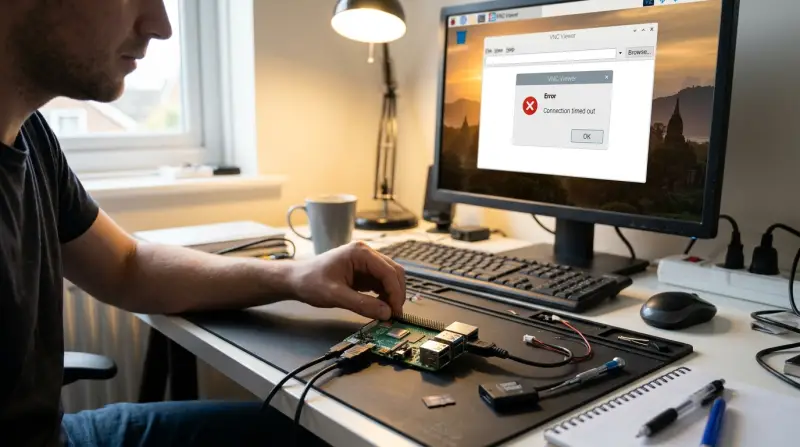
The most frequent cause for this connection failure is the lack of a detected display. If the software can’t find a display to initialize, the VNC server won’t start, or it will provide a black screen because it has no desktop to render.
Another common reason is a conflict between the Wayland and X11 display systems. Newer versions of Raspberry Pi OS have moved to the Wayland protocol, which isn’t compatible with some older VNC viewers. If you’re using an older version of RealVNC Viewer, it may fail to handshake with the modern Wayland compositor.
Finally, user permissions often block the connection. If you have updated your system recently, the VNC server might require a manual restart of the service to recognize your current user credentials. This varies by model — check the label on your board to see if it’s a Pi 4 or 5, as these newer boards handle display output differently than the older Pi 3 models. If you’re unsure about your specific OS version, you can verify it through the official Raspberry Pi Documentation which outlines the correct steps for enabling Wayland or X11.
Configure the display settings
This fix is for users who have a headless setup, meaning no monitor is plugged into the device. You must force the operating system to output a video signal even when it doesn’t detect a physical screen.
To do this, use your terminal or a command-line interface to access the configuration tool. Type sudo raspi-config and press enter. Navigate to the “Display Options” menu. From there, look for the resolution settings. Choose a standard resolution, such as 1280×720, rather than leaving it on “Default.”
Stick to 720p to ensure stability.
After you select a resolution, save your changes and reboot the device. If the VNC connection works after the restart, you know the issue was the lack of a detected display.
If you still can’t connect, the problem is likely a service error rather than a display error. Check if the VNC service is active by running systemctl status vncserver. If the status shows “inactive,” the display settings are irrelevant.
This fix isn’t for users who already have a monitor plugged in. If your monitor works but the VNC does not, changing the resolution won’t help. If this process doesn’t resolve the blank screen, the issue is likely a corrupted desktop environment package, which requires a system re-installation.
Switch to X11 mode
This fix is for users running the latest Raspberry Pi OS who can’t connect because of Wayland compatibility issues. Wayland is the new standard, but it isn’t yet fully supported by all third-party VNC clients.
Open the terminal and run sudo raspi-config. Navigate to “Advanced Options” and look for the “Wayland” or “Compositor” setting. You’ll see an option to switch from Wayland back to X11. Select X11 and confirm. The system will prompt for a reboot.
Once the device restarts, it uses the older X11 protocol. Most VNC clients, including the standard RealVNC Viewer, work more reliably with X11. You’ll know this worked if your client connects instantly upon reboot.
A common mistake is assuming this fix is permanent. If you update your OS, the system may default back to Wayland. Check your connection status after every major system update.
This is a trade-off. While X11 is more compatible, it lacks the security and performance features of Wayland. If you require high-resolution scaling or improved touch-screen gestures, stick with Wayland and update your VNC client to a version that explicitly lists Wayland support.
If you prefer a graphical interface, you can perform these steps using the “Raspberry Pi Configuration” tool. Find it in the main menu under the “Preferences” tab. Navigate to the “Display” or “Advanced” tab to toggle the compositor.
Use this rule: If your VNC client shows a black screen or disconnects immediately, switch to X11. If you need to use modern high-DPI monitors, keep Wayland and update your software instead.
Check network and service status
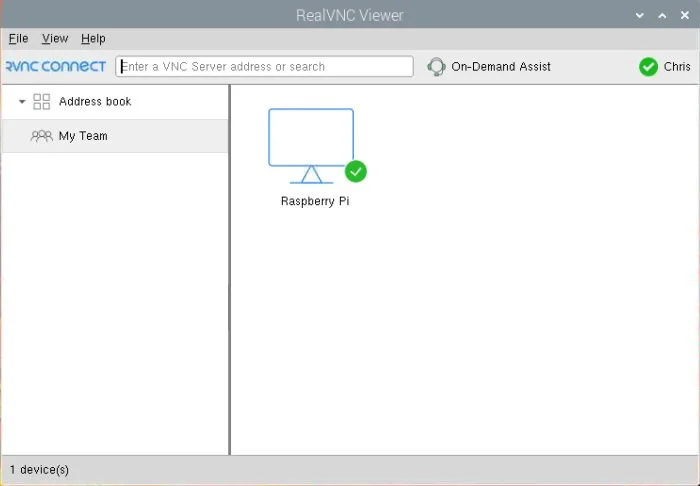
If the previous steps failed, you must ensure the VNC server is actually running. This is for users who suspect the service is crashed or blocked by a firewall.
Log in to your terminal and type sudo systemctl status vncserver-x11-serviced. If the status shows “inactive” or “failed,” the service isn’t running. You can attempt to start it manually by typing sudo systemctl start vncserver-x11-serviced.
If it starts but you still can’t connect, ensure that your computer and the Raspberry Pi are on the exact same local network. Check your IP addresses; if the first three octets don’t match, you’re on different subnets. If you’re using a VPN, it will block the discovery of the Pi. Disable the VPN on your host machine to see if the connection restores.
If you’re using a firewall like UFW, it might be blocking port 5900, which is the default port for VNC. You can allow this traffic by typing sudo ufw allow 5900. This requires administrative knowledge of network ports. If you aren’t familiar with network security, don’t change firewall settings, as you could leave your device open to unauthorized access.
A common mistake is assuming the service is the problem when the issue is actually a stale session. If you see the service is “active” but the screen remains black, run vncserver -kill :1 followed by a restart. This clears the ghost process.
If the service still fails to start after these attempts, it’s time to stop and consider that the operating system might be corrupted. In this case, backing up your data and flashing a fresh image of the OS is often faster than trying to fix deep-level system files.
What not to do
Avoid running random commands from forums to “force” the VNC service. These scripts often bypass security checks and can corrupt your user permissions, locking you out of the system entirely.
Never leave your device exposed to the public internet without a password. VNC traffic is unencrypted by default, meaning anyone scanning your IP can hijack your session. If you must connect remotely, always use a VPN tunnel.
Don’t ignore terminal error messages. If the system reports “permission denied,” stop immediately. This is a clear sign that your user account settings are misconfigured. Continuing to input commands will only compound the error and make recovery significantly harder.
How to stop it happening again
Preventing connection issues requires keeping your software updated and using stable network configurations.
| If you’re doing this | Do this instead | Why |
|---|---|---|
| Using a dynamic IP | Assign a static IP | Prevents the address from changing after a reboot |
| Updating manually | Set up automatic updates | Ensures VNC compatibility patches are applied |
| Leaving the Pi headless | Force a set resolution | Stops the system from disabling the display driver |
| Using public Wi-Fi | Use a private local network | Prevents firewall blocks and external interference |
The most common mistake is ignoring the power supply. A fluctuating voltage often drops the network interface before the processor crashes. If your Raspberry Pi loses connection during heavy data transfers, swap your power adapter for one with a higher amperage rating.
Use this decision rule to diagnose future failures. If the device is unreachable but the status lights remain solid, the issue is likely a software hang or a network lease expiration. If the lights are blinking erratically or off, focus on your power hardware. You should also check your router logs for “IP conflicts.” If you see this error, two devices are fighting for the same address, and you must reassign your static IP to a higher range outside the DHCP pool.
Frequently asked questions
Can I use VNC without a monitor?
Yes, you can use VNC without a monitor by forcing the Raspberry Pi to output a virtual display signal through the configuration menu.
Why is my VNC screen black?
A black screen usually means the VNC server is running but the desktop environment has failed to initialize due to a resolution error. This is common when the board boots without a display attached. You should check your resolution settings in the configuration tool and ensure they’re set to a fixed value rather than “Default.”
How long does the VNC service take to start?
The VNC service typically starts within 30 seconds of the device finishing its boot sequence. If it takes longer than a minute, there may be a resource conflict or a failed system update. You can check the status of the service using the systemctl command in your terminal to see if it’s stuck in a loop.
Is it safe to enable VNC over the internet?
No, it isn’t safe to expose your VNC connection directly to the internet because the traffic isn’t encrypted by default. You should always use a VPN to create a secure tunnel if you need to access your Raspberry Pi from outside your home network to protect your credentials.
What happens if I use an old VNC client?
Using an old VNC client often leads to handshake failures because newer Raspberry Pi OS versions use the Wayland display protocol. If your client is outdated, it won’t understand the signal the Pi is sending, resulting in a connection refusal or a frozen screen. Always update your viewer software to the latest version.
Final Thoughts
Once you’ve got your remote desktop running smoothly, it’s a great idea to set a static IP address for your board. This ensures your connection won’t drop if your router restarts. You’ll find that managing your projects is much easier when you don’t have to hunt for your device’s address every time.
Related guides