
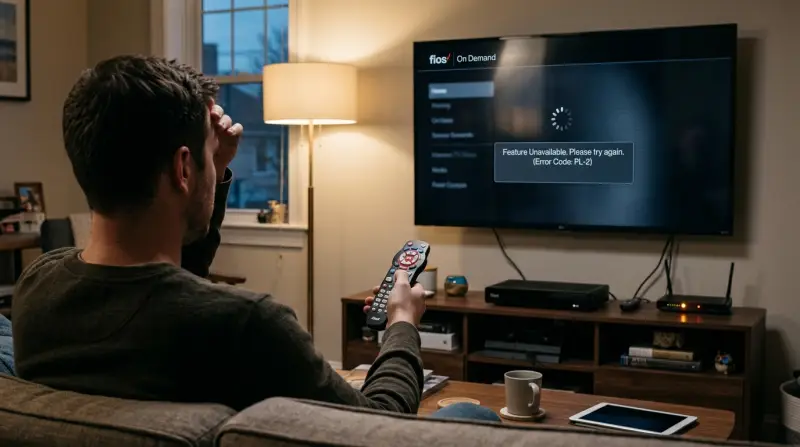
A signal blockage or a temporary network sync error is the primary reason for Verizon Fios on Demand Not Working, which happens in the vast majority of cases. You can confirm this quickly by checking if your live TV channels are also showing a “Signal Lost” or “Black Screen” message, as this indicates a wider connection drop rather than a specific app fault. If your live TV works but the library fails to load, the issue is likely a localized data handshake failure between your set-top box and the Verizon servers.
Why Verizon Fios On Demand isn’t working
| Cause | How common | How to confirm it | Fix it yourself? |
|---|---|---|---|
| Router connection drop | Very common | Check white lights | Yes |
| Stale IP address | Common | Restart the router | Yes |
| Set-top box freeze | Common | Menu fails to open | Yes |
| Service outage | Occasional | Check account status | No |
| Coax cable loose | Rare | Check physical plugs | Yes |
| Account sync error | Rare | Call support line | No |
If your router shows a red or blinking light, you’re likely dealing with a line signal issue rather than a simple connection drop. A quick power cycle often resolves this, but if the light remains red after ten minutes, the problem is external.
Distinguishing between a stale IP and a sync error is critical. If your internet works on other devices but the TV box remains blank, the issue is internal. If every device in the home is offline, the fault lies with the ISP.
The most common mistake is failing to tighten the coax cable at both the wall plate and the back of the box. A loose connection here causes intermittent pixelation before a total signal loss. If the cable feels loose, rotate the connector clockwise until it’s finger-tight. Don’t use pliers, as over-tightening can snap the delicate copper pin inside the port.
Router connection issues
A router that has lost its link to the fiber network is the most frequent culprit behind video service disruptions. Your Fios router should display solid white lights on the front panel; if you see a yellow or red light, the unit isn’t receiving a signal from the Optical Network Terminal (ONT).
If the light is red, ensure the power cord is pushed firmly into the wall outlet. A common mistake is assuming the cable is secure without physically unplugging and reseating it; a loose connection can cause intermittent signal drops that cost you hours of downtime.
If the light is yellow, check that the Ethernet or coax cable running from the wall to the “WAN” port on the router is snug. If the light remains yellow or red after ten minutes, you must contact Verizon support because the issue lies in the external fiber line or the ONT box mounted on your home.
This isn’t for a user to repair, as the ONT requires specialized tools and technician access. If your internet works but the TV does not, the router is likely fine, and you should move to the set-top box.
The decision rule is simple: if the router light is white but your devices can’t connect, the problem is local, such as a Wi-Fi channel conflict or a device setting. If the light is colored, the problem is upstream. Don’t attempt to reset the ONT manually, as this can trigger a factory configuration wipe that requires a mandatory service visit to fix.
Stale IP address errors
Your set-top box needs a fresh connection to the Verizon server to pull the on-demand library, and a stale IP address often blocks this handshake. This happens when the box has been on for a long time without a refresh, causing it to lose its path to the video server. You can tell this is the cause if the menu loads, but selecting a movie results in an error code or a permanent spinning icon. To fix this, perform a hard reboot of your set-top box by unplugging the power cord from the back of the device. Wait at least sixty seconds before plugging it back in. This delay is vital because it allows the internal capacitors to discharge fully, forcing the device to clear its temporary memory and request a new IP address from the router. This process usually takes about five to ten minutes to complete as the device downloads the latest guide data. If you have multiple boxes, always start by rebooting the main media server unit first. If the problem persists after the reboot, you’re dealing with a deeper service error that requires a remote signal refresh from the provider.
Physical cable connection faults
A loose or damaged coaxial cable prevents the set-top box from receiving the specific data stream required for on-demand content. Even if the cable looks fine, a tiny bit of oxidation or a slight twist can stop the high-frequency signal needed for video-on-demand.
Check every connection point between the wall outlet and the back of your set-top box. Grip the metal connector and twist it clockwise to ensure it’s finger-tight. Don’t use pliers, as you can easily crack the plastic housing or strip the threads. This is a common mistake that turns a minor fix into a costly replacement of the box.
If you have a signal splitter behind your TV, ensure those cables are also tight. If you notice the cable shielding is frayed or the center wire is bent, replace the cable with a new RG6 coax cord.
Use this decision rule: if you have more than two splitters in your home, the signal strength is likely too low to support high-bandwidth requests. In this case, you need a powered signal amplifier rather than a simple cable check.
If you tighten everything and the service still fails, check the center pin of the connector. If it’s recessed more than 1/16th of an inch, it won’t make contact with the port. The problem is then inside the wall wiring, which is a job for a professional technician.
The less likely causes
-
Regional service outage: Check your account on a mobile device to see if Verizon has reported a local network failure in your area. If the status page shows “operational,” but your neighbors are also down, the issue is likely a localized node failure that requires a technician dispatch rather than a simple reset.
-
Account subscription mismatch: If you recently changed your plan, your account might not be fully synced, requiring a manual refresh from customer service. A common mistake is assuming a self-service restart will trigger this; it won’t. You must specifically ask the agent to “re-provision the entitlement signals” to your box’s unique ID.
-
Outdated firmware: The box might be stuck on old software, which usually resolves itself if you leave the unit plugged in overnight. If it remains unresponsive after 12 hours, force a manual update by holding the power button for 30 seconds.
-
Hardware failure: If the box makes a grinding noise or feels excessively hot, the internal cooling fan or hard drive has likely failed. At this stage, no software fix will work; you must request a hardware replacement.
What a fix usually involves
Most fixes for these issues require only your time and a bit of patience. A power cycle costs nothing but about ten minutes of waiting, while checking cable connections is free if you have spare cables on hand.
If you need to replace a damaged coax cable, it represents a very small part of your total equipment cost. These cables are typically a cheap part at local retailers.
If a technician must visit your home, it can be a significant expense. Costs vary based on your service plan and whether the fault lies in your internal wiring or at the street level. If the fault is in the street infrastructure, the repair is almost always free. If the technician finds a loose connection inside your wall, you may be billed a service fee that’s often less than a new unit.
You can verify your specific repair costs by logging into your account portal or checking your latest bill for service fee disclosures. If the equipment itself is broken, Verizon typically replaces it at no cost if the fault is deemed a hardware failure not caused by user damage.
Always ask the support agent for a cost estimate before they dispatch a technician. This simple step prevents unexpected charges on your next statement. If the agent can’t guarantee a free visit, ask for a remote diagnostic test first to rule out simple software errors.
Frequently asked questions
Can I fix this without calling Verizon?
Yes, most on-demand errors are solved by a simple power cycle of your router and set-top box. Unplug both devices from the power, wait one minute, and plug them back in, starting with the router. Wait for the router lights to stabilize before you turn the TV box back on. This clears the network cache and resolves the majority of connection-related errors without outside help.
Why does the menu load but the video fails?
This happens when your box has a connection to the guide data server but lacks a stable path to the video delivery server. It usually means your internet connection is active, but the specific port used for on-demand streaming is blocked or timed out. A full power cycle usually resets this path and allows the video stream to initiate correctly.
How long should the reboot take?
About ten to fifteen minutes is the standard time for a full reboot and guide reload. If the box is still stuck on a loading screen after twenty minutes, it’s likely failing to connect to the network entirely. At that point, you should check your router status lights again to ensure the internet signal is actually reaching your home.
Is it safe to unplug the box while it’s on?
Yes, it’s perfectly safe to unplug the power cord from the back of the device if it’s unresponsive. Modern set-top boxes are designed to handle sudden power loss without damaging the internal software. If the box is frozen, pulling the plug is the only way to force a reset and clear the memory that’s causing the hang.
Does it matter which cable I use?
Yes, you must use a high-quality RG6 coaxial cable for the best signal strength. Older or thinner cables, often labeled as RG59, can cause signal loss in the high-frequency range used by Fios. If your picture is pixelated or the on-demand service is slow, replacing an old, thin cable with a new, thicker RG6 cable often provides a much more stable data connection.
Final Thoughts
If these quick fixes don’t restore your access, don’t hesitate to reach out to Verizon’s support team directly. They can perform a remote refresh on your equipment that isn’t possible from home. Once they’ve cleared the error from their end, you’ll be back to streaming your favorite shows without any further trouble.