
If your Verizon Fios remote suddenly stops working with your TV, it can be frustrating. You might miss your favorite shows or struggle to adjust the volume. But don’t worry—most remote issues can be solved with a few simple steps. In this article, you’ll learn how to troubleshoot, fix common problems, and understand what causes these issues. Whether you’re new to Fios or have used it for years, you’ll find clear solutions and practical advice.
Why Your Verizon Fios Remote Isn’t Working
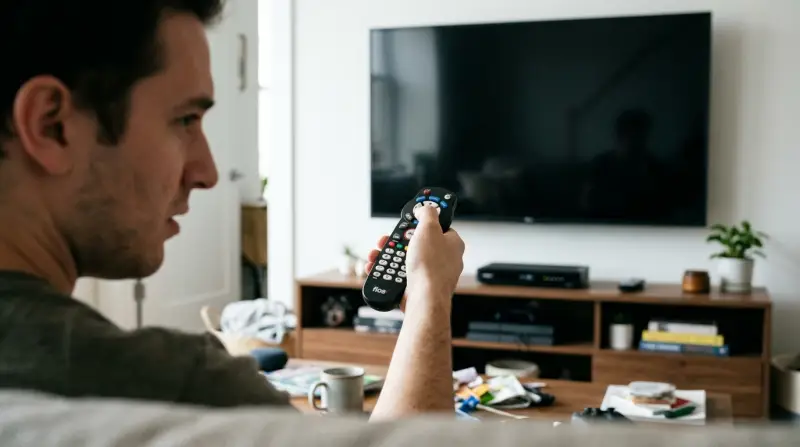
There are several reasons your Fios remote may not work with your TV. Sometimes, it’s a minor problem like dead batteries. Other times, the remote may lose its programming or face interference from other devices. Understanding these causes can help you fix the issue faster.
Main Causes
- Battery Issues: Weak or dead batteries are the most common cause.
- Programming Errors: The remote might not be programmed for your TV model.
- Physical Obstructions: Objects between the remote and TV can block signals.
- Signal Interference: Other electronics can interfere with the remote’s signal.
- Hardware Faults: The remote or TV sensor may be damaged.
Let’s look at each cause more closely, with examples and solutions.
Quick Troubleshooting Steps
Most problems can be fixed with basic troubleshooting. Here’s a step-by-step guide:
- Check Batteries
- Remove the battery cover.
- Replace with new, high-quality AA or AAA batteries.
- Ensure batteries are inserted correctly.
- Test the Remote
- Point the remote at your TV and press any button.
- If the TV doesn’t respond, try holding the remote closer.
- Clear Obstructions
- Remove anything blocking the TV’s sensor.
- Clean the sensor area with a dry cloth.
- Reset the Remote
- Remove batteries, wait 60 seconds, then reinsert.
- This can clear minor glitches.
- Reprogram the Remote
- Use the Fios remote manual to program it for your TV model.
- Enter the correct TV code (found online or in the manual).
- Test With Another Device
- Try the remote on a different TV or Fios box.
- If it works elsewhere, your original TV might be the issue.
If these steps don’t help, move to deeper troubleshooting.
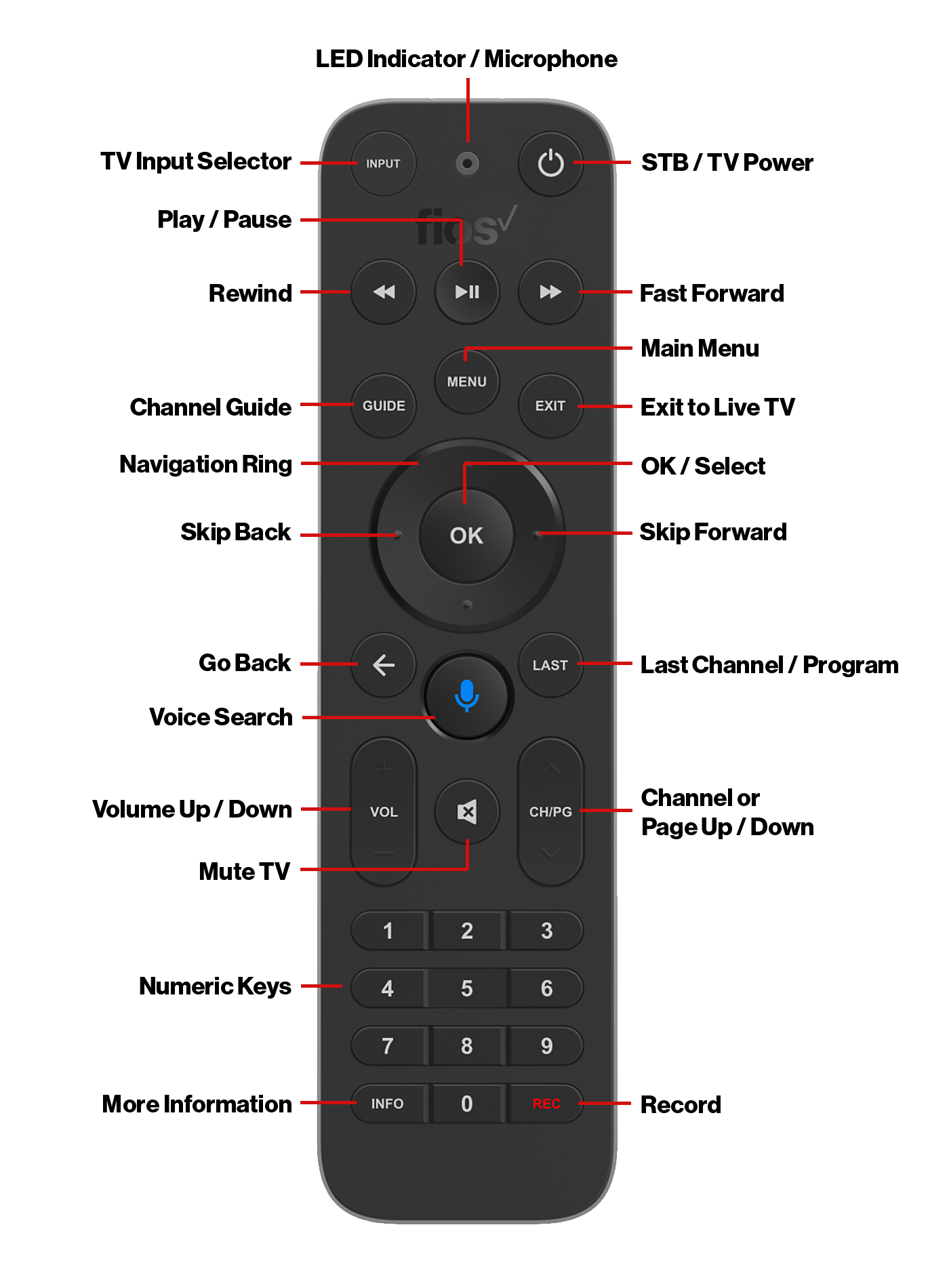
Common Programming Mistakes
Programming errors can prevent your remote from controlling your TV. Many users miss these small details:
- Wrong TV code: Fios remotes need the correct code for your TV brand.
- Incomplete setup: Skipping steps during programming can cause problems.
- Not saving settings: After entering the code, you must save it by pressing the right button.
Here’s a comparison of typical programming mistakes:
| Programming Step | Common Mistake | Impact |
|---|---|---|
| Entering TV code | Using wrong code | Remote won’t control TV |
| Saving code | Not pressing ‘OK’ or ‘Enter’ | Settings not saved |
| Testing remote | Skipping test step | Can’t confirm programming |
If you’re unsure about your TV code, check the Fios website or your TV’s user manual.
Remote Types And Compatibility
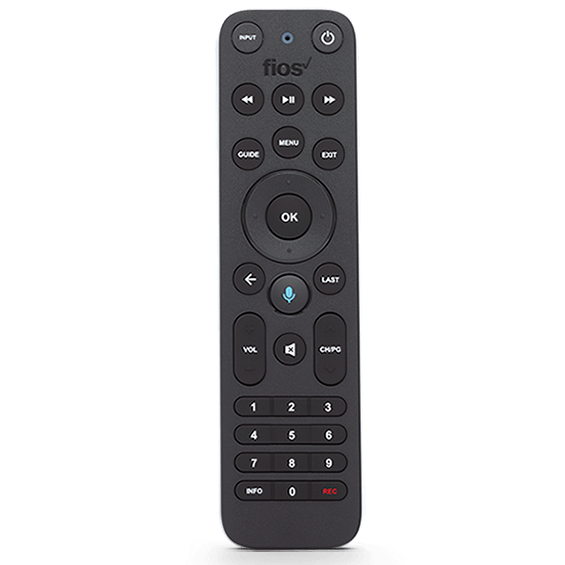
Verizon Fios offers several remote models, each with different features. Not all remotes work with every TV. Here’s a comparison:
| Remote Model | Compatibility | Features |
|---|---|---|
| Fios TV Voice Remote | Most smart TVs | Voice control, universal functions |
| Fios TV One Remote | Fios TV One box | Simple layout, programmable |
| Fios Universal Remote | Many TV brands | Controls TV, audio, and Fios box |
Always check your remote’s model number. If your TV is very new or very old, some remotes may not support it.
Advanced Fixes For Persistent Problems
If basic troubleshooting doesn’t work, try these advanced solutions:
Power Cycle Your Tv
Unplug your TV from the wall for at least 60 seconds. Plug it back in and test the remote. This can reset the TV’s sensor and clear glitches.
Factory Reset The Remote
Some Fios remotes have a reset button or sequence. Usually, you press and hold two specific buttons (like OK and 2) until the light flashes. Check your remote’s manual for details.
Update Tv Firmware
Modern TVs sometimes need software updates. Go to your TV’s settings menu and look for updates. Outdated firmware can block remote signals.
Check For Infrared Signal
Most Fios remotes use infrared (IR) signals. You can test this with a smartphone camera:
- Open the camera app.
- Point the remote at the camera.
- Press any button and look for a blinking light on the remote’s tip.
If you see light, the remote is working. If not, the remote may be faulty.
Try A Universal Remote
If your Fios remote still doesn’t work, try a universal remote. These can be programmed for most TV brands. This helps check if your TV’s sensor is working.
When To Replace Or Contact Support
Sometimes, the remote or TV sensor is broken. Here’s how to know:
- Remote won’t show infrared light (see IR test above).
- Buttons are physically stuck or won’t press.
- TV sensor is cracked or damaged.
If your remote is faulty, you can order a replacement from Verizon or buy online. If your TV sensor is broken, contact your TV’s manufacturer.
For more help, visit the official Fios support page: Verizon Fios Support
Hidden Insights Most Users Miss
Many beginners overlook these details:
- Remote Mode Confusion: Fios remotes can switch between TV and STB (Set-Top Box) mode. If you press the wrong mode button, the remote might control the wrong device.
- Low-Quality Batteries: Cheap batteries may work poorly, even if new. Use trusted brands like Duracell or Energizer.
- TV Brand Sensitivity: Some TV brands need extra steps during programming. For example, Samsung and LG TVs may require different codes or longer setup.
These small mistakes are easy to miss but can cause big frustrations.
Real-life Example
Let’s consider a real scenario:
Maria has a Fios TV One remote. It stopped working with her Samsung TV, but the remote still controls her Fios box. She replaced batteries and reprogrammed the remote, but nothing changed. After testing with her smartphone camera, she saw the infrared light blinking.
The issue was not the remote but her TV’s sensor, which was blocked by a decorative item.
Maria moved the item, cleaned the sensor area, and the remote started working again. This shows how minor obstacles can cause major problems.
Data: Remote Issues Frequency
Remote issues are common. According to Verizon support data, about 30% of Fios customers report remote problems each year. Most are solved with battery replacement or reprogramming.
Here’s a breakdown:
| Issue Type | Percentage of Cases |
|---|---|
| Battery issues | 45% |
| Programming errors | 30% |
| Physical obstructions | 10% |
| Hardware faults | 10% |
| Other | 5% |
This data shows that most issues are easy to fix. Only a small number need hardware repair or replacement.
Preventing Future Remote Problems
You can avoid remote troubles by following these tips:
- Use fresh batteries and check them every few months.
- Keep the TV sensor area clean and free from dust or objects.
- Store the remote safely to prevent physical damage.
- Update your TV firmware regularly.
- Program the remote carefully and double-check codes.
If you move or change TVs, reprogram your remote for the new setup.

Frequently Asked Questions
How Do I Find The Correct Tv Code For My Verizon Fios Remote?
You can find the TV code in the Fios remote manual or on the Verizon website. Enter your TV brand and model to get the right code. If you don’t know your TV’s model, check the label on the back.
Can I Use My Fios Remote With Any Tv?
Most Fios remotes work with popular TV brands, but some very new or old TVs may not be compatible. Check your remote’s model and the TV’s brand before programming.
What If My Remote Works With The Fios Box But Not The Tv?
This means the remote is programmed for the Set-Top Box but not your TV. Reprogram the remote using the correct TV code. Also, make sure you’re pressing the TV mode button.
How Do I Reset My Fios Remote?
To reset, remove the batteries for 60 seconds, then reinsert. For factory reset, press and hold specific buttons (like OK and 2) until the light flashes. Follow your remote’s manual for details.
Where Can I Get A Replacement Fios Remote?
You can order a replacement from the Verizon website or buy from retailers like Amazon. Make sure to choose the right model for your Fios setup.
If your Verizon Fios remote isn’t working with your TV, you now have clear steps to fix it. Most issues are simple batteries, programming, or obstructions. By following this guide, you can get back to watching your favorite shows quickly. If problems continue, remember to check for hardware faults or contact support. With the right approach, you can enjoy a smooth Fios experience without remote troubles.