
A Turtle Beach transmitter not working is most often caused by a lost sync between the headset and the USB device, which you can usually fix by performing a manual pairing reset. If your lights are off or blinking, the connection has dropped because of a power interruption or a software glitch. This is a common issue that doesn’t mean your hardware is broken. You can restore the link by resetting the pairing mode on both the headset and the transmitter using the buttons provided by the manufacturer.
Why your Turtle Beach transmitter not working
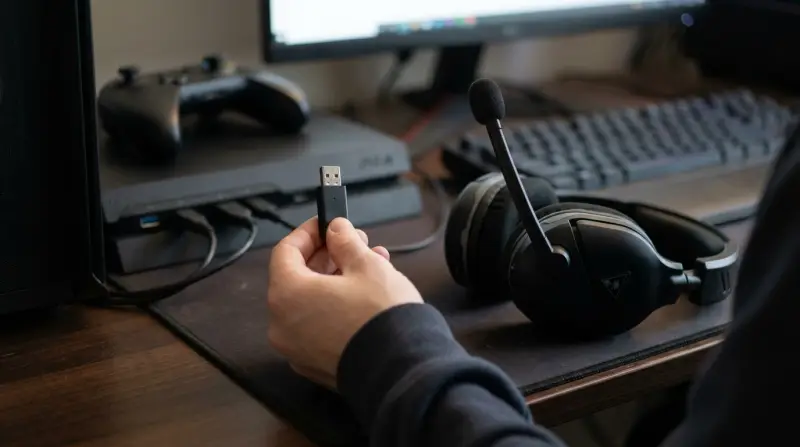
The primary reason for a connection failure is a simple communication break between the wireless USB transmitter and the headset itself. When you move too far from the console or turn the devices on in the wrong order, the handshake that keeps them linked can time out. Once this happens, the transmitter may show a solid light, but it isn’t actually sending audio to the headset.
Another frequent cause involves USB port power management. If you plug the transmitter into a USB hub or a port that doesn’t provide enough consistent voltage, the device may enter a low-power state. This is especially true for consoles that use “rest mode.” If the power to the USB port is cut while the console is sleeping, the transmitter may fail to wake up correctly when you turn the system back on.
Finally, firmware conflicts can occur after a system update. If the console or the headset software updates but the transmitter isn’t synced to the latest version, the two devices will refuse to talk to each other. This isn’t a hardware failure, but it does require a specific software update process.
Re-pair the devices manually
This fix is for users whose headset and transmitter are powered on but fail to produce audio. Start by disconnecting the USB transmitter from your console. Turn off both the headset and the console completely. Wait a few seconds before plugging the transmitter back in. Plug the transmitter back into a direct port on the console, avoiding any external USB hubs.
Turn the headset on. Locate the “Pairing” button on the transmitter. Press and hold this button until the LED begins to flash rapidly. This indicates the transmitter is in discovery mode. Now, hold the power button or the dedicated pairing button on your headset until its LED also begins to flash in the same pattern. Keep the devices within three feet of each other during this process.
If the pairing is successful, both lights will turn solid after about ten seconds. If the lights continue to blink, the process has timed out; you must restart the cycle. If you have tried this three times without success, move the transmitter to a different USB port. This ensures the issue isn’t a specific port failure on your console. If the headset still fails to connect, the internal battery may be too low to maintain the signal, so charge it for at least one hour before trying again.
Check your audio settings
Sometimes the transmitter is working perfectly, but the console has stopped sending audio signals to the USB port. This fix is for users who see a solid light on their transmitter but hear no sound through the speakers. Navigate to the sound or audio settings menu on your console or PC. Look for the “Output Device” or “Headset” selection list.
Make sure the Turtle Beach device is selected as the primary output and that the “Chat/Game Audio” slider isn’t set to zero. If you see the device listed as “Unknown” or “Disconnected,” unplug the transmitter and plug it back in while the menu is still open. This forces the system to re-scan the USB hardware.
If you’re using a PC, check your “Sound Control Panel” to ensure the headset is set as the “Default Device” and “Default Communication Device.” If the volume is set to low or muted in the Windows mixer, you won’t hear anything even if the hardware is properly paired. If you have another device, such as a laptop or a different console, plug the transmitter into it. If the transmitter works on the second device, your issue is with the console settings, not the hardware itself. If it fails on both, the transmitter likely has an internal fault that requires a warranty claim.
Update the device firmware
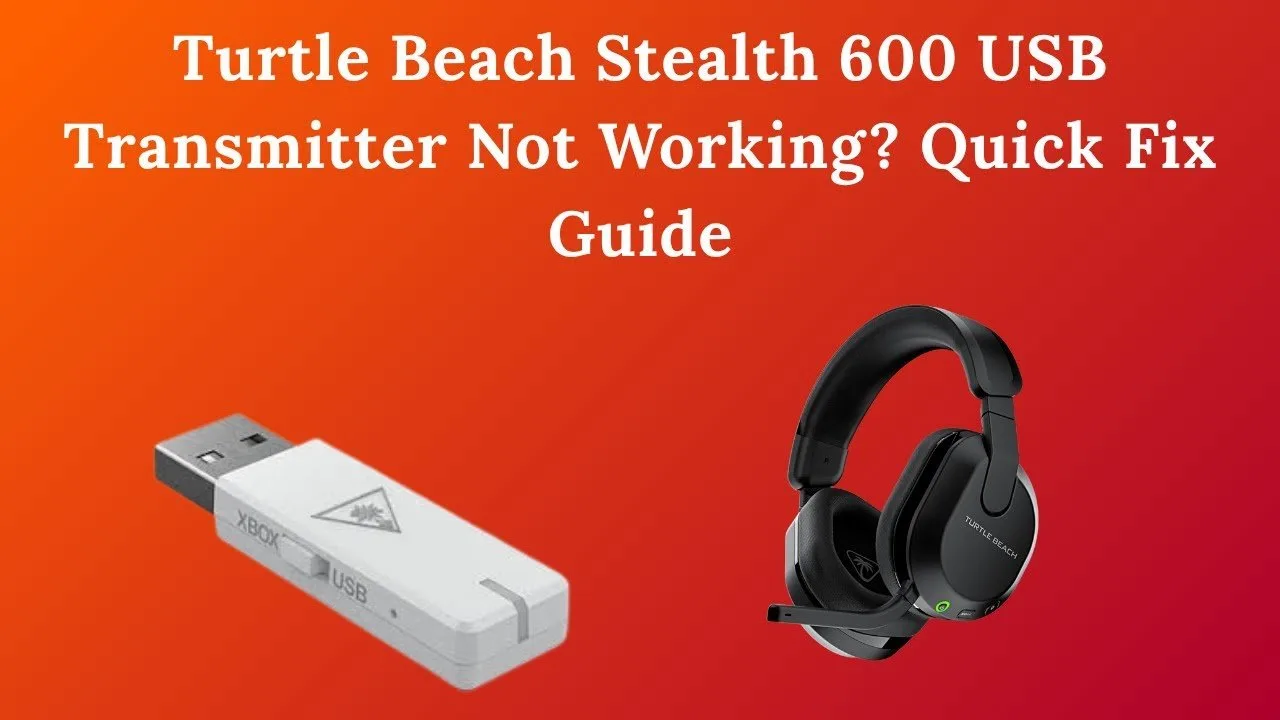
Firmware updates are necessary when the transmitter is recognized by the system but still refuses to pass audio. This process requires a computer with an active internet connection. Download the official audio hub software from the manufacturer’s website. Connect your headset and your transmitter to the computer using the provided USB cable.
The software will detect the hardware and check if a newer version is available. If an update is found, click “Update” and wait for the progress bar to reach one hundred percent. Don’t disconnect the cable during this time, as interrupting the update can render the device unusable.
This fix is intended for users who have confirmed that their hardware isn’t damaged. If you don’t have access to a computer, you can’t perform this step. In that case, you must contact the manufacturer’s support team to see if they offer a way to reset the device without a PC. If the software says the device is up to date but it still doesn’t work, it’s time to stop troubleshooting. You should then contact the retailer or Turtle Beach directly for a warranty replacement, as the internal wireless chip may have failed.
What not to do
Don’t press the “Reset” pinhole with a sharp metal needle. If you must reset the device, use a non-conductive plastic toothpick instead.
Don’t leave the transmitter plugged into a standard wall charging block. These devices are designed to communicate with consoles or PCs; a phone charger provides power but lacks the data connection needed to initialize the audio handshake. If the device is unresponsive, connect it only to a powered USB port on your host hardware.
Don’t attempt to open the plastic housing. The case is sealed with industrial adhesive or clips, and forcing it open will void your warranty and likely snap the fragile internal antenna. If the shell feels loose, don’t apply pressure.
Don’t submerge the device in water to clean it. Moisture will corrode the circuit board and create permanent signal interference. If the exterior gets dirty, use a dry microfiber cloth.
How to stop it happening again
Consistent care for your USB hardware prevents most connectivity drops. The way you store and plug in your gear dictates its lifespan and reliability.
| If you’re doing this | Do this instead | Why |
|---|---|---|
| Leaving the transmitter plugged in | Unplug it after use | Reduces unnecessary power consumption |
| Using a USB hub | Plug directly into console | Ensures full power delivery |
| Bending the USB connector | Use a short extension cable | Protects the solder joints |
| Forcing the plug into the port | Align carefully before pushing | Avoids pin damage |
Most users ignore the port itself. If you notice a loose fit, check for lint or dust buildup. Use a non-conductive plastic pick to clear the cavity. Metal tools can short the pins, permanently disabling the connection.
If you must use a hub, choose a powered model with its own wall adapter. Passive hubs split the limited voltage from your console, which causes intermittent signal loss during high-drain tasks. If your device disconnects only during intense gameplay, the hub is likely starving your hardware of necessary current. Always prioritize a direct connection for your primary controller or headset.
Frequently asked questions
Can I use a different USB cable to update my transmitter?
Yes, you can use any high-quality micro-USB or USB-C data cable. However, ensure the cable is capable of data transfer, as some cheap cables are designed only for charging and won’t allow the computer to see the transmitter. If the audio hub software doesn’t recognize your device, the cable is likely the problem. Switch to the original cable that came with your headset to rule out a data transfer issue.
Why does my transmitter light keep blinking?
A blinking light indicates the device is in pairing mode and searching for the headset. This occurs when devices are too far apart or blocked by metal objects. If the light persists while the headset is nearby, the devices have lost their internal link and require a manual reset.
Is it safe to leave the transmitter plugged in 24/7?
Consoles often provide power to USB ports even when in rest mode, which causes the transmitter to remain active. It’s best practice to unplug the device when you’re finished gaming to extend its lifespan and prevent potential software sync errors during console updates.
What happens if the transmitter gets hot?
A hot transmitter likely indicates excessive power draw or a short circuit. Unplug the device immediately and allow it to cool for at least thirty minutes.
How long does a transmitter usually last?
Transmitters typically last the life of the headset when handled with care. While there’s no expiration date, internal chips are sensitive to physical shocks and power spikes. If range decreases or audio cuts out frequently, the antenna may be failing.
Why is my transmitter not showing up on my PC?
Your PC won’t show the transmitter if drivers are missing or the USB port is disabled. Try moving the device to a different USB port on your computer. If it still doesn’t appear in the Device Manager, the transmitter likely has a failed USB controller.
Final Thoughts
If your audio still doesn’t sound right after trying these fixes, don’t worry. Sometimes a quick firmware update through the official desktop app is all it takes to clear up lingering bugs. You’ll be back to your game in no time once the connection is stable and running smoothly again.
Related guides