
A Samsung fridge is a big investment in your kitchen. It keeps food fresh, saves energy, and often comes with smart features. But like any modern appliance, it can sometimes run into problems. Maybe the display is frozen, the cooling isn’t right, or it’s showing a strange error code.
In many cases, a simple reset can solve the issue and get your fridge working like new. But the process isn’t always obvious especially with the many models and features Samsung offers.
Learning how to reset a Samsung fridge doesn’t just save you money on service calls. It helps you troubleshoot quickly, protect your food, and avoid bigger problems. This guide shows you the safest, most effective ways to reset different Samsung refrigerators.
We’ll also explain what to expect, common mistakes, and when a reset won’t fix the issue. If you want to feel confident handling your fridge, you’re in the right place.
Understanding Why And When To Reset A Samsung Fridge
Before you reset your fridge, it’s important to know why you might need to do it. Resetting is not a fix for every issue. It usually helps with:
- Display errors or frozen panels
- Error codes that won’t clear after a problem is solved
- Wi-Fi or smart features not responding
- Ice maker or water dispenser not working
- After a power outage to restore normal operation
But resetting won’t fix hardware failures, broken parts, or serious cooling issues. If your fridge isn’t cooling at all or makes loud noises, call a technician.
Quick Comparison Of Samsung Fridge Types And Their Reset Methods
Samsung makes many fridge models, each with different controls and features. Knowing your fridge type helps you choose the right reset method.
| Model Type | Main Reset Button | Common Features |
|---|---|---|
| French Door | Control Panel (inside door) | Ice/water dispenser, display, Wi-Fi |
| Side-by-Side | Control Panel (front) | Display, dispenser, Family Hub |
| Top/Bottom Freezer | No dedicated button | Simple controls, manual reset |
| Family Hub (Smart) | Touchscreen/Settings menu | Wi-Fi, apps, smart diagnostics |
The Safe Way To Reset Most Samsung Fridges
Most Samsung fridges don’t have a single “reset” button. Instead, you’ll use button combinations or power cycling. Here’s a general approach for many models:
- Open the fridge doors to access the control panel. Some are inside; others are on the front.
- Press and hold “Power Freeze” and “Power Cool” buttons together for about 5-10 seconds.
- Watch for a chime or flashing panel—this means the reset started.
- Wait 2-3 minutes for the fridge to restart. The display should return to normal.
If your fridge doesn’t have these buttons, see the next sections for specific reset steps by model.
Power Cycle Method (universal Reset)
For most Samsung refrigerators, a power cycle is the most basic reset:
- Unplug the fridge from the wall outlet.
- Wait 5-10 minutes. This lets the internal memory clear.
- Plug the fridge back in.
- Give it time to reboot and cool down (1-2 hours for full operation).
Don’t do this often. Frequent unplugging can cause electrical issues or wear out components.
Resetting Specific Samsung Fridge Models
Each fridge model may have unique steps. Here are the most common Samsung fridge types and their reset instructions.
Resetting A Samsung French Door Fridge
French door models are popular for their space and features. To reset:
- Locate the control panel (usually inside the right door).
- Press and hold “Power Cool” and “Power Freeze” at the same time for 5-10 seconds.
- The panel will beep or blink, showing the reset is starting.
- Wait for the display to stabilize. If it shows normal temperatures, the reset worked.
On some models, the control panel is on the outside. Look for the same buttons.
Resetting A Samsung Side-by-side Fridge
For side-by-side models:
- Find the control panel on the front.
- Hold “Fridge” and “Power Freeze” together for about 8 seconds.
- The display should turn off, then restart.
- Release the buttons and wait for the fridge to reboot.
Resetting A Samsung Family Hub (smart) Fridge
Family Hub fridges have a touchscreen with smart features. If it’s frozen or not responding:
- On the Home screen, tap Settings > About Family Hub.
- Tap “Reboot” or “Reset” from the menu.
- Confirm the action, and the screen will turn off, then restart.
If the screen is unresponsive:
- Press and hold the red button behind the top right door for 10 seconds (some models).
- Or unplug the fridge for 2 minutes, then plug it back.
Resetting A Samsung Top Freezer Or Bottom Freezer Fridge
Older or simpler models may not have digital controls. To reset:
- Unplug the fridge for 5-10 minutes.
- Plug it back in and check if the issue is resolved.
If it has a basic control panel, press and hold the “Reset Filter” or “Alarm” button for 5-7 seconds.
Resetting The Samsung Fridge Ice Maker
Ice makers can stop working or freeze up. Resetting it can often solve the problem.
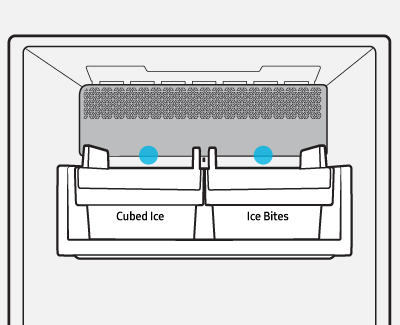
- Open the ice compartment.
- Locate the reset button (usually on the side or bottom of the ice maker).
- Press and hold the button for 10 seconds, until you hear a chime.
- Wait a few minutes—sometimes, a test cycle will run, and you’ll hear the motor.
Don’t reset more than once every 24 hours. Too many resets can damage the ice maker.
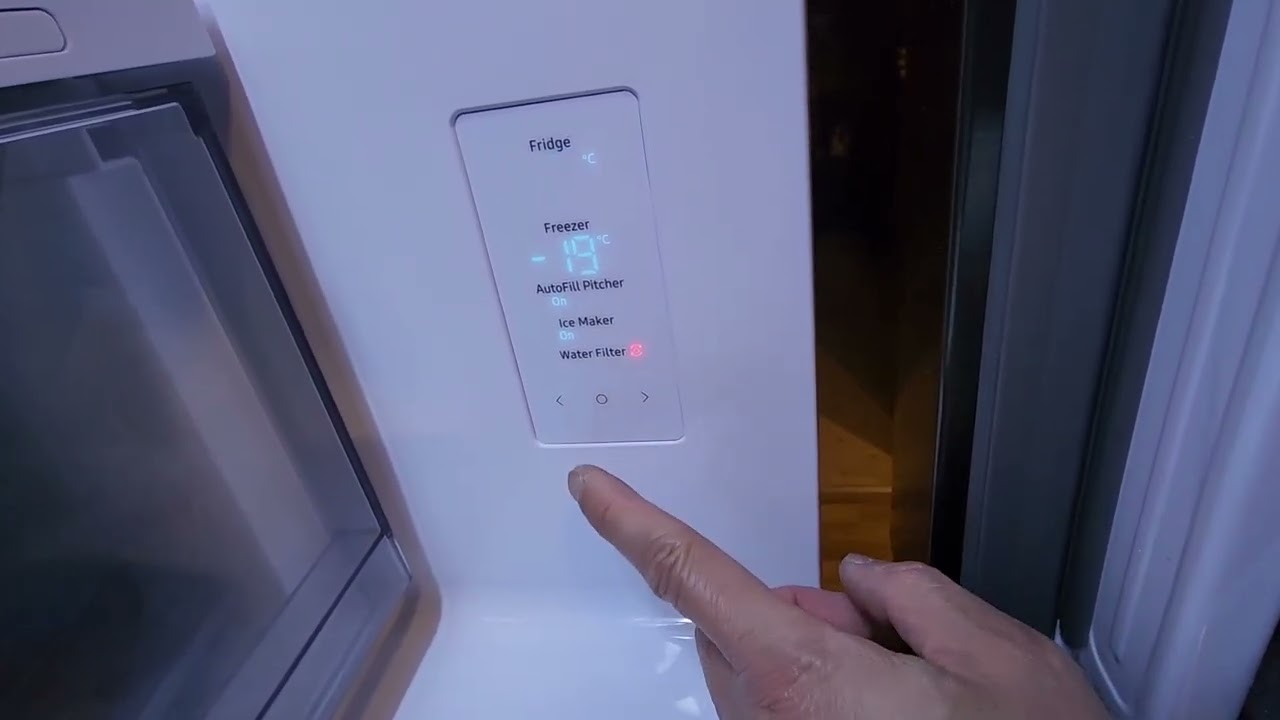
Resetting The Water Filter Light
After changing the filter, the light may stay on. Here’s how to reset it:
- Find the “Filter Reset” button on the control panel.
- Press and hold for 3-5 seconds.
- The filter light should change from red/orange to blue/green.
Some models use the “Alarm” or “Ice Type” button for this step.
When A Reset Won’t Solve The Problem
Sometimes a reset is not enough. Here’s when you should call a professional:
- The fridge isn’t cooling after a reset.
- You hear loud, repeating noises.
- Water leaks continue after a reset.
- The control panel stays blank or won’t respond.
- Error codes return after resetting.
Non-obvious insight: If your fridge keeps needing resets, it may have a deeper electrical or sensor problem. Frequent resets are not normal for a healthy fridge.
Common Mistakes When Resetting A Samsung Fridge
Many people make small errors that can prevent a successful reset.
- Pressing the wrong buttons: Always check your manual or model number.
- Not holding buttons long enough: Most resets need 5-10 seconds.
- Unplugging for too short a time: Wait at least 5 minutes for a power cycle.
- Resetting too often: If you need to reset weekly, something is wrong.
- Forgetting to reset filter or ice maker separately: These parts often need their own reset.
Quick Troubleshooting For Samsung Fridge Errors
Some problems look like they need a reset but are actually simple to fix. Check these before resetting:
- Is the fridge plugged in? Loose plugs are common after cleaning.
- Is the door fully closed? If not, the fridge won’t cool or may beep.
- Is the child lock on? This can block controls.
- Is the temperature set correctly? Accidental changes can cause issues.
If the error code stays after checking these, a reset may help.
What To Expect After Resetting
After a reset, your fridge may take a while to return to normal operation.
| Feature | What Happens After Reset | How Long It Takes |
|---|---|---|
| Cooling | Temperature returns to set level | 1-4 hours |
| Display | Flashes, then shows temps | 1-2 minutes |
| Ice Maker | Starts new cycle | Up to 24 hours for full ice bin |
| Wi-Fi/Smart Features | Reconnect to network | 2-10 minutes |
Non-obvious insight: After a reset, always check if you need to reconnect your fridge to Wi-Fi or resync smart apps. Some settings can be lost during a reset.

Tips For Preventing Future Problems
Regular care reduces the need for resets.
- Clean the coils every 6 months for better cooling.
- Change water filters every 6 months or when the light comes on.
- Don’t overload the fridge, which can block vents.
- Update software if your model supports it—bug fixes can prevent glitches.
- Check the door seals for cracks or leaks.
If you’re unsure about your model or want official instructions, Samsung’s own support page is a good place to check: Samsung Support.
Frequently Asked Questions
How Do I Reset My Samsung Fridge After A Power Outage?
Unplug the fridge for 5-10 minutes, then plug it back in. This clears minor glitches caused by sudden power loss. Make sure the display lights up and cooling resumes. If error codes appear, use the “Power Freeze” and “Power Cool” button method as described above.
Why Is My Samsung Fridge Not Cooling After A Reset?
If cooling doesn’t return after a reset, check the temperature settings, door seals, and make sure the vents aren’t blocked. If the compressor doesn’t run or you hear strange noises, there may be a mechanical problem. Contact a repair technician for help.
Can I Reset My Samsung Fridge Without Unplugging It?
Yes, most digital models let you reset using the control panel buttons (“Power Freeze” and “Power Cool”). Unplugging is only needed if the controls are unresponsive or you have a basic model without digital buttons.
How Do I Reset The Filter Light On My Samsung Fridge?
Press and hold the “Filter Reset” button for 3-5 seconds. On some models, use the “Alarm” or “Ice Type” button. The light should turn from red/orange to blue/green once reset.
Is It Safe To Reset My Samsung Fridge Often?
Frequent resets are not recommended. Doing this too much can stress the electronics and mask real issues. If you need to reset your fridge more than once every few months, ask a professional for help.
If you follow these steps, you can reset your Samsung fridge safely and quickly. Regular maintenance and careful troubleshooting will keep your fridge running smoothly for years. When in doubt, always check your user manual or contact Samsung support for your exact model.