
A simple restart of both your smartphone and your tracker solves Fitbit Inspire Not Syncing in most cases. When your device stops transferring data, the wireless connection between your hardware and the app has usually just encountered a temporary software glitch. You can confirm this by checking your phone’s Bluetooth settings to see if your tracker is listed, or by opening the official Fitbit troubleshooting guide to verify your device’s current connection status.
Why your Fitbit Inspire isn’t syncing
| Cause | How common | How to confirm it | Fix it yourself? |
|---|---|---|---|
| Bluetooth connection error | Most of the time | Check phone settings | Yes |
| Low battery level | Often | Check battery icon | Yes |
| Outdated app software | Sometimes | Check app store | Yes |
| Tracker needs restart | Sometimes | Device screen frozen | Yes |
| Background data restricted | Rarely | Check phone settings | Yes |
| Firmware update failed | Rarely | Check error message | No |
Bluetooth drops are usually caused by signal interference. If your tracker is within three feet of a Wi-Fi router, move it away to see if the connection stabilizes.
Low battery issues often manifest as intermittent screen flickering. If the device stays dark despite a full charge, the charging pins may be dirty. Use a dry cotton swab to clear debris from the contact points.
When an app update fails, check your mobile data permissions. If you’re on a metered connection, the phone may block the download to save bandwidth. Switch to a stable Wi-Fi network to force the update.
A frozen screen is rarely a hardware failure. Hold the power button for exactly fifteen seconds to trigger a hard reset. If the screen remains blank after this, the device is likely stuck in a boot loop that requires professional support.
Connection errors in the Bluetooth settings
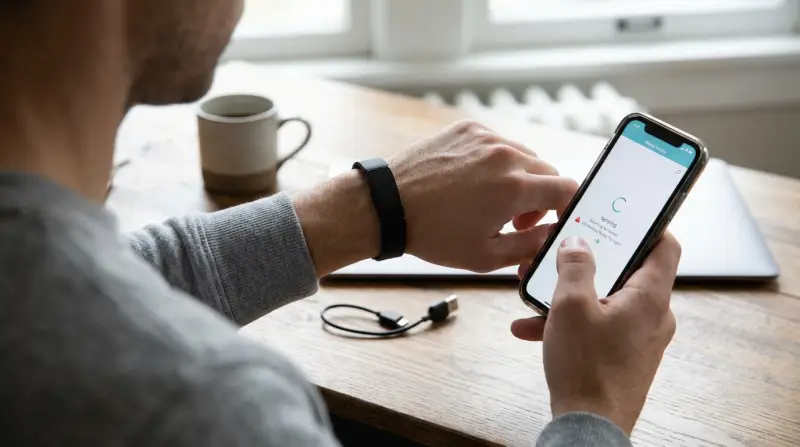
A Bluetooth handshake failure is the primary reason your tracker refuses to talk to your phone. This happens because the radio signal between the two devices is interrupted, often by a conflict with other nearby wireless hardware or a temporary software hang. To test this, go to your phone’s Bluetooth menu, look for your tracker’s name, and see if it says “Connected” or “Paired.” If it shows as “Disconnected” or is missing entirely, the link is broken.
To fix this, toggle your phone’s Bluetooth off for 10 seconds and then back on. If that doesn’t work, “forget” or “remove” the device from your Bluetooth settings entirely, then open the Fitbit app to re-add it as a new device. This process takes about 3 to 5 minutes. If you have multiple devices connected to your phone, this can sometimes cause interference; if you have another tablet nearby, turn its Bluetooth off to ensure your phone is the only one trying to sync. This fix assumes you’re using a standard modern smartphone; if you’re using an older device with an outdated operating system, you might need to update your phone’s software first for the Bluetooth protocols to match. This isn’t for users who have a physically damaged tracker, as no software change can fix a broken antenna or a fried internal chip.
Battery levels and power management
Your tracker stops syncing when the battery drops below a certain percentage because the device enters a power-saving mode. Most models disable the Bluetooth radio when the battery is critically low to preserve the remaining power for basic timekeeping. You can confirm this by looking at your tracker’s screen; if you see a low-battery icon or if the screen is completely blank, the device lacks the energy to transmit data.
Plug your tracker into its official charging cable and connect it to a reliable power source, such as a computer USB port or a wall adapter. Allow it to charge for at least 30 minutes before trying to sync again. If the device doesn’t vibrate or show a charging icon within 60 seconds of being plugged in, try a different wall outlet or a different USB port on your computer.
This assumes you’re using the original charging cable that came in the box. If you’re using a third-party cable, the pins might not align perfectly with the charging contacts on the back of your tracker, which prevents a full charge. A common mistake is using a high-amperage fast-charging brick intended for smartphones. These can overheat the internal battery or trigger a safety cutoff that prevents charging entirely. Stick to a standard 5V/1A output to ensure compatibility.
If your device is unresponsive after an hour of charging, perform a manual restart while it remains connected to the power source. This clears temporary cache errors that often mimic a dead battery. This varies by model — check the official Fitbit website for the exact charging requirements.
Software and firmware conflicts
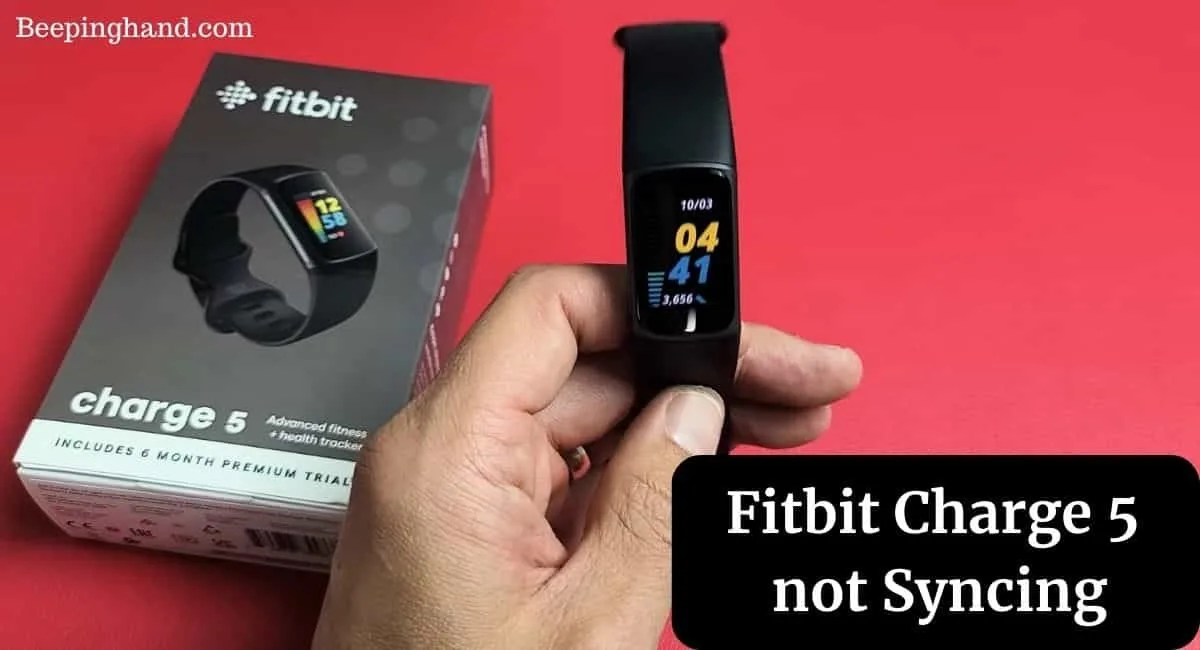
The Fitbit app requires the latest version to maintain a stable link with your tracker’s firmware. When the app is out of date, it can’t interpret the data packets coming from your tracker, which makes it look like the device isn’t syncing at all. Check your phone’s app store to see if an update is waiting. If you find an update, install it and restart your phone.
If the app is current, the issue might be the firmware on the tracker itself. Sometimes a firmware update starts but fails to finish, leaving the device in a “limbo” state where it’s neither fully updated nor fully functional. You can check for this by looking at the device icon in the app. If you see a red exclamation mark or a “Firmware Update Needed” message, follow the on-screen prompts to finish the installation.
Keep your phone within 5 feet of the tracker during this process to ensure the signal remains strong. This takes 10 to 20 minutes depending on your internet speed. If the update bar stays stuck at zero for more than 15 minutes, force-close the app and start the process again.
A common mistake is walking away while the update is in progress, which causes the connection to drop. If you see a “Sync Failed” error immediately after an update attempt, toggle your phone’s Bluetooth off and on again. If the tracker screen remains black but the app shows a successful update, perform a hard reset by holding the side button for 10 seconds. If the device vibrates, the hardware is receiving power, and you may need to re-pair it in the Bluetooth settings.
The less likely causes
-
Background data restrictions: Your phone settings may block the Fitbit app from using data while it’s in the background, which prevents automatic syncing. Check your OS battery optimization settings; if the app is set to “restricted,” it will kill the sync process the moment you lock your screen.
-
Time zone mismatch: If your phone and tracker have different time settings, the sync will fail because the data timestamps don’t match. This often happens after international travel. If your tracker shows the wrong time, toggle the “Set Automatically” switch in your phone’s date and time settings to force a refresh.
-
Corrupt cache files: Sometimes the temporary files stored by the app become corrupt. Clearing the app cache in your phone settings usually fixes this. Don’t confuse this with “Clear Data,” which logs you out and deletes your preferences.
-
Physical damage: If the tracker has been submerged in water or dropped, the internal sync components might be broken. If the device fails to vibrate when placed on the charger, the hardware is likely compromised.
What a fix usually involves
Fixing a sync issue usually involves basic troubleshooting steps that require no special tools or professional help. Most of the time, you only need your smartphone, the original charging cable, and a few minutes of patience.
If the problem is a software glitch, a simple restart or an app update costs nothing but your time. If the issue is a faulty battery or a broken charging port, you might need a replacement part. A new charging cable is a small part that usually costs a fraction of the price of a new tracker.
Before buying parts, test your device with a different USB wall adapter. People often blame the tracker when the wall brick is actually failing to provide a steady voltage. If the device charges on a computer port but not a wall outlet, your adapter is the culprit.
If you suspect hardware failure, check the official support pages for your specific model to see if it’s still under warranty. You can often find a link to request a replacement or find a repair center on the manufacturer’s website.
Never try to open the tracker casing yourself to fix internal components. This will void your warranty and likely destroy the device. If the steps above don’t work, contact the company’s official support team for a formal diagnostic check. Always provide your serial number to expedite the process.
Frequently asked questions
Can I sync my tracker without Wi-Fi?
Yes, you can sync your tracker using your phone’s cellular data. The tracker uses Bluetooth to send information to your phone, and the phone then uses its own data connection to push that information to the cloud. You don’t need a Wi-Fi connection, but you do need a stable mobile network signal for the app to successfully upload your daily activity logs.
Why is my tracker taking so long to sync?
It usually takes about 30 seconds to sync, but this depends on how much data is waiting to be transferred. If you haven’t synced in several days, the tracker has a large amount of information to move, which increases the time required. Keep your phone close to the tracker during this process to ensure the Bluetooth signal stays strong and the transfer completes without interruption.
Is it safe to leave my tracker charging overnight?
Yes, it’s safe to leave your tracker plugged in overnight as modern batteries are designed to stop drawing power once they reach a full charge. The internal charging circuitry prevents overcharging, so you don’t need to worry about damaging the battery. Always use the original charging cable to ensure the voltage and current match the specifications provided by the manufacturer.
What happens if I reset my tracker?
A factory reset deletes all data stored on your device that hasn’t yet synced to your account. Only perform a reset if you have already tried all other troubleshooting steps and the device is still failing to sync. If you reset, you’ll need to re-pair the tracker with your phone as if it were a brand-new device out of the box.
Does it matter if my phone is old?
Yes, an old phone might not support the latest Bluetooth Low Energy (BLE) standards required by newer Fitbit models. If your phone uses an outdated operating system, it may struggle to maintain a consistent connection with the tracker. You can check the manufacturer’s website for a list of compatible devices to see if your specific phone model is officially supported for your tracker.
Final Thoughts
If these basic fixes don’t get your data moving again, don’t worry. Reach out to the support team through the Fitbit app to see if there’s a deeper hardware issue. They’re usually quick to help, and you’ll likely be back to tracking your daily progress in no time at all.