
Your Fitbit Not Vibrating for Text Messages is usually caused by a disabled notification setting or a lost Bluetooth connection between your tracker and your phone. Most users find that toggling the “Notifications” setting off and back on in the Fitbit app restores the vibration alerts immediately. If that doesn’t work, the issue is often a conflict with your phone’s “Do Not Disturb” or “Focus” mode, which blocks the watch from receiving signals. Check your phone settings to ensure the Fitbit app has persistent access to your notifications.
Reasons your Fitbit isn’t vibrating
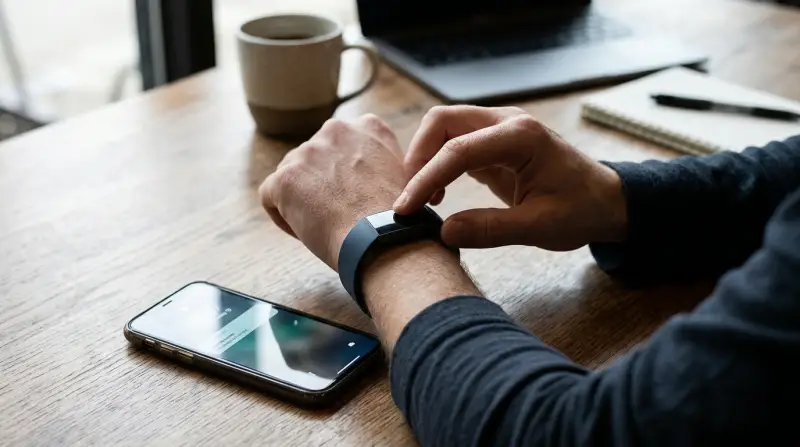
The primary reason for missing alerts is a breakdown in the background sync process. Your device relies on a steady Bluetooth LE connection to push data from your phone to your wrist. If your phone kills the Fitbit app process to save battery, the connection drops. You can verify your connection status by checking the device icon in the top-left corner of the official Fitbit help center guide for troubleshooting sync issues.
Another common cause is the “Do Not Disturb” or “Sleep Mode” setting on the tracker itself. If you accidentally enabled these, the watch will silence all incoming vibrations regardless of your phone settings. Many users mistake a dimmed screen for a powered-off device, but these modes remain active even when the display is dark.
It’s also possible that your phone’s operating system has revoked notification permissions after a recent software update. If your phone is running a strict battery optimization mode, it might be putting the app to sleep, preventing it from “waking up” your wrist when a text arrives. To fix this, manually whitelist the Fitbit app in your phone’s battery settings.
Finally, if you have multiple Bluetooth devices connected—like wireless headphones and a car stereo—your phone may prioritize audio output over the data stream needed for your notifications. This creates a bottleneck where the phone drops lower-priority background tasks. If you have more than three active Bluetooth connections, disconnect one to see if your alerts return. This varies by model; check the settings menu on your specific device to see how many concurrent Bluetooth connections it supports.
Check your notification permissions
If your tracker is connected but silent, you must verify the app permissions on your phone. This fix is for users who have recently updated their phone software or installed a new security patch. For iPhone users, go to your phone’s Settings, scroll down to “Fitbit,” and ensure “Notifications” is set to “Allow.” On Android, go to Settings, then “Apps,” select “Fitbit,” and tap “Notifications” to ensure they’re toggled to “On.”
Once you confirm the permissions, go inside the Fitbit app. Tap your profile icon, select your device, and look for the “Notifications” menu. If you see “Text Messages” unchecked, select it. If it’s already checked, toggle it off, wait ten seconds, and toggle it back on. This forces the app to re-establish the handshake with your phone’s notification service. If you have several messaging apps, such as WhatsApp or Signal, ensure you have selected them individually within the “App Notifications” sub-menu. If you don’t see these options, ensure your app is updated to the latest version. This isn’t for users who have a broken vibration motor; if your watch doesn’t vibrate even when you set an alarm, you likely have a hardware failure that requires a manufacturer warranty claim rather than a software fix.
Reset the Bluetooth connection
If permissions are correct, the Bluetooth link might be “stuck.” This fix is for those who experience intermittent alerts—where the watch vibrates sometimes but not always. First, go to your phone’s Bluetooth settings and find your Fitbit device in the list of paired devices. Select “Forget this device” or “Unpair.” Don’t skip this step, as simply turning Bluetooth off and on is often not enough to clear a corrupted cache.
After unpairing, restart your phone completely. Once the phone reboots, open the Fitbit app and tap the device icon to initiate a new “Set Up a Device” sequence. Follow the on-screen prompts to re-pair the tracker as if it were new. This process forces the phone and the tracker to exchange new encryption keys, which often clears out errors left behind by previous software updates. If you have a secondary device, like an old tablet, also connected to the tracker, turn off Bluetooth on that device while you perform this reset. This avoids a trade-off where the tracker tries to sync with two devices at once, which often confuses the notification stream. If the vibration still doesn’t work after this, try a factory reset of the tracker, but keep in mind that this deletes unsynced health data.
Verify the device settings
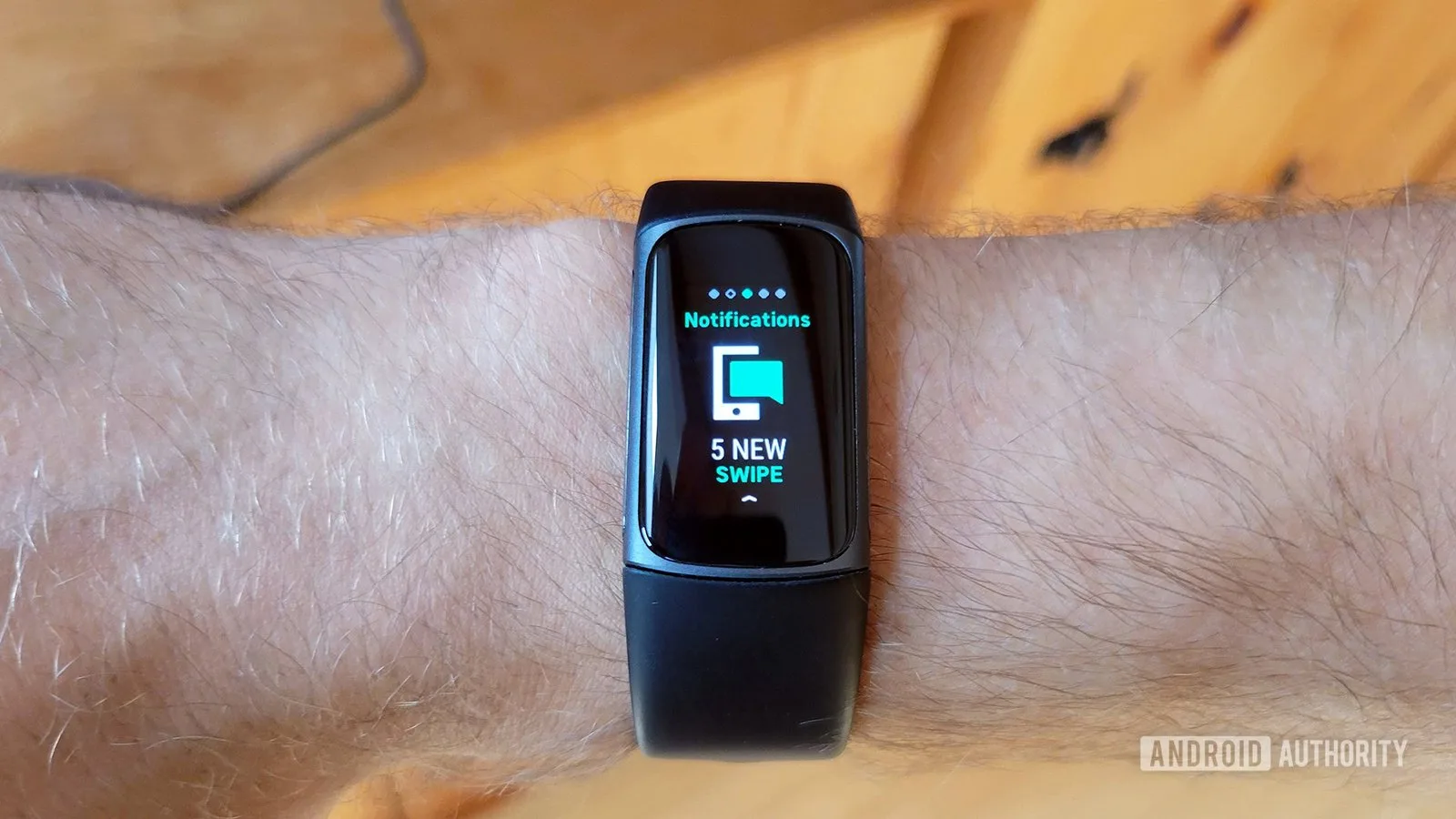
For the most stubborn cases, look at the physical settings on the tracker itself. Swipe down or side-to-side on your watch face to find the “Settings” gear icon. Look for “Do Not Disturb” (often a moon icon) or “Sleep Mode” (a bed icon). If either is enabled, your device will mute all incoming pings. This is a common mistake; people often toggle these modes before bed and forget to turn them off in the morning.
This fix is also for users who use “Focus” modes on their phones. If you have an iPhone with “Focus” turned on, it may be suppressing notifications from the Fitbit app. In your phone’s Focus settings, ensure that the Fitbit app is added to the “Allowed Apps” list. If you’re using an Android phone, look for “App Battery Usage” and set it to “Unrestricted.” This prevents the phone from killing the app in the background. If you have tried these steps and the device still refuses to vibrate, test the motor by setting a silent alarm for one minute from now. If the watch vibrates for the alarm but not for texts, the issue is definitely in the notification software settings. If it doesn’t vibrate for the alarm either, you’re dealing with a hardware defect.
What not to do
Don’t delete and reinstall the Fitbit app immediately. This rarely fixes corrupted Bluetooth cache files and often forces you to lose your login credentials, requiring a full account recovery.
Avoid turning off “All-Day Sync” to save battery. This prevents the tracker from maintaining the constant connection required for real-time text alerts. If you disable this, your device will only fetch data during manual refreshes, creating a lag of up to thirty minutes for incoming notifications.
Don’t reset your phone to factory settings. This is an extreme measure that won’t resolve a specific app-to-device notification handshake failure. You’re better off toggling Bluetooth off and on to force a fresh handshake.
Don’t ignore the “Always-On” display settings. Some older models disable background data processes when the screen is dimmed to save power. If you notice notifications arrive only when the phone is unlocked, keep the screen active to maintain the necessary background permissions.
How to stop it happening again
To keep your notifications steady, you must manage how your phone interacts with the Fitbit app. The most common mistake is allowing the phone to aggressively manage the app’s battery usage, which kills the background process. Users often assume closing the app saves battery, but this actually forces the device to re-establish a Bluetooth handshake every time you reopen it, causing a lag that frequently drops incoming alerts.
| If you’re doing this | Do this instead | Why |
|---|---|---|
| Closing the app manually | Keep the app running in the background | It needs to stay open to push alerts |
| Ignoring app updates | Update the app when prompted | New versions fix known handshake bugs |
| Enabling Power Saver | Add Fitbit to “Battery Optimization” exclusion | Power saver kills the Bluetooth background task |
| Using “Do Not Disturb” | Use “Scheduled” Do Not Disturb | This prevents manual errors from silencing alerts |
To verify your settings, check your phone’s “Battery Optimization” menu. If Fitbit is listed under “Optimized,” move it to “Unrestricted.” If you remain unsure, check if your phone’s “Adaptive Battery” feature is enabled. If it is, your phone is likely putting the app to sleep after 30 minutes of inactivity. Disable this for the Fitbit app specifically to ensure a persistent connection.
Frequently asked questions
Can I fix this if my watch is very old?
Yes, you can fix it if the hardware functions, though older models may lack firmware updates for newer operating systems. Devices over four years old often struggle to maintain Bluetooth connections with modern smartphones. Check the manufacturer’s compatibility list to confirm your phone OS is still supported.
Why does my watch vibrate for calls but not texts?
Call and text notifications are managed by separate permission toggles within the Fitbit app. Even if your phone allows notifications, the app’s “Text Messages” toggle might be disabled while “Calls” remains active. Check the “Notifications” menu in your device settings to ensure both categories are toggled on.
How long should it take to sync a text?
A text should appear on your wrist within three seconds of hitting your phone. Delays of ten seconds or more usually indicate weak Bluetooth signals or interference from other nearby devices. If the delay persists, your phone’s battery optimization settings may be delaying data transfers to save power.
Is it safe to factory reset my Fitbit?
Yes, a factory reset is safe, provided you sync your data first. This process clears the tracker’s internal memory to resolve deep-seated software glitches that standard restarts can’t fix. You’ll need to re-pair the device to your account afterward, so keep your login credentials ready.
What happens if I turn off All-Day Sync?
You must keep “All-Day Sync” enabled to receive real-time text notifications. Disabling this feature saves battery but forces your tracker to update only when you manually open the app. If you want vibration alerts, the connection between your phone and tracker must remain active at all times.
Final Thoughts
If the problem persists, don’t worry. Sometimes a simple restart of both your phone and your tracker clears out those stubborn software glitches. If you’re still not feeling those buzzes, reach out to Fitbit’s support team. They’ll help you figure out if there’s a deeper hardware issue you can’t fix alone.
Related guides