
Resetting your AirPods 3rd Generation can solve many problems. If your AirPods won’t connect, sound is missing, or they act strangely, a reset often helps. Many owners find this process confusing, but it’s simple if you follow the right steps. Understanding how to reset your AirPods 3 can save you time, avoid frustration, and help you enjoy your music or calls again. This guide walks you through everything you need to know, including specific instructions, common mistakes, and what to check before and after resetting. Let’s dive in and make your AirPods work like new.
Why Reset Airpods 3rd Generation?
Sometimes, AirPods 3 stop working as expected. Common problems include:
- Bluetooth connection drops
- No sound from one or both AirPods
- Charging issues
- Microphone not working
- Pairing problems with new devices
A reset can clear these issues. It removes old settings and lets your AirPods start fresh. In most cases, a reset fixes problems without needing expert help. Apple recommends resetting if basic troubleshooting (like charging or reconnecting) does not work.
Knowing when and why to reset saves you from unnecessary repairs or replacements.
Preparing For The Reset
Before you reset your AirPods 3, check a few things:
- Battery Level: Make sure both AirPods and the case are charged. Low battery can cause errors during the reset.
- Device Compatibility: Ensure your phone, tablet, or computer supports AirPods 3. Outdated devices may not connect after a reset.
- Backup Settings: If you use custom controls or settings, note them down. A reset will erase these.
- Clean the AirPods: Dirt or debris can block sensors. Wipe the AirPods and case gently with a soft, dry cloth.
- Update Software: Make sure your device has the latest software. Old software can cause pairing issues.
A little preparation prevents new problems after the reset. Many beginners miss the battery check, which leads to failed resets.
How To Reset Airpods 3rd Generation: Step-by-step
Resetting AirPods 3 is different from earlier models. Follow these steps carefully:
Forget Airpods On Your Device
- Go to Bluetooth settings on your device.
- Find your AirPods 3 in the list.
- Tap the “i” icon next to AirPods.
- Choose “Forget This Device.”
- Confirm your choice.
This step disconnects AirPods from your device. Skipping it can cause pairing problems later.
Reset Airpods 3rd Generation
- Place both AirPods in the charging case.
- Open the lid.
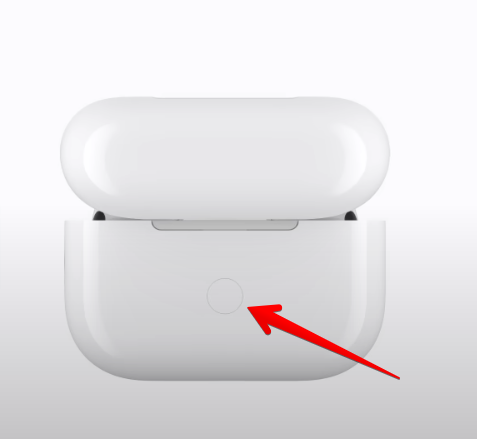
- Find the setup button on the back of the case.
- Press and hold the setup button for about 15 seconds.
- The status light will change. First, it flashes white, then amber, then white again.
Release the button when the light flashes white. This means your AirPods are reset and ready to pair. If the light does not flash, check battery or clean the case contacts.
Reconnect Airpods
- With the lid open, hold the case near your device.
- Follow the on-screen instructions to pair.
- Customize settings if needed.
Your AirPods should now work like new. If you see errors, repeat the steps or check device compatibility.
Comparing Airpods Reset Methods
Not all AirPods models reset the same way. Here’s a quick comparison of the process for each generation.
| Model | Setup Button Location | Reset Time | Status Light Change |
|---|---|---|---|
| AirPods 1/2 | Back of charging case | 15 seconds | Flashes amber, then white |
| AirPods 3 | Back of charging case | 15 seconds | Flashes white, amber, then white |
| AirPods Pro | Back of charging case | 15 seconds | Flashes white, amber, then white |
This table shows that AirPods 3 and AirPods Pro have similar reset steps, but the status light sequence helps you know when the reset is complete.
Resetting Each Airpod: Individual Steps
Sometimes, only one AirPod has trouble. You can reset individual AirPods for better results.
Resetting Left Or Right Airpod
- Remove the faulty AirPod from the case.
- Clean the contacts gently.
- Place it back in the case.
- Repeat the full reset process.
This often fixes sound or charging problems in one AirPod. If the issue remains, check for hardware damage.
What If Only One Airpod Connects?
If one AirPod connects but the other does not:
- Make sure both are charged.
- Reset both AirPods together.
- Pair them with your device as a set.
This helps solve syncing issues. Many users miss this step and only reset the case, not both AirPods.
Troubleshooting After Reset
Sometimes, resetting does not fix every issue. Here are advanced tips:
- Check iCloud Account: AirPods may stay linked to your Apple ID. Remove them from your iCloud account if you plan to sell or give them away.
- Try a Different Device: Pair your AirPods with another phone or tablet. If they work, your original device may have software issues.
- Inspect for Hardware Damage: If your AirPods do not reset, look for cracks, water damage, or broken contacts.
- Update Device Firmware: Apple releases updates for AirPods. Connect them and wait for updates to install.
If problems continue, contact Apple Support. Sometimes, hardware repairs are needed.

Common Mistakes When Resetting Airpods 3
Many beginners make errors that cause the reset to fail. Here are mistakes to avoid:
- Not Forgetting the Device: Always remove AirPods from Bluetooth settings first.
- Low Battery: Charge both AirPods and the case before resetting.
- Short Button Press: Hold the setup button for at least 15 seconds.
- Closing the Lid Early: Keep the lid open until the reset is finished.
- Dirty Contacts: Clean your AirPods and case before starting.
Avoiding these mistakes saves time and prevents new issues. If your AirPods still do not work, repeat the process and check each step.
Reset Vs. Hard Reset: What’s The Difference?
Some users hear about “hard reset” for AirPods. Here is how it compares:
| Type | Process | Best For | Data Lost |
|---|---|---|---|
| Standard Reset | Setup button for 15 seconds | Connection, audio, minor issues | Yes (pairing data, settings) |
| Hard Reset | Setup button + remove from iCloud | Major problems, ownership transfer | Yes (pairing, iCloud info) |
A hard reset is needed if you plan to sell your AirPods or if normal reset does not help. It removes your Apple ID, making them ready for a new owner.
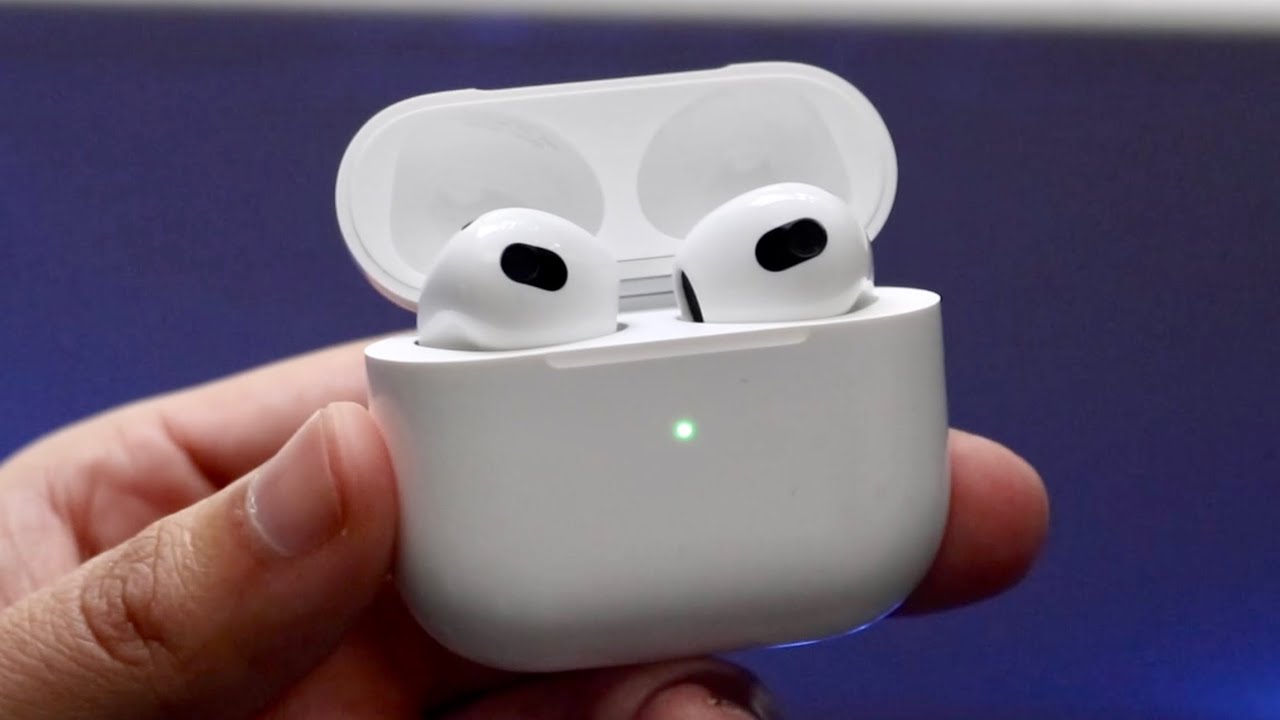
Airpods 3rd Gen Vs. Airpods Pro: Reset Differences
AirPods 3 and Pro are similar, but a few details differ.
| Feature | AirPods 3 | AirPods Pro |
|---|---|---|
| Noise Cancellation | No | Yes |
| Reset Process | Standard steps | Same steps, extra firmware checks |
| Status Light | Flashes white, amber, white | Same |
Knowing these differences helps if you own both types or switch between them.
Practical Tips For A Smooth Reset
Here are some useful tricks that many people overlook:
- Do the Reset Near Your Device: Stand close to your phone or tablet during pairing. Bluetooth works best within a few feet.
- Use Apple Support App: If your AirPods have problems, the Apple Support app can guide you step-by-step.
- Check for Interference: Remove other Bluetooth devices nearby. They can cause pairing problems.
- Restart Your Device: After reset, restart your phone or tablet. This clears old Bluetooth connections.
- Test Each Function: After pairing, check sound, microphone, and battery status. This ensures everything works.
These tips make the reset process smoother and help you avoid hidden problems.
When To Seek Help
If your AirPods 3 still do not work after resetting, it may be time to get expert help. Signs you need support include:
- No status light: The case does not show any light during reset.
- AirPods not detected: Your device cannot find AirPods after multiple tries.
- Physical damage: Cracks, dents, or water exposure.
- Repeated failures: Resetting does not fix the same problem.
Apple offers support online and in stores. You can find more information at Apple Support.
Frequently Asked Questions
How Often Should I Reset My Airpods 3?
Resetting is not needed regularly. Only reset when you have connection problems, audio issues, or plan to pair with a new device. Too many resets can erase custom settings.
Can I Reset Airpods 3 Without The Charging Case?
No. The charging case is required for resetting. Without it, you cannot press the setup button or complete the process.
What Happens To My Airpods Settings After Reset?
All settings, such as custom controls and device pairing, are erased. You will need to set up your AirPods again and customize features.
Will Resetting Fix Battery Problems?
Sometimes. If battery problems come from software errors, a reset helps. If the battery is damaged, resetting will not fix it.
Can I Use Airpods 3 With Non-apple Devices After Reset?
Yes. After resetting, your AirPods 3 can pair with any Bluetooth device, including Android phones and Windows computers.
Resetting your AirPods 3rd Generation is simple if you follow these steps. With the right preparation and care, you can fix most problems yourself. Remember to check battery, clean your AirPods, and avoid common mistakes. If problems continue, expert support is available.
Enjoy clear sound and easy connections once your AirPods are reset and ready.