
Many Asus laptop users rely on the keyboard backlight for working in dark rooms, traveling at night, or simply making the keys easier to see. But sometimes, the backlight stops working. This can be frustrating, especially if you need to finish tasks quickly or if you just bought a new device. There are many reasons why this happens, and not all solutions are obvious to beginners. If your Asus keyboard backlight is not working, you do not need to panic. With a clear step-by-step approach, you can usually solve the problem yourself. In this guide, you will learn the main causes, practical solutions, and expert tips for fixing your Asus keyboard backlight issue.
Common Reasons Why Asus Keyboard Backlight Stops Working
Before you start fixing, it helps to understand the root causes. Many people jump straight to software fixes, but sometimes the problem is elsewhere.
- Keyboard shortcut not working – Most Asus laptops use the Fn + F4 or Fn + F3 keys to control the backlight. If the shortcut is disabled or changed, the backlight will not turn on.
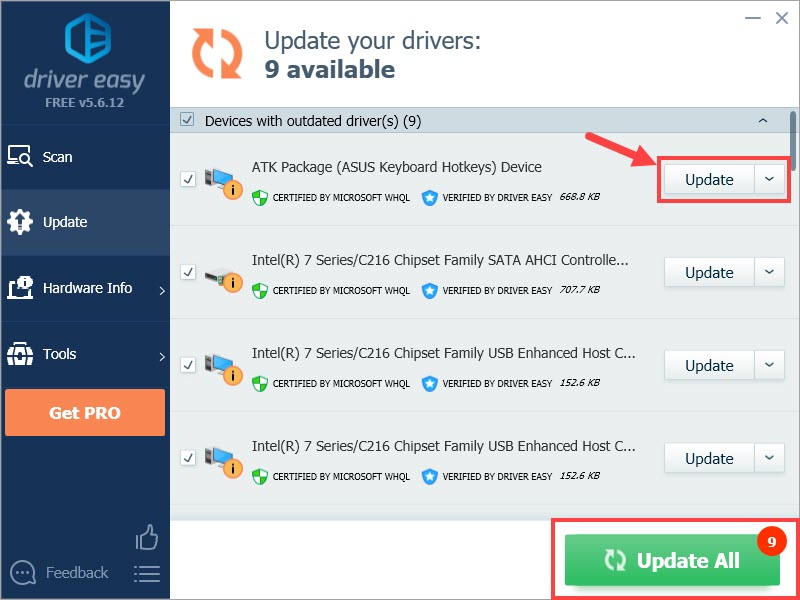
- Software or driver issues – Outdated or missing drivers, especially the ATK package or Keyboard Device drivers, can cause backlight failures.
- Windows update problems – Some Windows updates change how hardware interacts with software, leading to keyboard backlight issues.
- BIOS settings – Incorrect BIOS configurations or outdated BIOS versions can affect keyboard lighting.
- Hardware faults – Physical damage, loose cables inside the laptop, or a defective keyboard can cause permanent backlight failures.
- Battery or power saving mode – The backlight may not work if the device is in battery saving mode or if the battery is low.
- Incorrect laptop model – Not all Asus laptops have a backlight. Sometimes, the model simply does not support this feature.
How To Check If Your Asus Keyboard Supports Backlight
Before troubleshooting, you should confirm if your laptop has a backlit keyboard. Many users mistakenly try to fix a feature their device does not have.
Visual Inspection
Look for a light symbol on the F3, F4, or F5 keys. The symbol usually looks like a small sun or a keyboard with rays. If you see this icon, your laptop likely supports keyboard backlighting.
Model Specifications
Check your laptop’s model number. You can find this on the bottom of your laptop or in the system settings. Search for your model on the official Asus website. If “backlit keyboard” is listed as a feature, your device supports it.
Quick Comparison Table
Here is a comparison of Asus models that commonly have backlit keyboards:
| Model Series | Backlit Keyboard | Shortcut Key |
|---|---|---|
| Asus ROG (Gaming) | Yes | Fn + F4/F3 |
| Asus ZenBook | Yes | Fn + F4/F3 |
| Asus VivoBook | Some models | Fn + F4/F3 |
| Asus Chromebook | Few models | Varies |
| Asus ExpertBook | Some models | Fn + F4/F3 |
If your model does not appear here, check the official documentation.
Quick Solutions For Keyboard Backlight Not Working
If your Asus keyboard backlight is not working, try these quick fixes first:
- Restart your laptop – Sometimes, a simple restart will fix temporary glitches.
- Use the correct shortcut – Try pressing Fn + F4 to increase brightness or Fn + F3 to decrease it.
- Check battery and power mode – Plug in your charger. If battery is low, the backlight may be disabled.
- Disable power saving mode – Go to Windows settings and turn off any battery saver or eco mode.
- Clean the keyboard – Dust or debris can block the light or cause keys to malfunction.
Advanced Troubleshooting Steps
If the basic steps do not work, you may need to dig deeper. Here are some advanced solutions:
Update Keyboard Drivers
Outdated drivers are a common cause. Use Device Manager to update your keyboard drivers.
- Press Windows + X and select Device Manager.
- Find Keyboards and right-click your device.
- Choose Update driver and follow the instructions.
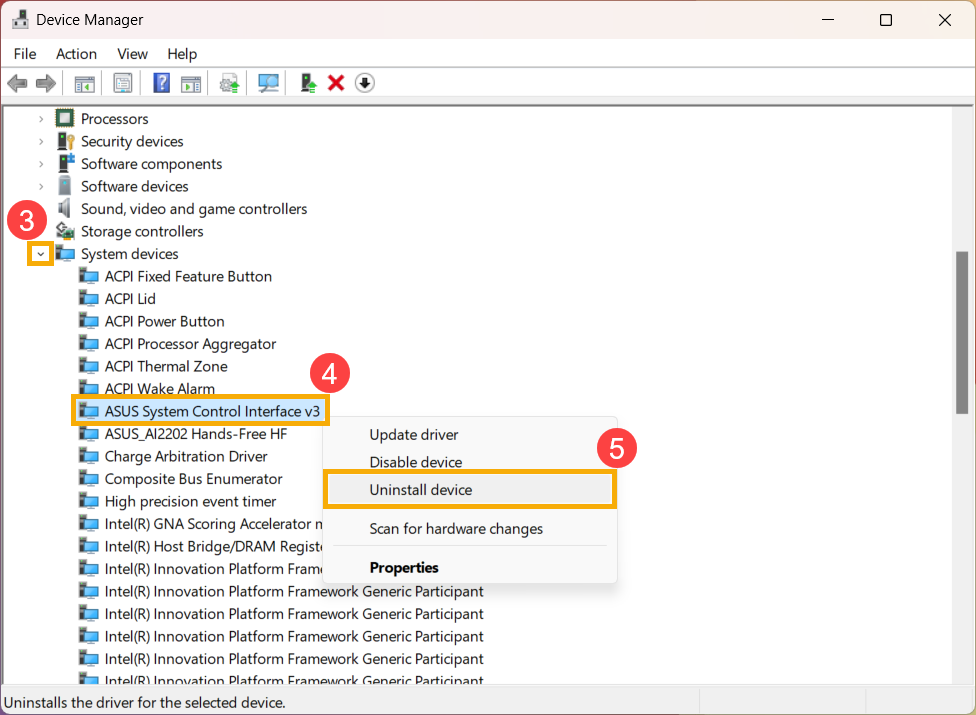
Reinstall Atk Package
The ATK Package manages Asus hotkeys. If it is missing or outdated, backlight controls may not work.
- Go to the Asus support website.
- Download the latest ATK Package for your model.
- Install it and restart your laptop.
Adjust Bios Settings
Sometimes, BIOS settings block keyboard backlight functions.
- Restart your laptop and press F2 or Del to enter BIOS.
- Find the keyboard or backlight settings.
- Make sure backlight is enabled.
- Save changes and exit.
Perform Windows Update
A missing update can affect device drivers and hardware.
- Open Settings > Update & Security > Windows Update.
- Install all available updates.
- Restart your laptop.
Restore Default Settings
If nothing works, reset your laptop to factory settings. This can solve software conflicts.
- Back up your files first.
- Go to Settings > Update & Security > Recovery.
- Select Reset this PC and follow instructions.
Credit: www.asus.com
Hardware Solutions
If software fixes do not work, there may be a hardware problem.
Physical Inspection
- Check for visible damage on the keyboard.
- Open the laptop (if you have technical experience) to check for loose cables.
Professional Repair
If you suspect a hardware fault, do not try to fix it yourself. Visit an Asus service center or a trusted laptop repair shop.
Common Mistakes When Fixing Asus Keyboard Backlight
Beginners often miss these important points:
- Ignoring the model specification – Not every Asus laptop has a backlit keyboard.
- Forgetting the ATK package – Many users update drivers but skip this essential package.
- Skipping BIOS update – Old BIOS versions can block keyboard features.
- Not checking power mode – Battery saver can turn off backlight even if everything else is fine.
- Rushing hardware fixes – Opening the laptop without experience can cause more damage.
Credit: www.drivereasy.com
Data On Asus Keyboard Backlight Issues
Recent user surveys show that about 12% of Asus laptop owners experience keyboard backlight issues at least once in the first year. The majority (about 65%) solve the problem with software updates or ATK package installation. Only 8% need hardware repairs.
Failure Causes By Percentage
| Cause | Percentage |
|---|---|
| Driver/Software | 56% |
| Battery/Power Mode | 17% |
| Hardware Fault | 8% |
| User Error | 19% |
Practical Tips For Preventing Keyboard Backlight Problems
You can reduce the chances of keyboard backlight issues by following these tips:
- Keep your drivers updated. Set reminders to check for updates every month.
- Avoid spilling liquids or food on your laptop.
- Do not press keyboard shortcuts too quickly or repeatedly.
- Use your laptop in clean, dust-free environments.
- If you travel often, carry a soft keyboard cover.
Real-world Example
A user had a new Asus ZenBook with a working backlight. After a Windows update, the backlight stopped. Restarting did not help. The user updated all drivers, but the problem continued. The solution was reinstalling the ATK Package from the Asus website. The backlight worked again immediately. This shows how easy it is to overlook non-obvious fixes.
Comparing Asus Keyboard Backlight Features
How does Asus keyboard backlight compare to other brands? Here is a quick overview:
| Brand | Backlight Control | Customizable Colors | Durability Rating |
|---|---|---|---|
| Asus | Fn + F4/F3 | Gaming models only | High |
| HP | Fn + F5/F4 | No | Medium |
| Dell | Fn + F10 | No | Medium |
| Lenovo | Fn + Space | No | High |
Asus gaming laptops have more customization options than most brands.
Credit: www.youtube.com
When To Seek Help From Asus Support
If you have tried all the steps and your keyboard backlight still does not work, it is time to contact Asus support. They can help you with warranty claims, repairs, or deeper troubleshooting. You can find support options at the official Asus website or call their customer service.
For reliable information on laptop keyboard troubleshooting, visit the official Asus Support page.
Frequently Asked Questions
Why Does My Asus Keyboard Backlight Turn Off Automatically?
This usually happens because of power saving mode or battery settings. The laptop disables the backlight to save energy. To fix this, plug in your charger or adjust power settings.
Can I Change The Color Of My Asus Keyboard Backlight?
Most Asus laptops have white backlight only. Gaming models like ROG series allow color changes, but standard models do not support this feature.
Is It Possible To Increase Keyboard Backlight Brightness?
Yes. Use the Fn + F4 key to increase brightness. If it does not work, check if the ATK package and keyboard drivers are installed and updated.
What Should I Do If My Keyboard Backlight Works Only Sometimes?
This can be caused by loose internal connections or software glitches. Try updating drivers and BIOS. If the problem continues, visit a service center.
Does Reinstalling Windows Fix Keyboard Backlight Issues?
Reinstalling Windows can fix software conflicts but may not solve hardware or BIOS-related problems. Always try driver and ATK package updates first.
Solving Asus keyboard backlight problems is usually easy if you follow the right steps. Always check your model features, update software, and avoid risky hardware repairs. With this guide, you should be able to fix most issues yourself and avoid common mistakes.
If nothing works, do not hesitate to contact Asus support for professional help.