
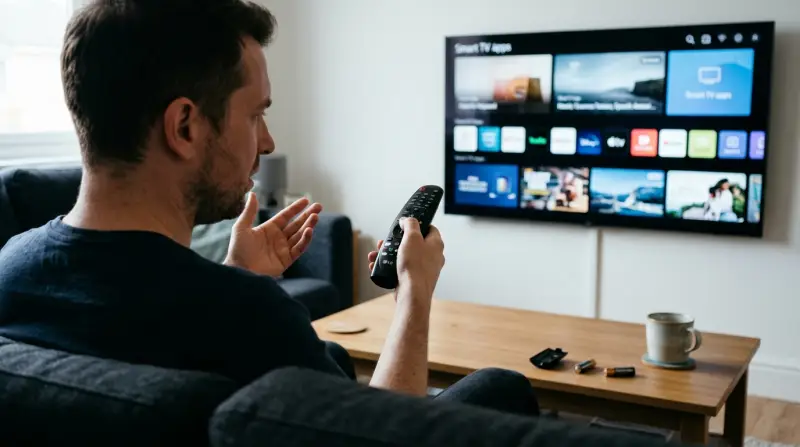
The most common reason for Lg Magic Remote Pointer Not Working is a temporary loss of the wireless pairing between the remote and the television. This issue happens in most cases when the batteries are low or when the signal is blocked by other electronic devices nearby. You can confirm this quickly by checking if the volume or channel buttons still work; if they do, the remote has power but has lost its connection to the pointer feature. If the entire remote is dead, the problem is likely the batteries or a hardware failure.
Fixing an LG Magic Remote Pointer Not Working
| Cause | How common | How to confirm it | Fix it yourself? |
|---|---|---|---|
| Unpaired remote | Very common | Cursor doesn’t move | Yes |
| Low battery power | Very common | Slow or jerky cursor | Yes |
| Signal interference | Common | Cursor moves randomly | Yes |
| Dirty sensor lens | Occasional | Pointer is unresponsive | Yes |
| Remote hardware fault | Rare | No buttons respond | No |
| TV software bug | Rare | Remote works on others | Yes |
Most users assume a dead remote means dead batteries. If the cursor is entirely frozen, the pairing has likely dropped. Hold the “Back” and “Home” buttons simultaneously for ten seconds to force a re-sync.
Signal interference often stems from external devices placed too close to the TV. If your cursor jumps erratically, move your soundbar or router at least three feet away from the television’s IR receiver. This physical separation usually resolves the signal noise.
A dirty sensor lens is the most overlooked culprit. Use a dry microfiber cloth to wipe the front of the remote. Don’t use liquid cleaners, as moisture can seep into the internal circuitry and cause permanent damage.
If you suspect a software bug, perform a hard power cycle. Unplug the TV from the wall for sixty seconds to perform a power cycle. If the remote still fails on your TV but controls a secondary unit, the issue is your TV’s Bluetooth module, not the remote itself. In that case, you must contact the manufacturer for a firmware repair.
Connection loss between devices
A simple loss of synchronization between the remote and the TV receiver is the primary cause of an unresponsive pointer. This happens when the Bluetooth or radio frequency handshake between the two devices is interrupted, often after a power outage or a software update on the television. You can confirm this by pressing the “Home” or “Back” button; if the TV ignores these inputs, the pairing is definitely broken.
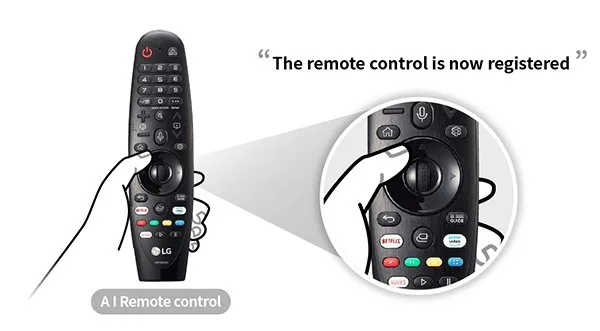
To fix this, you need to reset the connection. Hold down the “Back” and “Home” buttons simultaneously for about five seconds until the power button on the remote blinks. Once it stops blinking, press the “Wheel” (OK) button in the center to re-register the remote with the television. This process takes less than a minute. If you see a message on the screen saying “The Magic Remote has been registered,” the pointer should return immediately.
If the pointer remains unresponsive, check for signal interference. A common mistake is placing a soundbar or a router directly in front of the TV’s IR sensor. If your remote uses infrared, it requires a direct line of sight. If it uses Bluetooth, physical obstructions like metal cabinets or thick glass shelves may block the signal. Move any dense objects away from the TV base to see if the connection stabilizes.
If it fails, turn the TV off at the wall, wait for one minute, and try the pairing again. This assumes the TV is a modern webOS model; older units without Bluetooth support don’t have a pointer feature at all. If the screen says “Pairing failed,” check if your TV is running the latest firmware as recommended by the manufacturer. This is a common mistake; many people skip updates, which causes the TV to lose compatibility with newer remote signals. If the firmware is current and the remote still fails, replace the batteries. Even if the remote blinks, low voltage often prevents the handshake from completing successfully.
Battery drain and power levels
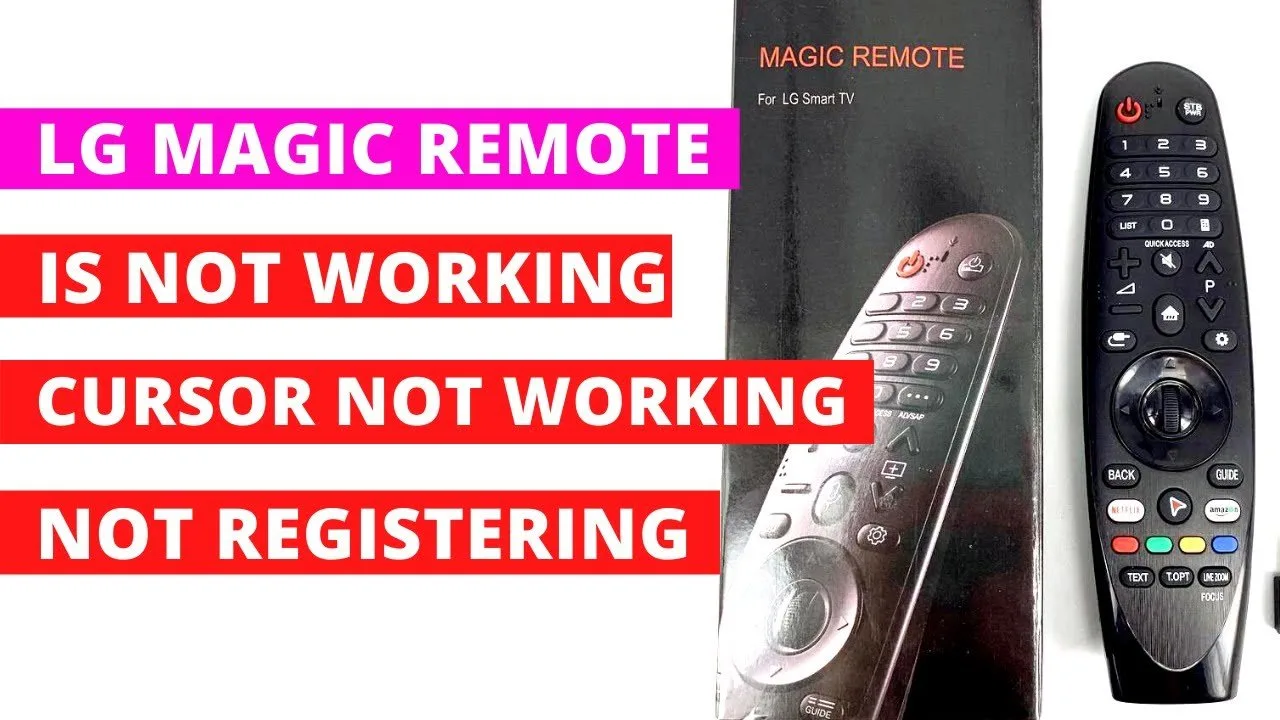
Weak batteries are a frequent culprit because the pointer feature requires more consistent power than standard button presses. You can tell if this is the cause by looking for a “low battery” icon on the TV screen or noticing that the pointer moves slowly or disappears intermittently. Even if the remote can turn the TV on, it doesn’t mean the batteries have enough charge to maintain the pointer’s sensor data.
Replace the old batteries with a fresh pair of high-quality alkaline cells. Avoid mixing old and new batteries, as this causes voltage imbalances that confuse the remote’s internal circuits. If the pointer remains sluggish after replacing the batteries, take the batteries out and hold down any button on the remote for ten seconds to drain any residual charge. Put the batteries back in and try the pointer again. If you use rechargeables, ensure they’re fully charged, as their lower base voltage compared to standard alkaline batteries can sometimes lead to poor performance. This isn’t for users who have a physical remote fault; if the remote has been dropped or exposed to liquid, the internal board may be damaged beyond what a battery change can resolve.
Wireless interference and distance
External signals often block the connection between the remote and the TV, causing the pointer to freeze or drift. This happens if you have a router, a soundbar, or another wireless device sitting directly in front of the TV’s receiver. You can confirm this by temporarily moving any electronic devices at least three feet away from the TV or the space where you hold the remote.
If the pointer works better when you’re standing closer to the TV, you have confirmed that signal interference or distance is the issue. The Magic Remote uses radio frequencies that can be disrupted by thick walls or large metal objects. If you have a large living room, try moving closer to the center of the screen.
If the interference persists, check if you have recently added new smart devices to your home, such as a new Wi-Fi mesh node or a Bluetooth speaker, which might be crowding the same frequency band. Most consumer electronics operate on the 2.4GHz spectrum. If your router is set to a crowded channel, it will create packet loss for your remote. Log into your router settings and toggle the channel width to “Auto” or switch to a less congested frequency.
A common mistake is leaving the remote on a couch or under a blanket, which blocks the signal. Always keep the remote in an open space when not in use to maintain a clear path.
This is a trade-off: you want the convenience of a wireless pointer, but you must keep the line of sight relatively clear to avoid signal lag.
The less likely causes
-
Dirty sensor lens: Dust or fingerprints on the small glass window at the front of the remote block infrared signals. Clean it gently with a dry microfiber cloth. If you see a smudge that resists a dry cloth, use a tiny drop of isopropyl alcohol, but don’t spray the remote directly.
-
TV software conflict: A temporary glitch in the TV’s operating system might freeze the pointer. Unplug the TV from the power outlet for two full minutes to force a cold boot. This forces the TV to re-initialize its internal components.
-
Broken internal motion sensor: If you dropped the remote and the pointer no longer moves even with new batteries, the internal gyroscope is likely damaged. This requires a professional repair or a replacement remote.
-
Unsupported application: Some third-party apps don’t support the pointer feature. Test the remote on the main TV home screen to see if the issue is limited to one app. If the pointer works on the home screen but vanishes inside a specific streaming service, the app’s developer has disabled the feature. You must navigate that specific interface using the physical directional pad instead.
-
RF interference: Large metal objects or high-frequency routers placed directly between the remote and the TV can disrupt the signal. If your TV is mounted in a metal-backed cabinet, move the router at least three feet away to see if responsiveness improves.
What a fix usually involves
Fixing a pointer issue usually involves a few minutes of your time and no extra equipment. Most solutions rely on the built-in pairing menu or a simple power cycle of the television. To power cycle correctly, unplug the TV from the wall for at least 60 seconds. This clears the temporary cache in the wireless module that often hangs during a firmware update.
If these steps don’t work, you might need a replacement remote, which is a small part of the total cost of the television. If you need to buy a new one, always verify the model number on the back of your current remote to ensure compatibility. You can find the exact part number by checking the official manufacturer support page for your specific TV model.
Never purchase a generic, unbranded remote. These often lack the necessary gyroscopic motion sensors required to support the pointer feature. If the remote feels significantly lighter than your original, it’s likely missing this hardware.
If you have tried all the steps above and the pointer still doesn’t appear, the issue is likely a hardware failure inside the remote or the TV’s internal wireless module. To distinguish between the two, try using a smartphone app version of the remote. If the app’s pointer works, your physical remote is broken. If the app also fails, the TV’s internal receiver has likely failed.
In such cases, contact the manufacturer’s support team for a diagnostic check or a warranty claim. Don’t attempt to open the remote housing. This will void your warranty and risks permanent damage to the delicate internal ribbon cables.
Final Thoughts
If you’ve tried these fixes and the cursor still won’t appear, it’s worth checking for a software update in your TV’s settings menu. Sometimes, a simple system refresh is all it takes to get things running smoothly again. Don’t worry if it’s still acting up; you can always contact LG support for help.
Related guides
- Comcast Remote Xr2 Not Working
- Viva Lift Chair Remote Not Working
- Lazy Boy Recliner Remote Not Working