
The Logitech K540 keyboard is popular for its wireless convenience and comfortable typing. But, like any device, it can sometimes stop working or behave strangely. If your K540 keyboard isn’t responding, some keys are not working, or you see random glitches, don’t worry.
Most problems are easy to fix if you know what to check. In this article, you’ll learn the main reasons a Logitech K540 keyboard might not work and the steps you can take to solve each issue. Whether you use the keyboard at home, in the office, or for gaming, these tips will help you get back to smooth typing.
Common Causes Of Logitech K540 Keyboard Issues
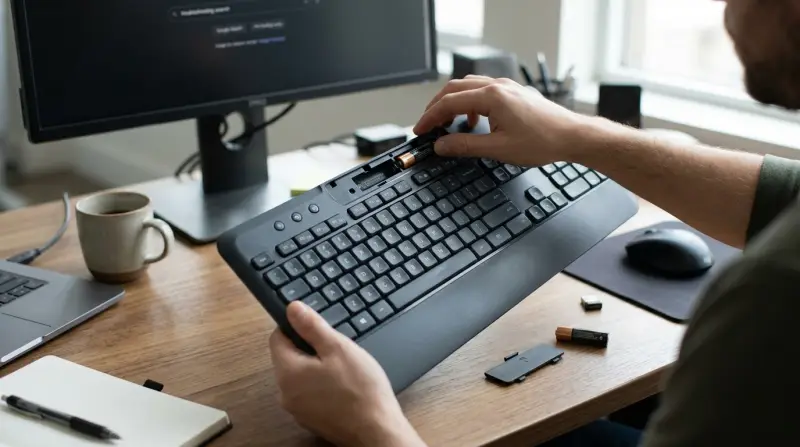
Wireless keyboards can have unique problems compared to wired ones. Here are some of the most frequent reasons your K540 keyboard may stop working or act up:
1. Battery Problems
Wireless keyboards rely on batteries. If the batteries are low or dead, the keyboard may stop responding, behave unpredictably, or only some keys work. Always check battery power first. Sometimes, even new batteries can be faulty. It’s best to use fresh, high-quality batteries and check they are installed correctly.
Also, avoid mixing old and new batteries, as this can lead to uneven power and glitches.
2. Usb Receiver Issues
The Logitech K540 uses a tiny USB receiver (often called a “dongle”) to connect to your computer. If the receiver is loose, dirty, or blocked by other USB devices, the keyboard may not work. Try plugging the receiver into a different USB port—especially one directly on your computer, not through a USB hub.
Make sure no other devices are interfering, and clean the port gently with compressed air if needed.
3. Wireless Interference
Wireless signals can be disturbed by other devices like routers, cordless phones, or even microwaves. If the keyboard is far from the receiver, or if there are many obstacles between them, you may see lag or dropped keystrokes. Move your keyboard closer to the receiver, and try to keep other electronics away.
If you work in a busy office or have multiple wireless devices, interference is often overlooked.
4. Software Or Driver Problems
Logitech keyboards work best when their drivers and software are up-to-date. If your computer’s operating system updates, or you install new software, the keyboard drivers may become outdated or corrupted. Download the latest Logitech drivers from their official website. Many users forget to install Logitech Options or SetPoint software, which can help manage advanced settings and fix issues.
5. Physical Damage
Spills, drops, or heavy use can damage the keyboard. Even minor drops may loosen internal parts. Check for signs of physical damage: stuck keys, cracks, or missing pieces. If you spilled something on the keyboard, unplug it, remove batteries, and let it dry completely before using. Sometimes, cleaning the keyboard gently with a damp cloth can solve minor issues.
6. Pairing Errors
If your keyboard is not paired correctly with its USB receiver, it won’t connect. Occasionally, the receiver and keyboard lose their connection after a system reboot or moving to another computer. Use the “pairing” button (if available) or follow Logitech’s instructions for re-pairing the device.
Some receivers are “Unifying,” meaning they can connect to multiple Logitech devices. Make sure you’re pairing the correct keyboard.
7. Faulty Usb Ports
Not all USB ports are equal. Some ports may not provide enough power, or may be damaged. Test your receiver in several ports, especially on the back of your desktop PC. Avoid using ports on monitors, keyboards, or hubs unless necessary.
If other devices fail to work in the same port, it’s likely the port itself is faulty.
8. Operating System Glitches
Sometimes, Windows or Mac OS can cause keyboard issues. For example, after a system update, you might see slower typing or non-working keys. Restarting your computer often solves temporary glitches. Also, check your system settings to ensure the keyboard is recognized and enabled.
9. Outdated Firmware
Logitech sometimes releases firmware updates for its keyboards. Firmware is the internal software that controls the device. If the firmware is old, the keyboard may not work well with new computers or operating systems. Use Logitech’s website to check for firmware updates, and follow instructions carefully.
10. Third-party Software Conflicts
Some programs may block keyboard input. Security software, custom keyboard shortcuts, or gaming programs can interfere. If your keyboard works in some apps but not others, try disabling or uninstalling conflicting software. Also, check if any background programs are running that could intercept keyboard signals.
How To Fix Logitech K540 Keyboard Issues
Now that you know the most common causes, here are step-by-step solutions for each problem. Follow these steps carefully, and your keyboard should start working again.
1. Replace The Batteries
Remove the old batteries and install new ones, making sure they are aligned correctly. Use high-quality alkaline batteries for best performance. Wait a few seconds for the keyboard to reset, then test typing. If the keyboard still doesn’t work, try another set of batteries to rule out defects.
2. Reposition And Clean The Usb Receiver
Unplug the receiver and plug it into another port. Avoid USB hubs or extension cables. Clean the receiver with a dry cloth or compressed air. If your computer is a desktop, try plugging the receiver into a port on the back.
This can give a stronger signal. Sometimes, simply moving the receiver closer to the keyboard helps.
3. Reduce Wireless Interference
Move other wireless devices away from the keyboard and receiver. If possible, use your keyboard in a room with fewer electronics. Sometimes, turning off nearby Bluetooth devices can help. If you suspect interference, test the keyboard in another location.
4. Update Drivers And Software
Download and install the latest Logitech drivers from [Logitech’s official support page](https://support.logi.com). Also, update your operating system if needed. Many times, keyboard issues are fixed by simply updating the software. Don’t forget to install Logitech Options or SetPoint if you want advanced settings.
5. Inspect And Clean The Keyboard
Check for physical damage. Gently remove dust and debris with compressed air or a soft brush. If keys are sticky, clean them carefully with a damp cloth. Avoid using strong cleaners or water. For spills, let the keyboard dry completely before reconnecting.
6. Re-pair The Keyboard
If your keyboard uses a pairing button, press it and follow instructions. For Unifying receivers, download Logitech Unifying Software and pair the devices again. If you moved your keyboard to another computer, re-pairing is often necessary.
7. Test Usb Ports
Try the receiver in different USB ports. If it works in one port and not another, you may need to repair or replace the faulty port. Always use ports directly on your computer for the strongest connection.
8. Restart Your Computer
Sometimes, a simple restart solves keyboard issues. Shut down your computer completely and turn it back on. Test the keyboard after restarting. If problems persist, check your operating system’s keyboard settings.
9. Update Firmware
Visit Logitech’s website to check for firmware updates for your keyboard. Follow the instructions carefully. Firmware updates can solve compatibility problems and improve performance.
10. Check For Software Conflicts
Close or uninstall any programs that might block keyboard input. Security software, macro programs, or gaming overlays are common causes. If your keyboard works in safe mode but not in normal mode, a program conflict is likely.
Advanced Troubleshooting Tips
If your keyboard still doesn’t work after basic steps, try these advanced tips:
- Try the keyboard on another computer. This helps identify if the problem is with the keyboard or your computer.
- Reset your keyboard. Some Logitech models have a reset option—check the manual or Logitech’s support site.
- Test with another Logitech keyboard. If another keyboard works with your receiver, the original keyboard may be broken.
- If you’re comfortable, open the keyboard and check for loose connections inside. Only do this if your warranty has expired.
Non-obvious Insights Most Beginners Miss
- Battery quality matters more than you think. Low-quality batteries can cause subtle errors, like missed keystrokes or strange behavior, even if they seem “new.” Always use reputable brands.
- USB port power can vary. Some ports (especially on older computers) don’t supply enough power for wireless receivers. This can cause random disconnects or lag. Testing multiple ports is important.
- Wireless interference isn’t just about distance. Walls, metal objects, and even your own body can block signals. Positioning the receiver in open space, away from obstacles, can improve performance.
Common Mistakes When Troubleshooting
- Ignoring battery orientation. Even experienced users sometimes install batteries the wrong way. Double-check the + and – signs.
- Overlooking software updates. Many people forget to update drivers after a system upgrade.
- Not cleaning the USB receiver. Dust and debris in USB ports are a frequent cause of connection problems.
- Using a USB hub instead of a direct port. Hubs often cause lag or dropped connections.

When To Replace Your Logitech K540 Keyboard
If you’ve tried all troubleshooting steps and the keyboard still doesn’t work, it may be time for a replacement. Signs of permanent damage include:
- Multiple keys not working, even after cleaning
- Visible cracks or broken parts
- Keyboard not recognized by any computer
Logitech keyboards are known for durability, but heavy use or accidents can cause lasting damage. If you need a new keyboard, consider what features matter most—like wireless range, battery life, or key type.
Helpful External Resource
For more detailed troubleshooting and support, visit Logitech’s official support page. Their site has updated guides and tools for pairing, software, and repairs.
Final Thoughts
Troubleshooting a Logitech K540 keyboard is usually simple if you know what to check. Start with the basics—batteries, USB receiver, and software. Don’t forget to test for interference and clean your keyboard regularly. Most problems can be fixed without special tools or advanced knowledge.
If you run into persistent issues, check for physical damage or try another computer. With these tips, you’ll save time and avoid frustration. Remember, a little patience and careful testing go a long way in solving keyboard problems.