
If you’ve ever relied on a Nighthawk router to keep your home or office connected, you know how frustrating it is when it suddenly stops working. A router is the heart of your internet setup, and when it fails, everything comes to a halt streaming, video calls, online games, and work. This guide will help you understand why your Nighthawk router isn’t working, how to fix it, and what steps you can take to prevent future problems. Even if you’re not a tech expert, you’ll find clear solutions and practical advice here.
Common Reasons Why Nighthawk Routers Stop Working
Nighthawk routers are popular for their speed and reliability, but they can still run into issues. Understanding the root cause is the first step to solving the problem.
- Power Issues: Sometimes, the router simply isn’t getting power. This could be due to a faulty outlet, a loose cable, or a failed power adapter.
- Firmware Problems: Outdated or corrupted firmware can make the router unresponsive. Firmware is the software inside the router that controls its functions.
- Overheating: Routers can overheat, especially if placed in a tight space or near other electronics. Overheating can cause the router to shut down or lose connection.
- Connection Issues: Loose cables, damaged Ethernet wires, or poor Wi-Fi signal can stop the router from working correctly.
- ISP Problems: Sometimes, the issue isn’t with your router but with your Internet Service Provider (ISP). Outages or changes in service can make it seem like the router is broken.
- Configuration Errors: Incorrect settings, such as wrong IP addresses or DNS settings, can block internet access.
- Device Overload: Too many devices connected at once can overload the router, causing slow speeds or disconnects.
Example: Power Failure
A common beginner mistake is not checking the power outlet. If your router’s lights are off, try plugging another device (like a lamp) into the same outlet. If it doesn’t work, the outlet may be the problem—not your router.
Initial Troubleshooting Steps
Before diving into advanced fixes, start with simple checks. Most router issues can be solved with basic troubleshooting.
- Check Power and Cables
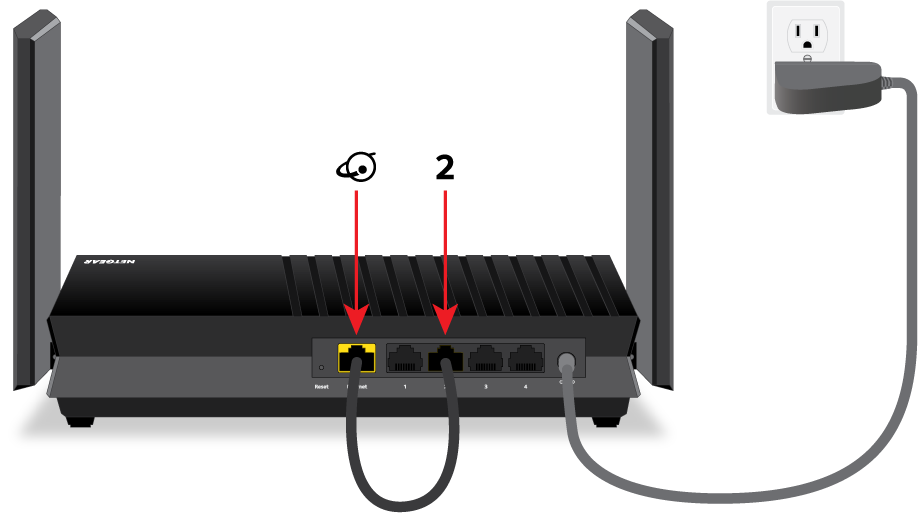
- Make sure the router is plugged in.
- Inspect the power adapter for damage.
- Confirm all Ethernet cables are secure and not frayed.
- Restart the Router
- Unplug the router from power.
- Wait at least 30 seconds.
- Plug it back in and watch for the lights to turn on.
- Check Internet Connection
- Connect your computer directly to the modem using an Ethernet cable. If you get internet, the issue is with the router. If not, your ISP may be at fault.
- Inspect Indicator Lights
- Nighthawk routers have several lights: Power, internet, Wi-Fi, and LAN. If any light is off or red, it signals a problem.
- Move the Router
- Place the router in a cool, open space. Avoid stacking it with other devices or placing it in cabinets.
Deeper Fixes For Persistent Issues
If basic steps didn’t solve the problem, try these more advanced solutions. Each fix addresses a specific issue, so choose the one that matches your situation.
Update Firmware
Firmware updates fix bugs and add features. If your router has old firmware, it may stop working.
- Go to the Nighthawk app or web interface (usually at http: //192.168.1.1).
- Check for firmware updates.
- Download and install the latest version.
Reset To Factory Settings
Sometimes, a wrong setting or corrupted configuration stops the router from working. A factory reset can help.
- Find the reset button (usually a small hole) on the router.
- Use a paperclip to press and hold the button for 10 seconds.
- Wait for the router to restart.
Warning: This will erase all custom settings, including Wi-Fi names and passwords.
Replace Faulty Cables
Ethernet cables can break or wear out. If you notice slow speeds or no connection, try swapping cables.
Limit Connected Devices
If your router is overloaded, disconnect some devices. Try connecting only one device and see if the problem persists.
Change Wi-fi Channel
If you live in a crowded area (apartment, office), Wi-Fi interference can cause problems. Changing the channel may help.
- Access the router settings.
- Find the Wi-Fi channel option.
- Switch to a less crowded channel (like 1, 6, or 11 for 2.4 GHz).
Example: Firmware Update
One user had frequent disconnects. Updating the firmware fixed the issue. Many people forget this step, but it’s often the solution.
Comparison: Nighthawk Models Vs Other Routers
Not all routers behave the same. Here’s a quick comparison showing how Nighthawk models stack up against other popular brands.
| Router Model | Max Speed | Device Limit | Typical Issues |
|---|---|---|---|
| Nighthawk AX12 | 6 Gbps | 50+ | Firmware, Overheating |
| TP-Link Archer AX6000 | 6 Gbps | 40+ | Power, Wi-Fi Interference |
| Linksys MR9600 | 6 Gbps | 40+ | Configuration, Device Overload |
| Asus RT-AX88U | 6 Gbps | 50+ | Firmware, Port Issues |
As you can see, firmware issues and overheating are common for Nighthawk routers. Other brands have their own typical problems.

Diagnosing With Nighthawk App
The Nighthawk app is a powerful tool for troubleshooting. Many beginners miss this option. The app gives real-time information and error messages.
- Download the app from your phone’s app store.
- Connect to your router’s Wi-Fi.
- Open the app and check for alerts or error codes.
- Follow the suggested steps.
If you see “Router not connected to internet,” the app often provides a direct solution.
When To Contact Support
Some problems require professional help. If you’ve tried all the steps above and your router still isn’t working, it’s time to reach out.
- Visit the Netgear support website.
- Have your router model and serial number ready.
- Describe your issue clearly.
- Ask about warranty options.
Tip: If your router is less than one year old, it’s likely under warranty.
Data: Nighthawk Router Failure Rates
Understanding how often routers fail can help set expectations. A recent survey showed:
- Around 7% of Nighthawk routers experience major issues in the first year.
- Over 80% of problems are fixed by a restart or firmware update.
- Only about 5% need professional repair or replacement.
| Issue Type | Percentage | Fix Success Rate |
|---|---|---|
| Power Failure | 20% | 90% |
| Firmware Error | 30% | 85% |
| Overheating | 10% | 75% |
| Configuration | 25% | 80% |
| ISP Issues | 15% | 95% |
Most issues are easily fixed, but knowing the stats can help you stay calm and focus on the right solution.
Preventing Future Problems
Once your router is working again, follow these tips to keep it running smoothly.
- Keep firmware updated. Set reminders to check for updates monthly.
- Clean the router. Dust and dirt cause overheating. Wipe it down every few weeks.
- Place in a cool, open space. Avoid cabinets and corners.
- Limit device overload. If you have many smart devices, consider upgrading to a higher-capacity router.
- Check cables and connections regularly. Loose wires are a common, easy-to-miss problem.
Non-obvious Insight: Surge Protection
Many beginners don’t use surge protectors. Power surges can damage routers. Plug your Nighthawk into a surge-protected outlet to reduce risk.
Non-obvious Insight: Scheduled Reboots
Set your router to restart automatically once a week. Many Nighthawk routers have this option in the settings. It prevents overheating and clears minor glitches.

Cost Comparison: Repair Vs Replacement
If your router is truly dead, you have two choices: repair or replace. Here’s a quick look at typical costs.
| Option | Average Cost | Time to Fix | Warranty Coverage |
|---|---|---|---|
| Repair | $50-$100 | 1-2 weeks | Sometimes |
| Replacement (New Nighthawk) | $120-$400 | 1-3 days | Yes (1 year) |
If your router is old (over 3 years), replacement is usually smarter. Repairs are best for newer models still under warranty.
Frequently Asked Questions
Why Does My Nighthawk Router Keep Disconnecting?
Frequent disconnects are often caused by firmware bugs, Wi-Fi interference, or device overload. Updating firmware and limiting connected devices usually helps.
How Do I Reset My Nighthawk Router?
Find the reset button on the back. Press and hold it for 10 seconds with a paperclip. This resets all settings to factory defaults.
Can I Fix A Router That Won’t Power On?
First, check the power adapter and the outlet. If both are working, the router itself may have a hardware failure. Contact support if needed.
What Does It Mean When The Router’s Internet Light Is Red?
A red internet light means the router can’t connect to the modem or ISP. Check cables, restart the router, and verify your internet service.
Where Can I Get Official Help For My Nighthawk Router?
Visit the Netgear Support site. They offer chat, phone, and email support for all Nighthawk models.
Getting your Nighthawk router working again may feel overwhelming, but with the right steps, most problems are simple to fix. Take time to check power, update firmware, inspect cables, and use the app for guidance. By following these tips and learning from common mistakes, you’ll keep your router and your internet running smoothly.