
Wireless headphones from Sennheiser are known for their great sound and reliable performance. But even the best headphones can sometimes have problems. Maybe your music keeps cutting out, or the headphones won’t turn on. These issues can be frustrating, especially if you’re not sure what’s wrong or how to fix it. The good news is that most problems have simple solutions.
Whether you use Sennheiser headphones for music, gaming, or calls, you want them to work perfectly. This guide will help you troubleshoot common issues with Sennheiser wireless headphones. You’ll learn how to fix connection problems, improve sound quality, handle battery issues, and more.
With clear steps and real examples, you’ll get your headphones working again—often in just a few minutes.
Common Connection Problems
Bluetooth Won’t Connect
Many users experience Bluetooth connection issues. Sometimes the headphones won’t pair with your device, or they suddenly disconnect.
Fixes:
- Restart both devices. Turn off your headphones and your phone or computer, then turn them back on.
- Forget and re-pair. Go to your device’s Bluetooth settings, “forget” the headphones, then pair again.
- Move closer. Bluetooth works best within 33 feet (10 meters) and without walls or metal in between.
- Charge your headphones. Low battery can cause unstable connections.
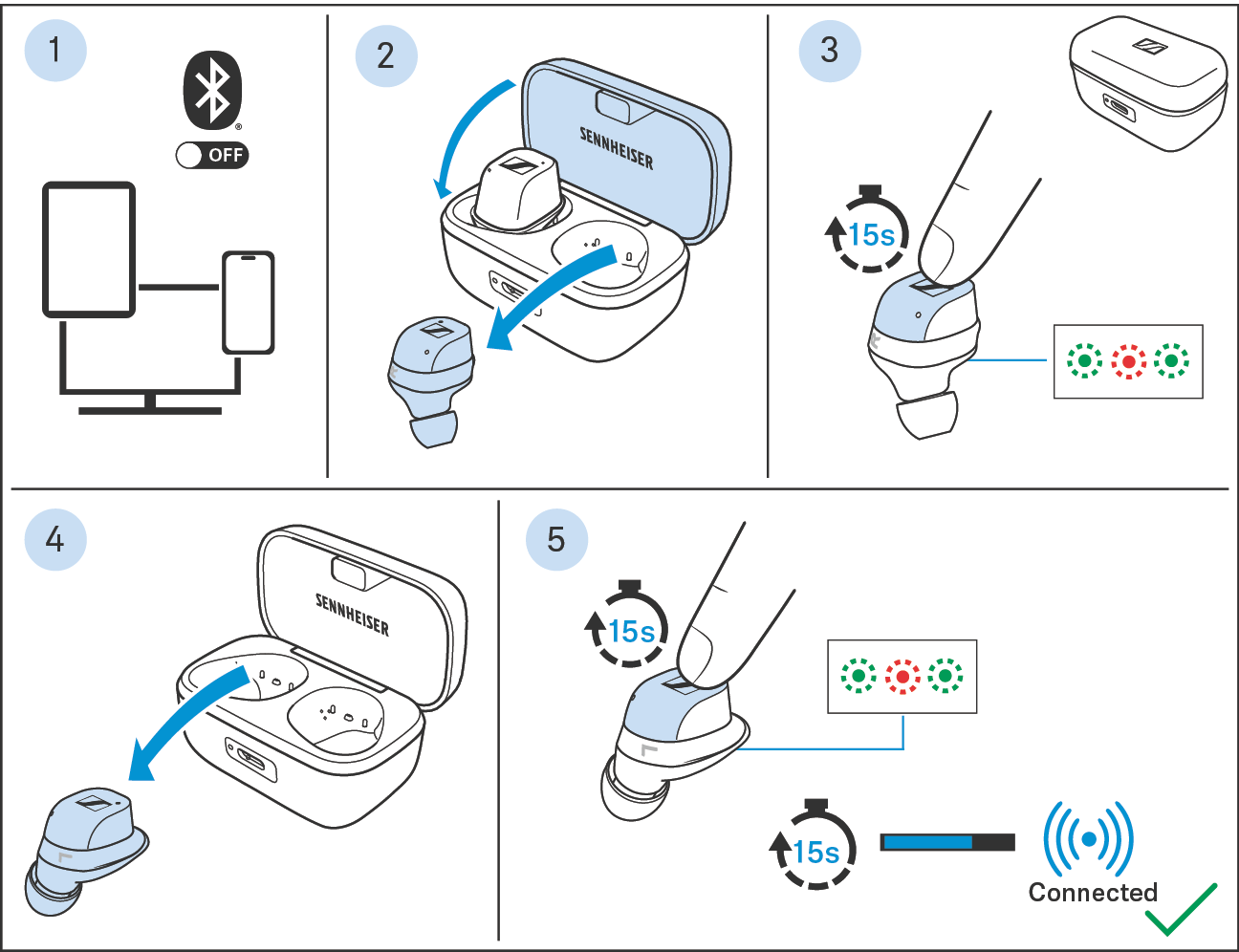
- Reset Bluetooth settings. Some Sennheiser models have a reset button or process (check your manual).
Example: If your Sennheiser Momentum Wireless won’t connect, press and hold the power button for 5 seconds to enter pairing mode.
Audio Drops Or Lags
Audio that drops out or lags is another common problem. This is often caused by signal interference, low battery, or software bugs.
Solutions:
- Check for interference. Move away from Wi-Fi routers, microwaves, or other Bluetooth devices.
- Update firmware. Use the Sennheiser Smart Control app to check for firmware updates.
- Reconnect. Turn Bluetooth off and back on, or restart your headphones.
Non-obvious insight: Many people forget that having too many Bluetooth devices connected to the same device (phone or laptop) can cause issues. Disconnect devices you’re not using.
One Side Not Working
If sound only comes from one ear, try these steps:
- Check balance settings. On your phone or PC, make sure audio balance isn’t set to one side.
- Clean headphone contacts. Dirt or sweat can block the connection—wipe with a soft cloth.
- Reset headphones. Most models let you reset by holding two buttons together (consult your manual).
No Sound Or Poor Audio Quality
Low Or No Sound
When there’s no sound, first check if the headphones are muted or the volume is very low on your device. If not, try these steps:
- Ensure proper pairing. Connect to the correct device.
- Try a different device. This helps check if the problem is with the headphones or your phone/computer.
- Update your device’s audio drivers. Especially on Windows PCs, old drivers can cause sound problems.
- Check the audio source. Some streaming apps limit audio quality for bandwidth.
Distorted Or Crackling Audio
Distortion or crackling often means there’s interference or a hardware issue.
- Move away from sources of interference. Wi-Fi routers, microwaves, or other electronics can cause this.
- Try wired mode. Many Sennheiser models have a wired option. If the sound is clear with the cable, the issue is with the wireless connection.
- Check audio settings. Use standard settings, not boosted bass or special effects, which can cause distortion on some devices.
Poor Noise Cancellation
If your Sennheiser headphones offer active noise cancellation (ANC) but it’s not working well:
- Clean microphones. The tiny ANC mics can get blocked by dust or earwax.
- Update firmware. Improvements to ANC are common in updates.
- Adjust ear fit. ANC works best with a tight seal around your ears.
Battery And Charging Issues
Wireless headphones need a good battery to work well. Here’s how to solve common charging problems.
Headphones Won’t Charge
If your headphones won’t charge at all:
- Check the cable and charger. Try a different USB cable and charging adapter.
- Clean the charging port. Dust or lint can block the connection—blow gently or use a soft brush.
- Try a different outlet or USB port. Sometimes the problem is with the charger, not the headphones.
Battery Drains Too Fast
Fast battery drain is often caused by:
- High volume or ANC. These use more power.
- Outdated firmware. Updates can improve battery life.
- Old batteries. Lithium-ion batteries lose capacity over time; after 2-3 years, performance drops.
If your headphones used to last 20 hours but now last 8, it may be time to replace the battery (if possible) or contact Sennheiser support.
Headphones Won’t Turn On
If pressing the power button does nothing:
- Charge for at least 30 minutes. Sometimes a dead battery needs extra time to “wake up.”
- Try a reset. Many Sennheiser models reset if you hold the power and volume up/down buttons together.
- Check for LED lights. If no lights turn on after charging, there could be a hardware issue.
Microphone And Call Issues
Sennheiser headphones are often used for calls. Problems with the microphone or call quality are common.
Microphone Not Working
If others can’t hear you:
- Check app permissions. Make sure your phone or PC allows microphone access for your calling app.
- Update software. Both your device and the Sennheiser app.
- Test on another app. Try recording a voice memo to see if the mic works.
- Clean the mic hole. Dust or lint can block sound.
Poor Call Quality
Bad call quality can be caused by:
- Weak Bluetooth signal. Move closer to your device.
- Background noise. Use ANC if available, or move to a quieter place.
- Software conflicts. Close other apps using the microphone.
Non-obvious insight: Some laptops default to their own microphone instead of the headphone mic. Check your device’s audio input settings to make sure the right mic is selected.
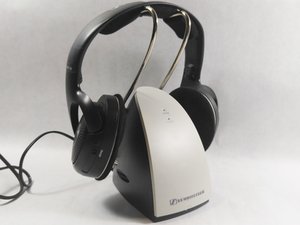
Sennheiser Headphone Error Codes
Some Sennheiser wireless models display error codes using lights or voice prompts. Here’s a quick reference:
| Error Code | Meaning | Solution |
|---|---|---|
| Red LED blinks | Low battery | Charge immediately |
| Blue/Red LED alternates | Pairing mode | Connect to device |
| White LED blinks fast | Factory reset | Re-pair device |
| Voice: “Connection lost” | Bluetooh disconnected | Move closer, reconnect |
Always check your headphone’s manual for model-specific codes.
Firmware Updates And Software Tools
Keeping your headphones updated can fix many issues. Sennheiser’s Smart Control app is a key tool.
How To Update Firmware
- Download Sennheiser Smart Control from the App Store or Google Play.
- Connect your headphones using Bluetooth.
- Open the app and check for firmware updates. If available, follow the steps shown.
Example: Firmware updates can improve battery life, fix bugs, or boost ANC performance. Many users see better stability after updating.
Using The Smart Control App
The app lets you:
- Adjust EQ (equalizer) settings.
- Enable or disable features like ANC and “Transparent Hearing.”
- See battery status.
- Update firmware.
Sometimes, resetting your headphones from the app solves stubborn issues, especially with pairing or sound glitches.
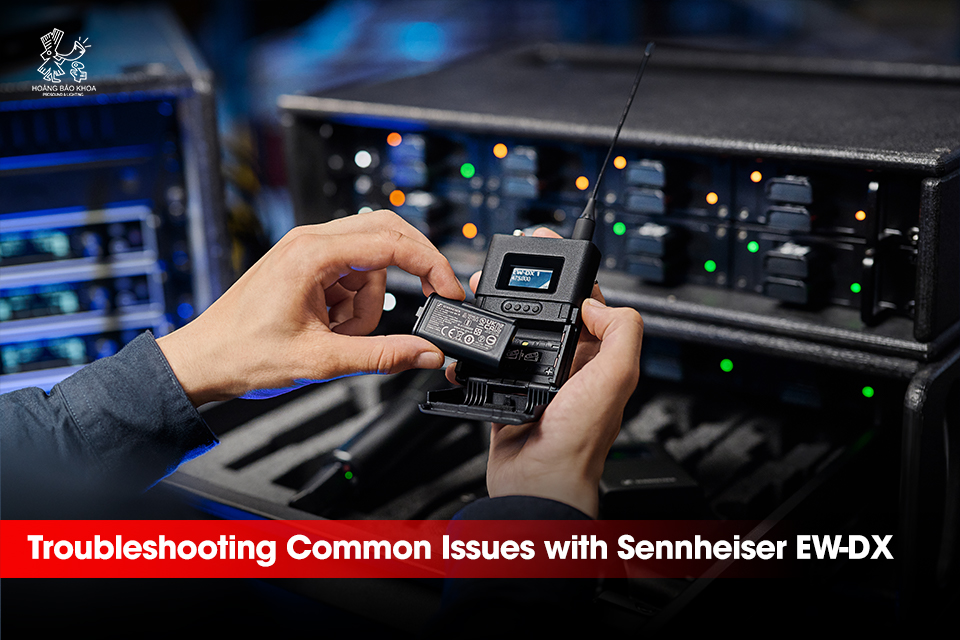
Audio And Charging Cable Comparison
Some Sennheiser headphones come with both audio and charging cables. Using the right cable matters for charging speed and sound quality.
| Cable Type | Use | Common Problems |
|---|---|---|
| USB-A to USB-C | Charging, firmware updates | Loose connections, slow charge if cable is damaged |
| 3.5mm audio | Wired listening, airplane mode | Sound only in one ear if not fully plugged in |
| USB-C to USB-C | Charging newer models | Not compatible with all chargers |
If you experience charging or sound issues, try using the original cable that came with your headphones.
When To Contact Sennheiser Support
Most problems can be fixed at home, but sometimes you need expert help. Contact Sennheiser support if:
- Your headphones are still under warranty and have hardware faults.
- You see physical damage, like broken headbands or exposed wires.
- The battery no longer holds a charge, and it’s not replaceable.
- Firmware updates fail or your headphones won’t turn on after trying all fixes.
You can find official support and downloads on the Sennheiser website.
Preventing Future Problems
Taking care of your Sennheiser headphones can help avoid many issues.
- Store in a case when not in use to protect from dust and drops.
- Clean regularly with a soft, dry cloth.
- Avoid extreme heat or cold. Batteries perform best at normal room temperatures.
- Charge fully before long trips or periods of non-use.
- Update firmware every few months to get bug fixes and new features.
A little care goes a long way toward keeping your headphones sounding great for years.
Frequently Asked Questions
Why Won’t My Sennheiser Headphones Connect To My Phone?
Most connection problems are fixed by restarting both your headphones and phone, unpairing and re-pairing, or updating Bluetooth settings. Make sure your headphones are in pairing mode and within 33 feet of your phone.
How Do I Reset My Sennheiser Wireless Headphones?
For most models, hold the power button for 10 seconds or press the power and volume buttons together. You’ll see the LED lights flash or hear a voice prompt. Check your manual for model-specific instructions.
Why Is The Sound Only Coming From One Side?
This can be caused by a dirty contact, a loose cable, or a balance setting issue on your device. Try cleaning the contacts, checking cables, and adjusting your device’s audio balance.
How Long Do Sennheiser Wireless Headphones Batteries Last?
Battery life depends on the model and usage. Most last 15–30 hours per charge. Over time, batteries lose capacity, especially after 2–3 years of heavy use.
What Should I Do If My Headphones Won’t Charge?
First, try another USB cable and adapter, clean the charging port, and try a different outlet. If the problem continues, the battery or charging circuit may be faulty—contact Sennheiser support.
Sennheiser wireless headphones are built for quality, but problems do happen. With these tips and troubleshooting steps, you can solve most issues quickly and get back to enjoying your music or calls. If you ever feel stuck, don’t hesitate to reach out to Sennheiser’s support team or check their official website for updates and guides.
Good care and regular updates will keep your headphones working at their best.