
If you own a Royal Kludge (RK) keyboard and notice that the numbers are not working, it can be confusing and frustrating. These keyboards are popular for their affordable price, mechanical feel, and gamer-friendly features. But when the number row or numpad stops responding, it disrupts both work and play. The good news is that most issues with RK numbers not working are fixable—even for beginners. In this article, you’ll learn why this problem happens, what to check first, and step-by-step solutions to get your numbers working again. You’ll also see real examples, tips, and answers to common questions.
Understanding The Problem
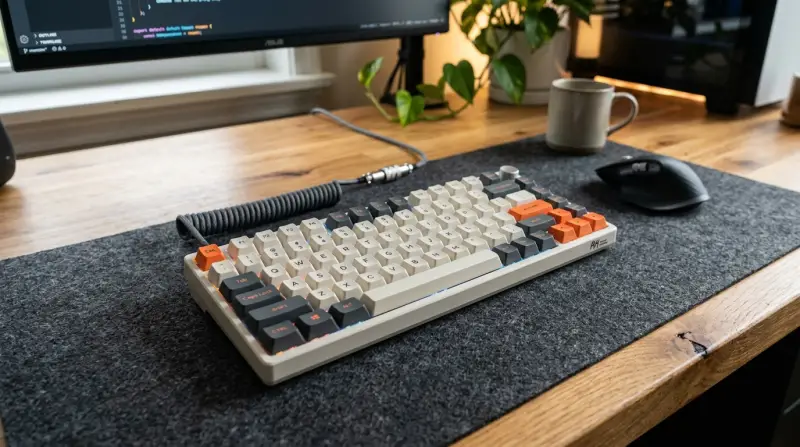
When someone says their RK Royal Kludge numbers are not working, it usually means one of these things:
- The number row (above the letters) does not type numbers.
- The numpad (on the right side) is dead or types nothing.
- Numbers type symbols instead (like !, @, #) instead of 1, 2, 3.
- Only some numbers work, others don’t.
Knowing which area is affected helps you find the right fix. For example, a problem with the numpad is often different from the number row issue. Some RK keyboards, like the RK61, don’t have a numpad, so the problem is limited to the number row or function layers.
Common Causes For Rk Numbers Not Working
Several things can cause numbers to stop working on a Royal Kludge keyboard. Here are the most common:
- Num Lock Off: For keyboards with a numpad, the Num Lock key must be on to use numbers.
- Function Layer Mistake: Many RK models use Fn key combinations. Wrong settings can disable numbers.
- Keyboard Mode Setting: Switching between Mac/Windows modes can change key functions.
- Driver or Firmware Issues: Outdated or missing software can cause keys to fail.
- Physical Damage: Spills, dust, or broken switches affect certain keys.
- Sticky Keys or Accessibility Settings: Windows or Mac settings can block normal key input.
- Key Remapping Software: Using tools like SharpKeys or VIA may accidentally remap or disable numbers.
Let’s break down each cause with solutions.
Quick Checks Before Troubleshooting
Before changing settings or uninstalling drivers, do these simple checks:
- Plug your keyboard into a different USB port.
- Try your keyboard on another computer.
- Restart your computer.
- Check if the problem happens in all programs (Word, Notepad, browser, etc. ).
If numbers still do not work, move on to targeted fixes.
Fixes For Number Row Not Working
Check Function (fn) Layer Settings
Many RK keyboards use Fn key combinations to access numbers or symbols. Accidentally pressing a combo can lock or switch the top row.
- On the RK61, the number row (1–0) doubles as function keys (F1–F12). You may need to press Fn + [key] to get numbers.
- To reset, press Fn + Enter (on some models) to switch between layers.
Practical tip: Look for a small LED indicator or a “layer” symbol on the keyboard. If your numbers type F1–F12 instead, you’re on the wrong layer.
Mac/windows Mode
Switching between Mac and Windows modes can change how keys work.
- For RK61: Fn + A (Windows), Fn + S (Mac).
- Try switching modes and test the numbers.
Check For Sticky Keys Or Accessibility Features
Windows and Mac have options that change keyboard behavior.
- On Windows: Press Shift five times fast to turn off Sticky Keys. Go to Settings > Ease of Access > Keyboard and turn off any features like Filter Keys.
- On Mac: Go to System Preferences > Accessibility > Keyboard.
Non-obvious insight: Sometimes, an old accessibility setting stays active even after you uninstall keyboard software. Always double-check these settings.
Test With An Online Keyboard Tester
Go to an online keyboard tester website and press the numbers. If the tester shows the numbers working, but your computer does not, the problem is software-related.
Fixes For Numpad Not Working
Check Num Lock Key
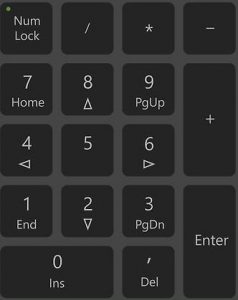
If your keyboard has a numpad, the Num Lock key must be ON. When it’s off, pressing 1, 2, 3, etc., does nothing or moves your cursor.
- Press Num Lock once and see if a small LED lights up.
- Test the numpad again.
Non-obvious insight: Some RK models do not have a Num Lock light, but the function still exists.
Try Function Key Combos
Some compact keyboards use Fn + [key] to activate the numpad or unlock numbers. Check your user manual for the correct combination.
Test Numpad On Another Device
To rule out hardware faults, plug your RK keyboard into a different computer. If the numpad still fails, it’s likely a hardware issue.
Key Mapping And Software Problems
Check For Remapping Tools
Did you install key remapping software like SharpKeys, VIA, or Karabiner? These can accidentally disable or swap numbers.
- Uninstall or reset these tools.
- Reboot and test your keyboard.
Update Or Reinstall Drivers
Outdated or missing drivers can cause keys to fail.
- Go to Device Manager (Windows) > Keyboards > right-click your keyboard > Update driver.
- Or, uninstall the device and reboot. Windows will reinstall the driver.
Update Keyboard Firmware
Some RK models get firmware updates from the Royal Kludge website.
- Download the latest firmware.
- Follow the instructions carefully—incorrect updates can “brick” your keyboard.
Always back up your settings before a firmware update.
Physical Or Hardware Issues
Clean Your Keyboard
Dust, crumbs, and spills can block key contacts.
- Unplug the keyboard.
- Use compressed air to blow out debris.
- For serious spills, carefully remove keycaps and clean with isopropyl alcohol.
Check For Broken Switches
If only one or two numbers don’t work, the mechanical switch under the key may be dead.
- Press the key firmly. Does it feel different?
- Swap with a working key (on hot-swappable models) to test.
Cable And Connection Problems
A loose or damaged USB cable can cause keys to fail randomly.
- Try a different USB cable if your RK model allows it.
- Avoid USB hubs—plug directly into your computer.
Special Issues With Rk Compact Models
Number Row Locked As Function Keys
On the RK61 and similar 60% keyboards, the number row often defaults to F1–F12. To switch to numbers:
- Press Fn + Enter to toggle the layer.
- Or, press Shift with the number key.
No Numpad By Design
Some RK models simply do not have a numpad. If you need one, use Fn + [other keys] for a “virtual” numpad, or buy an external one.

Comparing Rk Keyboard Models
Some problems are model-specific. Here’s a quick comparison of popular Royal Kludge keyboards:
| Model | Form Factor | Has Numpad? | Common Number Issues |
|---|---|---|---|
| RK61 | 60% | No | Number row locked as F-keys |
| RK68 | 65% | No | Function layer confusion |
| RK84 | 75% | No | Mac/Windows mode mix-up |
| RK100 | 96% | Yes | Num Lock issues |
Always check your keyboard’s manual for model-specific shortcuts.
Troubleshooting Steps: A Practical Guide
If you want a quick action plan, follow this order:
- Test on another computer
- Check Num Lock and Fn layers
- Switch Mac/Windows mode
- Reset accessibility settings
- Test with online keyboard tester
- Update drivers and firmware
- Clean and check hardware
If all else fails and your keyboard is under warranty, contact RK support for a replacement.
Example Scenarios
Example 1: Rk61 Number Row Types F1–f12 Only
- Cause: Layer is set to function keys.
- Fix: Press Fn + Enter to toggle to number mode.
Example 2: Rk100 Numpad Not Working
- Cause: Num Lock is off.
- Fix: Press Num Lock key and check if numbers work.
Example 3: Only The Number “5” Does Not Work
- Cause: Physical switch or debris.
- Fix: Clean under the key. If still broken, switch with another key (if hot-swappable).
When To Seek Help
If none of these solutions work, you may have a hardware failure. Mechanical switches can wear out, or the keyboard’s circuit board may be damaged. Most RK keyboards come with a one-year warranty. Visit the official Royal Kludge support page or your retailer for help.
For more details about keyboard troubleshooting, you can check the Wikipedia Computer Keyboard page.
Frequently Asked Questions
Why Do My Rk Keyboard Numbers Type Symbols Instead?
This usually means your keyboard is set to a function layer or your Shift key is stuck. Press Fn + Enter or check if Caps Lock or Shift is pressed down.
How Do I Reset My Royal Kludge Keyboard?
On most models, unplug the keyboard, hold Esc, and plug it back in. Hold for 5 seconds, then release. This resets to factory settings. Check your manual for model-specific instructions.
Can Software Cause The Numbers Not To Work?
Yes, key remapping tools or accessibility settings can disable numbers. Uninstall or reset these tools and check your system’s keyboard settings.
What If Only The Numpad Numbers Do Not Work?
Check if Num Lock is on. If you use a compact keyboard without a numpad, numbers on the right will not work by design. Try Fn combos or use an external numpad.
Is There A Way To Remap Numbers On Rk Keyboards?
Yes, you can use RK software, VIA, or similar tools to remap keys. But be careful—wrong settings may disable numbers. Always keep a backup of your keymap.
Fixing RK Royal Kludge numbers not working is often simple with the right steps. Even if you’re new to mechanical keyboards, try these solutions with patience. You’ll often find the fix is just a key press or setting away. If the problem continues, don’t hesitate to get help—you deserve a fully working keyboard!