
You can resolve a Google Maps App Not Working error by checking your device’s date and time settings, as an incorrect clock often prevents the app from connecting to secure servers. Most connectivity issues stem from corrupted cache files, disabled location permissions, or an outdated software version that no longer communicates with Google’s current infrastructure. If the app remains unresponsive after a basic restart, it’s usually because the app’s background data access has been restricted by your phone’s power-saving mode.
Reasons Google Maps isn’t working
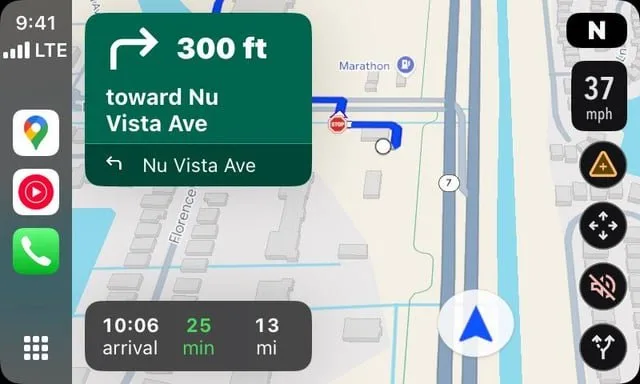
The primary reason applications fail to load maps is a mismatch between your device’s internal clock and the security certificates used by the server. If your phone’s time is manually set or drifts away from the network time, the app will reject the connection to protect your data. You can verify your sync status through the Google Maps Help Center instructions for troubleshooting location and connectivity.
Another common cause is an overloaded app cache. Over time, the app stores temporary map tiles and search history to speed up performance. If these files become corrupted or exceed the allocated storage space, the app may crash upon opening or refuse to display new map data.
Finally, restrictive background settings often block the app from fetching your current coordinates. If you have enabled a “Battery Saver” mode, your operating system may kill the app’s connection to the GPS hardware to save energy. This varies by model — check the label or settings menu on your specific device to see if “Background Data” is restricted for Google Maps. If your phone is older, it may lack the memory to run the latest, more complex map features, leading to a freeze. If these steps don’t fix the issue, you likely have a hardware failure in your phone’s GPS chip, which requires a professional technician to diagnose.
Update your app and software
If you’re using an older version of the app, it might struggle to pull data from updated servers. This fix is for users who have stable internet but see a blank white screen or a “can’t connect” error.
First, open your app store. Search for Google Maps and check if an “Update” button is visible. If it says “Open,” you’re already on the latest version. Next, check your phone’s system settings for a pending Android or iOS update. A mismatch between an old operating system and a new app version is a common mistake that costs users hours of troubleshooting time.
If you see an update, install it immediately. Once updated, perform a hard reboot of your device to clear the temporary memory. If this works, the app will load your current location within a few seconds. This fix isn’t for people experiencing hardware damage, such as a cracked screen or a phone that was recently dropped in water. If your phone displays a “No Internet” icon despite being on Wi-Fi, the issue is your network connection, not the app itself. In that case, toggle your Airplane Mode on and off to reset the radio.
Clear the application cache
Clearing the cache is a powerful way to remove corrupted files without deleting your saved places or account history. This fix is for users who find that the app opens but displays outdated information or fails to render specific map layers.
To do this, navigate to your phone’s main “Settings” menu and find the “Apps” or “Application Manager” section. Locate Google Maps in the list and tap on it. Look for the “Storage” or “Storage & Cache” option. Select “Clear Cache.” Don’t tap “Clear Data” or “Clear Storage” unless you’re prepared to sign back in, as this will remove your offline maps and custom settings.
After clearing the cache, force stop the application and restart your phone. When you reopen the app, it will rebuild the temporary files from scratch. If the map tiles begin to load correctly, the cache was the source of the blockage. This fix involves no risk to your personal files, but it does require a few minutes for the app to re-download the necessary interface data. If the app still fails, your next step is to uninstall the app entirely and reinstall it from the official store. If you’re on a metered data plan, perform this step while connected to Wi-Fi to avoid extra charges.
Reset your location permissions
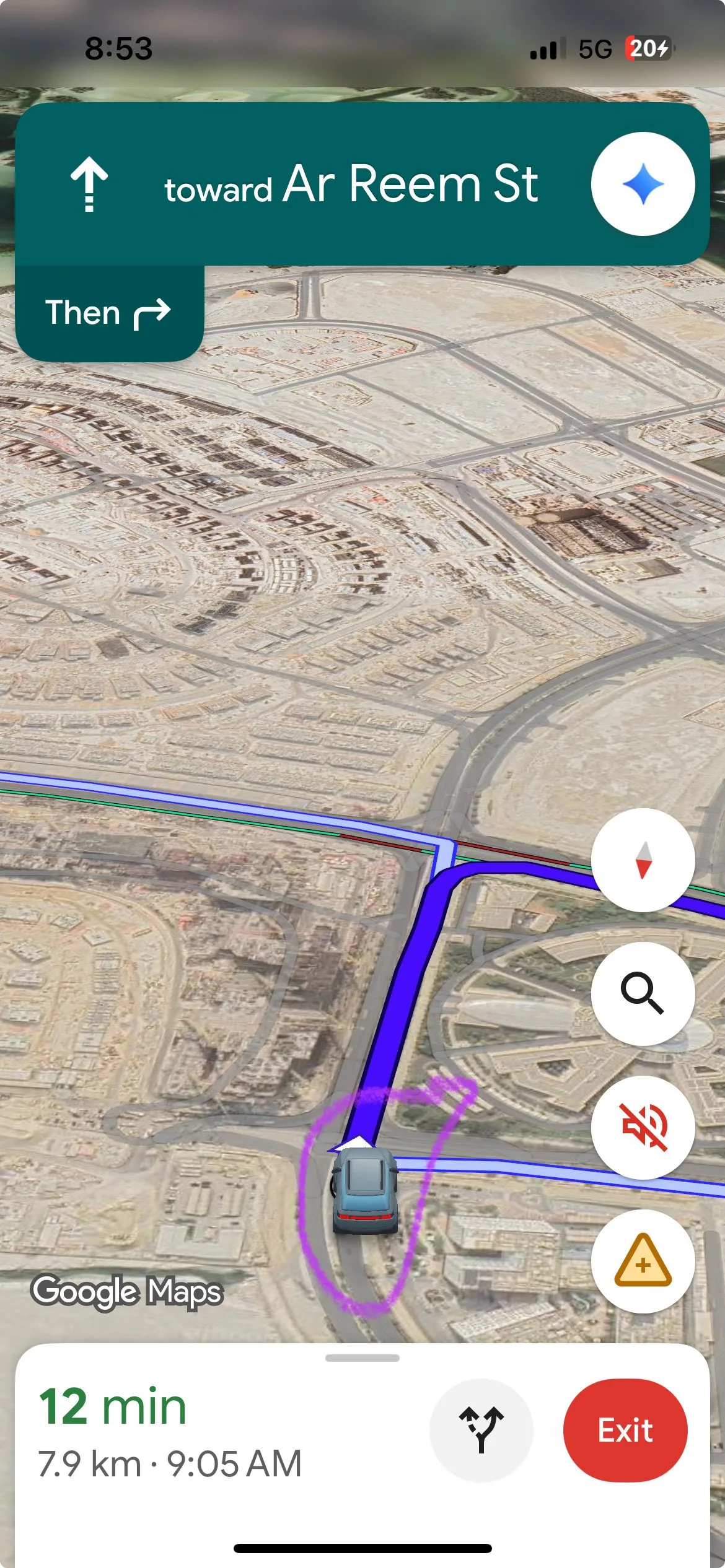
Sometimes the app is working, but it cannot “see” your location because the permissions have been revoked or glitched. This fix is for users who see a “Location Unavailable” error.
Go to your phone’s “Privacy” or “Location” settings. Find the list of apps that have access to your location and ensure that Google Maps is set to “Always” or “While Using the App.” If the setting is already correct, toggle it to “Never,” wait ten seconds, and then toggle it back to “While Using the App.” This forces the operating system to re-handshake with the Google Maps location services.
This is worth the effort if you frequently switch between different Wi-Fi networks or travel across time zones. However, it isn’t worth your time if you’re in a location with no cellular or GPS signal, such as a deep tunnel or a basement. If you’re in a remote area, the app isn’t broken; it simply can’t find a satellite lock. If you still have no location data after resetting these permissions, test your phone’s GPS with a different application, such as a weather app. If no apps can find your location, the problem is your phone’s internal antenna, not Google Maps. In that case, contact your device manufacturer’s support team for a hardware diagnostic.
What not to do
Don’t factory reset your phone. This is a drastic step that erases all personal data and rarely fixes a specific app issue. Most software conflicts stem from corrupted cache files, not the operating system itself.
Don’t download “Map Repair” tools from third-party websites. These apps are often scams that contain malware and won’t help your maps function. If an app isn’t listed on the official Play Store or App Store, it lacks the necessary security vetting.
Don’t repeatedly uninstall and reinstall the app in quick succession. This can trigger security blocks from your app store, temporarily preventing you from downloading any updates. Wait at least ten minutes between attempts to allow the server to reset your session.
Don’t ignore system notifications about low storage space. When your phone is completely full, apps can’t create the cache files needed to function. If you have less than 500MB of free space, expect constant crashes.
How to stop it happening again
Keep your software current and manage your storage space to ensure the app has the resources it needs to run smoothly.
| If you’re doing this | Do this instead | Why |
|---|---|---|
| Leaving the app cache full | Clear it once a month | Prevents file corruption |
| Using “Battery Saver” mode | Use “Balanced” mode | Allows background GPS access |
| Ignoring OS updates | Turn on “Auto-Update” | Keeps security protocols aligned |
| Manually setting time | Enable “Automatic Time/Date” | Prevents server handshake errors |
A common mistake is assuming that a simple restart fixes persistent crashes. If the app fails after a reboot, check your available disk space. If you have less than 2GB free, the system can’t write temporary files, causing an immediate crash upon launch.
Use this decision rule to diagnose the issue. If the app crashes during startup, clear the cache first. If it crashes while active, check your battery settings. If you see a “Sync Error,” verify your date settings immediately. Ignoring these specific triggers often leads to permanent data loss.
Frequently asked questions

Can I fix Google Maps if it says no internet?
You can fix this by toggling Airplane Mode on and off to reset your network connection. This action forces the app to search for a stronger signal if it’s stuck on a dead connection. Note that if other apps also fail, the issue likely lies with your service provider or router.
Why is my location arrow pointing the wrong way?
You can fix this by moving your phone in a figure-eight motion until the blue beam becomes narrow. This process recalibrates your device’s internal compass to improve directional accuracy. If the arrow remains stuck, remove any metal phone cases or move away from electronic devices that may cause magnetic interference.
How long does it take to reinstall Google Maps?
It typically takes less than three minutes to reinstall Google Maps on most modern smartphones. The exact time depends on your internet speed, as the app requires a download of about 100 to 200 megabytes depending on your device model. Once the download finishes, the installation is automatic. Note that you’ll need to sign back into your Google account and re-download any offline maps you previously saved to your device.
Is it safe to clear the app cache?
Yes, it’s perfectly safe to clear the Google Maps cache. This process only removes temporary data like map tiles and recent search history, which the app will simply re-download as you use it. It doesn’t delete your saved locations, your account settings, or your pinned addresses. You won’t lose any personal information, and you don’t need to worry about the app malfunctioning after clearing these temporary files.
What happens if I clear app data instead of cache?
Clearing your app data returns it to its original factory state and removes all custom preferences, offline maps, and saved routes. This process is an effective way to resolve deep-seated software bugs. Only perform this action if clearing the cache has failed to fix your specific issue.
Final Thoughts
If these fixes don’t get you back on track, try deleting the app entirely and downloading a fresh copy from your store. A clean install often clears out stubborn bugs that standard troubleshooting can’t reach. You’ll be navigating your way to your next destination in no time at all.