
A simple reset of your Bluetooth connection or a quick app update usually fixes the issue when you find the Qardio App Not Working on your smartphone. Most of the time, the app fails to sync because of a temporary communication glitch between your phone and the heart monitor. Start by turning off Bluetooth on your phone, waiting ten seconds, and turning it back on to refresh the signal. If that doesn’t work, check your app store for any pending updates, as older versions often lose compatibility with newer phone operating systems.
Why your Qardio isn’t working
| Cause | How common | How to confirm it | Fix it yourself? |
|---|---|---|---|
| Bluetooth signal loss | Very common | Check phone settings | Yes |
| Outdated app version | Common | Check app store | Yes |
| Battery depletion | Common | Check device indicator | Yes |
| OS incompatibility | Occasional | Check device requirements | No |
| Account sync error | Occasional | View profile status | Yes with care |
| Corrupt cache files | Rare | Reinstall the app | Yes |
Bluetooth interference often stems from physical barriers. If your device is more than 30 feet from the source, or if there’s a thick wall between them, the signal will drop. You can confirm this by moving the devices within three feet of each other. If the connection stabilizes, distance is your culprit.
Battery depletion is frequently misunderstood. Many users assume a device is fully charged because it was plugged in, but a faulty cable may be providing zero power. Always verify the charging icon actually animates. If the indicator stays static while plugged in, swap the cable before assuming the battery is dead.
OS incompatibility creates a silent failure. If your phone runs an operating system version older than the app’s minimum requirement, the software may launch but crash immediately upon data retrieval. Check the app store page under “Compatibility” to verify your current OS version. If your phone is too old to update, you can’t fix this without new hardware.
Account sync errors often trigger when you use two devices simultaneously. If you see a “Session Expired” notification, log out of all secondary devices before refreshing the primary one. This clears the token conflict. Never clear your cache before checking your sync status, as you might lose unsaved local progress.
Connection signal interference issues
A broken Bluetooth handshake is the most frequent reason your device fails to share data with your phone. This happens because the wireless signal gets blocked or interrupted by other active devices or physical distance. The connection requires a clear path, ideally within three feet of your phone during the initial pairing process. To confirm this, look at your phone’s Bluetooth menu; if your monitor shows as “paired” but not “connected,” the link is likely stalled.
To fix this, go into your phone settings and select “Forget this device” for your Qardio monitor. Turn off Bluetooth entirely, restart your phone to clear the temporary memory, and then turn Bluetooth back on. Re-pair the device as if it were brand new. This process takes about three minutes and costs nothing. If you have many other Bluetooth devices nearby, such as speakers or smartwatches, turn them off temporarily to see if the signal clears up. This assumes you’re using a standard smartphone with a modern OS; if you’re using a tablet or an older device, the connection range may be shorter, so keep the monitor closer to the receiver. One important note for users: Qardio support documentation offers specific troubleshooting for individual models, so check your manual if the standard reset fails. This isn’t for people who can’t navigate basic phone settings, as you must be comfortable removing and re-adding devices in your system menu.
Software version mismatches
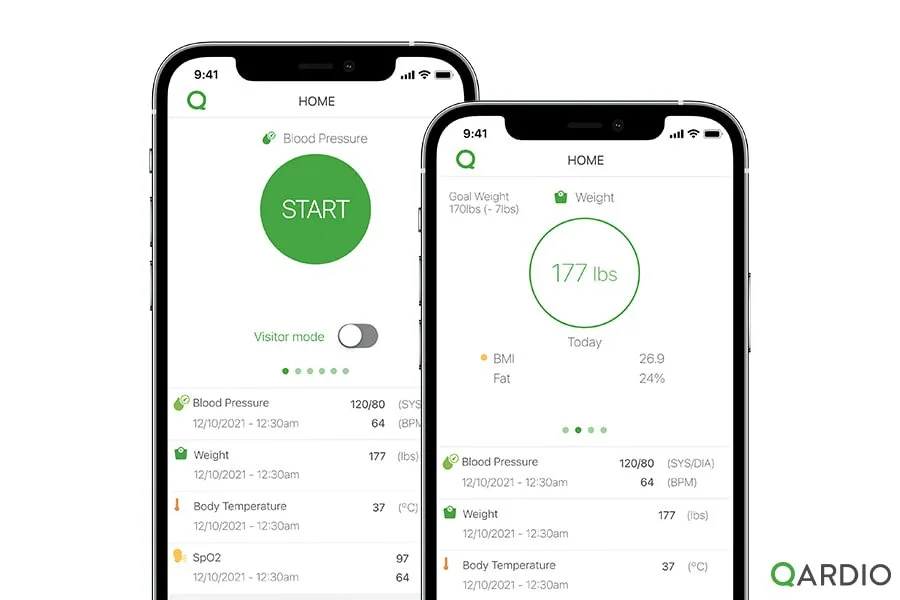
An outdated app version causes sync failures when your phone’s operating system receives an update that the older app can’t process. You can tell if this is the cause by looking at your app store’s “Updates” tab; if the Qardio app is listed there, it’s likely missing the necessary code to talk to your phone. This creates a “silent” error where the app opens but refuses to pull data from your monitor.
To fix this, update the app to the latest version available. If you have automatic updates turned off, this is a common mistake that costs you time by forcing manual checks every time a new OS version drops. After updating, restart the app and wait up to sixty seconds for it to re-establish the cloud connection.
If the app still shows an error, uninstall it completely and download a fresh copy from your official app store. This clears out any broken temporary files that might have been left behind. Reinstalling takes about five minutes.
The decision rule here depends on your hardware age. If you’re using a monitor purchased before 2018, check the label on the back to ensure it’s still supported by the current app version. Some legacy hardware units no longer receive software patches and will fail to sync regardless of your app version.
This process isn’t for users who don’t have their account login credentials saved. You’ll need to sign back in after a fresh install, and failing to have your password ready will prevent you from accessing your historical data. If you can’t remember your credentials, trigger a password reset email before you delete the current app. This ensures you don’t lose access to your dashboard during the troubleshooting process.
Power and hardware limitations
Low battery levels in your monitor often prevent it from broadcasting a strong enough signal to complete a data sync. Even if the device lights up, it might not have the power to maintain a stable Bluetooth connection during the transfer of health metrics. You can confirm this by checking the battery level indicator within the app or looking for a blinking light on the device itself, which often signals low power.
If the battery is low, replace it using the exact type specified in your user manual. Using the wrong battery chemistry or a generic brand that doesn’t hold a consistent voltage can lead to intermittent failures. The cost is the price of a small pack of batteries, which is negligible compared to the device’s value.
A common mistake is assuming the battery is fine because the device still turns on. However, a low-voltage battery is the most frequent cause of “ghost” connection drops. If your device connects for five seconds and then abruptly disconnects, the battery lacks the amperage to sustain the radio.
If you have replaced the batteries and the device still refuses to connect, the internal hardware may have reached the end of its functional life. This is where you must stop. If the unit is physically damaged or the internal components are failing, don’t attempt to open the casing.
Contact the manufacturer’s customer service department to discuss a warranty claim or a repair. Opening the device yourself will immediately void your warranty and may cause further damage.
To determine if the hardware has failed, perform a factory reset while the device is plugged into a power source. If the device remains unresponsive or fails to appear in your phone’s Bluetooth discovery menu while plugged in, the internal antenna or motherboard is likely compromised. In this scenario, no amount of software troubleshooting will resolve the issue. If the device is out of warranty, check the manufacturer’s website for trade-in programs, which often offer a discount on newer models rather than attempting a costly out-of-warranty repair.
The less likely causes
-
Background process limits: Your phone may be killing the app to save power. Check your battery optimization settings to allow the app to run in the background. If you see the app listed under “Restricted” or “Optimized” usage, toggle it to “Unrestricted.” Failing to do this often causes data gaps during long idle periods.
-
Account verification errors: A server-side issue might prevent your data from uploading. Log out and log back into your profile to refresh your credentials. If you see an “Authentication Expired” prompt, don’t simply restart the app. A full re-authentication forces a new handshake with the server, which is the only way to clear a stale token.
-
Corrupt cache data: Accumulated temporary files can block syncing. Clearing the app cache in your phone settings often solves this without needing a full reinstall. If the app size exceeds 500MB, the cache is likely bloated. Clearing it resets the local database without deleting your saved health history.
-
Hardware physical failure: If the sensor port is dirty or damaged, the monitor can’t read your vitals properly. Inspect the device for visible debris or cracks. If you notice persistent “Sensor Error” messages even after cleaning the lens with a microfiber cloth, the internal laser or diode has likely failed. In this case, no software fix will restore functionality.
What a fix usually involves
Fixing these issues usually demands a small amount of time and basic digital navigation skills. Most solutions involve nothing more than toggling settings on your phone or replacing standard household batteries, which is a very small part of the total cost of ownership.
If the issue is a software conflict, a simple update is free and requires only a stable internet connection. You should check for “pending updates” in your system menu before attempting any hardware intervention. If the software version is current but the glitch persists, perform a hard reset. This clears the temporary cache that often causes phantom errors.
When a hardware component is the culprit, such as a damaged sensor or a failed internal board, the cost depends on your warranty status. If the device is under warranty, you’ll likely only pay for shipping to the service center.
If the device is out of warranty, the repair cost can exceed 60% of the price of a new unit. At this threshold, replacement is the more logical path. A common mistake is paying for a diagnostic fee when the device is already obsolete. If the repair quote exceeds half the value of a replacement model, decline the service.
Always check the official website for your specific device model to find the most accurate repair or replacement policies. If the manufacturer lists the part as “end-of-life,” don’t attempt to source third-party components. These rarely calibrate correctly with the original firmware, often leading to total system failure within weeks.
Related guides
- Google Maps App Not Working
- Dayforce Wallet App Not Working: Quick Fixes and Solutions
- Bank of America App Not Working: Quick Fixes and Solutions